" transform="translate(5 2)" width="10px"/></svg>)

•
5 min read
Best Voice Dictation Tools for Grok: August 2026 Guide

•
5 min read
Best Voice Dictation Tools for Grok: August 2026 Guide
There are two ways to use your voice with Grok, and they're not interchangeable. Conversational voice mode is built for dialogue; voice dictation for Grok prompts is built for precision. If you've been relying on one when you needed the other, that's likely where your results have been falling short. Here's how to get the right tool in the right moment across every platform you use.
TLDR:
Grok has no desktop voice input built in; type prompts by voice on Mac with Fn+Fn, on Windows with Win+H.
Speaking runs around 150 WPM vs. 40 WPM typing, so voice input can cut prompt construction time.
Built-in OS dictation tools carry 700ms+ latency with no learning loop, making technical prompts error-prone.
Speak in complete sentences, front-load your intent, and correct errors immediately to get cleaner transcriptions.
A dedicated voice dictation tool can process speech at ~200ms with a learning vocabulary, SOC 2 Type II and HIPAA compliance, and the same setup for mixed-device teams across Mac, Windows, and iOS.
Grok's Native Voice Mode vs. Voice Dictation for Prompts
Grok offers two distinct ways to interact with voice: a built-in voice conversation mode and using voice dictation to compose text prompts. Understanding the difference helps you get more out of both.
Grok's native voice mode is a back-and-forth conversational experience, similar to speaking with a voice assistant. It handles real-time dialogue well, but it is built for conversation, not precise text input. xAI's official voice documentation describes the system as built for real-time dialogue with sub-second latency, not for composing structured, multi-part prompts.
Voice dictation for prompts works differently. You speak your prompt as text, review it before sending, and send exactly what you intended. That control gap matters when voice prompting affects output quality.
Aspect | Native Voice Mode | Voice Dictation for Prompts |
|---|---|---|
Best for | Quick questions, casual dialogue | Detailed, multi-step prompts |
Output review | None, speaks and responds live | Full text review before sending |
Precision | Can lose nuance in complex requests | Exact wording, user controlled |
Latency | Sub-second, real-time dialogue | Depends on the dictation tool used |
When Each Approach Makes Sense
Voice conversation mode works well for quick questions, exploratory back-and-forth, or casual research where speed matters more than precision.
Voice dictation for prompts is the better fit for detailed system instructions, multi-step requests, or anything where a misheard word changes the output.
The two modes are not rivals. Many users use voice conversation for early ideation, then switch to spoken text prompts when they need something specific and repeatable.
Key Features of Grok's Built-In Voice Experience
Grok's voice input works through xAI's mobile apps on iOS and Android, with a microphone button in the chat interface. Tap it, speak your prompt, and Grok transcribes and responds without any third-party setup.
A few things are worth knowing before you rely on it heavily:
The microphone button handles real-time transcription, but audio routes through xAI's servers, so quality depends on your connection speed and server load.
Grok's voice input does not learn your vocabulary. Technical terms and proper nouns need manual correction every session, with no learning loop.
There is no desktop or browser-based voice input built into Grok as of July 2026. Desktop users speak prompts via system-level input (Fn+Fn on Mac, Win+H on Windows) or a dedicated voice typing tool for Windows.
Voice responses, where available, read Grok's reply back in audio, a text-to-speech feature, not a transcription capability.
For casual mobile use, the built-in experience works fine. It breaks down in professional or technical contexts, where vocabulary accuracy and cross-device consistency matter more than convenience.
How to Set Up Voice Input on Every Platform
Grok runs inside a browser tab, but the voice dictation layer that feeds it lives at the operating system level. Getting that layer active looks slightly different depending on which device you're on.
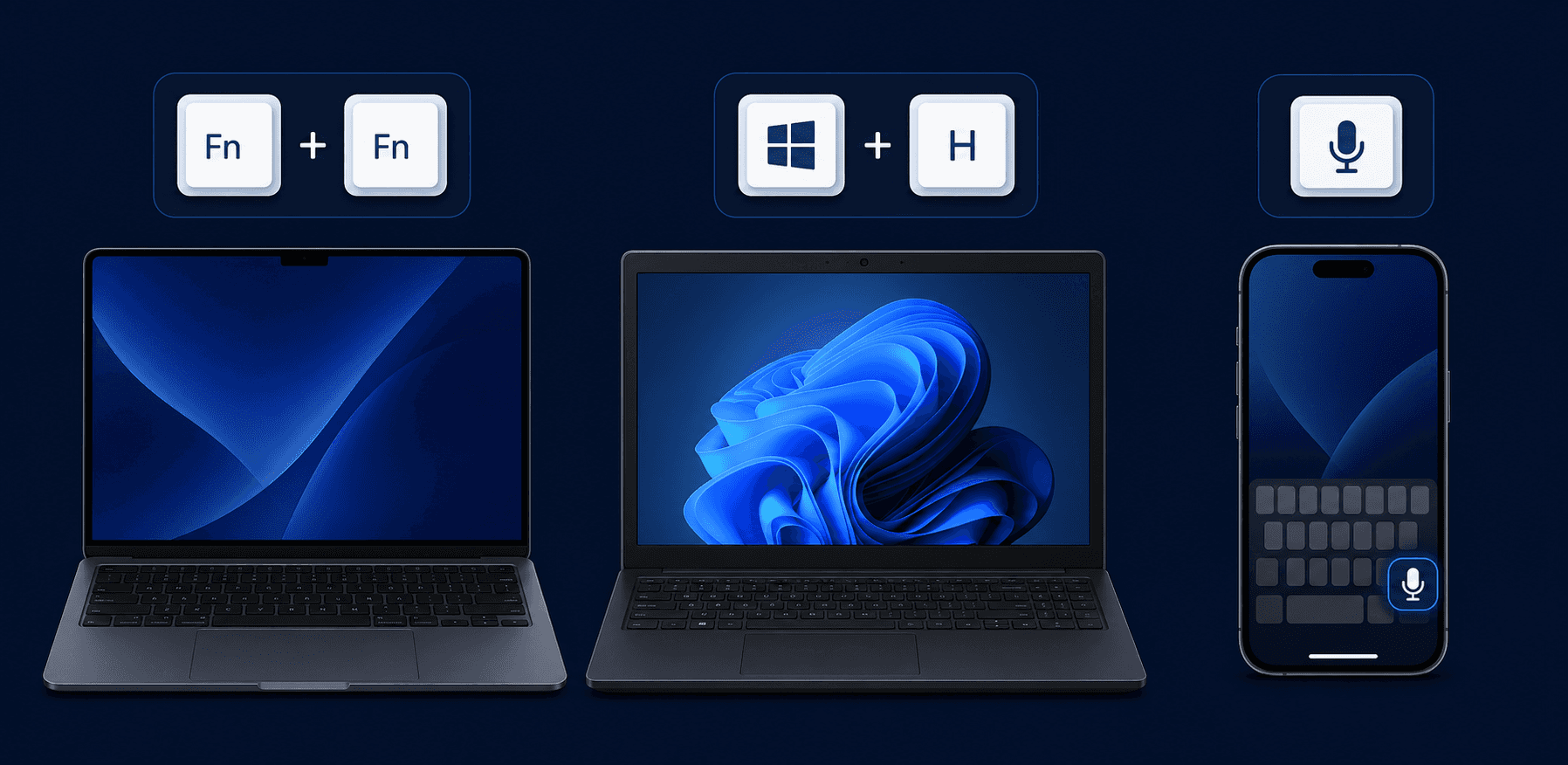
Mac
Press Fn twice for Apple's built-in dictation, or use a tool like Willow Voice with its default Fn hotkey on Mac (Alt+Space on Windows). Speak into any Grok text field and the transcript appears instantly.
Windows
Hit Win + H to open Windows voice recognition software, then click the Grok prompt field before speaking. Willow Voice uses Alt+Space as its hotkey instead, with no extra setup.
iOS
Tap the microphone on the keyboard to activate system dictation, then speak your Grok prompt. Willow Voice offers a custom iOS keyboard with the same AI-powered voice input as the desktop version. See our guide to iPhone speech to text for more.
Third-Party Voice Dictation Tools for Grok on Desktop
Grok's web and desktop interfaces are plain text fields, which means any system-wide voice dictation tool can drop transcribed text directly into whatever you're typing. No plugin, no API key, no special integration required.
By mid-2026, two tools stand out as the most practical options for this workflow.
Willow Voice
Willow Voice is built for professionals who type into AI tools dozens of times a day. A developer prompting AI tools faster to debug a function needs transcription that keeps pace with thought, not a correction loop after every response. Willow processes speech at ~200ms, roughly 3x faster than built-in alternatives running at 700ms+, and learns your vocabulary over time so domain-specific terms land clean from the first session. Press fn on Mac or Alt+Space on Windows and start speaking into any Grok text field. In Cursor and Windsurf, codebase auto-tagging reads open project files to learn class names, function names, and variable references without manual dictionary entry. SOC 2 Type II and HIPAA compliance, shared custom dictionaries, and admin controls make Willow a fit for engineering organizations running across Windows, Mac, and iOS.
superwhisper
superwhisper supports Mac, Windows, and iOS with local processing through Whisper speech recognition models. Latency varies by model and hardware, from 1 to 2 seconds on the Ultra model to faster results with Nano and Fast. No shared dictionaries or team controls.
Voice Dictation for Grok in AI Coding Workflows
Grok handles a wide range of coding tasks, from boilerplate and stack traces to documentation and architecture decisions, all of which normally mean typing detailed prompts. Speaking a debugging explanation into Grok outpaces typing: Average conversational speech runs around 150 WPM against roughly 40 WPM typing, a gap covered in our guide to AI voice dictation for coding speed.
Where This Fits in a Developer's Day
A few workflow moments where voice input earns its place in Grok sessions:
Describing a bug in plain language so Grok can reason through it
Drafting PR descriptions or architecture decision records by speaking through the decision
Walking Grok through a planned refactor verbally before writing a single line
One constraint: dictation tools without technical vocabulary handling will misfire on variable names, library references, and framework terms, and the correction loop that follows erodes the speed gain.
Tips for Better Voice Dictation Results with Grok
A few adjustments in how you speak make a bigger difference than switching tools.
Speak in complete sentences. "Rewrite this function to handle null inputs gracefully" transcribes more accurately than a fragment.
Ambient noise is the most controllable accuracy variable. A close-talk USB headset 1 to 2 inches from your mouth cuts background interference better than any software filter.
Pace yourself deliberately. A measured rate gives the transcription model time to resolve technical terms before you move to the next clause.
Front-load your intent. Starting a prompt with the action ("Explain," "Summarize," "Debug") before the subject helps Grok parse the request.
Correct errors immediately, not at the end of a session. Tools with a learning loop update their vocabulary model from each correction, so the mistake stops recurring.
Common Voice Dictation Issues and How to Fix Them
When voice dictation for Grok stops working as expected, the problem usually falls into one of a few predictable categories. Here is what to check first.
Microphone Not Detected
If Grok is not picking up your voice, the issue is almost always at the OS level. On Mac, go to Mac privacy and security settings, then Microphone, and confirm access. On Windows, open Settings, then Privacy, then Microphone, and check access for the app you are using.
Poor Transcription Accuracy
Background noise, a low-quality mic, or an overloaded browser tab can all hurt accuracy. A dedicated dictation tool with a trained vocabulary layer handles domain-specific terms far better than browser-level speech input, which has no memory of past corrections.
Dictation Dropouts and Misplaced Text
Dropouts usually point to a browser conflict or memory issue: close unnecessary tabs, refresh the Grok session, and confirm no other app is claiming the microphone. On Windows, the Win + H shortcut can conflict with third-party tools, so check hotkey assignments or switch to one of the best speech to text tools for Windows. If text lands in the wrong field, click into the Grok prompt box first, since dictation pastes into whichever field has focus.
How Willow Voice Fits into a Grok Voice Workflow
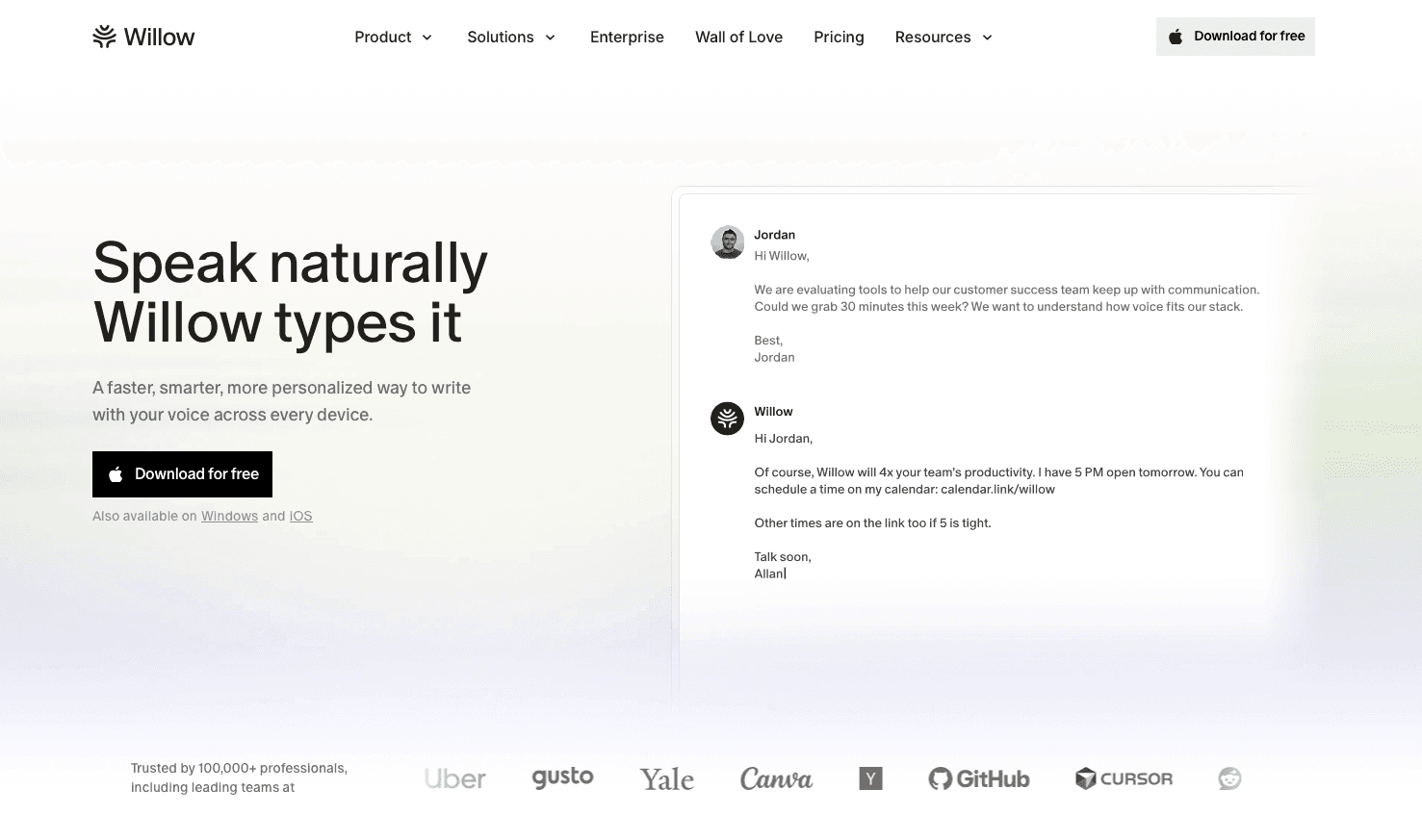
Willow Voice works as a system-wide dictation layer between you and Grok, capturing your voice at the system level and delivering transcribed text into any text field where Grok is open: the web app, an API integration, or an embedded chat interface on a Windows workstation, a Mac, or an iPhone.
The practical difference shows up in speed and vocabulary. Willow processes audio at ~200ms, so your prompt appears almost as fast as you finish speaking. Built-in alternatives run at 700ms or more, a gap that interrupts the thinking behind a detailed prompt and compounds on Grok's longer, context-heavy queries.
Custom Vocabulary for Grok-Specific Prompts
Grok prompts often involve domain-specific terminology: financial data, technical concepts, or proprietary internal language. Willow's Auto-Dictionary learns your vocabulary over time, picking up names and technical terms so they transcribe correctly without manual correction. For a developer prompting Grok from Cursor or Windsurf on a Windows workstation, codebase auto-tagging reads open project files to learn class and function names, so project-specific terms land clean from the first session.
For engineering organizations running Grok across Windows, Mac, and iOS, shared custom dictionaries keep mixed-device teams on the same vocabulary baseline, and admin controls push vocabulary changes across the group without per-user setup. See our Willow Voice vs Wispr Flow Enterprise comparison for how these team features stack up. Team leaderboards give engineering leads visibility into voice adoption across Windows desktops, Mac laptops, and iOS devices. Willow is SOC 2 Type II certified and HIPAA compliant with zero data retention, fitting enterprise security review requirements for sensitive Grok workflows. Our voice dictation privacy and security guide covers what to look for.
Willow works on Mac, Windows, and iOS, so the same hotkey and vocabulary follow you across devices, whether you're prompting Grok from a Windows workstation at the office or reviewing a PR from an iPhone on the go.
FAQs
What's the difference between Grok's built-in voice mode and using voice dictation for Grok prompts?
Grok's native voice mode suits quick, conversational questions, but it can lose nuance in complex requests. Voice dictation for Grok lets you speak a prompt as text, review it, and control exactly what gets sent, which matters when precision affects output. Many people use both together.
Can I use voice dictation for Grok without installing anything?
Yes. Fn twice activates Apple dictation on Mac, and Win+H opens Windows Voice Typing, both work in any Grok text field with no install. They handle simple queries fine, but carry 700ms+ latency, no vocabulary memory, and struggle with technical terms.
How do I fix voice dictation dropping out or landing in the wrong field in Grok?
For dropouts, close extra browser tabs, refresh Grok, and confirm no other app is claiming the microphone. On Windows, check for Win+H hotkey conflicts. If text lands in the wrong field, click into the Grok prompt box first, since dictation types into whichever field has focus.
Final Thoughts on Voice Dictation and Grok
Voice dictation for Grok is faster than typing, but only if your tool keeps up with your vocabulary. Built-in OS dictation works for simple tasks, but technical terms, proper nouns, and multi-part prompts expose its limits quickly. A dedicated tool with a learning loop and low latency turns voice input from a workaround into a genuine first-choice input method, and Willow Voice is built for exactly this kind of professional, high-frequency use.
There are two ways to use your voice with Grok, and they're not interchangeable. Conversational voice mode is built for dialogue; voice dictation for Grok prompts is built for precision. If you've been relying on one when you needed the other, that's likely where your results have been falling short. Here's how to get the right tool in the right moment across every platform you use.
TLDR:
Grok has no desktop voice input built in; type prompts by voice on Mac with Fn+Fn, on Windows with Win+H.
Speaking runs around 150 WPM vs. 40 WPM typing, so voice input can cut prompt construction time.
Built-in OS dictation tools carry 700ms+ latency with no learning loop, making technical prompts error-prone.
Speak in complete sentences, front-load your intent, and correct errors immediately to get cleaner transcriptions.
A dedicated voice dictation tool can process speech at ~200ms with a learning vocabulary, SOC 2 Type II and HIPAA compliance, and the same setup for mixed-device teams across Mac, Windows, and iOS.
Grok's Native Voice Mode vs. Voice Dictation for Prompts
Grok offers two distinct ways to interact with voice: a built-in voice conversation mode and using voice dictation to compose text prompts. Understanding the difference helps you get more out of both.
Grok's native voice mode is a back-and-forth conversational experience, similar to speaking with a voice assistant. It handles real-time dialogue well, but it is built for conversation, not precise text input. xAI's official voice documentation describes the system as built for real-time dialogue with sub-second latency, not for composing structured, multi-part prompts.
Voice dictation for prompts works differently. You speak your prompt as text, review it before sending, and send exactly what you intended. That control gap matters when voice prompting affects output quality.
Aspect | Native Voice Mode | Voice Dictation for Prompts |
|---|---|---|
Best for | Quick questions, casual dialogue | Detailed, multi-step prompts |
Output review | None, speaks and responds live | Full text review before sending |
Precision | Can lose nuance in complex requests | Exact wording, user controlled |
Latency | Sub-second, real-time dialogue | Depends on the dictation tool used |
When Each Approach Makes Sense
Voice conversation mode works well for quick questions, exploratory back-and-forth, or casual research where speed matters more than precision.
Voice dictation for prompts is the better fit for detailed system instructions, multi-step requests, or anything where a misheard word changes the output.
The two modes are not rivals. Many users use voice conversation for early ideation, then switch to spoken text prompts when they need something specific and repeatable.
Key Features of Grok's Built-In Voice Experience
Grok's voice input works through xAI's mobile apps on iOS and Android, with a microphone button in the chat interface. Tap it, speak your prompt, and Grok transcribes and responds without any third-party setup.
A few things are worth knowing before you rely on it heavily:
The microphone button handles real-time transcription, but audio routes through xAI's servers, so quality depends on your connection speed and server load.
Grok's voice input does not learn your vocabulary. Technical terms and proper nouns need manual correction every session, with no learning loop.
There is no desktop or browser-based voice input built into Grok as of July 2026. Desktop users speak prompts via system-level input (Fn+Fn on Mac, Win+H on Windows) or a dedicated voice typing tool for Windows.
Voice responses, where available, read Grok's reply back in audio, a text-to-speech feature, not a transcription capability.
For casual mobile use, the built-in experience works fine. It breaks down in professional or technical contexts, where vocabulary accuracy and cross-device consistency matter more than convenience.
How to Set Up Voice Input on Every Platform
Grok runs inside a browser tab, but the voice dictation layer that feeds it lives at the operating system level. Getting that layer active looks slightly different depending on which device you're on.
Mac
Press Fn twice for Apple's built-in dictation, or use a tool like Willow Voice with its default Fn hotkey on Mac (Alt+Space on Windows). Speak into any Grok text field and the transcript appears instantly.
Windows
Hit Win + H to open Windows voice recognition software, then click the Grok prompt field before speaking. Willow Voice uses Alt+Space as its hotkey instead, with no extra setup.
iOS
Tap the microphone on the keyboard to activate system dictation, then speak your Grok prompt. Willow Voice offers a custom iOS keyboard with the same AI-powered voice input as the desktop version. See our guide to iPhone speech to text for more.
Third-Party Voice Dictation Tools for Grok on Desktop
Grok's web and desktop interfaces are plain text fields, which means any system-wide voice dictation tool can drop transcribed text directly into whatever you're typing. No plugin, no API key, no special integration required.
By mid-2026, two tools stand out as the most practical options for this workflow.
Willow Voice
Willow Voice is built for professionals who type into AI tools dozens of times a day. A developer prompting AI tools faster to debug a function needs transcription that keeps pace with thought, not a correction loop after every response. Willow processes speech at ~200ms, roughly 3x faster than built-in alternatives running at 700ms+, and learns your vocabulary over time so domain-specific terms land clean from the first session. Press fn on Mac or Alt+Space on Windows and start speaking into any Grok text field. In Cursor and Windsurf, codebase auto-tagging reads open project files to learn class names, function names, and variable references without manual dictionary entry. SOC 2 Type II and HIPAA compliance, shared custom dictionaries, and admin controls make Willow a fit for engineering organizations running across Windows, Mac, and iOS.
superwhisper
superwhisper supports Mac, Windows, and iOS with local processing through Whisper speech recognition models. Latency varies by model and hardware, from 1 to 2 seconds on the Ultra model to faster results with Nano and Fast. No shared dictionaries or team controls.
Voice Dictation for Grok in AI Coding Workflows
Grok handles a wide range of coding tasks, from boilerplate and stack traces to documentation and architecture decisions, all of which normally mean typing detailed prompts. Speaking a debugging explanation into Grok outpaces typing: Average conversational speech runs around 150 WPM against roughly 40 WPM typing, a gap covered in our guide to AI voice dictation for coding speed.
Where This Fits in a Developer's Day
A few workflow moments where voice input earns its place in Grok sessions:
Describing a bug in plain language so Grok can reason through it
Drafting PR descriptions or architecture decision records by speaking through the decision
Walking Grok through a planned refactor verbally before writing a single line
One constraint: dictation tools without technical vocabulary handling will misfire on variable names, library references, and framework terms, and the correction loop that follows erodes the speed gain.
Tips for Better Voice Dictation Results with Grok
A few adjustments in how you speak make a bigger difference than switching tools.
Speak in complete sentences. "Rewrite this function to handle null inputs gracefully" transcribes more accurately than a fragment.
Ambient noise is the most controllable accuracy variable. A close-talk USB headset 1 to 2 inches from your mouth cuts background interference better than any software filter.
Pace yourself deliberately. A measured rate gives the transcription model time to resolve technical terms before you move to the next clause.
Front-load your intent. Starting a prompt with the action ("Explain," "Summarize," "Debug") before the subject helps Grok parse the request.
Correct errors immediately, not at the end of a session. Tools with a learning loop update their vocabulary model from each correction, so the mistake stops recurring.
Common Voice Dictation Issues and How to Fix Them
When voice dictation for Grok stops working as expected, the problem usually falls into one of a few predictable categories. Here is what to check first.
Microphone Not Detected
If Grok is not picking up your voice, the issue is almost always at the OS level. On Mac, go to Mac privacy and security settings, then Microphone, and confirm access. On Windows, open Settings, then Privacy, then Microphone, and check access for the app you are using.
Poor Transcription Accuracy
Background noise, a low-quality mic, or an overloaded browser tab can all hurt accuracy. A dedicated dictation tool with a trained vocabulary layer handles domain-specific terms far better than browser-level speech input, which has no memory of past corrections.
Dictation Dropouts and Misplaced Text
Dropouts usually point to a browser conflict or memory issue: close unnecessary tabs, refresh the Grok session, and confirm no other app is claiming the microphone. On Windows, the Win + H shortcut can conflict with third-party tools, so check hotkey assignments or switch to one of the best speech to text tools for Windows. If text lands in the wrong field, click into the Grok prompt box first, since dictation pastes into whichever field has focus.
How Willow Voice Fits into a Grok Voice Workflow
Willow Voice works as a system-wide dictation layer between you and Grok, capturing your voice at the system level and delivering transcribed text into any text field where Grok is open: the web app, an API integration, or an embedded chat interface on a Windows workstation, a Mac, or an iPhone.
The practical difference shows up in speed and vocabulary. Willow processes audio at ~200ms, so your prompt appears almost as fast as you finish speaking. Built-in alternatives run at 700ms or more, a gap that interrupts the thinking behind a detailed prompt and compounds on Grok's longer, context-heavy queries.
Custom Vocabulary for Grok-Specific Prompts
Grok prompts often involve domain-specific terminology: financial data, technical concepts, or proprietary internal language. Willow's Auto-Dictionary learns your vocabulary over time, picking up names and technical terms so they transcribe correctly without manual correction. For a developer prompting Grok from Cursor or Windsurf on a Windows workstation, codebase auto-tagging reads open project files to learn class and function names, so project-specific terms land clean from the first session.
For engineering organizations running Grok across Windows, Mac, and iOS, shared custom dictionaries keep mixed-device teams on the same vocabulary baseline, and admin controls push vocabulary changes across the group without per-user setup. See our Willow Voice vs Wispr Flow Enterprise comparison for how these team features stack up. Team leaderboards give engineering leads visibility into voice adoption across Windows desktops, Mac laptops, and iOS devices. Willow is SOC 2 Type II certified and HIPAA compliant with zero data retention, fitting enterprise security review requirements for sensitive Grok workflows. Our voice dictation privacy and security guide covers what to look for.
Willow works on Mac, Windows, and iOS, so the same hotkey and vocabulary follow you across devices, whether you're prompting Grok from a Windows workstation at the office or reviewing a PR from an iPhone on the go.
FAQs
What's the difference between Grok's built-in voice mode and using voice dictation for Grok prompts?
Grok's native voice mode suits quick, conversational questions, but it can lose nuance in complex requests. Voice dictation for Grok lets you speak a prompt as text, review it, and control exactly what gets sent, which matters when precision affects output. Many people use both together.
Can I use voice dictation for Grok without installing anything?
Yes. Fn twice activates Apple dictation on Mac, and Win+H opens Windows Voice Typing, both work in any Grok text field with no install. They handle simple queries fine, but carry 700ms+ latency, no vocabulary memory, and struggle with technical terms.
How do I fix voice dictation dropping out or landing in the wrong field in Grok?
For dropouts, close extra browser tabs, refresh Grok, and confirm no other app is claiming the microphone. On Windows, check for Win+H hotkey conflicts. If text lands in the wrong field, click into the Grok prompt box first, since dictation types into whichever field has focus.
Final Thoughts on Voice Dictation and Grok
Voice dictation for Grok is faster than typing, but only if your tool keeps up with your vocabulary. Built-in OS dictation works for simple tasks, but technical terms, proper nouns, and multi-part prompts expose its limits quickly. A dedicated tool with a learning loop and low latency turns voice input from a workaround into a genuine first-choice input method, and Willow Voice is built for exactly this kind of professional, high-frequency use.

Try Willow for free
Instant, accurate voice dictation. No card required.
Try Willow for free
Instant, accurate voice dictation. No card required.
Other stories you’ll love
Other stories you’ll love


Your keyboard is optional now
" transform="translate(5 5)" width="9.791000051498413px"/></svg>)

The voice-first interface for modern work.
© Willow Care, Inc. 2026. All rights reserved
Your keyboard is optional now
The voice-first interface for modern work.
© Willow Care, Inc. 2026. All rights reserved
Your keyboard is optional now
The voice-first interface for modern work.
© Willow Care, Inc. 2026. All rights reserved