" transform="translate(5 2)" width="10px"/></svg>)

•
5 min read
iPhone Speech-to-Text Guide August 2026
•
5 min read
iPhone Speech-to-Text Guide August 2026
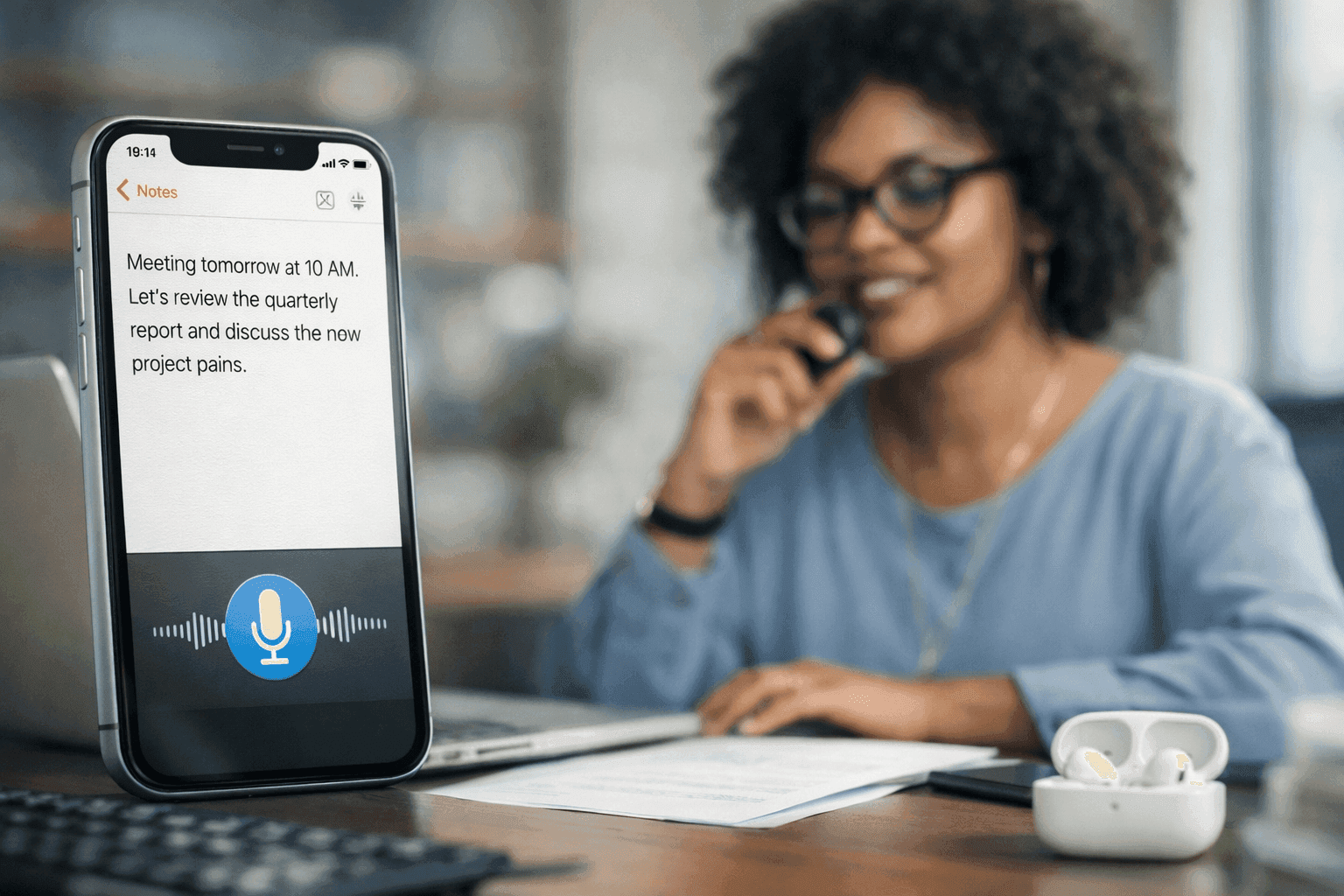
You turned on dictation in Settings expecting iPhone speech to text to save time, but instead it cuts off mid-sentence, lags behind your thoughts, or constantly mishears the same phrases. The issue is rarely your voice. Apple uses a mix of on-device and cloud processing, which can still introduce delays and limit personalization in some cases, causing frequent transcription errors that slow you down. If you write long emails, notes, or reports on your phone, those small delays add up fast. This guide walks through how to set up dictation correctly, fix common problems, and compare Apple’s built-in tool with a faster alternative that processes speech in about 200ms and learns your writing style over time.
TLDR:
You activate iPhone dictation in Settings > General > Keyboard > Turn on Dictation.
Apple's built-in dictation processes speech quickly on-device, but it can struggle with specialized vocabulary.
Speaking reaches 150 words per minute, while typing averages 40 WPM, potentially saving 30 to 40 minutes daily for heavy writers.
Some tools process speech in ~200ms, learn your writing style, and work across all iPhone apps as a custom keyboard.
Apple’s dictation may rely on cloud processing depending on your settings, which can contribute to mid-sentence cutoffs and frequent transcription mistakes.
How to Turn on Speech to Text on iPhone
Turning on speech to text on your iPhone takes less than a minute, and the process is identical whether you're using an iPhone 13, 14, 15, 16, 17, or 17 Pro Max. Apple keeps the steps consistent across models.
Here's how to activate dictation:
Open the Settings app on your iPhone
Scroll down and tap General
Select Keyboard
Look for the Dictation setting and toggle it on
Confirm by tapping to activate dictation in the pop-up
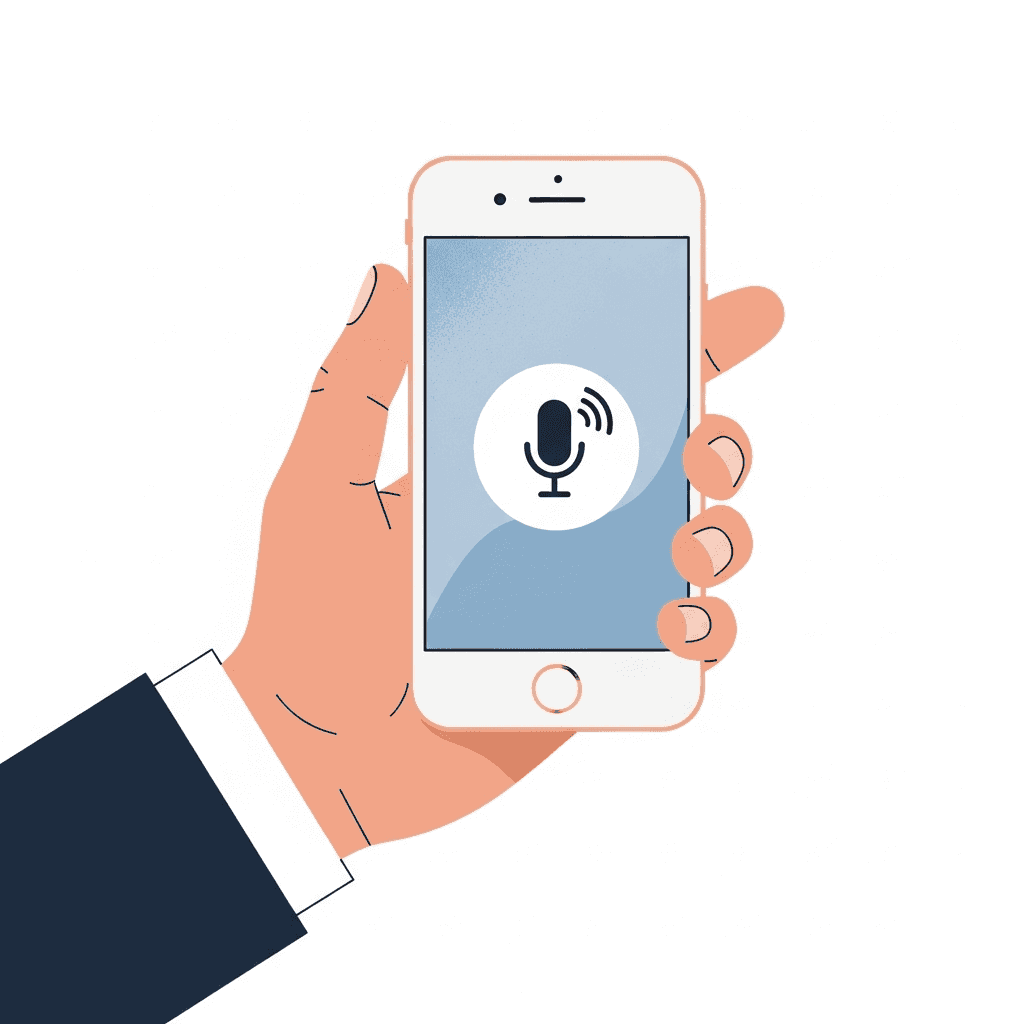
Once dictation is activated, you'll see a microphone icon on your keyboard whenever you're typing. Tap it to start speaking text in any app, including Messages, Notes, Mail, or Safari. If you don't see the option to turn on dictation in your Keyboard settings, check your Screen Time restrictions. Apple groups Siri and Dictation together under privacy settings, so if Siri is restricted, the dictation toggle disappears. You also do not need an active internet connection to use dictation on modern iPhones, as Apple processes speech directly on the device for many languages.
Using Voice to Text on iPhone for Messages and Notes
Open Messages or Notes, tap the text field, then select the microphone icon beside the space bar to begin speaking. Your speech converts to text in real time. When you finish speaking, tap the microphone icon again or begin typing to stop. Both apps recognize punctuation commands like "period," "comma," and "question mark" to format your text.
For extended recordings in Notes, tap the Attachments button (the paperclip or plus icon) above the keyboard and select Record Audio. With iOS 18 and newer, the recording saves as an audio file and generates a live text transcript. While you no longer need to manually transcribe basic audio in Notes, third-party apps like Willow Voice remain helpful when you need personalized accuracy that adapts to your writing style.
How to Turn Off Voice to Text on iPhone
If you want to disable dictation, the process is quick. The steps work the same across iPhone 13, 14, 15, 16, and 17 models.
Here's how to turn off voice to text:
Open Settings on your iPhone
Tap General
Select Keyboard
Toggle off the dictation setting
Tap Turn Off Dictation to confirm
The microphone icon will disappear from your keyboard once dictation is disabled. You can reactivate it anytime by following these same steps. If your iPhone reads text aloud when you type, you likely activated Typing Feedback instead of dictation. To turn it off, go to Settings, tap Accessibility, select Spoken Content, tap Typing Feedback, and toggle off Speak Characters and Speak Words. (If your phone reads everything on the screen and requires double-taps to move around, you have accidentally activated VoiceOver, which you can turn off by triple-clicking the side button).
Troubleshooting Voice to Text Not Working on iPhone
When dictation stops working on your iPhone, the issue typically involves a missing microphone icon, inaccurate transcriptions, or mid-sentence failures.
Start by restarting your iPhone and confirming dictation is activated under Settings > General > Keyboard. You do not need Siri turned on for standard dictation to work. Modern iPhones process dictation directly on-device for most major languages, meaning an internet connection is no longer required.

If dictation removes correctly transcribed words or produces errors, the problem is rarely your network. Users report persistent accuracy issues across iOS 16, 17, 18, and 19, where dictation misinterprets speech or deletes phrases after typing them correctly. Because Apple uses fast on-device processing, these behaviors often stem from software conflicts with third-party keyboards, temporary RAM management bugs, or a dirty microphone.
For users who need custom vocabulary support that the built-in tool lacks, apps like Willow provide personalization that adapts to your writing style over time.
Understanding iPhone Dictation Speed and Accuracy
Recent 2026 benchmarking shows voice recognition is roughly three times faster than typing on mobile keyboards. Most people type around 40 words per minute on phones while speaking naturally at 150 words per minute or more.
iPhone's built-in dictation processes speech on-device in near-real-time for major languages. However, it may not always deliver that speed advantage in practice if you use specialized terms. When dictation misinterprets a technical word, you stop speaking, manually correct the text, and restart.
Willow cuts that latency to ~200ms while learning your writing style over time. The personalization means fewer errors to fix. You spend less time editing and more time creating. For teams, shared dictionaries and shortcuts keep everyone working at the same speed with SOC 2 Type II and HIPAA compliance built in.
What's New for iPhone Dictation in 2026
At WWDC 2026, Apple previewed upcoming systemwide dictation updates tied to the next generation of Apple Intelligence, which natively clean up formatting and punctuation. While these changes are expected to help across native apps, the rollout is still in progress and hardware-restricted. The underlying on-device AI model requires at least 12 GB of unified memory, limiting these advanced dictation features to the iPhone Air, iPhone 17 Pro, and iPhone 17 Pro Max. Users with base models or older iPhones will not receive these upgrades, which is why highly accurate third-party keyboards remain popular for heavy writers who need better performance on their current devices.
Free Speech-to-Text Apps for iPhone
Apple's built-in dictation is free but limited. Third-party dictation apps provide better accuracy, system-wide access, and features like offline mode or custom dictionaries.
When comparing alternatives, professionals look for tools that adapt to their specific vocabulary. Willow operates as a custom keyboard on iOS, letting you switch instantly between voice and text input. It processes speech in ~200ms and learns your writing style over time. For power users, the Pro plan ($12/month) delivers faster dictation plus unlimited Willow Scribe. A Free plan provides unlimited AI dictation with no word cap. Other plans are available to fit organizational needs.
Most free apps restrict which apps you can speak into or cap your word count. Paid options remove these barriers and add features like shared team dictionaries or faster processing speeds. Here is how the top alternatives compare:
Dictation Tool | Processing Speed | Platform Support | Key Features | Pricing |
|---|---|---|---|---|
Apple Built-in Dictation | Near real-time | iPhone, iPad, Mac (native) | Basic dictation, on-device processing | Free with device |
Willow Voice | ~200ms latency | Mac, Windows, and iOS custom keyboard (works in all apps) | Learns writing style, personalized accuracy, team dictionaries, SOC 2 Type II and HIPAA compliance | $12/month Pro plan; unlimited Free plan; other plans available. |
Wispr Flow | 500ms-600ms latency | Mac, Windows, iOS, Android | Command-based editing, cloud-dependent | Free tier with word caps; paid plans |
superwhisper | Varies | Mac, Windows, and iOS | Local processing for privacy, offline capability | Free tier available; paid plans unlock advanced features |
Voice In | Varies | Browser extension only | Web-based dictation, limited to browser apps | Free with limits, paid plans remove restrictions |
Otter.ai | In-app only | Web, iOS, Android | Meeting transcription, not a system-wide keyboard | Free tier available, paid plans for advanced features |
Rev | Not real-time | Web, iOS, Android | Recorded audio transcription service, human and AI options | Pay per minute or monthly subscription options |
Why Speech to Text Is Faster Than Typing
Speaking beats typing because your brain works faster than your fingers. When composing an email or drafting a document, you already know what you want to say, but typing forces you to translate those thoughts into keystrokes one character at a time. Natural speech easily reaches 150 words per minute, compared to an average mobile typing speed of just 35 to 40 words per minute. Voice input uses your default mode of communication. You have been talking since childhood, while typing is a learned skill that requires conscious effort.
The time savings add up quickly. Since a heavy writer might spend two hours a day actually executing keystrokes, tripling that output speed saves roughly 30 to 40 minutes daily, or up to three hours a week. The only catch is accuracy. If you spend 20 minutes fixing errors, you lose that speed advantage, which is why tools that learn your voice and writing style are so important to eliminate that correction time.
How Willow Voice Solves iPhone Dictation Problems
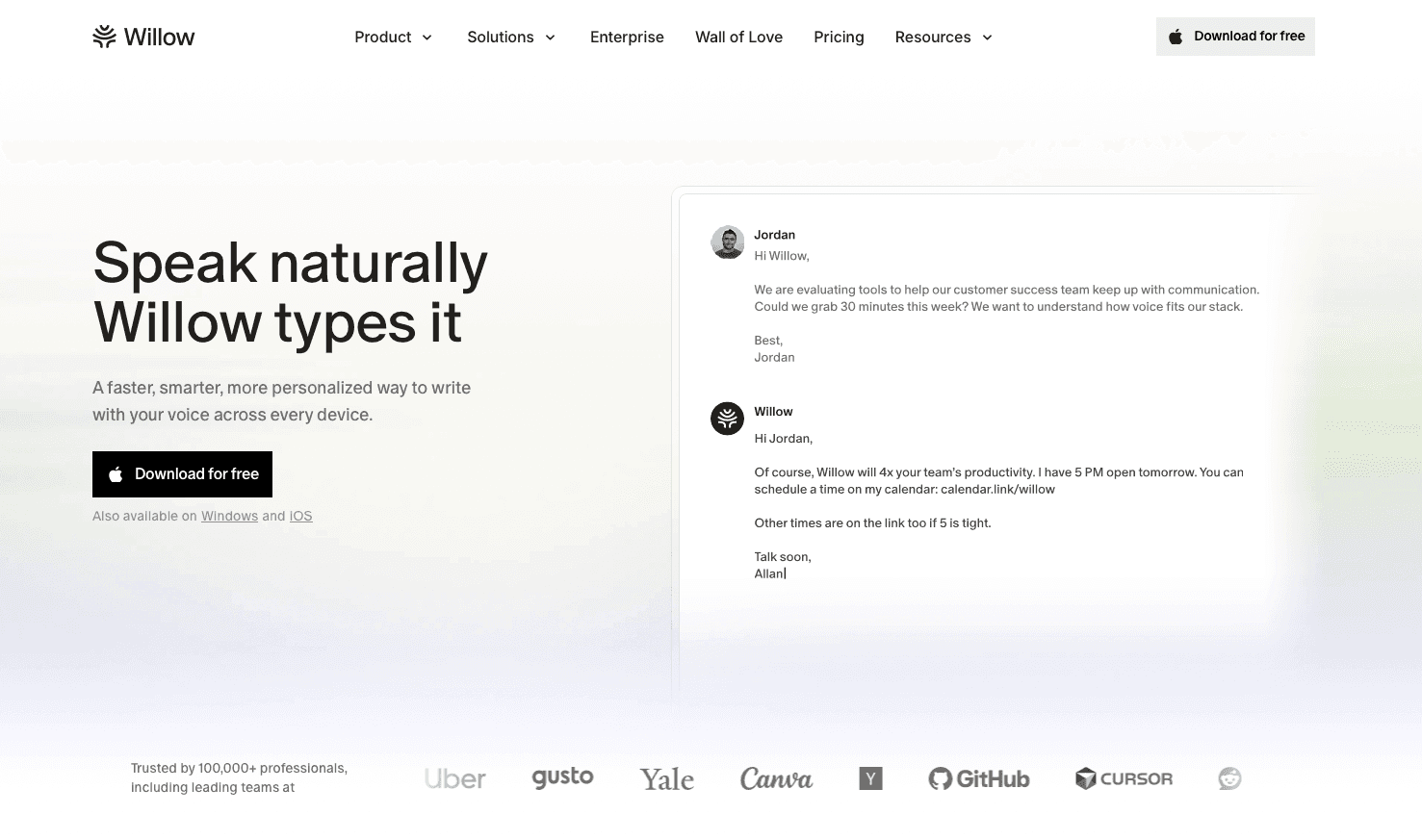
Professionals use their phones to clear inboxes, draft documents, respond in Slack, and write AI prompts at 150 words per minute instead of typing at 40. But they hit a bottleneck when built-in tools lag or misinterpret technical terms. A tool built for this context captures formatting and vocabulary without forcing a manual correction loop.
Willow Voice responds to this demand by operating as a custom iOS keyboard that works across every app, letting you switch instantly between voice and text input. Because it processes speech in roughly 200ms, text appears almost instantly. The system learns corrections and syncs custom vocabulary across Mac and Windows desktop apps, delivering consistent accuracy across devices. Voice commands via Willow Scribe handle prompt generation and text rewriting directly from the keyboard.
For IT decision-makers supporting these teams, this same infrastructure integrates centralized deployment, admin controls, SOC 2 Type II certification, and HIPAA compliance into the workflow, so org-wide rollout fits within existing security requirements.
FAQs
Can I use speech to text in iPhone Notes without an internet connection?
Apple's built-in dictation may require an internet connection depending on your device, language, and settings. For offline capability, you'll need to use a third-party app that supports local processing, allowing you to convert speech to text even when Wi-Fi or cellular data isn't available.
How do I add custom vocabulary or industry terms to iPhone dictation?
Apple's built-in dictation lacks a direct custom dictionary editor and learns specialized terms slowly. Third-party tools like Willow Voice let you add custom words and acronyms that sync instantly across your iPhone, Mac, and Windows devices.
Why does my iPhone voice to text keep cutting off mid-sentence?
Apple's dictation often times out if you pause to think, or it drops words when cloud processing lags. Switching to a tool with faster processing, like Willow Voice's ~200ms latency, stops these frustrating mid-sentence cutoffs.
How do I change the language for speech to text on my iPhone?
Go to Settings > General > Keyboard > Keyboards and add the language you want. When you are ready to speak, tap the globe or emoji icon on your keyboard to switch to that language before tapping the microphone.
Why does my iPhone dictation work slower than the 3x speed advantage research shows?
While Apple's system processes speech very quickly on-device, accuracy errors can still interrupt your flow. When you are forced to stop and manually correct mistakes, you lose the speed advantage; speaking at 150 words per minute only helps if the tool understands your specific vocabulary and gets your words right the first time.
What's the difference between turning off dictation and turning off VoiceOver on iPhone?
Dictation converts your speech into typed text when you tap the microphone icon on your keyboard, while VoiceOver reads on-screen text aloud as an accessibility feature. If your phone is speaking everything you touch, you've activated VoiceOver (turn it off via Settings > Accessibility > VoiceOver), not dictation.
Final Thoughts on Speech to Text for iPhone
Apple’s built-in dictation works for quick replies, but when you rely on iPhone speech to text for longer emails, notes, or daily writing, speed and accuracy start to matter a lot more. Willow improves that experience by processing speech in about 200ms, learning your writing patterns over time, and working across every app as a custom keyboard so you are not stuck fixing the same mistakes again and again. The result is fewer interruptions, cleaner drafts, and more words finished in less time. If you want iPhone speech to text that actually keeps up with how fast you think, try Willow.
You turned on dictation in Settings expecting iPhone speech to text to save time, but instead it cuts off mid-sentence, lags behind your thoughts, or constantly mishears the same phrases. The issue is rarely your voice. Apple uses a mix of on-device and cloud processing, which can still introduce delays and limit personalization in some cases, causing frequent transcription errors that slow you down. If you write long emails, notes, or reports on your phone, those small delays add up fast. This guide walks through how to set up dictation correctly, fix common problems, and compare Apple’s built-in tool with a faster alternative that processes speech in about 200ms and learns your writing style over time.
TLDR:
You activate iPhone dictation in Settings > General > Keyboard > Turn on Dictation.
Apple's built-in dictation processes speech quickly on-device, but it can struggle with specialized vocabulary.
Speaking reaches 150 words per minute, while typing averages 40 WPM, potentially saving 30 to 40 minutes daily for heavy writers.
Some tools process speech in ~200ms, learn your writing style, and work across all iPhone apps as a custom keyboard.
Apple’s dictation may rely on cloud processing depending on your settings, which can contribute to mid-sentence cutoffs and frequent transcription mistakes.
How to Turn on Speech to Text on iPhone
Turning on speech to text on your iPhone takes less than a minute, and the process is identical whether you're using an iPhone 13, 14, 15, 16, 17, or 17 Pro Max. Apple keeps the steps consistent across models.
Here's how to activate dictation:
Open the Settings app on your iPhone
Scroll down and tap General
Select Keyboard
Look for the Dictation setting and toggle it on
Confirm by tapping to activate dictation in the pop-up
Once dictation is activated, you'll see a microphone icon on your keyboard whenever you're typing. Tap it to start speaking text in any app, including Messages, Notes, Mail, or Safari. If you don't see the option to turn on dictation in your Keyboard settings, check your Screen Time restrictions. Apple groups Siri and Dictation together under privacy settings, so if Siri is restricted, the dictation toggle disappears. You also do not need an active internet connection to use dictation on modern iPhones, as Apple processes speech directly on the device for many languages.
Using Voice to Text on iPhone for Messages and Notes
Open Messages or Notes, tap the text field, then select the microphone icon beside the space bar to begin speaking. Your speech converts to text in real time. When you finish speaking, tap the microphone icon again or begin typing to stop. Both apps recognize punctuation commands like "period," "comma," and "question mark" to format your text.
For extended recordings in Notes, tap the Attachments button (the paperclip or plus icon) above the keyboard and select Record Audio. With iOS 18 and newer, the recording saves as an audio file and generates a live text transcript. While you no longer need to manually transcribe basic audio in Notes, third-party apps like Willow Voice remain helpful when you need personalized accuracy that adapts to your writing style.
How to Turn Off Voice to Text on iPhone
If you want to disable dictation, the process is quick. The steps work the same across iPhone 13, 14, 15, 16, and 17 models.
Here's how to turn off voice to text:
Open Settings on your iPhone
Tap General
Select Keyboard
Toggle off the dictation setting
Tap Turn Off Dictation to confirm
The microphone icon will disappear from your keyboard once dictation is disabled. You can reactivate it anytime by following these same steps. If your iPhone reads text aloud when you type, you likely activated Typing Feedback instead of dictation. To turn it off, go to Settings, tap Accessibility, select Spoken Content, tap Typing Feedback, and toggle off Speak Characters and Speak Words. (If your phone reads everything on the screen and requires double-taps to move around, you have accidentally activated VoiceOver, which you can turn off by triple-clicking the side button).
Troubleshooting Voice to Text Not Working on iPhone
When dictation stops working on your iPhone, the issue typically involves a missing microphone icon, inaccurate transcriptions, or mid-sentence failures.
Start by restarting your iPhone and confirming dictation is activated under Settings > General > Keyboard. You do not need Siri turned on for standard dictation to work. Modern iPhones process dictation directly on-device for most major languages, meaning an internet connection is no longer required.
If dictation removes correctly transcribed words or produces errors, the problem is rarely your network. Users report persistent accuracy issues across iOS 16, 17, 18, and 19, where dictation misinterprets speech or deletes phrases after typing them correctly. Because Apple uses fast on-device processing, these behaviors often stem from software conflicts with third-party keyboards, temporary RAM management bugs, or a dirty microphone.
For users who need custom vocabulary support that the built-in tool lacks, apps like Willow provide personalization that adapts to your writing style over time.
Understanding iPhone Dictation Speed and Accuracy
Recent 2026 benchmarking shows voice recognition is roughly three times faster than typing on mobile keyboards. Most people type around 40 words per minute on phones while speaking naturally at 150 words per minute or more.
iPhone's built-in dictation processes speech on-device in near-real-time for major languages. However, it may not always deliver that speed advantage in practice if you use specialized terms. When dictation misinterprets a technical word, you stop speaking, manually correct the text, and restart.
Willow cuts that latency to ~200ms while learning your writing style over time. The personalization means fewer errors to fix. You spend less time editing and more time creating. For teams, shared dictionaries and shortcuts keep everyone working at the same speed with SOC 2 Type II and HIPAA compliance built in.
What's New for iPhone Dictation in 2026
At WWDC 2026, Apple previewed upcoming systemwide dictation updates tied to the next generation of Apple Intelligence, which natively clean up formatting and punctuation. While these changes are expected to help across native apps, the rollout is still in progress and hardware-restricted. The underlying on-device AI model requires at least 12 GB of unified memory, limiting these advanced dictation features to the iPhone Air, iPhone 17 Pro, and iPhone 17 Pro Max. Users with base models or older iPhones will not receive these upgrades, which is why highly accurate third-party keyboards remain popular for heavy writers who need better performance on their current devices.
Free Speech-to-Text Apps for iPhone
Apple's built-in dictation is free but limited. Third-party dictation apps provide better accuracy, system-wide access, and features like offline mode or custom dictionaries.
When comparing alternatives, professionals look for tools that adapt to their specific vocabulary. Willow operates as a custom keyboard on iOS, letting you switch instantly between voice and text input. It processes speech in ~200ms and learns your writing style over time. For power users, the Pro plan ($12/month) delivers faster dictation plus unlimited Willow Scribe. A Free plan provides unlimited AI dictation with no word cap. Other plans are available to fit organizational needs.
Most free apps restrict which apps you can speak into or cap your word count. Paid options remove these barriers and add features like shared team dictionaries or faster processing speeds. Here is how the top alternatives compare:
Dictation Tool | Processing Speed | Platform Support | Key Features | Pricing |
|---|---|---|---|---|
Apple Built-in Dictation | Near real-time | iPhone, iPad, Mac (native) | Basic dictation, on-device processing | Free with device |
Willow Voice | ~200ms latency | Mac, Windows, and iOS custom keyboard (works in all apps) | Learns writing style, personalized accuracy, team dictionaries, SOC 2 Type II and HIPAA compliance | $12/month Pro plan; unlimited Free plan; other plans available. |
Wispr Flow | 500ms-600ms latency | Mac, Windows, iOS, Android | Command-based editing, cloud-dependent | Free tier with word caps; paid plans |
superwhisper | Varies | Mac, Windows, and iOS | Local processing for privacy, offline capability | Free tier available; paid plans unlock advanced features |
Voice In | Varies | Browser extension only | Web-based dictation, limited to browser apps | Free with limits, paid plans remove restrictions |
Otter.ai | In-app only | Web, iOS, Android | Meeting transcription, not a system-wide keyboard | Free tier available, paid plans for advanced features |
Rev | Not real-time | Web, iOS, Android | Recorded audio transcription service, human and AI options | Pay per minute or monthly subscription options |
Why Speech to Text Is Faster Than Typing
Speaking beats typing because your brain works faster than your fingers. When composing an email or drafting a document, you already know what you want to say, but typing forces you to translate those thoughts into keystrokes one character at a time. Natural speech easily reaches 150 words per minute, compared to an average mobile typing speed of just 35 to 40 words per minute. Voice input uses your default mode of communication. You have been talking since childhood, while typing is a learned skill that requires conscious effort.
The time savings add up quickly. Since a heavy writer might spend two hours a day actually executing keystrokes, tripling that output speed saves roughly 30 to 40 minutes daily, or up to three hours a week. The only catch is accuracy. If you spend 20 minutes fixing errors, you lose that speed advantage, which is why tools that learn your voice and writing style are so important to eliminate that correction time.
How Willow Voice Solves iPhone Dictation Problems
Professionals use their phones to clear inboxes, draft documents, respond in Slack, and write AI prompts at 150 words per minute instead of typing at 40. But they hit a bottleneck when built-in tools lag or misinterpret technical terms. A tool built for this context captures formatting and vocabulary without forcing a manual correction loop.
Willow Voice responds to this demand by operating as a custom iOS keyboard that works across every app, letting you switch instantly between voice and text input. Because it processes speech in roughly 200ms, text appears almost instantly. The system learns corrections and syncs custom vocabulary across Mac and Windows desktop apps, delivering consistent accuracy across devices. Voice commands via Willow Scribe handle prompt generation and text rewriting directly from the keyboard.
For IT decision-makers supporting these teams, this same infrastructure integrates centralized deployment, admin controls, SOC 2 Type II certification, and HIPAA compliance into the workflow, so org-wide rollout fits within existing security requirements.
FAQs
Can I use speech to text in iPhone Notes without an internet connection?
Apple's built-in dictation may require an internet connection depending on your device, language, and settings. For offline capability, you'll need to use a third-party app that supports local processing, allowing you to convert speech to text even when Wi-Fi or cellular data isn't available.
How do I add custom vocabulary or industry terms to iPhone dictation?
Apple's built-in dictation lacks a direct custom dictionary editor and learns specialized terms slowly. Third-party tools like Willow Voice let you add custom words and acronyms that sync instantly across your iPhone, Mac, and Windows devices.
Why does my iPhone voice to text keep cutting off mid-sentence?
Apple's dictation often times out if you pause to think, or it drops words when cloud processing lags. Switching to a tool with faster processing, like Willow Voice's ~200ms latency, stops these frustrating mid-sentence cutoffs.
How do I change the language for speech to text on my iPhone?
Go to Settings > General > Keyboard > Keyboards and add the language you want. When you are ready to speak, tap the globe or emoji icon on your keyboard to switch to that language before tapping the microphone.
Why does my iPhone dictation work slower than the 3x speed advantage research shows?
While Apple's system processes speech very quickly on-device, accuracy errors can still interrupt your flow. When you are forced to stop and manually correct mistakes, you lose the speed advantage; speaking at 150 words per minute only helps if the tool understands your specific vocabulary and gets your words right the first time.
What's the difference between turning off dictation and turning off VoiceOver on iPhone?
Dictation converts your speech into typed text when you tap the microphone icon on your keyboard, while VoiceOver reads on-screen text aloud as an accessibility feature. If your phone is speaking everything you touch, you've activated VoiceOver (turn it off via Settings > Accessibility > VoiceOver), not dictation.
Final Thoughts on Speech to Text for iPhone
Apple’s built-in dictation works for quick replies, but when you rely on iPhone speech to text for longer emails, notes, or daily writing, speed and accuracy start to matter a lot more. Willow improves that experience by processing speech in about 200ms, learning your writing patterns over time, and working across every app as a custom keyboard so you are not stuck fixing the same mistakes again and again. The result is fewer interruptions, cleaner drafts, and more words finished in less time. If you want iPhone speech to text that actually keeps up with how fast you think, try Willow.

Try Willow for free
Instant, accurate voice dictation. No card required.
Try Willow for free
Instant, accurate voice dictation. No card required.
Other stories you’ll love
Other stories you’ll love


Your keyboard is optional now
" transform="translate(5 5)" width="9.791000051498413px"/></svg>)

The voice-first interface for modern work.
© Willow Care, Inc. 2026. All rights reserved
Your keyboard is optional now
The voice-first interface for modern work.
© Willow Care, Inc. 2026. All rights reserved
Your keyboard is optional now
The voice-first interface for modern work.
© Willow Care, Inc. 2026. All rights reserved