" transform="translate(5 2)" width="10px"/></svg>)

•
5 min read
The Best Voice Recognition Software for Windows 10 in June 2026

•
5 min read
The Best Voice Recognition Software for Windows 10 in June 2026
If you've tried Windows speech recognition and found yourself retyping half of what you just spoke, you're not alone. Microsoft's built-in tools were never designed for the speed professionals need when clearing emails, drafting docs, or prompting AI tools all day. Newer options in 2026 actually keep up with how fast you think, and they get better the more you use them.
TLDR:
Voice input lets you create content at 150 words per minute vs. 40 while typing, a nearly 3x speed boost.
Windows 10 uses the deprecated Windows Speech Recognition; Windows 11 includes the newer Voice Access. Win + H opens voice typing, while Voice Access uses its own accessibility controls.
Many built-in dictation tools remain limited in customization, workflow flexibility, or cross-app consistency compared to dedicated AI dictation platforms.
The best AI dictation tools deliver 200ms latency and learn your writing style for zero-edit accuracy across every app, including AI tools like ChatGPT, Claude, and Cursor.
SOC 2 Type II and HIPAA compliance, shared team dictionaries, and admin controls make the best AI dictation tools ready for org-wide deployment across Windows and mixed-device teams.
Windows 11 Voice Access vs. Windows Speech Recognition
Microsoft offers two native options: Windows Speech Recognition and Voice Access. Which one you should use depends entirely on your Windows version.
Feature | Windows Speech Recognition | Voice Access (Win 11) |
|---|---|---|
Windows version | Windows 10 & 11 | Windows 11 only |
Development status | Deprecated | Actively maintained |
Accuracy range | 85-90% | 88-92% |
Latency | ~800ms | ~600ms |
Voice commands | Basic | 80+ commands |
OS navigation | Limited | Full (open apps, click, scroll) |
AI layer | None | None |
Learns your voice over time | Manual training only | No |
Best for | Basic dictation on Windows 10 | Accessibility & OS control |
Windows Speech Recognition
WSR ships with both Windows 10 and Windows 11, but Microsoft has deprecated it. No active development, no accuracy improvements. It works for basic tasks, but there is no AI layer behind it, and errors pile up fast with anything beyond simple sentences.
Voice Access
Voice Access launched with Windows 11 version 22H2 and is Microsoft's current native solution. It runs on-device, supports over 80 voice commands, and handles dictation noticeably better than its predecessor. You can open apps, click through menus, and scroll pages entirely by voice.
For Windows 10 users, WSR remains the only built-in option.
How to Activate Voice Typing in Windows 10 and Windows 11
The fastest way to start using voice input on Windows is a two-key shortcut: Win + H. No downloads, no installs required.
Windows 10
Click into any text field
Press Win + H to open the voice typing toolbar
Click the microphone icon to activate
First-time users will be walked through a microphone setup wizard
Windows 11
Click into any text field
Press Win + H
The voice typing panel opens and listens automatically
Start speaking
Before either version works reliably, confirm your microphone is set as the default input device under Settings > System > Sound. A misconfigured mic is the most common reason the shortcut does nothing. Once that's sorted, you're up and running in seconds.
Voice Recognition Accuracy in 2026
Accuracy is where most voice recognition tools either earn trust or lose it. 73% of users cite accuracy as their top challenge when adopting voice recognition, and 66% point to accent and dialect recognition as a specific barrier.
That gap between 90% and 95% matters more than it sounds. At 150 words per minute, a 5% error rate means stopping to fix roughly 7 words every single minute.
Benchmarks across leading tools in 2026 tell a clear story. Windows Speech Recognition lands in the 85-90% range, Voice Access improves that to 88-92%, and Dragon reaches 95-99% for specialized medical and legal vocabulary. AI-trained tools like Willow Voice top out at 98%+, with accuracy that improves the more you use it, working out to roughly 3x fewer errors than built-in tools across Willow's 100,000+ active users and teams at 20% of Fortune 500 companies.
Third-Party Voice Recognition Software Options for Windows
Third-party tools fill the gaps that Windows Speech Recognition and Voice Typing leave behind, especially for users who need higher accuracy, better context awareness, or features built for professional workflows.
Here are the top options worth knowing about in 2026:
Willow
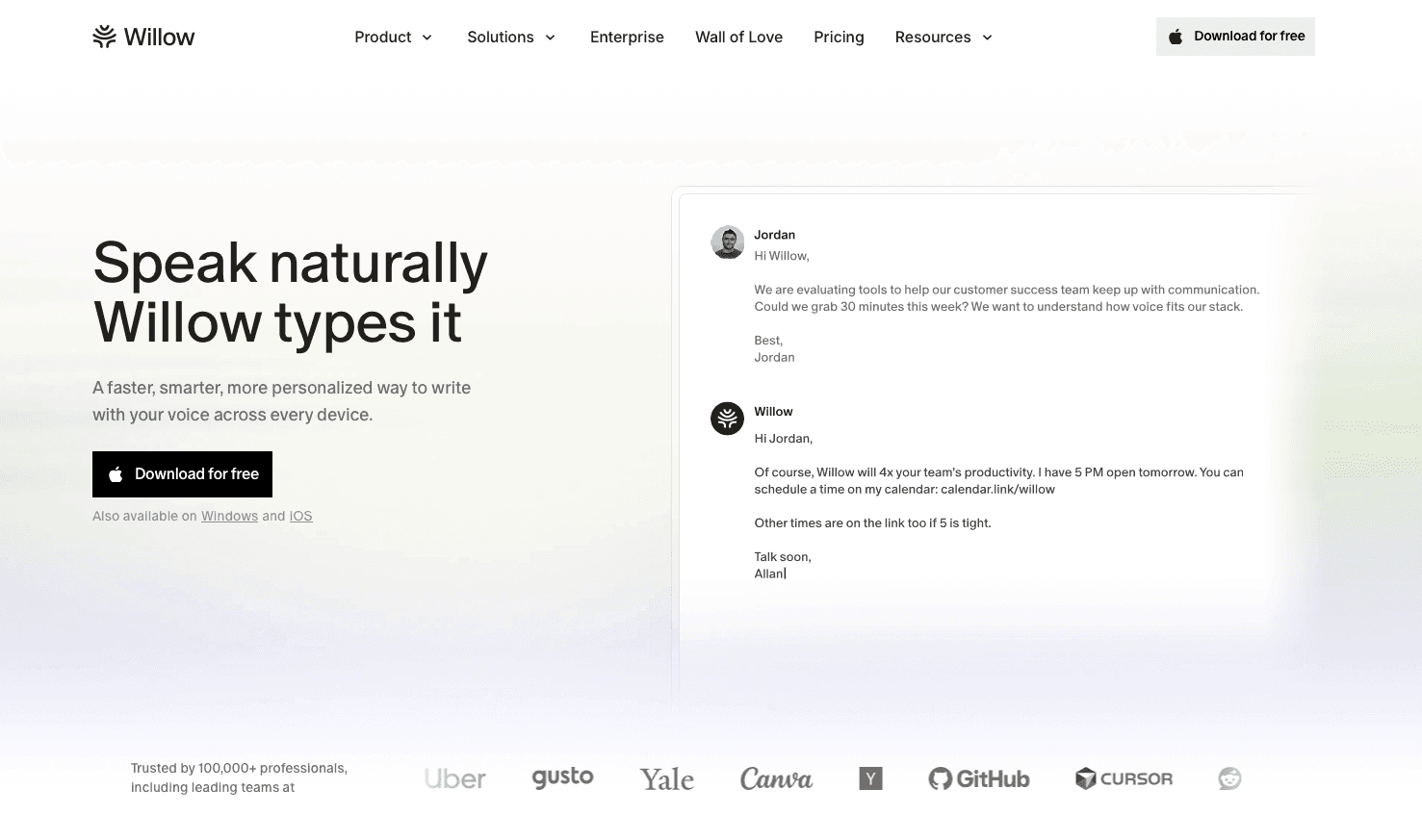
Willow runs at 200ms latency on Windows, keeping you in flow while competitors sit at 700ms or more. One hotkey works across every Windows application: Word, Outlook, Chrome, Slack, Notion, and ChatGPT, without switching modes or installing per-app plugins. It learns how you write over time, adapting to your vocabulary, style, and the apps you use most. For teams, it carries SOC 2 Type II and HIPAA compliance with shared shortcuts and dictionary terms that apply across the whole organization.
Pros:
200ms latency, the fastest available in its category
98%+ accuracy that gets better the more you use it
SOC 2 and HIPAA compliant with shared team dictionaries and shortcuts
One hotkey works across every app without switching modes
Free plan includes 2,000 words recharged every week
Cons:
Cloud-based by default, though offline mode is available
Full feature set requires a paid plan at $12/month
For organizations rolling out Willow across a department, shared dictionaries and shortcuts push to every member automatically, so company-specific terminology and product vocabulary stay accurate group-wide without per-person setup. SOC 2 Type II certification and HIPAA compliance cover the security review that typically slows enterprise purchases, and healthcare organizations can request a signed Business Associate Agreement. Team leaderboards give managers visibility into adoption without manual check-ins, and enterprise pricing scales for larger deployments. Willow runs on Windows, Mac, and iOS, so a mixed-device team deploys from a single account, with custom vocabulary and hotkey behavior staying consistent whether someone is at a Windows workstation or on an iPhone.
Dragon by Nuance
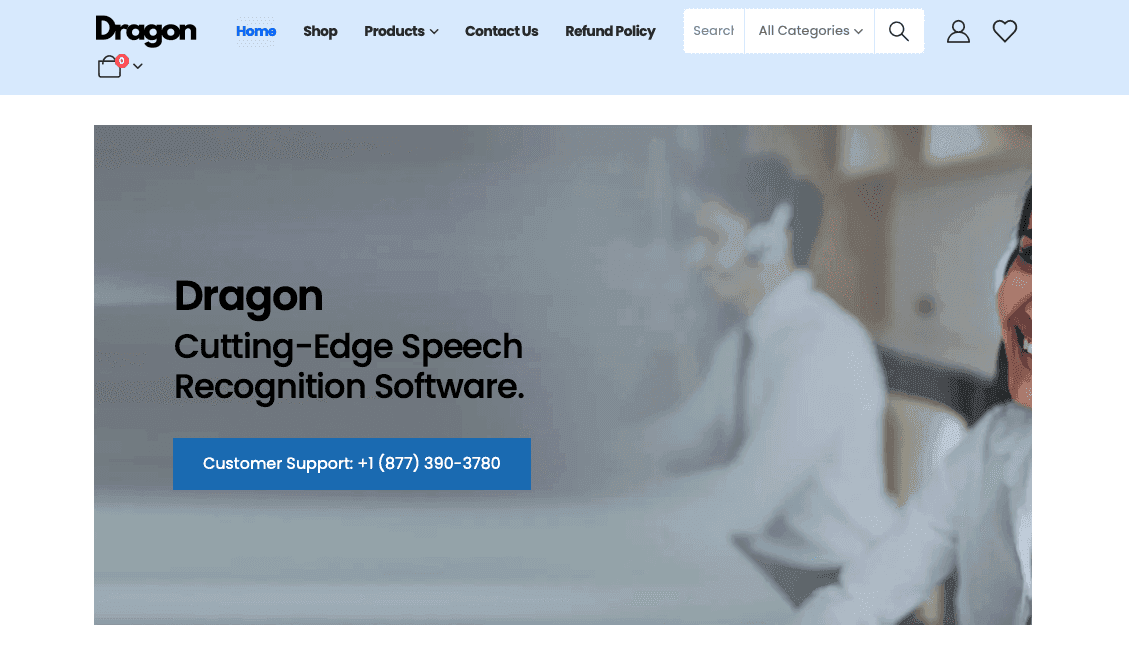
Dragon offers strong accuracy for medical and legal workflows, with a steep price tag and local installation requirement.
Pros:
High accuracy for specialized medical and legal vocabulary
Runs locally with no internet connection required
Deep Windows integration for navigation and app control
Cons:
High upfront cost ($500+) with no monthly subscription option
Windows-only; Mac version was discontinued in 2018
Requires manual voice training to reach peak accuracy
No AI layer that learns your writing style over time
Whisper-Based Tools
Several apps built on OpenAI's Whisper model offer solid transcription accuracy for free or low cost, though real-time performance and editing features vary widely.
Pros:
Free or very low cost, with open-source options available
Base transcription accuracy of roughly 90-95% under good conditions
Active developer community and wide model availability
Cons:
Real-time performance varies widely depending on the app and hardware
Limited formatting and editing features compared to purpose-built tools
Minimal enterprise compliance or security certifications
AI prompting is another common use case. Voice prompts naturally run longer and include more context, which means better outputs from ChatGPT, Claude, or Cursor without extra effort. The same hotkey works on Windows and iOS, so the workflow stays the same whether you are at a desk or on a phone.
The Productivity Impact of Voice Dictation
The global voice recognition market reached $30.87 billion in 2026, driven by high-volume everyday tasks: clearing email, writing documentation, and responding in Slack. Voice technology already sees an 81% adoption rate in customer service, the sector where written output volume is highest. For anyone prompting AI tools regularly, longer spoken prompts are easier to construct and produce better outputs without extra effort.
For professionals whose output is measured in written communication, the math is direct. A customer success manager clearing 50 tickets a day, a sales rep writing 30 follow-ups, or a manager producing weekly status reports all reach a point where typing is a real bottleneck. Switching to voice at that volume can return 30 to 60 minutes per day in many cases, and across a team of ten, that adds up to hours of recovered time every week without changing any process beyond the input method.
Voice Recognition for Specific Windows Applications
Not every app treats voice input the same way. Microsoft Word and Outlook both include a Voice Input button, but it only works inside their own windows using Microsoft's cloud transcription. Google Docs has built-in voice typing under Tools > Voice typing, but it requires Chrome and stays locked to that tab. System-wide tools like Willow sidestep all of this, working in any text field across any app from ChatGPT to Gmail, with one hotkey and no mode switching.
Common Voice Recognition Commands and Shortcuts
These commands work across both Windows Speech Recognition and Voice Access:
Command | What It Does |
|---|---|
"New line" | Moves to the next line |
"New paragraph" | Starts a new paragraph |
"Period" / "Comma" | Inserts punctuation |
"Delete that" | Removes the last phrase |
"Scratch that" | Undoes the last dictation |
"Select [word]" | Highlights a specific word |
"Bullet point" | Inserts a bullet |
Willow supports "new line," "dash," and "bullet point" as native formatting commands. Microsoft's full Voice Access command list is worth bookmarking if you rely on the built-in option heavily.
Willow: AI-Powered Voice Dictation Built for Speed and Accuracy
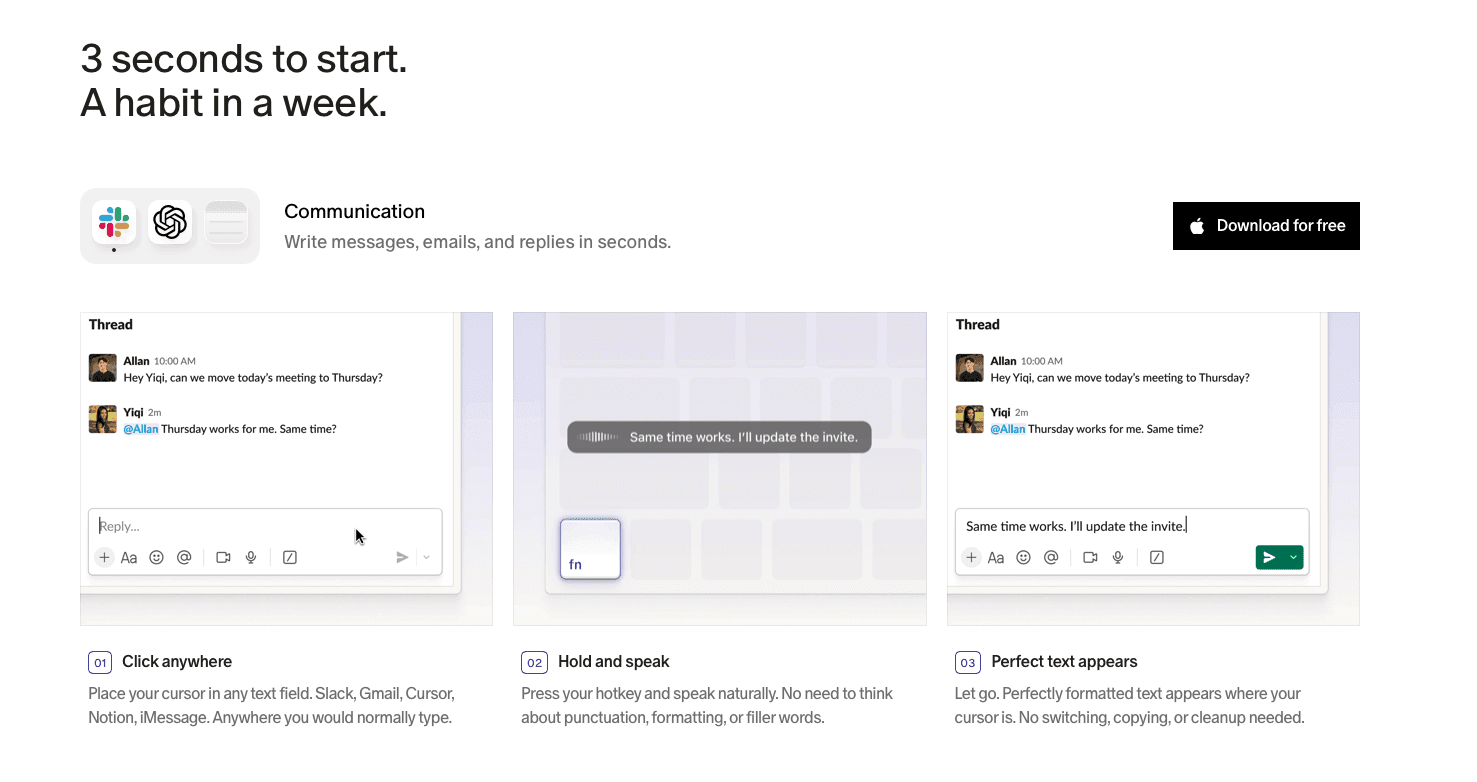
Willow is an AI-powered dictation tool built around three things Windows Speech Recognition has never focused on: speed, accuracy that improves over time, and team-ready security. It runs at 200ms latency, adapts to how you write, and learns your vocabulary the more you use it. For org-wide rollouts, SOC 2 Type II and HIPAA compliance, shared shortcuts, and admin controls cover the security review that typically slows enterprise purchases.
For teams deploying across a department, shared dictionaries push product names, internal terminology, and customer vocabulary to every member automatically. No per-person setup. IT can manage the whole account from one place, and healthcare organizations can request a signed Business Associate Agreement. Teams at Uber, Reddit, and across 20% of Fortune 500 companies use Willow for high-volume written communication across Windows, Mac, and iOS.
Tools like Wispr Flow and Apple's built-in dictation work well for individuals on a single device. For mixed-device teams, Willow keeps custom vocabulary and hotkey behavior in sync whether someone is at a Windows workstation or on an iPhone. Each person's accuracy improves over time, and the whole team benefits from shared terminology from day one.
FAQs
What's the best voice recognition software for Windows 10?
Willow is the fastest and most accurate option available, with 200ms latency and AI that learns how you write over time. Windows Speech Recognition is free but deprecated, while Dragon offers strong accuracy at a high price point.
Can I use voice typing in Windows 10 without downloading software?
Yes. Press Win + H to activate Windows' built-in voice typing in any text field. However, accuracy drops quickly with complex sentences, and it won't improve over time like AI-powered alternatives such as Willow.
How do I fix "Windows Speech Recognition is not available for the current display language"?
Go to Settings > Time & Language > Speech, then add English (United States) as your speech language. This error appears when your display language doesn't match an available speech recognition language.
Final Thoughts on Choosing Voice Recognition Software for Windows
The shortcut Win + H gets you started in seconds, but if you're clearing emails and writing documentation all day, Windows speech recognition needs to do more than just transcribe. Willow learns how you write, runs at 200ms latency, and works in every app from Word to ChatGPT without breaking your flow or waiting for text to catch up. You can grab Willow for free and start speaking faster than you've ever typed, with accuracy that improves the more you use it.
If you've tried Windows speech recognition and found yourself retyping half of what you just spoke, you're not alone. Microsoft's built-in tools were never designed for the speed professionals need when clearing emails, drafting docs, or prompting AI tools all day. Newer options in 2026 actually keep up with how fast you think, and they get better the more you use them.
TLDR:
Voice input lets you create content at 150 words per minute vs. 40 while typing, a nearly 3x speed boost.
Windows 10 uses the deprecated Windows Speech Recognition; Windows 11 includes the newer Voice Access. Win + H opens voice typing, while Voice Access uses its own accessibility controls.
Many built-in dictation tools remain limited in customization, workflow flexibility, or cross-app consistency compared to dedicated AI dictation platforms.
The best AI dictation tools deliver 200ms latency and learn your writing style for zero-edit accuracy across every app, including AI tools like ChatGPT, Claude, and Cursor.
SOC 2 Type II and HIPAA compliance, shared team dictionaries, and admin controls make the best AI dictation tools ready for org-wide deployment across Windows and mixed-device teams.
Windows 11 Voice Access vs. Windows Speech Recognition
Microsoft offers two native options: Windows Speech Recognition and Voice Access. Which one you should use depends entirely on your Windows version.
Feature | Windows Speech Recognition | Voice Access (Win 11) |
|---|---|---|
Windows version | Windows 10 & 11 | Windows 11 only |
Development status | Deprecated | Actively maintained |
Accuracy range | 85-90% | 88-92% |
Latency | ~800ms | ~600ms |
Voice commands | Basic | 80+ commands |
OS navigation | Limited | Full (open apps, click, scroll) |
AI layer | None | None |
Learns your voice over time | Manual training only | No |
Best for | Basic dictation on Windows 10 | Accessibility & OS control |
Windows Speech Recognition
WSR ships with both Windows 10 and Windows 11, but Microsoft has deprecated it. No active development, no accuracy improvements. It works for basic tasks, but there is no AI layer behind it, and errors pile up fast with anything beyond simple sentences.
Voice Access
Voice Access launched with Windows 11 version 22H2 and is Microsoft's current native solution. It runs on-device, supports over 80 voice commands, and handles dictation noticeably better than its predecessor. You can open apps, click through menus, and scroll pages entirely by voice.
For Windows 10 users, WSR remains the only built-in option.
How to Activate Voice Typing in Windows 10 and Windows 11
The fastest way to start using voice input on Windows is a two-key shortcut: Win + H. No downloads, no installs required.
Windows 10
Click into any text field
Press Win + H to open the voice typing toolbar
Click the microphone icon to activate
First-time users will be walked through a microphone setup wizard
Windows 11
Click into any text field
Press Win + H
The voice typing panel opens and listens automatically
Start speaking
Before either version works reliably, confirm your microphone is set as the default input device under Settings > System > Sound. A misconfigured mic is the most common reason the shortcut does nothing. Once that's sorted, you're up and running in seconds.
Voice Recognition Accuracy in 2026
Accuracy is where most voice recognition tools either earn trust or lose it. 73% of users cite accuracy as their top challenge when adopting voice recognition, and 66% point to accent and dialect recognition as a specific barrier.
That gap between 90% and 95% matters more than it sounds. At 150 words per minute, a 5% error rate means stopping to fix roughly 7 words every single minute.
Benchmarks across leading tools in 2026 tell a clear story. Windows Speech Recognition lands in the 85-90% range, Voice Access improves that to 88-92%, and Dragon reaches 95-99% for specialized medical and legal vocabulary. AI-trained tools like Willow Voice top out at 98%+, with accuracy that improves the more you use it, working out to roughly 3x fewer errors than built-in tools across Willow's 100,000+ active users and teams at 20% of Fortune 500 companies.
Third-Party Voice Recognition Software Options for Windows
Third-party tools fill the gaps that Windows Speech Recognition and Voice Typing leave behind, especially for users who need higher accuracy, better context awareness, or features built for professional workflows.
Here are the top options worth knowing about in 2026:
Willow
Willow runs at 200ms latency on Windows, keeping you in flow while competitors sit at 700ms or more. One hotkey works across every Windows application: Word, Outlook, Chrome, Slack, Notion, and ChatGPT, without switching modes or installing per-app plugins. It learns how you write over time, adapting to your vocabulary, style, and the apps you use most. For teams, it carries SOC 2 Type II and HIPAA compliance with shared shortcuts and dictionary terms that apply across the whole organization.
Pros:
200ms latency, the fastest available in its category
98%+ accuracy that gets better the more you use it
SOC 2 and HIPAA compliant with shared team dictionaries and shortcuts
One hotkey works across every app without switching modes
Free plan includes 2,000 words recharged every week
Cons:
Cloud-based by default, though offline mode is available
Full feature set requires a paid plan at $12/month
For organizations rolling out Willow across a department, shared dictionaries and shortcuts push to every member automatically, so company-specific terminology and product vocabulary stay accurate group-wide without per-person setup. SOC 2 Type II certification and HIPAA compliance cover the security review that typically slows enterprise purchases, and healthcare organizations can request a signed Business Associate Agreement. Team leaderboards give managers visibility into adoption without manual check-ins, and enterprise pricing scales for larger deployments. Willow runs on Windows, Mac, and iOS, so a mixed-device team deploys from a single account, with custom vocabulary and hotkey behavior staying consistent whether someone is at a Windows workstation or on an iPhone.
Dragon by Nuance
Dragon offers strong accuracy for medical and legal workflows, with a steep price tag and local installation requirement.
Pros:
High accuracy for specialized medical and legal vocabulary
Runs locally with no internet connection required
Deep Windows integration for navigation and app control
Cons:
High upfront cost ($500+) with no monthly subscription option
Windows-only; Mac version was discontinued in 2018
Requires manual voice training to reach peak accuracy
No AI layer that learns your writing style over time
Whisper-Based Tools
Several apps built on OpenAI's Whisper model offer solid transcription accuracy for free or low cost, though real-time performance and editing features vary widely.
Pros:
Free or very low cost, with open-source options available
Base transcription accuracy of roughly 90-95% under good conditions
Active developer community and wide model availability
Cons:
Real-time performance varies widely depending on the app and hardware
Limited formatting and editing features compared to purpose-built tools
Minimal enterprise compliance or security certifications
AI prompting is another common use case. Voice prompts naturally run longer and include more context, which means better outputs from ChatGPT, Claude, or Cursor without extra effort. The same hotkey works on Windows and iOS, so the workflow stays the same whether you are at a desk or on a phone.
The Productivity Impact of Voice Dictation
The global voice recognition market reached $30.87 billion in 2026, driven by high-volume everyday tasks: clearing email, writing documentation, and responding in Slack. Voice technology already sees an 81% adoption rate in customer service, the sector where written output volume is highest. For anyone prompting AI tools regularly, longer spoken prompts are easier to construct and produce better outputs without extra effort.
For professionals whose output is measured in written communication, the math is direct. A customer success manager clearing 50 tickets a day, a sales rep writing 30 follow-ups, or a manager producing weekly status reports all reach a point where typing is a real bottleneck. Switching to voice at that volume can return 30 to 60 minutes per day in many cases, and across a team of ten, that adds up to hours of recovered time every week without changing any process beyond the input method.
Voice Recognition for Specific Windows Applications
Not every app treats voice input the same way. Microsoft Word and Outlook both include a Voice Input button, but it only works inside their own windows using Microsoft's cloud transcription. Google Docs has built-in voice typing under Tools > Voice typing, but it requires Chrome and stays locked to that tab. System-wide tools like Willow sidestep all of this, working in any text field across any app from ChatGPT to Gmail, with one hotkey and no mode switching.
Common Voice Recognition Commands and Shortcuts
These commands work across both Windows Speech Recognition and Voice Access:
Command | What It Does |
|---|---|
"New line" | Moves to the next line |
"New paragraph" | Starts a new paragraph |
"Period" / "Comma" | Inserts punctuation |
"Delete that" | Removes the last phrase |
"Scratch that" | Undoes the last dictation |
"Select [word]" | Highlights a specific word |
"Bullet point" | Inserts a bullet |
Willow supports "new line," "dash," and "bullet point" as native formatting commands. Microsoft's full Voice Access command list is worth bookmarking if you rely on the built-in option heavily.
Willow: AI-Powered Voice Dictation Built for Speed and Accuracy
Willow is an AI-powered dictation tool built around three things Windows Speech Recognition has never focused on: speed, accuracy that improves over time, and team-ready security. It runs at 200ms latency, adapts to how you write, and learns your vocabulary the more you use it. For org-wide rollouts, SOC 2 Type II and HIPAA compliance, shared shortcuts, and admin controls cover the security review that typically slows enterprise purchases.
For teams deploying across a department, shared dictionaries push product names, internal terminology, and customer vocabulary to every member automatically. No per-person setup. IT can manage the whole account from one place, and healthcare organizations can request a signed Business Associate Agreement. Teams at Uber, Reddit, and across 20% of Fortune 500 companies use Willow for high-volume written communication across Windows, Mac, and iOS.
Tools like Wispr Flow and Apple's built-in dictation work well for individuals on a single device. For mixed-device teams, Willow keeps custom vocabulary and hotkey behavior in sync whether someone is at a Windows workstation or on an iPhone. Each person's accuracy improves over time, and the whole team benefits from shared terminology from day one.
FAQs
What's the best voice recognition software for Windows 10?
Willow is the fastest and most accurate option available, with 200ms latency and AI that learns how you write over time. Windows Speech Recognition is free but deprecated, while Dragon offers strong accuracy at a high price point.
Can I use voice typing in Windows 10 without downloading software?
Yes. Press Win + H to activate Windows' built-in voice typing in any text field. However, accuracy drops quickly with complex sentences, and it won't improve over time like AI-powered alternatives such as Willow.
How do I fix "Windows Speech Recognition is not available for the current display language"?
Go to Settings > Time & Language > Speech, then add English (United States) as your speech language. This error appears when your display language doesn't match an available speech recognition language.
Final Thoughts on Choosing Voice Recognition Software for Windows
The shortcut Win + H gets you started in seconds, but if you're clearing emails and writing documentation all day, Windows speech recognition needs to do more than just transcribe. Willow learns how you write, runs at 200ms latency, and works in every app from Word to ChatGPT without breaking your flow or waiting for text to catch up. You can grab Willow for free and start speaking faster than you've ever typed, with accuracy that improves the more you use it.

Try Willow for free
Instant, accurate voice dictation. No card required.
Try Willow for free
Instant, accurate voice dictation. No card required.
Other stories you’ll love
Other stories you’ll love


Your keyboard is optional now
" transform="translate(5 5)" width="9.791000051498413px"/></svg>)

The voice-first interface for modern work.
© Willow Care, Inc. 2026. All rights reserved
Your keyboard is optional now
The voice-first interface for modern work.
© Willow Care, Inc. 2026. All rights reserved
Your keyboard is optional now
The voice-first interface for modern work.
© Willow Care, Inc. 2026. All rights reserved