" transform="translate(5 2)" width="10px"/></svg>)

•
5 min read
The 5 Best Dictation Software for Windows in May 2026
•
5 min read
The 5 Best Dictation Software for Windows in May 2026
Most Windows users try the free built-in dictation, get frustrated with lag and errors, and give up on the whole idea. That's a mistake because the right dictation software for Windows goes beyond transcribing your words accurately; it learns how you write, keeps up with your thoughts at 200ms latency, and works everywhere from Outlook to Slack without switching modes. We tested the best tools available in 2026 to show you what's actually worth using when speed and accuracy matter.
TLDR:
Windows dictation speeds your input to 125 WPM vs. 40 WPM typing, cutting email and doc time by 3x.
Free options like Windows Voice Typing lack personalization and won't learn your vocabulary over time.
Enterprise users need SOC 2 and HIPAA compliance for medical or legal dictation on Windows.
The right AI dictation tool learns from your corrections at 200ms latency, 3.5x faster than tools at 700ms or more.
AI-powered tools hit 97-99% accuracy for trained voices, compared to 90-95% for built-in consumer options.
What Is Dictation Software and How Does It Work?
Dictation software converts speech into text in real time. Early versions required hours of training by reading scripts aloud, and even then, accuracy was inconsistent.
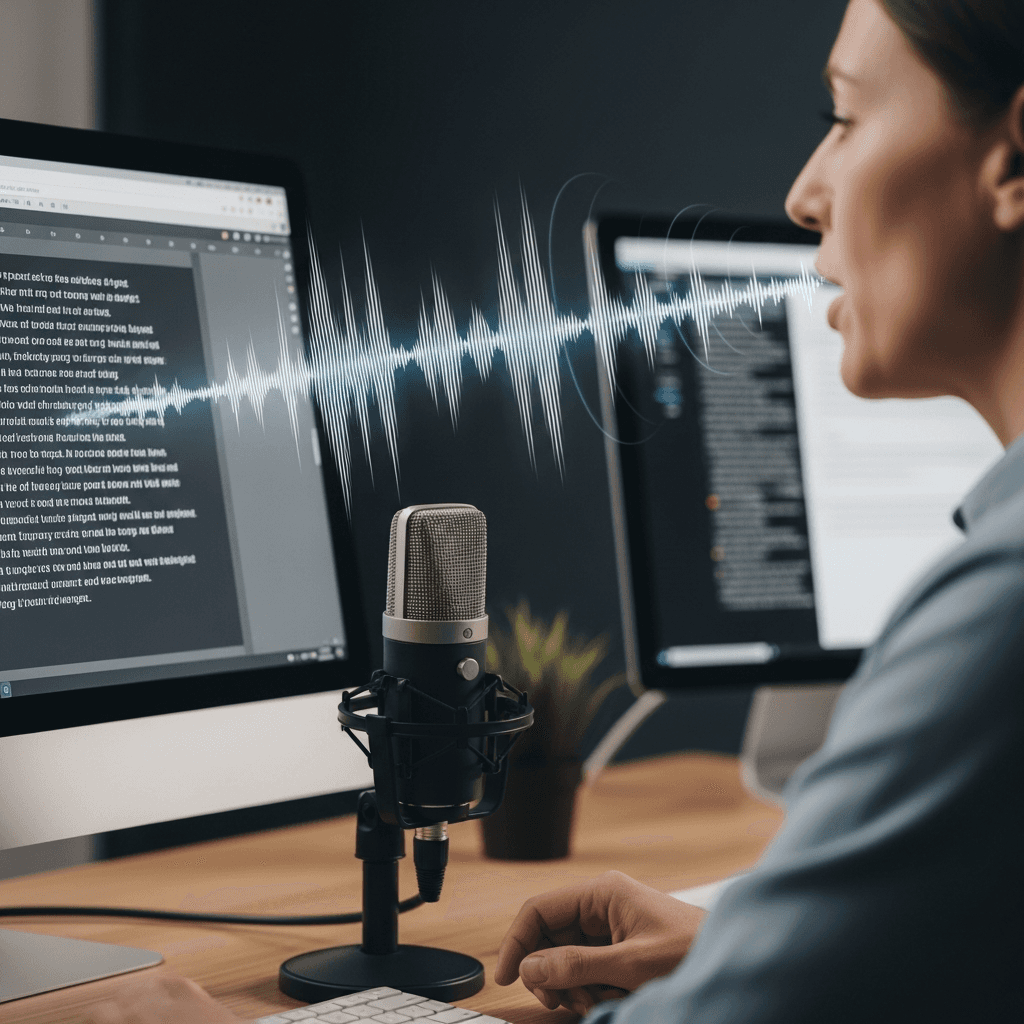
AI changed that. Today's best speech to text tools for Windows understand natural speech patterns, accents, and context right out of the box, no setup required.
The speed case is hard to ignore. Most people type around 40 words per minute. Speaking? You can push 125 words per minute, roughly a 3x jump. For Windows users grinding through emails, documentation, or AI prompts all day, speech recognition productivity research confirms those productivity gains compound quickly over time.
Free Windows Dictation Options: Built-In Voice Typing vs. Third-Party Tools
Windows 11 ships with Voice Typing built right in. Hit Windows + H in any text field and you're speaking your words into text within seconds. It handles basic transcription well enough for casual use, and it costs nothing.
But free tools come with trade-offs. Windows Voice Typing lacks personalization and typically won't learn your vocabulary or writing style over time.
Third-party options fill that gap, with professional-grade tools going further on accuracy, speed, and features worth paying for.
Dragon Professional: The Legacy Standard for Windows Users
Dragon Professional has been the Windows dictation standard for decades, and its reputation is earned. After training, accuracy is strong, and it handles specialized vocabulary better than most. Medical and legal users have relied on it for that reason.
The downsides are harder to ignore now. Setup takes hours. The interface feels dated. A single license often runs $500 or more. Offline processing is a privacy win, but it means missing out on the AI-driven accuracy improvements that cloud-first tools get automatically.
Dragon makes sense if your workflow demands deep domain vocabulary and you have time to invest upfront. For anyone who wants fast setup or sharper AI accuracy, Dragon alternatives are worth considering.
Accuracy Standards: What to Expect from Windows Dictation in 2026
Modern dictation software on Windows has improved dramatically, but accuracy still varies by tool and use case. Here's what you can realistically expect in 2026:
Built-in consumer dictation tools can perform well under ideal conditions, but accuracy varies based on environment, microphone quality, accent, and speech clarity.
AI-powered tools can improve accuracy for trained voices and domain-specific vocabulary, especially when they learn from corrections over time, making them the most accurate speech to text options available today.
Background noise, accents, and technical jargon remain the biggest accuracy killers across every tool reviewed here.
Accuracy also depends heavily on whether the software learns from your corrections over time, which helps distinguish adaptive tools from more static alternatives.
Key Features That Matter for Windows Productivity
Not every dictation feature matters equally in a Windows workflow. A few consistently separate useful tools from frustrating ones.
System-wide compatibility: Does the tool work in all your Windows applications without switching modes? Tools locked to a single app create friction fast.
Latency: Under 500ms keeps text in sync with speech. Willow runs at ~200ms, fast enough that text appears almost as you speak.
Custom vocabulary: Generic models stumble on product names, internal jargon, and industry terms. Custom dictionaries fix that gap at the team level.
Voice commands: Formatting controls like "new line" or "bullet point" keep your hands off the keyboard entirely, which matters when moving through a long document in Word.
Personalization: Does the tool learn from your corrections? Basic built-in tools typically offer limited personalization compared with dedicated AI dictation platforms. That difference compounds the longer you use it.
Software | Latency | Personalization | Accuracy | Compliance | Price | Best For |
|---|---|---|---|---|---|---|
Willow | 200ms response time keeps text synced with speech | Learns from every correction you make and adapts to your writing style automatically | 97-99% with AI model that improves over time | SOC 2 and HIPAA certified with zero data retention | Forever free plan with 2,000 words weekly, paid plans available | Professional Windows and Mac users who need speed, accuracy, and enterprise security |
Dragon Professional | 700ms or slower, processes locally without cloud AI | Requires hours of training upfront, then maintains custom vocabulary | 95-97% after initial training period | Offline processing provides complete privacy | $500+ one-time license fee | Medical and legal users with deep domain vocabulary and time to invest in setup |
Windows Voice Typing | 500-700ms depending on system load | No learning capability, treats every session as new | 90-95% in quiet environments with clear speech | Standard Microsoft privacy policy, no specific certifications | Free, built into Windows 11 | Casual users who need basic transcription without investment |
Wispr Flow | 700ms+ standard processing delay | Static model with no correction learning | 90-95% baseline accuracy | No enterprise compliance certifications | Varies by plan | Light dictation users without specialized vocabulary needs |
Apple Dictation | 600-800ms typical response | Does not adapt to individual writing patterns | 90-93% general accuracy | Standard Apple privacy, no healthcare or legal certifications | Free with macOS, Apple devices only | Apple ecosystem users who occasionally need dictation on Windows via workarounds |
Dictation for Specialized Windows Workflows
The best dictation software tools aren't one-size-fits-all. Writers, medical professionals, and legal teams each have distinct needs that generic tools like Wispr Flow or Apple's built-in voice dictation simply don't meet.
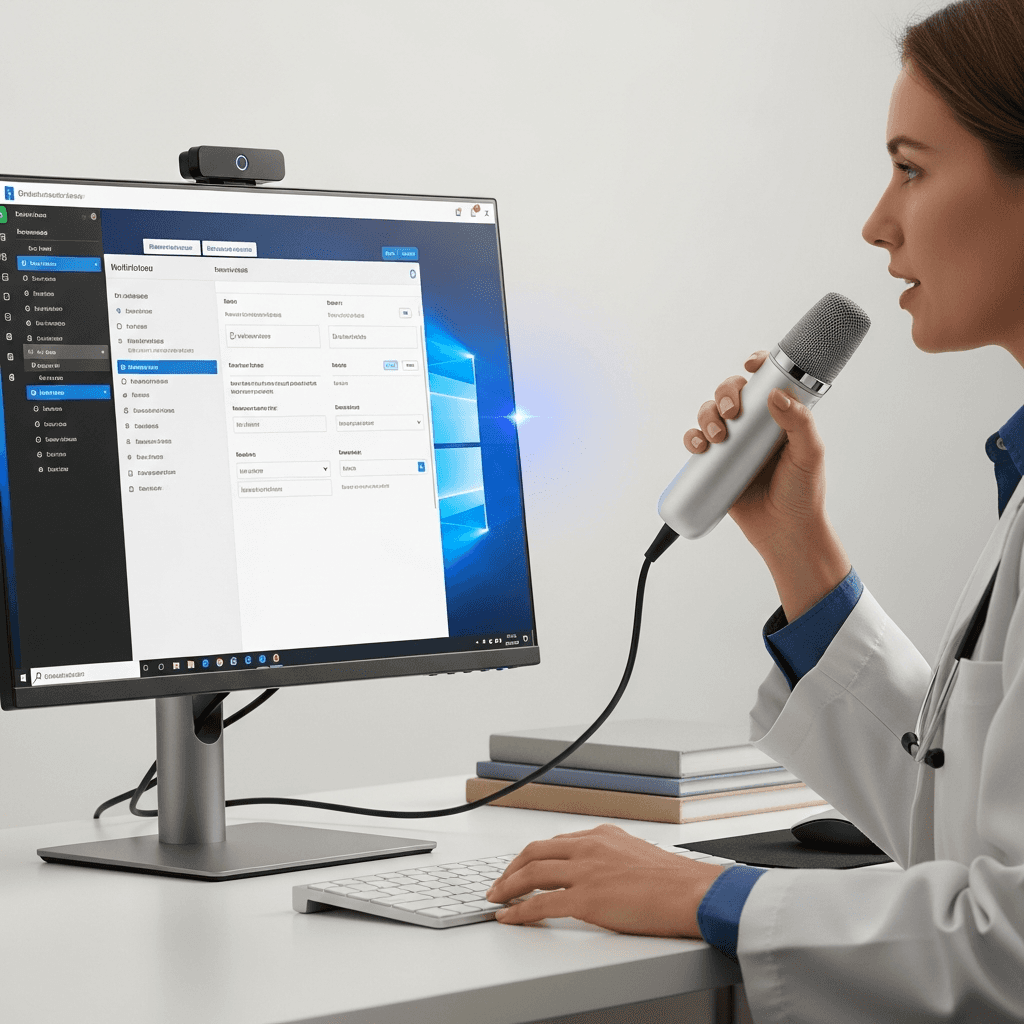
For writers, accuracy and style consistency matter most. For medical dictation on Windows, HIPAA compliance is non-negotiable. Legal professionals need precise terminology recognition without costly errors.
This is where purpose-built or highly adaptable tools stand out:
Writers benefit from a tool that learns their voice and style over time, reducing post-dictation editing.
Medical and legal users need enterprise-grade security, shared terminology dictionaries, and reliable accuracy across specialized vocabularies.
Security and Privacy Considerations for Windows Users
When your dictation involves patient records, legal documents, or confidential business information, security stops being optional.
The core question is simple: where does your audio go, and who keeps it?
Many consumer dictation tools are not designed around healthcare or enterprise compliance requirements. For compliance-driven industries on Windows, four things matter:
SOC 2 certification confirms your data is handled to audited security standards.
HIPAA compliance makes a tool viable for healthcare environments without added risk.
Zero data retention policies mean your audio isn't stored or used to train models.
Offline mode keeps processing fully local when cloud connectivity isn't an option.
Willow covers all four, making it one of the few AI dictation tools genuinely built for healthcare and enterprise Windows environments.
Setting Up and Optimizing Windows Dictation for Best Results
A few small habits make a real difference in dictation accuracy across AI-powered tools. Start with your microphone: a dedicated USB or headset mic will outperform a built-in laptop mic on every tool tested here.
Beyond hardware, keep these in mind:
Speak at a steady, natural pace instead of rushing or over-enunciating. Most engines calibrate to normal conversational rhythm.
Reduce background noise where possible. Open windows and fan noise are common accuracy killers.
Learn the punctuation commands for whichever tool you use. Saying "period" or "new paragraph" keeps formatting clean without touching the keyboard.
Run a short test session when you first set up any new tool to catch audio driver or permission issues early.
Common Windows Dictation Challenges and Solutions
The most common Windows dictation issues have clear fixes once you know where to look.
App compatibility: If dictation fails in a specific app, check whether it's running with administrator privileges. Many tools lose input access in high-permission windows.
Latency spikes: Close unused background processes. High CPU load is the usual culprit when text lags behind speech.
Punctuation errors: Most stem from not knowing your tool's command list. Spend five minutes reviewing available formatting commands before blaming the software.
Accent recognition: Use your voice recognition tool's error-reporting feature to flag missed words. Feedback loops improve results over time, especially with tools like Willow that route corrections back into the model.
Background noise: Switch to push-to-talk instead of always-on listening when your environment gets loud.
Why Willow Delivers Superior Dictation for Windows Users
Willow stands apart from free dictation software and every other dictation option on Windows in three concrete ways.
Personalization comes first. Willow learns from every correction automatically, building an increasingly accurate model of how you write. Static tools like Wispr Flow and Apple's built-in voice dictation treat every session like it's the first.
Speed follows. At 200ms latency, Willow runs 3.5x faster than competitors sitting at 700ms or more. Text keeps pace with thought instead of lagging behind it.
Then there's team readiness. SOC 2 and HIPAA compliance, shared shortcuts, and shared dictionary terms make Willow the only dictation tool built for how real teams work.
Beyond these core advantages, Willow includes offline mode that runs locally on your device while matching cloud-quality accuracy, giving you privacy without sacrificing performance.
FAQs
What's the best free dictation software for Windows 11?
Windows 11's built-in Voice Typing (Windows + H) handles basic transcription at no cost and requires zero setup. For higher accuracy and personalization that learns your writing style over time, you'll need a third-party option like Willow, which offers a free trial with 2,000 words that recharges weekly.
Can I use dictation software without an internet connection on Windows?
Yes, but options are limited. Dragon Professional processes everything offline for complete privacy, though setup takes hours and costs $500+. Willow also offers an offline mode that runs locally on your device while matching cloud-quality accuracy, giving you privacy without sacrificing performance.
How do I turn on dictation in Word 2024?
Open any document in Word 2024, go to the Home tab, and click the microphone button in the ribbon. You can also use system-wide tools like Windows Voice Typing or Willow that work across Word, Outlook, Slack, and any other application without switching modes.
Final Thoughts on Windows Voice Typing
The gap between basic speech to text software and AI dictation that actually works keeps widening. The best dictation software for Windows personalizes to how you write, processes speech at 200ms instead of the 700ms standard, and ships with enterprise security that makes it a strong option for compliance-driven teams. Willow delivers all three. Tools like Wispr Flow and Apple's built-in voice dictation work fine for casual use, but they won't learn your style or keep pace when speed matters. Download Willow free and feel the difference when your dictation tool finally keeps up with your thoughts.
Most Windows users try the free built-in dictation, get frustrated with lag and errors, and give up on the whole idea. That's a mistake because the right dictation software for Windows goes beyond transcribing your words accurately; it learns how you write, keeps up with your thoughts at 200ms latency, and works everywhere from Outlook to Slack without switching modes. We tested the best tools available in 2026 to show you what's actually worth using when speed and accuracy matter.
TLDR:
Windows dictation speeds your input to 125 WPM vs. 40 WPM typing, cutting email and doc time by 3x.
Free options like Windows Voice Typing lack personalization and won't learn your vocabulary over time.
Enterprise users need SOC 2 and HIPAA compliance for medical or legal dictation on Windows.
The right AI dictation tool learns from your corrections at 200ms latency, 3.5x faster than tools at 700ms or more.
AI-powered tools hit 97-99% accuracy for trained voices, compared to 90-95% for built-in consumer options.
What Is Dictation Software and How Does It Work?
Dictation software converts speech into text in real time. Early versions required hours of training by reading scripts aloud, and even then, accuracy was inconsistent.
AI changed that. Today's best speech to text tools for Windows understand natural speech patterns, accents, and context right out of the box, no setup required.
The speed case is hard to ignore. Most people type around 40 words per minute. Speaking? You can push 125 words per minute, roughly a 3x jump. For Windows users grinding through emails, documentation, or AI prompts all day, speech recognition productivity research confirms those productivity gains compound quickly over time.
Free Windows Dictation Options: Built-In Voice Typing vs. Third-Party Tools
Windows 11 ships with Voice Typing built right in. Hit Windows + H in any text field and you're speaking your words into text within seconds. It handles basic transcription well enough for casual use, and it costs nothing.
But free tools come with trade-offs. Windows Voice Typing lacks personalization and typically won't learn your vocabulary or writing style over time.
Third-party options fill that gap, with professional-grade tools going further on accuracy, speed, and features worth paying for.
Dragon Professional: The Legacy Standard for Windows Users
Dragon Professional has been the Windows dictation standard for decades, and its reputation is earned. After training, accuracy is strong, and it handles specialized vocabulary better than most. Medical and legal users have relied on it for that reason.
The downsides are harder to ignore now. Setup takes hours. The interface feels dated. A single license often runs $500 or more. Offline processing is a privacy win, but it means missing out on the AI-driven accuracy improvements that cloud-first tools get automatically.
Dragon makes sense if your workflow demands deep domain vocabulary and you have time to invest upfront. For anyone who wants fast setup or sharper AI accuracy, Dragon alternatives are worth considering.
Accuracy Standards: What to Expect from Windows Dictation in 2026
Modern dictation software on Windows has improved dramatically, but accuracy still varies by tool and use case. Here's what you can realistically expect in 2026:
Built-in consumer dictation tools can perform well under ideal conditions, but accuracy varies based on environment, microphone quality, accent, and speech clarity.
AI-powered tools can improve accuracy for trained voices and domain-specific vocabulary, especially when they learn from corrections over time, making them the most accurate speech to text options available today.
Background noise, accents, and technical jargon remain the biggest accuracy killers across every tool reviewed here.
Accuracy also depends heavily on whether the software learns from your corrections over time, which helps distinguish adaptive tools from more static alternatives.
Key Features That Matter for Windows Productivity
Not every dictation feature matters equally in a Windows workflow. A few consistently separate useful tools from frustrating ones.
System-wide compatibility: Does the tool work in all your Windows applications without switching modes? Tools locked to a single app create friction fast.
Latency: Under 500ms keeps text in sync with speech. Willow runs at ~200ms, fast enough that text appears almost as you speak.
Custom vocabulary: Generic models stumble on product names, internal jargon, and industry terms. Custom dictionaries fix that gap at the team level.
Voice commands: Formatting controls like "new line" or "bullet point" keep your hands off the keyboard entirely, which matters when moving through a long document in Word.
Personalization: Does the tool learn from your corrections? Basic built-in tools typically offer limited personalization compared with dedicated AI dictation platforms. That difference compounds the longer you use it.
Software | Latency | Personalization | Accuracy | Compliance | Price | Best For |
|---|---|---|---|---|---|---|
Willow | 200ms response time keeps text synced with speech | Learns from every correction you make and adapts to your writing style automatically | 97-99% with AI model that improves over time | SOC 2 and HIPAA certified with zero data retention | Forever free plan with 2,000 words weekly, paid plans available | Professional Windows and Mac users who need speed, accuracy, and enterprise security |
Dragon Professional | 700ms or slower, processes locally without cloud AI | Requires hours of training upfront, then maintains custom vocabulary | 95-97% after initial training period | Offline processing provides complete privacy | $500+ one-time license fee | Medical and legal users with deep domain vocabulary and time to invest in setup |
Windows Voice Typing | 500-700ms depending on system load | No learning capability, treats every session as new | 90-95% in quiet environments with clear speech | Standard Microsoft privacy policy, no specific certifications | Free, built into Windows 11 | Casual users who need basic transcription without investment |
Wispr Flow | 700ms+ standard processing delay | Static model with no correction learning | 90-95% baseline accuracy | No enterprise compliance certifications | Varies by plan | Light dictation users without specialized vocabulary needs |
Apple Dictation | 600-800ms typical response | Does not adapt to individual writing patterns | 90-93% general accuracy | Standard Apple privacy, no healthcare or legal certifications | Free with macOS, Apple devices only | Apple ecosystem users who occasionally need dictation on Windows via workarounds |
Dictation for Specialized Windows Workflows
The best dictation software tools aren't one-size-fits-all. Writers, medical professionals, and legal teams each have distinct needs that generic tools like Wispr Flow or Apple's built-in voice dictation simply don't meet.
For writers, accuracy and style consistency matter most. For medical dictation on Windows, HIPAA compliance is non-negotiable. Legal professionals need precise terminology recognition without costly errors.
This is where purpose-built or highly adaptable tools stand out:
Writers benefit from a tool that learns their voice and style over time, reducing post-dictation editing.
Medical and legal users need enterprise-grade security, shared terminology dictionaries, and reliable accuracy across specialized vocabularies.
Security and Privacy Considerations for Windows Users
When your dictation involves patient records, legal documents, or confidential business information, security stops being optional.
The core question is simple: where does your audio go, and who keeps it?
Many consumer dictation tools are not designed around healthcare or enterprise compliance requirements. For compliance-driven industries on Windows, four things matter:
SOC 2 certification confirms your data is handled to audited security standards.
HIPAA compliance makes a tool viable for healthcare environments without added risk.
Zero data retention policies mean your audio isn't stored or used to train models.
Offline mode keeps processing fully local when cloud connectivity isn't an option.
Willow covers all four, making it one of the few AI dictation tools genuinely built for healthcare and enterprise Windows environments.
Setting Up and Optimizing Windows Dictation for Best Results
A few small habits make a real difference in dictation accuracy across AI-powered tools. Start with your microphone: a dedicated USB or headset mic will outperform a built-in laptop mic on every tool tested here.
Beyond hardware, keep these in mind:
Speak at a steady, natural pace instead of rushing or over-enunciating. Most engines calibrate to normal conversational rhythm.
Reduce background noise where possible. Open windows and fan noise are common accuracy killers.
Learn the punctuation commands for whichever tool you use. Saying "period" or "new paragraph" keeps formatting clean without touching the keyboard.
Run a short test session when you first set up any new tool to catch audio driver or permission issues early.
Common Windows Dictation Challenges and Solutions
The most common Windows dictation issues have clear fixes once you know where to look.
App compatibility: If dictation fails in a specific app, check whether it's running with administrator privileges. Many tools lose input access in high-permission windows.
Latency spikes: Close unused background processes. High CPU load is the usual culprit when text lags behind speech.
Punctuation errors: Most stem from not knowing your tool's command list. Spend five minutes reviewing available formatting commands before blaming the software.
Accent recognition: Use your voice recognition tool's error-reporting feature to flag missed words. Feedback loops improve results over time, especially with tools like Willow that route corrections back into the model.
Background noise: Switch to push-to-talk instead of always-on listening when your environment gets loud.
Why Willow Delivers Superior Dictation for Windows Users
Willow stands apart from free dictation software and every other dictation option on Windows in three concrete ways.
Personalization comes first. Willow learns from every correction automatically, building an increasingly accurate model of how you write. Static tools like Wispr Flow and Apple's built-in voice dictation treat every session like it's the first.
Speed follows. At 200ms latency, Willow runs 3.5x faster than competitors sitting at 700ms or more. Text keeps pace with thought instead of lagging behind it.
Then there's team readiness. SOC 2 and HIPAA compliance, shared shortcuts, and shared dictionary terms make Willow the only dictation tool built for how real teams work.
Beyond these core advantages, Willow includes offline mode that runs locally on your device while matching cloud-quality accuracy, giving you privacy without sacrificing performance.
FAQs
What's the best free dictation software for Windows 11?
Windows 11's built-in Voice Typing (Windows + H) handles basic transcription at no cost and requires zero setup. For higher accuracy and personalization that learns your writing style over time, you'll need a third-party option like Willow, which offers a free trial with 2,000 words that recharges weekly.
Can I use dictation software without an internet connection on Windows?
Yes, but options are limited. Dragon Professional processes everything offline for complete privacy, though setup takes hours and costs $500+. Willow also offers an offline mode that runs locally on your device while matching cloud-quality accuracy, giving you privacy without sacrificing performance.
How do I turn on dictation in Word 2024?
Open any document in Word 2024, go to the Home tab, and click the microphone button in the ribbon. You can also use system-wide tools like Windows Voice Typing or Willow that work across Word, Outlook, Slack, and any other application without switching modes.
Final Thoughts on Windows Voice Typing
The gap between basic speech to text software and AI dictation that actually works keeps widening. The best dictation software for Windows personalizes to how you write, processes speech at 200ms instead of the 700ms standard, and ships with enterprise security that makes it a strong option for compliance-driven teams. Willow delivers all three. Tools like Wispr Flow and Apple's built-in voice dictation work fine for casual use, but they won't learn your style or keep pace when speed matters. Download Willow free and feel the difference when your dictation tool finally keeps up with your thoughts.

Try Willow for free
Instant, accurate voice dictation. No card required.
Try Willow for free
Instant, accurate voice dictation. No card required.
Other stories you’ll love
Other stories you’ll love


Your keyboard is optional now
" transform="translate(5 5)" width="9.791000051498413px"/></svg>)

The voice-first interface for modern work.
© Willow Care, Inc. 2026. All rights reserved
Your keyboard is optional now
The voice-first interface for modern work.
© Willow Care, Inc. 2026. All rights reserved
Your keyboard is optional now
The voice-first interface for modern work.
© Willow Care, Inc. 2026. All rights reserved