" transform="translate(5 2)" width="10px"/></svg>)

•
5 min read
5 AI Writing Tools for Students: August 2026 Rankings

•
5 min read
5 AI Writing Tools for Students: August 2026 Rankings
Most voice dictation tools work fine until they don't, and for students that usually means mid-sentence, mid-thought, or mid-panic the night before something is due. The difference between a tool that just transcribes and one that actually learns your vocabulary, works across every app you use, and keeps up with how fast you think is the whole game. Here's how the best AI writing tools for students stack up right now.
TLDR:
Voice dictation lets students write 3x faster at 150 WPM vs 40 WPM typing speed, compounding across every assignment.
Tools without vocabulary learning will keep misreading the same professor names and course terms on every use.
Dragon Professional is a Windows-only desktop product costing roughly $700 upfront, while Nuance offers a separate Dragon Anywhere mobile app for iOS and Android.
Browser-locked tools work in only one app, leaving students copying text manually when they move to a different writing surface.
One tool on this list delivers 98%+ accuracy and ~200ms latency system-wide across Mac, Windows, and iOS with an unlimited free plan.
What Are AI Writing Tools for Students?
For students, "AI writing tool" covers a wide range of software, but the category doing the most practical work right now is voice dictation: tools that convert speech to text in real time, use AI to clean up filler words and formatting, and in some cases generate complete written content from a spoken prompt.
The speed math alone makes voice dictation worth understanding. Students speak at around 150 words per minute but type at roughly 40, and the best speech to text tools for students close that gap across every assignment. That gap compounds across every essay, set of lecture notes, and study guide you produce. A tool that closes it applies across your entire academic output, beyond any single assignment type.
The best tools in this category do more than transcribe. They can learn your vocabulary, handle punctuation automatically, and turn a spoken outline into a polished draft. That range is what separates a useful AI writing tool from a basic microphone feature.
AI Writing Tools for Students: Quick Comparison
Tool | Platform | Free Plan | Accuracy | Vocabulary Learning | Best For |
|---|---|---|---|---|---|
Willow Voice | Mac, Windows, iOS | Unlimited, no word cap | 98%+ | Yes (auto) | System-wide dictation across all apps |
Google Docs Voice Typing | Chrome desktop only | Yes | Standard | No | Writing inside Google Docs |
Apple Dictation | Mac, iOS | Yes (built-in) | Standard | No | Occasional dictation on Apple devices |
Speechnotes | Chrome browser | Yes (ad-supported) | Standard | No | Quick browser-based notes |
Dragon Professional | Windows only | No ($500+ one-time) | High | Yes (manual setup) | Offline dictation on Windows |
Best Overall AI Writing Tool for Students: Willow Voice
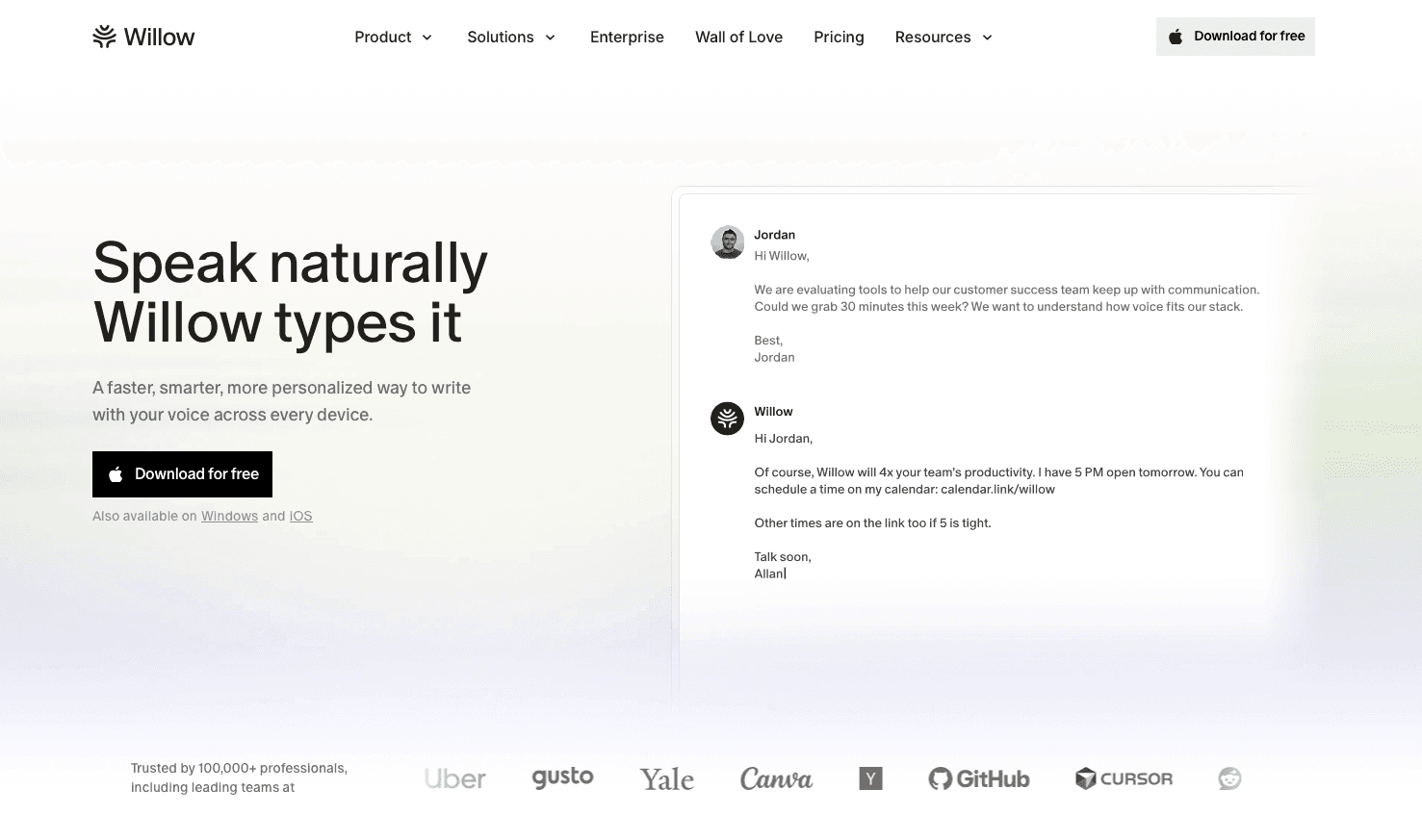
Willow Voice sits at the top of this list because it closes the gap between how fast ideas form and how slowly they get onto the page. Speaking runs at about 150 WPM versus 40 WPM typing, a 3x speed advantage across every essay, lecture note, and assignment. Accuracy holds that gain in place: 98%+ transcription at approximately 200ms latency, so text appears before the next thought is gone. The Auto-Dictionary picks up professor names, course terminology, and subject jargon without any manual setup.
A single hotkey (Fn on Mac, Alt+Space on Windows) activates dictation system-wide inside any app: Google Docs, Notion, email, ChatGPT, or any other text field. Whether you are on a Mac at home or a Windows machine in a campus lab, the same hotkey and vocabulary carry over without any reconfiguration. That reach makes it one of the strongest voice note apps for students available today. No window switching, no tab juggling.
Core strengths:
98%+ accuracy with 3x fewer errors than built-in tools on Mac, Windows, and iOS
Auto-Dictionary learns course vocabulary and professor names automatically with no manual entry
Willow Scribe (Fn + Control on Mac; Alt+Shift+Space on Windows) generates complete written content from a voice prompt instead of transcribing word-for-word, a capability that sets it apart from most dictation software tools on the market
Unlimited free plan, no word cap, no credit card; paid Individual plan at $12/month adds faster, more accurate dictation plus unlimited Willow Scribe
SOC 2 Type II certified and HIPAA compliant, covering university programs, research groups, and professional team environments with data handling requirements
Free to start, works across supported devices, and is accurate enough that editing becomes optional rather than a required step.
Google Docs Voice Typing
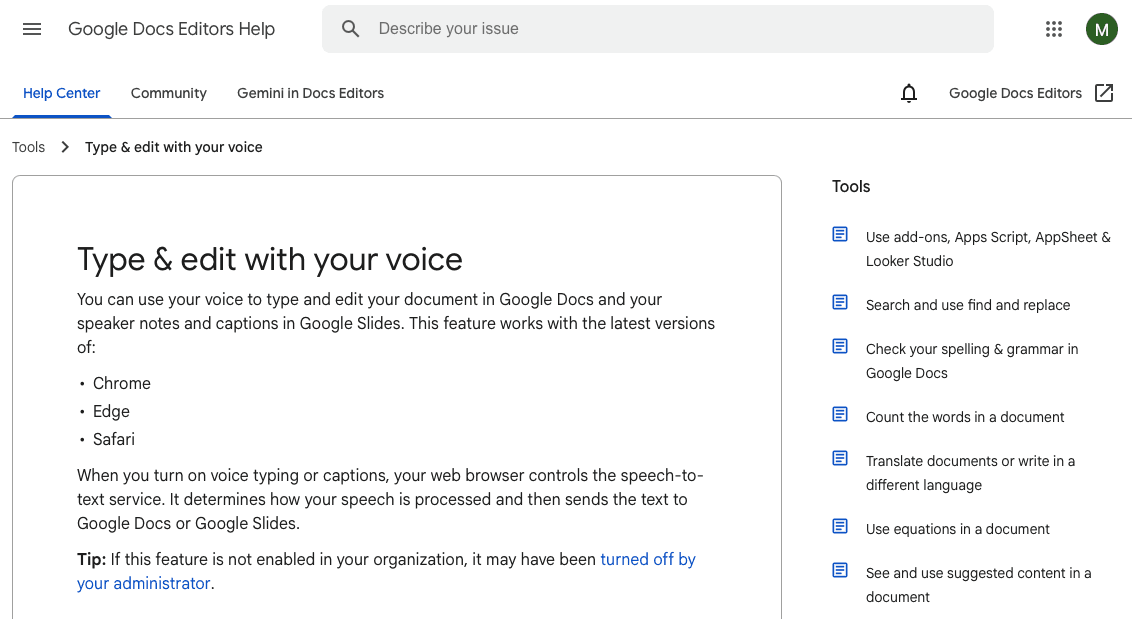
Google Docs Voice Typing is built into every Google account and requires nothing to install. Open a doc, hit Tools > Voice Typing, and you're speaking text in seconds, though dedicated voice-to-text tools for Google Docs offer considerably more capability.
What They Offer
Completely free with any Google account, with no word limits or time caps to worry about
120+ languages supported alongside basic punctuation and formatting commands
Real-time transcription directly inside Google Docs in supported desktop browsers, including Chrome, Edge, and Safari
No filler word removal, no vocabulary learning, and no AI content generation
Good for students who write primarily inside Google Docs and want a zero-cost, zero-installation starting point.
The architectural limit is worth naming plainly. Google Docs Voice Typing works only inside Google Docs and Slides on Chrome desktop. Gmail, Notion, study apps, and any window outside the Chrome browser are out of scope entirely. See our guide on AI voice dictation in Google Docs for a fuller breakdown of your options. Students who bounce between writing surfaces during a typical homework session will hit that wall quickly and need a separate solution everywhere else.
Apple Dictation
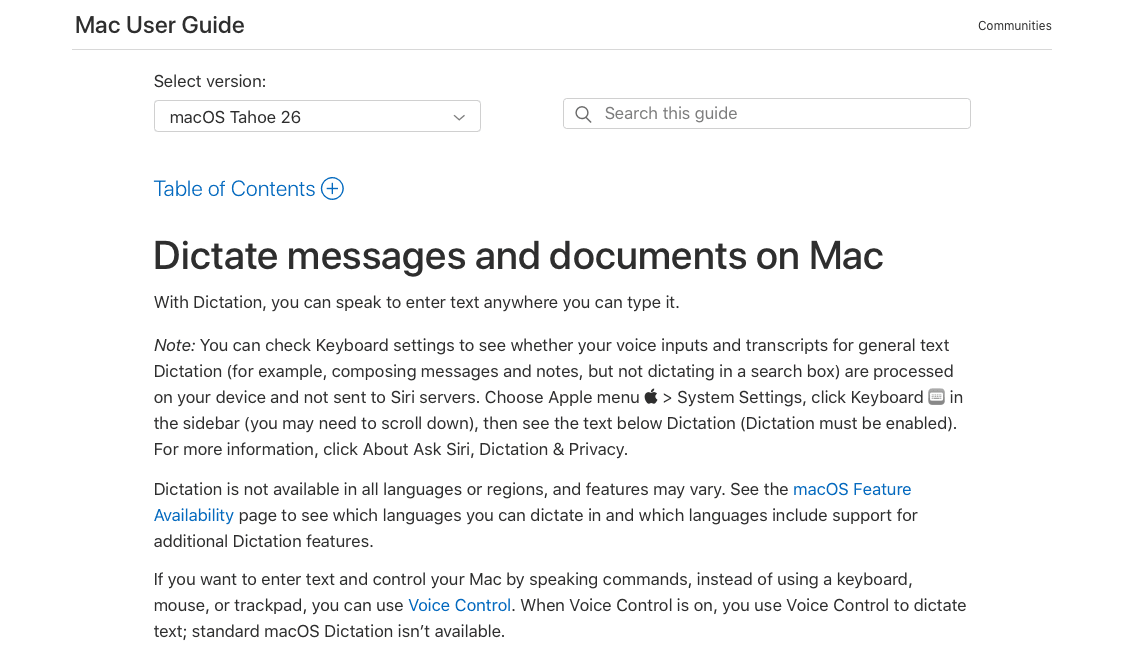
Apple Dictation ships with macOS Tahoe (version 26) and iOS, so there is nothing to download, no account to create, and no setup beyond turning it on in system settings. For a student on a Mac or iPhone who needs occasional voice input right now, that zero-friction entry point is genuinely useful.
The constraints surface quickly in regular academic use, though. Apple Dictation has no filler word removal, no vocabulary learning, and no memory between sessions, which is a particular problem for students using speech to text for dyslexia. A discipline-specific term or a professor's name gets misread on the first attempt and again on the tenth, because nothing carries over. Windows users have no access to it at all.
What It Offers
Built into macOS Tahoe (version 26) and iOS with no download or account required
Works system-wide across apps, not locked to a single application
Auto-stops after 30 seconds of silence, with no hard session length cap on macOS Tahoe 26
Supports multiple languages with basic punctuation handling
For a one-off note it works fine. For regular essay drafting or research writing across mixed devices, the manual correction overhead accumulates quickly enough to cancel out the convenience of not installing anything.
Speechnotes
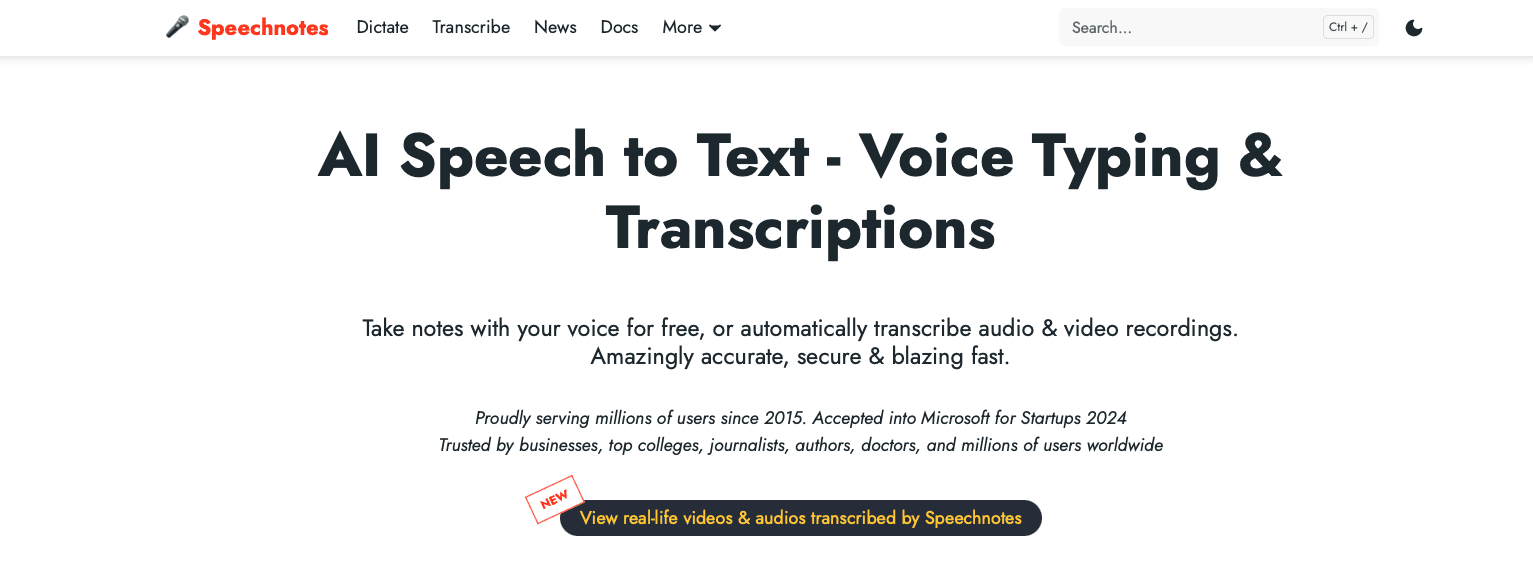
Speechnotes is a minimalist browser-based dictation notepad built around simplicity and price. No installation, no account wall, and a free tier that stays genuinely accessible.
What They Offer
Free Chrome-based dictation notepad and Chrome extension, ad-supported
Premium plan at $1.90/month billed annually, which removes ads and adds priority support
Voice commands for basic punctuation: period, comma, new line
Separate pay-as-you-go audio transcription at $0.10/minute for uploaded files
Good for students who need a dead-simple voice notepad and aren't ready to commit to anything.
The Web Speech API dependency is the structural ceiling here. Speechnotes requires an internet connection and a Chrome browser, offers no offline mode, and has no native desktop app. There is no vocabulary learning, no filler word removal, and no AI content generation. Speaking into Google Docs, Notion, or a study app means opening Speechnotes separately and copying the text over, a step that compounds across every session. System-wide voice input is not possible.
For a quick browser-based note, it works. For students writing across multiple tools throughout the day, including those who benefit from voice dictation apps for ADHD, that browser dependency becomes friction fast.
Hardware-Dependent Option: Dragon Professional

Dragon Professional has one of the strongest accuracy reputations in voice dictation, built over decades of iteration and a large installed base in Windows enterprise environments.
What It Offers
High-accuracy desktop dictation with custom vocabulary support for specialized terminology
Available for Windows only; Mac support was discontinued in 2018
Locally processed dictation that does not require a cloud connection after installation
One-time purchase of roughly $699 for Dragon Professional v16, with additional costs for major version upgrades
Good for students on Windows who need offline, locally processed dictation with deep vocabulary customization and have the budget for a one-time software investment.
The math is the main problem. At roughly $699 upfront, Dragon Professional costs more than most students spend on textbooks in a semester. Dragon Professional itself has no Mac version and is designed for Windows; mobile dictation is available separately through Dragon Anywhere for iOS and Android. Students who work across a laptop and a phone, or who switch between Windows and Mac, have no path to cross-device continuity. Initial setup and vocabulary customization can require more configuration than lightweight browser-based dictation tools. For a student on a deadline, that is not a realistic starting point.
Why Willow Voice Is the Best AI Writing Tool for Students
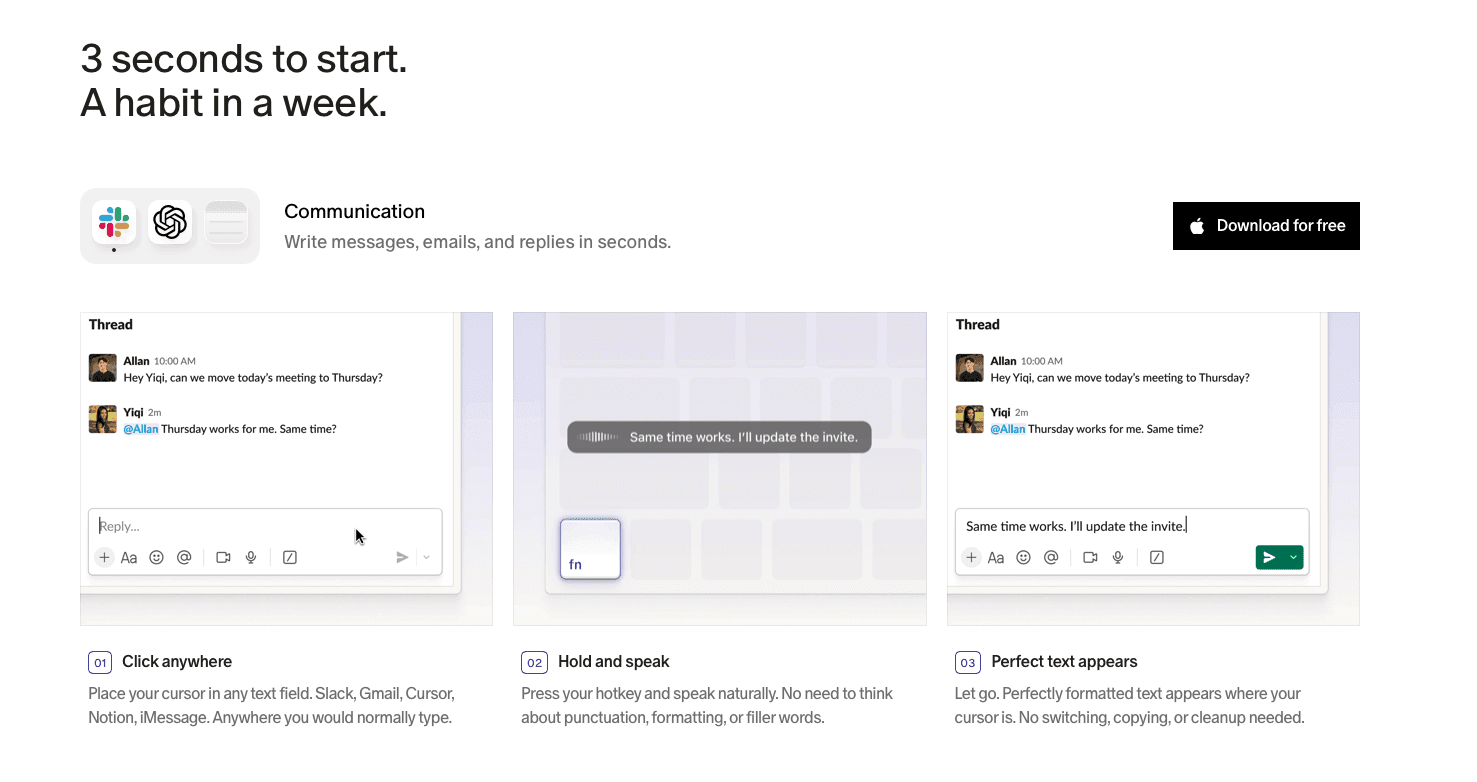
Willow Voice works system-wide across Mac, Windows, and iOS, carries no word cap on the free plan, and processes speech at ~200ms, fast enough to keep pace with actual thinking and a strong candidate among the best AI productivity tools available to students today. Most tools in this category force a tradeoff somewhere: broad app coverage or a free plan, high accuracy or cross-device support. Willow doesn't ask you to choose. The same setup that works for a student finishing a paper also fits a lab research team sharing vocabulary, or a professional moving across mixed-device workflows from day one.
The compounding advantage is what separates it over a full semester. Willow's Auto-Dictionary learns professor names, course terminology, and subject-specific vocabulary from your corrections and carries that forward across every session. A tool that resets after each use is a different category of problem from one that remembers. That gap is small on day one and meaningful by finals week.
FAQs
How do I choose the right AI writing tool for my needs as a student?
Start with where you actually write. If all your work lives in Google Docs, Google Docs Voice Typing covers the basics at no cost. If you move between Google Docs, Notion, email, and AI tools like ChatGPT throughout a typical day, you need a tool with system-wide compatibility. Willow Voice works across all of them from a single hotkey, while Google Docs Voice Typing and Speechnotes are locked to a browser window.
Is Willow Voice better than Dragon Professional for students on a budget?
For most students, yes. Dragon Professional is a Windows-only desktop product costing roughly $700 upfront; Nuance offers Dragon Anywhere separately for mobile dictation on iOS and Android. That is a steep upfront cost before you've written a single word. Willow Voice offers an unlimited free plan with no word cap and no credit card required, works across Mac, Windows, and iOS, and reaches 98%+ accuracy without the more involved desktop setup and customization associated with Dragon Professional.
Can I use an AI writing tool for students on a Chromebook?
Most browser-based tools work on a Chromebook without any installation. Google Docs Voice Typing and Speechnotes both run inside Chrome, so they cover basic dictation on ChromeOS out of the box. Willow Voice does not currently have a ChromeOS app, so Chromebook users are limited to browser-based options for now. If your primary device is a Chromebook, Google Docs Voice Typing is the most straightforward free starting point.
Final Thoughts on Finding the Right AI Writing Tool for Students
The best AI writing tools for students are the ones that fit how you actually work, not how you wish you worked. If your writing stays in one app on one device, a free built-in option might be enough. If your writing jumps between a Google Doc, a study app, and a late-night email to your professor, you need something system-wide. Willow Voice is free to download and works across every text field without a word limit to worry about.
Most voice dictation tools work fine until they don't, and for students that usually means mid-sentence, mid-thought, or mid-panic the night before something is due. The difference between a tool that just transcribes and one that actually learns your vocabulary, works across every app you use, and keeps up with how fast you think is the whole game. Here's how the best AI writing tools for students stack up right now.
TLDR:
Voice dictation lets students write 3x faster at 150 WPM vs 40 WPM typing speed, compounding across every assignment.
Tools without vocabulary learning will keep misreading the same professor names and course terms on every use.
Dragon Professional is a Windows-only desktop product costing roughly $700 upfront, while Nuance offers a separate Dragon Anywhere mobile app for iOS and Android.
Browser-locked tools work in only one app, leaving students copying text manually when they move to a different writing surface.
One tool on this list delivers 98%+ accuracy and ~200ms latency system-wide across Mac, Windows, and iOS with an unlimited free plan.
What Are AI Writing Tools for Students?
For students, "AI writing tool" covers a wide range of software, but the category doing the most practical work right now is voice dictation: tools that convert speech to text in real time, use AI to clean up filler words and formatting, and in some cases generate complete written content from a spoken prompt.
The speed math alone makes voice dictation worth understanding. Students speak at around 150 words per minute but type at roughly 40, and the best speech to text tools for students close that gap across every assignment. That gap compounds across every essay, set of lecture notes, and study guide you produce. A tool that closes it applies across your entire academic output, beyond any single assignment type.
The best tools in this category do more than transcribe. They can learn your vocabulary, handle punctuation automatically, and turn a spoken outline into a polished draft. That range is what separates a useful AI writing tool from a basic microphone feature.
AI Writing Tools for Students: Quick Comparison
Tool | Platform | Free Plan | Accuracy | Vocabulary Learning | Best For |
|---|---|---|---|---|---|
Willow Voice | Mac, Windows, iOS | Unlimited, no word cap | 98%+ | Yes (auto) | System-wide dictation across all apps |
Google Docs Voice Typing | Chrome desktop only | Yes | Standard | No | Writing inside Google Docs |
Apple Dictation | Mac, iOS | Yes (built-in) | Standard | No | Occasional dictation on Apple devices |
Speechnotes | Chrome browser | Yes (ad-supported) | Standard | No | Quick browser-based notes |
Dragon Professional | Windows only | No ($500+ one-time) | High | Yes (manual setup) | Offline dictation on Windows |
Best Overall AI Writing Tool for Students: Willow Voice
Willow Voice sits at the top of this list because it closes the gap between how fast ideas form and how slowly they get onto the page. Speaking runs at about 150 WPM versus 40 WPM typing, a 3x speed advantage across every essay, lecture note, and assignment. Accuracy holds that gain in place: 98%+ transcription at approximately 200ms latency, so text appears before the next thought is gone. The Auto-Dictionary picks up professor names, course terminology, and subject jargon without any manual setup.
A single hotkey (Fn on Mac, Alt+Space on Windows) activates dictation system-wide inside any app: Google Docs, Notion, email, ChatGPT, or any other text field. Whether you are on a Mac at home or a Windows machine in a campus lab, the same hotkey and vocabulary carry over without any reconfiguration. That reach makes it one of the strongest voice note apps for students available today. No window switching, no tab juggling.
Core strengths:
98%+ accuracy with 3x fewer errors than built-in tools on Mac, Windows, and iOS
Auto-Dictionary learns course vocabulary and professor names automatically with no manual entry
Willow Scribe (Fn + Control on Mac; Alt+Shift+Space on Windows) generates complete written content from a voice prompt instead of transcribing word-for-word, a capability that sets it apart from most dictation software tools on the market
Unlimited free plan, no word cap, no credit card; paid Individual plan at $12/month adds faster, more accurate dictation plus unlimited Willow Scribe
SOC 2 Type II certified and HIPAA compliant, covering university programs, research groups, and professional team environments with data handling requirements
Free to start, works across supported devices, and is accurate enough that editing becomes optional rather than a required step.
Google Docs Voice Typing
Google Docs Voice Typing is built into every Google account and requires nothing to install. Open a doc, hit Tools > Voice Typing, and you're speaking text in seconds, though dedicated voice-to-text tools for Google Docs offer considerably more capability.
What They Offer
Completely free with any Google account, with no word limits or time caps to worry about
120+ languages supported alongside basic punctuation and formatting commands
Real-time transcription directly inside Google Docs in supported desktop browsers, including Chrome, Edge, and Safari
No filler word removal, no vocabulary learning, and no AI content generation
Good for students who write primarily inside Google Docs and want a zero-cost, zero-installation starting point.
The architectural limit is worth naming plainly. Google Docs Voice Typing works only inside Google Docs and Slides on Chrome desktop. Gmail, Notion, study apps, and any window outside the Chrome browser are out of scope entirely. See our guide on AI voice dictation in Google Docs for a fuller breakdown of your options. Students who bounce between writing surfaces during a typical homework session will hit that wall quickly and need a separate solution everywhere else.
Apple Dictation
Apple Dictation ships with macOS Tahoe (version 26) and iOS, so there is nothing to download, no account to create, and no setup beyond turning it on in system settings. For a student on a Mac or iPhone who needs occasional voice input right now, that zero-friction entry point is genuinely useful.
The constraints surface quickly in regular academic use, though. Apple Dictation has no filler word removal, no vocabulary learning, and no memory between sessions, which is a particular problem for students using speech to text for dyslexia. A discipline-specific term or a professor's name gets misread on the first attempt and again on the tenth, because nothing carries over. Windows users have no access to it at all.
What It Offers
Built into macOS Tahoe (version 26) and iOS with no download or account required
Works system-wide across apps, not locked to a single application
Auto-stops after 30 seconds of silence, with no hard session length cap on macOS Tahoe 26
Supports multiple languages with basic punctuation handling
For a one-off note it works fine. For regular essay drafting or research writing across mixed devices, the manual correction overhead accumulates quickly enough to cancel out the convenience of not installing anything.
Speechnotes
Speechnotes is a minimalist browser-based dictation notepad built around simplicity and price. No installation, no account wall, and a free tier that stays genuinely accessible.
What They Offer
Free Chrome-based dictation notepad and Chrome extension, ad-supported
Premium plan at $1.90/month billed annually, which removes ads and adds priority support
Voice commands for basic punctuation: period, comma, new line
Separate pay-as-you-go audio transcription at $0.10/minute for uploaded files
Good for students who need a dead-simple voice notepad and aren't ready to commit to anything.
The Web Speech API dependency is the structural ceiling here. Speechnotes requires an internet connection and a Chrome browser, offers no offline mode, and has no native desktop app. There is no vocabulary learning, no filler word removal, and no AI content generation. Speaking into Google Docs, Notion, or a study app means opening Speechnotes separately and copying the text over, a step that compounds across every session. System-wide voice input is not possible.
For a quick browser-based note, it works. For students writing across multiple tools throughout the day, including those who benefit from voice dictation apps for ADHD, that browser dependency becomes friction fast.
Hardware-Dependent Option: Dragon Professional
Dragon Professional has one of the strongest accuracy reputations in voice dictation, built over decades of iteration and a large installed base in Windows enterprise environments.
What It Offers
High-accuracy desktop dictation with custom vocabulary support for specialized terminology
Available for Windows only; Mac support was discontinued in 2018
Locally processed dictation that does not require a cloud connection after installation
One-time purchase of roughly $699 for Dragon Professional v16, with additional costs for major version upgrades
Good for students on Windows who need offline, locally processed dictation with deep vocabulary customization and have the budget for a one-time software investment.
The math is the main problem. At roughly $699 upfront, Dragon Professional costs more than most students spend on textbooks in a semester. Dragon Professional itself has no Mac version and is designed for Windows; mobile dictation is available separately through Dragon Anywhere for iOS and Android. Students who work across a laptop and a phone, or who switch between Windows and Mac, have no path to cross-device continuity. Initial setup and vocabulary customization can require more configuration than lightweight browser-based dictation tools. For a student on a deadline, that is not a realistic starting point.
Why Willow Voice Is the Best AI Writing Tool for Students
Willow Voice works system-wide across Mac, Windows, and iOS, carries no word cap on the free plan, and processes speech at ~200ms, fast enough to keep pace with actual thinking and a strong candidate among the best AI productivity tools available to students today. Most tools in this category force a tradeoff somewhere: broad app coverage or a free plan, high accuracy or cross-device support. Willow doesn't ask you to choose. The same setup that works for a student finishing a paper also fits a lab research team sharing vocabulary, or a professional moving across mixed-device workflows from day one.
The compounding advantage is what separates it over a full semester. Willow's Auto-Dictionary learns professor names, course terminology, and subject-specific vocabulary from your corrections and carries that forward across every session. A tool that resets after each use is a different category of problem from one that remembers. That gap is small on day one and meaningful by finals week.
FAQs
How do I choose the right AI writing tool for my needs as a student?
Start with where you actually write. If all your work lives in Google Docs, Google Docs Voice Typing covers the basics at no cost. If you move between Google Docs, Notion, email, and AI tools like ChatGPT throughout a typical day, you need a tool with system-wide compatibility. Willow Voice works across all of them from a single hotkey, while Google Docs Voice Typing and Speechnotes are locked to a browser window.
Is Willow Voice better than Dragon Professional for students on a budget?
For most students, yes. Dragon Professional is a Windows-only desktop product costing roughly $700 upfront; Nuance offers Dragon Anywhere separately for mobile dictation on iOS and Android. That is a steep upfront cost before you've written a single word. Willow Voice offers an unlimited free plan with no word cap and no credit card required, works across Mac, Windows, and iOS, and reaches 98%+ accuracy without the more involved desktop setup and customization associated with Dragon Professional.
Can I use an AI writing tool for students on a Chromebook?
Most browser-based tools work on a Chromebook without any installation. Google Docs Voice Typing and Speechnotes both run inside Chrome, so they cover basic dictation on ChromeOS out of the box. Willow Voice does not currently have a ChromeOS app, so Chromebook users are limited to browser-based options for now. If your primary device is a Chromebook, Google Docs Voice Typing is the most straightforward free starting point.
Final Thoughts on Finding the Right AI Writing Tool for Students
The best AI writing tools for students are the ones that fit how you actually work, not how you wish you worked. If your writing stays in one app on one device, a free built-in option might be enough. If your writing jumps between a Google Doc, a study app, and a late-night email to your professor, you need something system-wide. Willow Voice is free to download and works across every text field without a word limit to worry about.

Try Willow for free
Instant, accurate voice dictation. No card required.
Try Willow for free
Instant, accurate voice dictation. No card required.
Other stories you’ll love
Other stories you’ll love

Your keyboard is optional now
" transform="translate(5 5)" width="9.791000051498413px"/></svg>)

The voice-first interface for modern work.
© Willow Care, Inc. 2026. All rights reserved
Your keyboard is optional now
The voice-first interface for modern work.
© Willow Care, Inc. 2026. All rights reserved
Your keyboard is optional now
The voice-first interface for modern work.
© Willow Care, Inc. 2026. All rights reserved