" transform="translate(5 2)" width="10px"/></svg>)

•
5 min read
Best Voice-to-Text Tools for Google Docs in July 2026

•
5 min read
Best Voice-to-Text Tools for Google Docs in July 2026
You've tried Google Docs' built-in voice typing and walked away frustrated when it misread technical terms or dropped words mid-sentence. Developers prompting AI coding tools, healthcare professionals capturing patient notes, and enterprise teams coordinating across Windows desktops, Mac laptops, and phones all hit the same wall: voice recognition tools fall apart the moment you leave the browser. By mid-2026, a new class of AI-powered dictation handles context, technical vocabulary, and cross-app use across Windows and Mac alike in ways earlier options couldn't manage.
TLDR:
The top AI-powered dictation tool offers universal voice dictation that works across all apps with 98%+ accuracy and 3x fewer errors than built-in tools.
Google Docs voice typing is free but limited to browser-only functionality.
Voice In Chrome extension expands browser features but remains browser-limited.
Apple Dictation works system-wide on Mac but has major time and accuracy limitations.
Most professionals need universal solutions that work smoothly across their entire workflow.
What Is Voice-to-Text for Google Docs?
Voice-to-text tools for Google Docs let users speak content directly into documents, capturing words faster than typing. Most use speech recognition to handle the conversion in real time.
Most people work across multiple platforms, switching between Gmail, Slack, Notion, and a dozen other apps throughout the day. That's where system-wide tools matter.
The average person speaks at around 150 words per minute but types at 40. That 3x gap between speaking and typing speed is the category baseline voice dictation tools are built to close.
Google Docs voice typing stops at the browser boundary, forcing a switch to a different input method the moment you leave. Modern AI-powered solutions like Willow work across all applications.
How We Tested Voice-to-Text Solutions for Google Docs
Each solution was tested on accuracy, speed, setup complexity, and context handling. Accuracy came first: what's the point of speaking if you spend more time fixing errors than you saved? Can the tool spell technical terms correctly? Does it understand when you're writing a formal email versus a casual message?
1. Best Overall: Willow
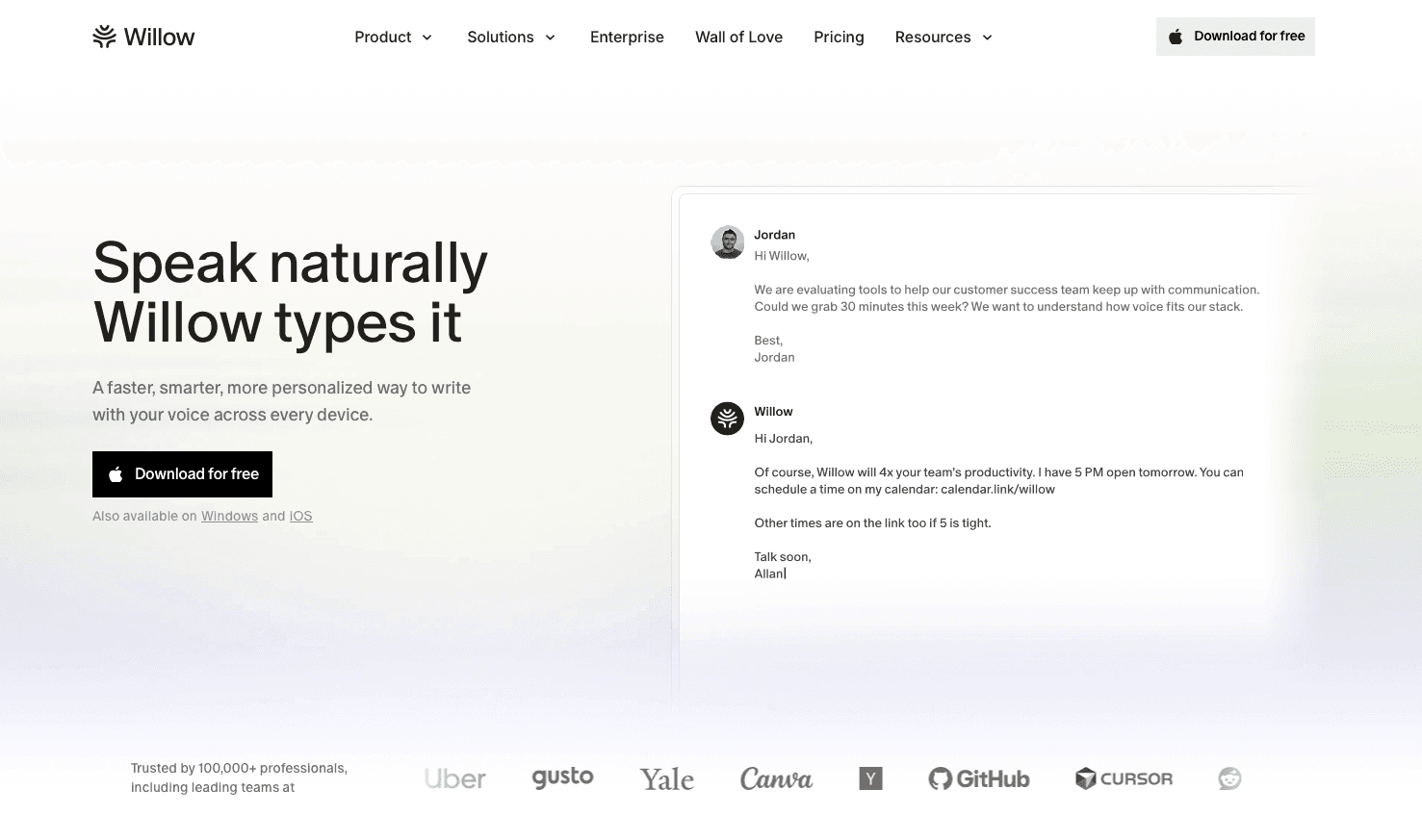
Your workday doesn't stay in one app. Whether you're on a Windows machine or a Mac, you switch between Gmail, Slack, Notion, ChatGPT, and a dozen other tools, and built-in dictation tools stop working the moment you leave the browser. Willow Voice is a dictation tool built around that reality: it works in any application on Mac, Windows, or iOS, processes speech in around 200 milliseconds, and formats output to match whatever you're working on.
The context-aware AI reads what you're working on to get technical terms, names, and phrases right without manual correction. Whether that's clinical terminology in a patient note, variable names in a Cursor prompt, or company-specific jargon in a Slack thread, the correction loop shrinks to near zero. Teams can share custom dictionaries org-wide so every member works from the same terminology from day one, with no per-user setup required.
Willow Voice runs in two modes. Dictation Mode (Fn on Mac, Alt+Space on Windows) transcribes speech verbatim across any app. Willow Scribe, activated with Fn+Control, goes further: instead of transcribing word-for-word, it generates complete written content from voice prompts, drafts emails and messages, and produces context-aware replies by reading existing conversation threads. Key features include shared custom dictionaries for industry terms, admin controls for team-wide deployment, automatic filler word removal, and voice commands for editing and formatting.
Strengths:
3x more accurate than built-in dictation tools (98%+ accuracy)
Works universally across Mac, Windows, and iOS applications
Context-aware formatting and tone matching
Sub-200 millisecond latency with real-time transcription
SOC 2 Type II certified with a privacy-focused, no data storage policy
iOS custom keyboard with a smooth switcher to toggle between voice and alpha-text input without reverting to the default Apple keyboard; Scribe is fully available on iOS in two sub-modes: Draft mode (speak prompts to generate complete messages) and Edit mode (select existing text and rewrite by voice)
Limitations:
Free plan limited to 2,000 words per week; full-featured access requires a paid subscription
No Android support
Bottom line: Many professionals and teams find they can handle most of their typing by voice. It works across every application in their daily workflow, with consistent accuracy, context-aware formatting, and shared dictionaries that keep terminology consistent across the whole group.
2. Voice-Only Solution: Google Docs Voice Typing
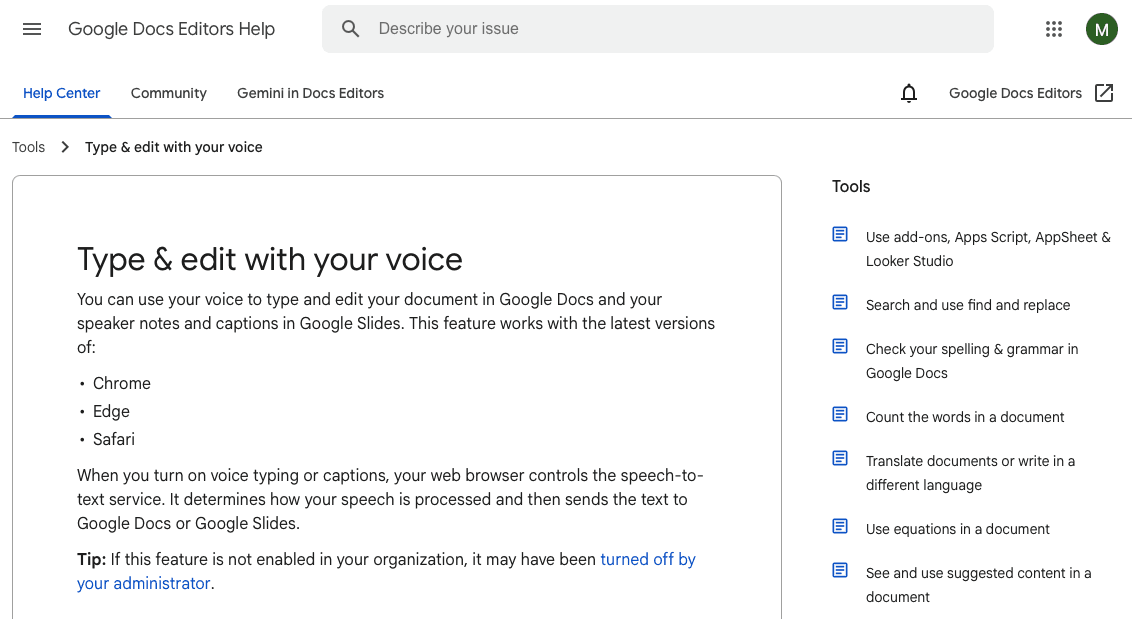
This free solution provides basic speech-to-text within Google Docs with no installation needed. Click the microphone icon and start talking. It handles punctuation commands like "comma," "period," and "new paragraph" for simple voice input.
The setup is straightforward: click the microphone icon and start talking. It handles basic punctuation commands like "comma," "period," and "new paragraph" reasonably well for simple voice input needs.
Strengths:
Completely free for Google account holders
No installation or setup required
Decent accuracy for straightforward voice input
Integrated directly into Google Workspace
Limitations:
Browser-only functionality limits workflow integration
Cannot work offline
Basic formatting options
No cross-application compatibility
Bottom line: Works well for voice input within Google Docs; its browser-only architecture means a separate voice input method is needed when working outside the browser.
3. Browser-Limited Tool: Voice In Chrome Extension
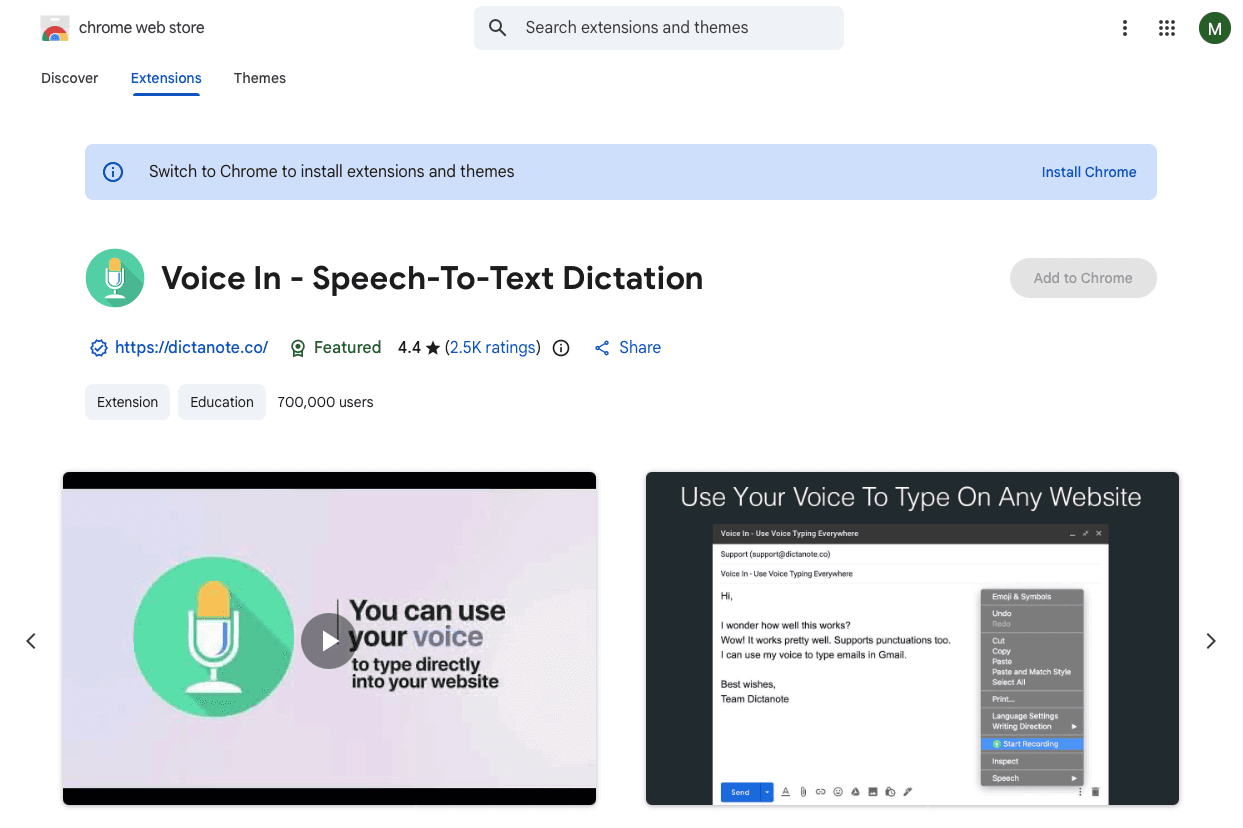
Voice In is a Chrome extension that expands voice typing beyond Google Docs to work across many web applications, including Gmail, social media, and browser-based productivity tools where native voice input is otherwise unavailable.
The extension works on thousands of websites including Gmail, social media platforms, and web-based productivity tools, with support for multiple languages and basic voice command customization.
Strengths:
Works across Chrome and Edge browsers
Compatible with Windows, Mac, Linux, and Chromebook
Easy 2-minute installation process
Supports multiple languages
Limitations:
Limited to browser applications only
No native app integration
Requires Chrome extension permissions
Basic AI features compared to dedicated tools
Bottom line: Broader coverage than Google Docs voice typing within the browser; native app dictation requires a system-wide solution outside the browser environment.
4. Hardware-Dependent Option: Dragon NaturallySpeaking

Dragon by Nuance has decades of dictation history, with specialized vocabularies for legal, medical, and business applications. Professional versions include deep customization, terminology training, and integration with certain business applications.
Strengths:
Up to 99% recognition accuracy when properly trained
Extensive customization and vocabulary options
Professional industry-specific versions available
Strong offline features
Limitations:
Windows-only (discontinued Mac support years ago)
Complex setup and training requirements
Expensive licensing costs
Steep learning curve for optimization
Bottom line: High accuracy for Windows users willing to invest in setup and training; Mac support was discontinued in 2018, so Mac-based workflows require a different tool.
5. Mac-Specific Solution: Apple Dictation
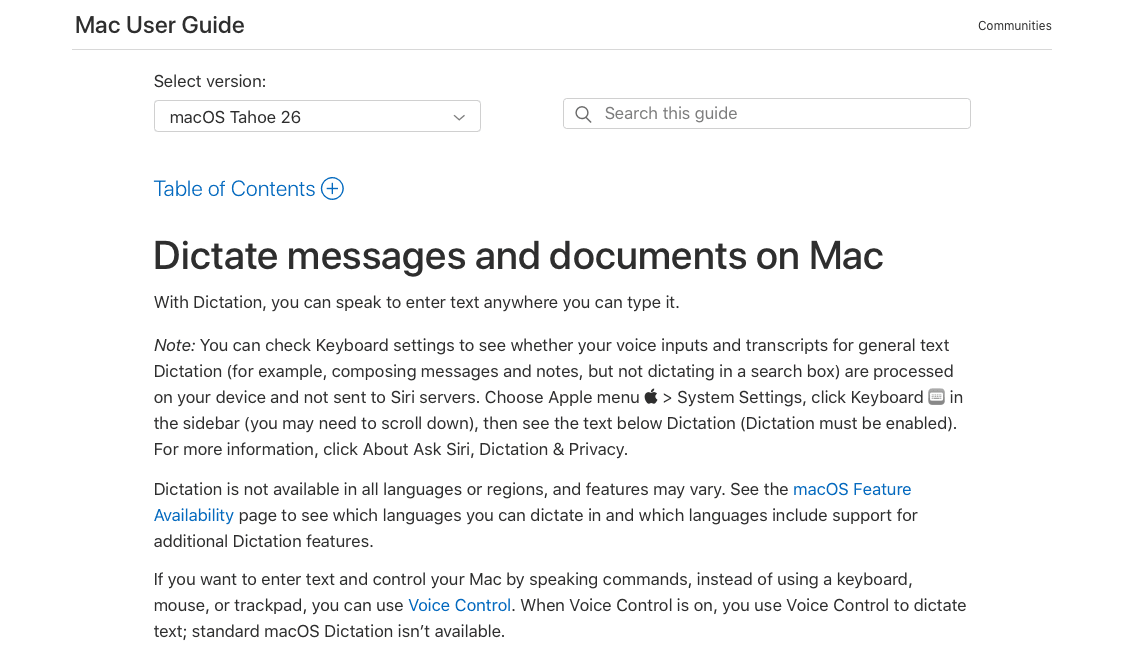
Apple Dictation has continued to improve with macOS Tahoe (version 26), released in September 2025, as Siri gains further Apple Intelligence enhancements. Apple Silicon Macs support offline dictation for supported languages. This built-in Mac feature provides basic voice input across Mac applications including web browsers for Google Docs access.
You can use it anywhere on Mac, including Google Docs through Safari or Chrome. Accuracy has improved on Apple Silicon processors with recent updates.
Strengths:
Free and pre-installed on all Macs
Works system-wide across all applications
Offline function on newer Macs
No additional software required
Limitations:
Auto-stops after 30 seconds of silence (no hard session length cap on macOS Tahoe 26)
Basic accuracy compared to AI-powered alternatives
Minimal formatting intelligence
No context awareness or learning features
Bottom line: Works well for short, occasional voice input across Mac apps; its session length limit and lack of a custom vocabulary layer make it a starting point, not a full-time typing replacement.
Feature | Willow | Google Docs | Voice In | Dragon | Apple |
|---|---|---|---|---|---|
Universal App Support | ✓ | ✗ | Browser Only | ✗ Mac | ✓ Limited |
Real-time Processing | Sub-200 millisecond | ✓ | ✓ | ✓ | ✓ |
Context Awareness | ✓ Advanced | Basic | Basic | ✓ | Basic |
Offline Support | ✓ | ✗ | ✗ | ✓ | ✓ |
Custom Dictionaries | ✓ | ✗ | ✗ | ✓ | ✗ |
Mac Compatibility | ✓ | Browser | Browser | ✗ | ✓ |
By mid-2026, voice AI accuracy has reached near-human levels across the board, with latency dropping below 200ms for the best tools and multilingual support becoming standard. The gap between built-in dictation and AI-powered tools has widened, not narrowed, as context-aware models get better at understanding technical vocabulary, formatting intent, and cross-app workflows. For anyone who has tried voice typing before and given up, the 2026 generation of tools is a meaningfully different experience.
Why Willow Voice Works Beyond the Browser
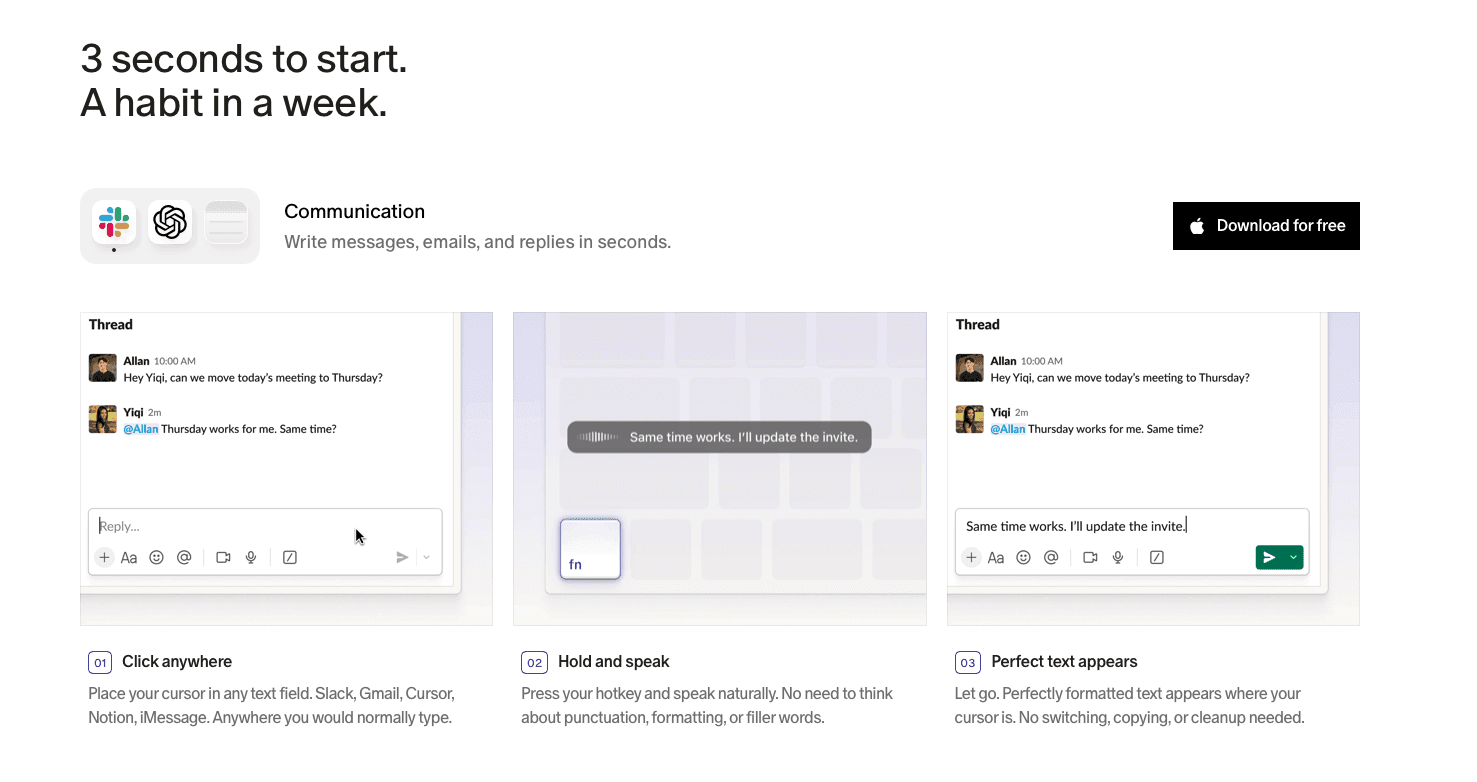
Most professionals write in more places than Google Docs. A typical workday moves through email, Slack, a project management tool, an AI assistant, and back again, often across Windows desktops, Mac laptops, and phones within the same organization. Any voice tool that stops at the browser boundary forces a switch to a different input method the moment you leave. That context-switching is where dictation habits break down, and browser-based tools rarely stick for mixed-device teams rolling out Willow Voice AI across their workforce.
Willow Voice was built around that reality. It works in any application on Mac, Windows, and iOS, well beyond Chrome or Google Docs, with ~200ms response time and context-aware accuracy regardless of where you're typing. The context engine reads what you're working on to get technical terms, names, and phrasing right automatically, so the correction loop shrinks to where speech recognition saves time over typing in a way that sticks.
For people who primarily work in Google Docs, Willow works there too, along with Gmail, Slack, Notion, ChatGPT, and anywhere else text goes. Team plans add shared custom dictionaries, admin controls, and leaderboards that surface words dictated and time saved across the group, so mixed Windows and Mac teams work from the same vocabulary and setup without per-device configuration. The free plan gives you 2,000 words per week at no cost to test it against your actual workflow before committing.
FAQs
What's the most accurate voice-to-text tool for Google Docs?
Willow delivers 98%+ accuracy with 3x fewer errors than built-in dictation tools through context-aware AI that understands technical terms and formatting requirements. For a broader look at the category, the best AI speech to text tools are compared in detail. Dragon offers high accuracy on Windows but requires extensive training and setup.
Can I use voice typing in Google Docs offline?
Google Docs voice typing requires an internet connection. Apple Dictation works offline on newer Macs and Dragon on Windows, but both have limitations in vocabulary depth and context handling.
Which voice-to-text tool works best across multiple applications?
Universal dictation tools like Willow work across all applications with consistent accuracy and formatting. Browser-based solutions like Google Docs voice typing and Voice In are limited to web applications only.
Are there free alternatives to paid voice-to-text tools?
Google Docs voice typing and Apple Dictation are free but have major limitations in accuracy, session length, and cross-application compatibility. Free tools work for basic needs but lack the AI intelligence of modern paid solutions.
Final Thoughts on Getting the Most From Your Voice Input
Voice-to-text tools have come a long way from the days when a dropped word meant starting a sentence over. The gap between what built-in dictation can do and what a context-aware tool like Willow Voice can do shows up in errors per paragraph, minutes spent correcting, and whether you actually keep the habit past the first week. If you're spending more time fixing transcription mistakes than the tool saves you, the problem isn't voice dictation. It's the tool. Willow Voice offers a free plan to try across your real work, and most people find within a few sessions whether dictation belongs in their daily toolkit. Download Willow and give it a week across your normal workflow.
You've tried Google Docs' built-in voice typing and walked away frustrated when it misread technical terms or dropped words mid-sentence. Developers prompting AI coding tools, healthcare professionals capturing patient notes, and enterprise teams coordinating across Windows desktops, Mac laptops, and phones all hit the same wall: voice recognition tools fall apart the moment you leave the browser. By mid-2026, a new class of AI-powered dictation handles context, technical vocabulary, and cross-app use across Windows and Mac alike in ways earlier options couldn't manage.
TLDR:
The top AI-powered dictation tool offers universal voice dictation that works across all apps with 98%+ accuracy and 3x fewer errors than built-in tools.
Google Docs voice typing is free but limited to browser-only functionality.
Voice In Chrome extension expands browser features but remains browser-limited.
Apple Dictation works system-wide on Mac but has major time and accuracy limitations.
Most professionals need universal solutions that work smoothly across their entire workflow.
What Is Voice-to-Text for Google Docs?
Voice-to-text tools for Google Docs let users speak content directly into documents, capturing words faster than typing. Most use speech recognition to handle the conversion in real time.
Most people work across multiple platforms, switching between Gmail, Slack, Notion, and a dozen other apps throughout the day. That's where system-wide tools matter.
The average person speaks at around 150 words per minute but types at 40. That 3x gap between speaking and typing speed is the category baseline voice dictation tools are built to close.
Google Docs voice typing stops at the browser boundary, forcing a switch to a different input method the moment you leave. Modern AI-powered solutions like Willow work across all applications.
How We Tested Voice-to-Text Solutions for Google Docs
Each solution was tested on accuracy, speed, setup complexity, and context handling. Accuracy came first: what's the point of speaking if you spend more time fixing errors than you saved? Can the tool spell technical terms correctly? Does it understand when you're writing a formal email versus a casual message?
1. Best Overall: Willow
Your workday doesn't stay in one app. Whether you're on a Windows machine or a Mac, you switch between Gmail, Slack, Notion, ChatGPT, and a dozen other tools, and built-in dictation tools stop working the moment you leave the browser. Willow Voice is a dictation tool built around that reality: it works in any application on Mac, Windows, or iOS, processes speech in around 200 milliseconds, and formats output to match whatever you're working on.
The context-aware AI reads what you're working on to get technical terms, names, and phrases right without manual correction. Whether that's clinical terminology in a patient note, variable names in a Cursor prompt, or company-specific jargon in a Slack thread, the correction loop shrinks to near zero. Teams can share custom dictionaries org-wide so every member works from the same terminology from day one, with no per-user setup required.
Willow Voice runs in two modes. Dictation Mode (Fn on Mac, Alt+Space on Windows) transcribes speech verbatim across any app. Willow Scribe, activated with Fn+Control, goes further: instead of transcribing word-for-word, it generates complete written content from voice prompts, drafts emails and messages, and produces context-aware replies by reading existing conversation threads. Key features include shared custom dictionaries for industry terms, admin controls for team-wide deployment, automatic filler word removal, and voice commands for editing and formatting.
Strengths:
3x more accurate than built-in dictation tools (98%+ accuracy)
Works universally across Mac, Windows, and iOS applications
Context-aware formatting and tone matching
Sub-200 millisecond latency with real-time transcription
SOC 2 Type II certified with a privacy-focused, no data storage policy
iOS custom keyboard with a smooth switcher to toggle between voice and alpha-text input without reverting to the default Apple keyboard; Scribe is fully available on iOS in two sub-modes: Draft mode (speak prompts to generate complete messages) and Edit mode (select existing text and rewrite by voice)
Limitations:
Free plan limited to 2,000 words per week; full-featured access requires a paid subscription
No Android support
Bottom line: Many professionals and teams find they can handle most of their typing by voice. It works across every application in their daily workflow, with consistent accuracy, context-aware formatting, and shared dictionaries that keep terminology consistent across the whole group.
2. Voice-Only Solution: Google Docs Voice Typing
This free solution provides basic speech-to-text within Google Docs with no installation needed. Click the microphone icon and start talking. It handles punctuation commands like "comma," "period," and "new paragraph" for simple voice input.
The setup is straightforward: click the microphone icon and start talking. It handles basic punctuation commands like "comma," "period," and "new paragraph" reasonably well for simple voice input needs.
Strengths:
Completely free for Google account holders
No installation or setup required
Decent accuracy for straightforward voice input
Integrated directly into Google Workspace
Limitations:
Browser-only functionality limits workflow integration
Cannot work offline
Basic formatting options
No cross-application compatibility
Bottom line: Works well for voice input within Google Docs; its browser-only architecture means a separate voice input method is needed when working outside the browser.
3. Browser-Limited Tool: Voice In Chrome Extension
Voice In is a Chrome extension that expands voice typing beyond Google Docs to work across many web applications, including Gmail, social media, and browser-based productivity tools where native voice input is otherwise unavailable.
The extension works on thousands of websites including Gmail, social media platforms, and web-based productivity tools, with support for multiple languages and basic voice command customization.
Strengths:
Works across Chrome and Edge browsers
Compatible with Windows, Mac, Linux, and Chromebook
Easy 2-minute installation process
Supports multiple languages
Limitations:
Limited to browser applications only
No native app integration
Requires Chrome extension permissions
Basic AI features compared to dedicated tools
Bottom line: Broader coverage than Google Docs voice typing within the browser; native app dictation requires a system-wide solution outside the browser environment.
4. Hardware-Dependent Option: Dragon NaturallySpeaking
Dragon by Nuance has decades of dictation history, with specialized vocabularies for legal, medical, and business applications. Professional versions include deep customization, terminology training, and integration with certain business applications.
Strengths:
Up to 99% recognition accuracy when properly trained
Extensive customization and vocabulary options
Professional industry-specific versions available
Strong offline features
Limitations:
Windows-only (discontinued Mac support years ago)
Complex setup and training requirements
Expensive licensing costs
Steep learning curve for optimization
Bottom line: High accuracy for Windows users willing to invest in setup and training; Mac support was discontinued in 2018, so Mac-based workflows require a different tool.
5. Mac-Specific Solution: Apple Dictation
Apple Dictation has continued to improve with macOS Tahoe (version 26), released in September 2025, as Siri gains further Apple Intelligence enhancements. Apple Silicon Macs support offline dictation for supported languages. This built-in Mac feature provides basic voice input across Mac applications including web browsers for Google Docs access.
You can use it anywhere on Mac, including Google Docs through Safari or Chrome. Accuracy has improved on Apple Silicon processors with recent updates.
Strengths:
Free and pre-installed on all Macs
Works system-wide across all applications
Offline function on newer Macs
No additional software required
Limitations:
Auto-stops after 30 seconds of silence (no hard session length cap on macOS Tahoe 26)
Basic accuracy compared to AI-powered alternatives
Minimal formatting intelligence
No context awareness or learning features
Bottom line: Works well for short, occasional voice input across Mac apps; its session length limit and lack of a custom vocabulary layer make it a starting point, not a full-time typing replacement.
Feature | Willow | Google Docs | Voice In | Dragon | Apple |
|---|---|---|---|---|---|
Universal App Support | ✓ | ✗ | Browser Only | ✗ Mac | ✓ Limited |
Real-time Processing | Sub-200 millisecond | ✓ | ✓ | ✓ | ✓ |
Context Awareness | ✓ Advanced | Basic | Basic | ✓ | Basic |
Offline Support | ✓ | ✗ | ✗ | ✓ | ✓ |
Custom Dictionaries | ✓ | ✗ | ✗ | ✓ | ✗ |
Mac Compatibility | ✓ | Browser | Browser | ✗ | ✓ |
By mid-2026, voice AI accuracy has reached near-human levels across the board, with latency dropping below 200ms for the best tools and multilingual support becoming standard. The gap between built-in dictation and AI-powered tools has widened, not narrowed, as context-aware models get better at understanding technical vocabulary, formatting intent, and cross-app workflows. For anyone who has tried voice typing before and given up, the 2026 generation of tools is a meaningfully different experience.
Why Willow Voice Works Beyond the Browser
Most professionals write in more places than Google Docs. A typical workday moves through email, Slack, a project management tool, an AI assistant, and back again, often across Windows desktops, Mac laptops, and phones within the same organization. Any voice tool that stops at the browser boundary forces a switch to a different input method the moment you leave. That context-switching is where dictation habits break down, and browser-based tools rarely stick for mixed-device teams rolling out Willow Voice AI across their workforce.
Willow Voice was built around that reality. It works in any application on Mac, Windows, and iOS, well beyond Chrome or Google Docs, with ~200ms response time and context-aware accuracy regardless of where you're typing. The context engine reads what you're working on to get technical terms, names, and phrasing right automatically, so the correction loop shrinks to where speech recognition saves time over typing in a way that sticks.
For people who primarily work in Google Docs, Willow works there too, along with Gmail, Slack, Notion, ChatGPT, and anywhere else text goes. Team plans add shared custom dictionaries, admin controls, and leaderboards that surface words dictated and time saved across the group, so mixed Windows and Mac teams work from the same vocabulary and setup without per-device configuration. The free plan gives you 2,000 words per week at no cost to test it against your actual workflow before committing.
FAQs
What's the most accurate voice-to-text tool for Google Docs?
Willow delivers 98%+ accuracy with 3x fewer errors than built-in dictation tools through context-aware AI that understands technical terms and formatting requirements. For a broader look at the category, the best AI speech to text tools are compared in detail. Dragon offers high accuracy on Windows but requires extensive training and setup.
Can I use voice typing in Google Docs offline?
Google Docs voice typing requires an internet connection. Apple Dictation works offline on newer Macs and Dragon on Windows, but both have limitations in vocabulary depth and context handling.
Which voice-to-text tool works best across multiple applications?
Universal dictation tools like Willow work across all applications with consistent accuracy and formatting. Browser-based solutions like Google Docs voice typing and Voice In are limited to web applications only.
Are there free alternatives to paid voice-to-text tools?
Google Docs voice typing and Apple Dictation are free but have major limitations in accuracy, session length, and cross-application compatibility. Free tools work for basic needs but lack the AI intelligence of modern paid solutions.
Final Thoughts on Getting the Most From Your Voice Input
Voice-to-text tools have come a long way from the days when a dropped word meant starting a sentence over. The gap between what built-in dictation can do and what a context-aware tool like Willow Voice can do shows up in errors per paragraph, minutes spent correcting, and whether you actually keep the habit past the first week. If you're spending more time fixing transcription mistakes than the tool saves you, the problem isn't voice dictation. It's the tool. Willow Voice offers a free plan to try across your real work, and most people find within a few sessions whether dictation belongs in their daily toolkit. Download Willow and give it a week across your normal workflow.

Try Willow for free
Instant, accurate voice dictation. No card required.
Try Willow for free
Instant, accurate voice dictation. No card required.
Other stories you’ll love
Other stories you’ll love


Your keyboard is optional now
" transform="translate(5 5)" width="9.791000051498413px"/></svg>)

The voice-first interface for modern work.
© Willow Care, Inc. 2026. All rights reserved
Your keyboard is optional now
The voice-first interface for modern work.
© Willow Care, Inc. 2026. All rights reserved
Your keyboard is optional now
The voice-first interface for modern work.
© Willow Care, Inc. 2026. All rights reserved