" transform="translate(5 2)" width="10px"/></svg>)

•
5 min read
Voice Dictation for Microsoft Teams: June 2026 Guide to Speaking Naturally and Working Faster

•
5 min read
Voice Dictation for Microsoft Teams: June 2026 Guide to Speaking Naturally and Working Faster
You spend more time in Microsoft Teams than any other app, but typing every update, reply, and meeting summary by hand is eating hours you don't have. Voice dictation for Microsoft Teams should let you speak those messages in a fraction of the time, but the reality is that most dictation tools either can't keep up with normal speaking pace or require so many corrections that you end up slower than before. The gap between how fast you can talk and how quickly accurate text appears on screen determines whether dictation actually saves time or just creates a different bottleneck. For developers narrating debugging notes, product managers drafting sprint updates, or documentation-heavy teams keeping async threads alive, that bottleneck compounds across every channel and thread. Here's what voice dictation for Microsoft Teams looks like in practice, where the friction points are hiding, and how to speak naturally without waiting for your words to catch up.
TLDR:
Most dictation tools hit 95-98% accuracy on clean audio but vary widely on latency and formatting.
For compliance-sensitive work, check if your tool offers zero data retention, SOC 2, and offline dictation options.
Dedicated AI dictation tools can run system-wide with ~200ms latency and learn vocabulary over time across Teams and other apps.
Tools that run on both Windows and Mac carry the same dictation setup across mixed-device teams without per-device configuration.
Voice dictation is in active use at Uber, Reddit, and companies across 20% of the Fortune 500 for exactly this kind of day-to-day messaging and documentation work.
What Microsoft Teams Does and Doesn't Offer for Voice Dictation
You can activate it inside the Teams message compose box using the Windows + H keyboard shortcut. For basic note-taking or short replies, it gets the job done.
The gaps show up quickly in real use, though. The built-in dictation does not learn your vocabulary over time, so industry-specific terms, product names, and colleague names frequently come out wrong. Punctuation requires explicit verbal commands, which breaks your train of thought. There is no way to build custom shortcuts or corrections that carry across sessions.
Teams itself does not offer a native, first-party voice dictation layer beyond what Windows provides. Microsoft's voice features inside Teams are largely focused on transcription of meetings after the fact, not real-time dictation while you compose messages or documents.
What You Can and Can't Do With Built-In Voice in Teams
Capture short messages in the compose box using Windows + H, but expect errors on anything beyond common vocabulary.
Trigger automatic punctuation occasionally, though it remains inconsistent compared to dedicated AI-powered tools.
Access post-meeting transcripts through Teams' transcription and live captions features, which can show spoken meeting content in real time and create a transcript when transcription is activated, but they do not help you compose content in real time.
Carry personalization or corrections across sessions, because the built-in option has no memory of your writing patterns.
Why Professionals Use Voice Dictation for Teams Communication
Typing in Microsoft Teams all day takes a measurable toll. Research suggests knowledge workers spend a substantial portion of their day in meetings and messaging, yet most still respond to every chat and draft every follow-up by hand. That includes engineers explaining bugs in threads, product managers posting sprint updates, clinical and administrative staff capturing patient or case notes, and documentation teams keeping async projects moving.
Voice dictation changes that ratio. Speaking runs at around 150 WPM compared to roughly 40 WPM for typing, meaning you can get through the same message in a fraction of the time. Voice recognition tools optimized for team communication bring these speed gains to platforms like Teams. For professionals juggling channels, threads, and back-to-back calls, that gap adds up fast.

There are a few specific reasons Teams users tend to reach for voice dictation:
Post-meeting follow-ups are faster when you can speak your summary while the conversation is still fresh, whether that's a sprint retrospective recap, a client call debrief, or engineering sync notes. The same principles that work in Slack apply equally to Teams workflows.
A detailed reply that might take ten minutes to type can be spoken in under two, which means people actually write them instead of deferring.
Status updates, standup notes, and check-ins become low-effort when you can speak them naturally without stopping to correct autocomplete errors.
The result is a workflow where Teams stays active without pulling you away from focused work for extended stretches.
Accuracy, Speed, and Formatting: What to Expect from Voice Dictation in Teams
Teams dictation accuracy depends on microphone quality, background noise, and whether your tool has learned your vocabulary. Microsoft Research has achieved speech recognition accuracy approaching human-level performance in controlled conditions, though real-world results vary. Most AI-powered tools hit 95-98% on clean audio, but that drops with open-office noise, heavy jargon, or proper nouns the tool hasn't seen. Speaking lands most people at 130-150 WPM versus roughly 40 WPM for typing, so latency between speaking and seeing text on screen matters just as much as raw accuracy.
Formatting Behavior
Punctuation commands like "period" and "new paragraph" work in most tools, but reliability varies; some infer punctuation from speech patterns while others require explicit commands.
Numbers, dates, and currency tend to render inconsistently, so test these in your actual Teams workflow before committing.
Browser Extensions and Third-Party Voice Dictation Tools for Teams
When Microsoft's built-in dictation falls short, browser extensions and third-party voice dictation tools can fill the gap across Teams and other apps simultaneously.
Several tools work well in this context:
Willow Voice works system-wide, so it works inside Teams chat, meeting notes, and any other app you have open, including AI coding tools like Cursor or Claude Code, without requiring a separate integration. It runs on both Windows and Mac, so the same setup carries across mixed-device teams. It picks up where built-in dictation leaves off, with around 200ms latency and vocabulary that adapts to how you write over time.
Wispr Flow is a capable general-purpose dictation tool with a clean interface, and it handles common workflows reasonably well, though it lacks the personalization depth that comes with extended use.
Browser-based extensions can capture text fields inside the Teams web app, though they often struggle with lag or lose context when switching between windows.
The practical advantage of a system-wide approach is that your dictation setup stays consistent regardless of which app is in focus. The same approach applies to voice dictation in Slack. A developer can move from a Teams thread to a Cursor prompt to a Claude Code session without reconfiguring anything. A product manager can go from sprint planning notes to an email to a shared doc with the same hotkey and the same vocabulary carrying across every field.
Tool | Latency | Accuracy | Vocabulary Learning |
|---|---|---|---|
Windows Built-in (Win+H) | Typically 700ms or higher for most built-in speech recognition tools | Works for common vocabulary but drops noticeably with technical terms, names, and industry jargon | Does not learn your vocabulary over time and has no memory across sessions |
Willow Voice | Around 200ms, keeping text in pace with fast-moving threads | 98% or higher with 3x fewer errors than built-in tools based on internal testing | Auto-dictionary picks up corrections automatically so client names and product terms stop requiring fixes after first few uses |
Wispr Flow | Handles common workflows reasonably well though specifics vary by use case | Capable general-purpose dictation tool with a clean interface for everyday tasks | Lacks the personalization depth that comes with extended use over time |
Browser Extensions | Often struggle with lag when switching between windows or moving focus | Can capture text fields inside Teams web app with varying reliability | Lose context when switching between windows and offer limited learning capabilities |
Common Use Cases: Where Voice Dictation Saves the Most Time in Teams
Three areas tend to produce the biggest time savings when you bring voice dictation into your Teams workflow.
Chat and Channel Messages
Speaking status updates and replies at 150 WPM instead of typing at 40 WPM means you can clear a backlog of channel responses in a fraction of the usual time. Engineers posting async standup updates, product managers sharing sprint status across channels, and anyone managing high-volume threads all see the same result: less time composing, more time on the actual work.
Meeting Notes and Action Items

Speaking notes directly into a Teams tab during a meeting lets you capture detail you'd otherwise lose and keeps your hands free for screen sharing or presenting. This applies equally to engineering syncs, sprint retrospectives, and administrative or clinical reviews where the follow-up documentation matters as much as the discussion itself.
Long-Form Responses and Documentation
Typing creates a psychological barrier that leads to shorter, less useful replies. Voice removes that friction, so technical explanations and process documentation get written at the length they actually need. Developers can narrate PR descriptions and code review comments. Product managers can draft feature specs and retrospective write-ups. Documentation-heavy teams, whether in engineering, administrative functions, or clinical settings, can capture notes at conversational speed without losing the detail that typed summaries tend to compress. Voice dictation fits naturally alongside other AI productivity tools in a modern workflow.
Privacy, Compliance, and Offline Dictation Options
When your work involves sensitive conversations, client data, or compliance-governed information, how your dictation tool handles that data matters as much as how well it transcribes.
Microsoft Teams operates under Microsoft's compliance framework, which covers data residency, retention policies, and industry certifications. But the dictation layer you add on top carries its own privacy profile, and those two things don't automatically align.
What to Look for in a Dictation Tool for Teams
If you work in a compliance-sensitive field, a few questions are worth asking before committing to any voice tool:
Does the tool retain your data, or is data discarded immediately?
Is there a signed Business Associate Agreement available for HIPAA-covered workflows?
Does the tool offer SOC 2 Type II certification, which signals audited security controls instead of self-reported ones?
Is offline dictation available for situations where sending audio to a cloud server is not acceptable?
If you are assessing Willow Voice for compliance-sensitive work, confirm the current plan includes zero data retention, SOC 2 Type II documentation, HIPAA support with a signed BAA where needed, and offline dictation support.
Willow Voice: Fast, Accurate Dictation Built for Teams Communication
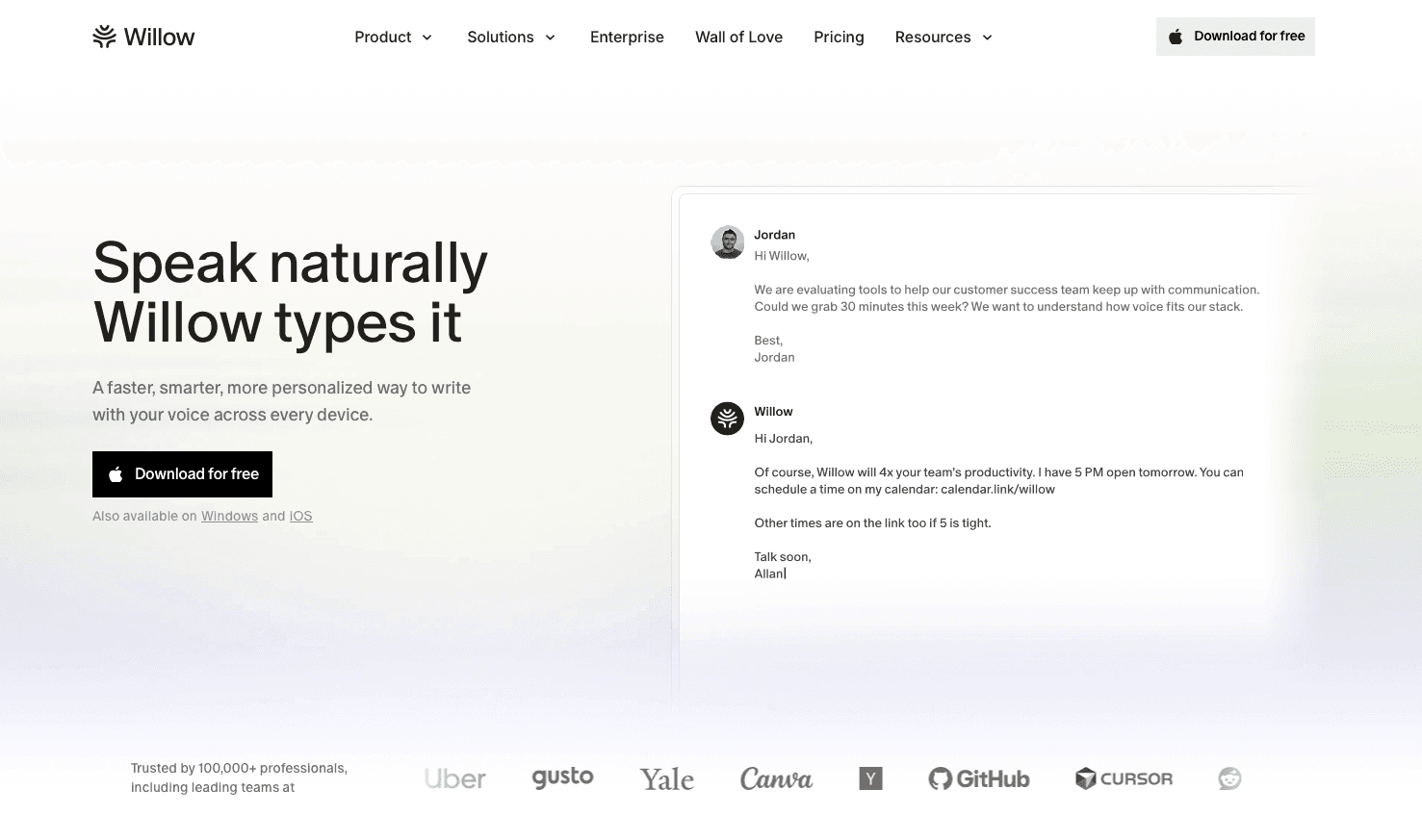
Willow Voice was built for the communication load that fills a Teams workday. One hotkey (Fn by default) starts dictation in any text field: Teams, email, docs, or anywhere else you have a cursor. It runs on Windows and Mac, so teams in mixed-device organizations get the same experience across the board. No per-app setup, no plugin to configure.
Accuracy sits at 98%+, with 3x fewer errors than built-in tools, and latency runs around 200ms. For a broader comparison of speech recognition tools, see how Willow stacks up. The auto-dictionary picks up corrections automatically, so client names, product terms, and technical vocabulary stop requiring fixes after the first few uses. Shared dictionaries and team-wide voice shortcuts keep terminology consistent across the whole group, which is useful for engineering teams standardizing on codebase names, product teams aligning on feature terminology, or documentation-heavy organizations where naming accuracy across notes matters. Willow is used by teams at Uber, Reddit, and companies across 20% of the Fortune 500. A forever-free plan covers 2,000 words per week with no credit card required. Paid plans start at $10 per user per month.
FAQs
Can I use voice dictation in Microsoft Teams without installing extra software?
Yes. Windows 11 includes built-in voice typing (Win+H) that works in any Teams text field, though it does not learn your vocabulary over time and accuracy drops noticeably with technical terms, names, or industry jargon.
Voice dictation for Microsoft Teams: Willow Voice vs built-in Windows speech recognition?
Windows built-in dictation works for short messages but has no memory across sessions and requires explicit punctuation commands. Willow Voice runs at around 200ms latency (versus 700ms+ for most tools), learns your vocabulary automatically, and adapts to your writing style so you spend less time correcting errors.
How much faster is speaking than typing in Teams?
Speaking naturally gets you to around 150 words per minute compared to roughly 40 WPM for typing, which means you can clear the same message in about a third of the time.
What should I look for in a dictation tool if I work with sensitive data in Teams?
Look for zero data retention (audio and transcripts discarded immediately after processing), SOC 2 Type II certification, HIPAA compliance with a signed Business Associate Agreement available, and offline dictation support for air-gapped or high-sensitivity environments.
What's the best use case for voice dictation in Teams?
Post-meeting follow-ups save the most time because you can speak your summary while the conversation is still fresh, instead of typing after back-to-back calls have already blurred together, and a detailed reply that might take ten minutes to type can be spoken in under two.
Final Thoughts on Using Voice in Teams without the Usual Corrections
Built-in voice dictation for Microsoft Teams gives you a starting point, but once you hit technical terms, client names, or anything domain-specific, the manual corrections start eating the time you saved. A tool that learns how you write and keeps latency under 200ms turns dictation into something you actually use instead of abandon after a week. You can test Willow Voice with 2,000 free words per week to see how it handles your actual Teams workload.
You spend more time in Microsoft Teams than any other app, but typing every update, reply, and meeting summary by hand is eating hours you don't have. Voice dictation for Microsoft Teams should let you speak those messages in a fraction of the time, but the reality is that most dictation tools either can't keep up with normal speaking pace or require so many corrections that you end up slower than before. The gap between how fast you can talk and how quickly accurate text appears on screen determines whether dictation actually saves time or just creates a different bottleneck. For developers narrating debugging notes, product managers drafting sprint updates, or documentation-heavy teams keeping async threads alive, that bottleneck compounds across every channel and thread. Here's what voice dictation for Microsoft Teams looks like in practice, where the friction points are hiding, and how to speak naturally without waiting for your words to catch up.
TLDR:
Most dictation tools hit 95-98% accuracy on clean audio but vary widely on latency and formatting.
For compliance-sensitive work, check if your tool offers zero data retention, SOC 2, and offline dictation options.
Dedicated AI dictation tools can run system-wide with ~200ms latency and learn vocabulary over time across Teams and other apps.
Tools that run on both Windows and Mac carry the same dictation setup across mixed-device teams without per-device configuration.
Voice dictation is in active use at Uber, Reddit, and companies across 20% of the Fortune 500 for exactly this kind of day-to-day messaging and documentation work.
What Microsoft Teams Does and Doesn't Offer for Voice Dictation
You can activate it inside the Teams message compose box using the Windows + H keyboard shortcut. For basic note-taking or short replies, it gets the job done.
The gaps show up quickly in real use, though. The built-in dictation does not learn your vocabulary over time, so industry-specific terms, product names, and colleague names frequently come out wrong. Punctuation requires explicit verbal commands, which breaks your train of thought. There is no way to build custom shortcuts or corrections that carry across sessions.
Teams itself does not offer a native, first-party voice dictation layer beyond what Windows provides. Microsoft's voice features inside Teams are largely focused on transcription of meetings after the fact, not real-time dictation while you compose messages or documents.
What You Can and Can't Do With Built-In Voice in Teams
Capture short messages in the compose box using Windows + H, but expect errors on anything beyond common vocabulary.
Trigger automatic punctuation occasionally, though it remains inconsistent compared to dedicated AI-powered tools.
Access post-meeting transcripts through Teams' transcription and live captions features, which can show spoken meeting content in real time and create a transcript when transcription is activated, but they do not help you compose content in real time.
Carry personalization or corrections across sessions, because the built-in option has no memory of your writing patterns.
Why Professionals Use Voice Dictation for Teams Communication
Typing in Microsoft Teams all day takes a measurable toll. Research suggests knowledge workers spend a substantial portion of their day in meetings and messaging, yet most still respond to every chat and draft every follow-up by hand. That includes engineers explaining bugs in threads, product managers posting sprint updates, clinical and administrative staff capturing patient or case notes, and documentation teams keeping async projects moving.
Voice dictation changes that ratio. Speaking runs at around 150 WPM compared to roughly 40 WPM for typing, meaning you can get through the same message in a fraction of the time. Voice recognition tools optimized for team communication bring these speed gains to platforms like Teams. For professionals juggling channels, threads, and back-to-back calls, that gap adds up fast.
There are a few specific reasons Teams users tend to reach for voice dictation:
Post-meeting follow-ups are faster when you can speak your summary while the conversation is still fresh, whether that's a sprint retrospective recap, a client call debrief, or engineering sync notes. The same principles that work in Slack apply equally to Teams workflows.
A detailed reply that might take ten minutes to type can be spoken in under two, which means people actually write them instead of deferring.
Status updates, standup notes, and check-ins become low-effort when you can speak them naturally without stopping to correct autocomplete errors.
The result is a workflow where Teams stays active without pulling you away from focused work for extended stretches.
Accuracy, Speed, and Formatting: What to Expect from Voice Dictation in Teams
Teams dictation accuracy depends on microphone quality, background noise, and whether your tool has learned your vocabulary. Microsoft Research has achieved speech recognition accuracy approaching human-level performance in controlled conditions, though real-world results vary. Most AI-powered tools hit 95-98% on clean audio, but that drops with open-office noise, heavy jargon, or proper nouns the tool hasn't seen. Speaking lands most people at 130-150 WPM versus roughly 40 WPM for typing, so latency between speaking and seeing text on screen matters just as much as raw accuracy.
Formatting Behavior
Punctuation commands like "period" and "new paragraph" work in most tools, but reliability varies; some infer punctuation from speech patterns while others require explicit commands.
Numbers, dates, and currency tend to render inconsistently, so test these in your actual Teams workflow before committing.
Browser Extensions and Third-Party Voice Dictation Tools for Teams
When Microsoft's built-in dictation falls short, browser extensions and third-party voice dictation tools can fill the gap across Teams and other apps simultaneously.
Several tools work well in this context:
Willow Voice works system-wide, so it works inside Teams chat, meeting notes, and any other app you have open, including AI coding tools like Cursor or Claude Code, without requiring a separate integration. It runs on both Windows and Mac, so the same setup carries across mixed-device teams. It picks up where built-in dictation leaves off, with around 200ms latency and vocabulary that adapts to how you write over time.
Wispr Flow is a capable general-purpose dictation tool with a clean interface, and it handles common workflows reasonably well, though it lacks the personalization depth that comes with extended use.
Browser-based extensions can capture text fields inside the Teams web app, though they often struggle with lag or lose context when switching between windows.
The practical advantage of a system-wide approach is that your dictation setup stays consistent regardless of which app is in focus. The same approach applies to voice dictation in Slack. A developer can move from a Teams thread to a Cursor prompt to a Claude Code session without reconfiguring anything. A product manager can go from sprint planning notes to an email to a shared doc with the same hotkey and the same vocabulary carrying across every field.
Tool | Latency | Accuracy | Vocabulary Learning |
|---|---|---|---|
Windows Built-in (Win+H) | Typically 700ms or higher for most built-in speech recognition tools | Works for common vocabulary but drops noticeably with technical terms, names, and industry jargon | Does not learn your vocabulary over time and has no memory across sessions |
Willow Voice | Around 200ms, keeping text in pace with fast-moving threads | 98% or higher with 3x fewer errors than built-in tools based on internal testing | Auto-dictionary picks up corrections automatically so client names and product terms stop requiring fixes after first few uses |
Wispr Flow | Handles common workflows reasonably well though specifics vary by use case | Capable general-purpose dictation tool with a clean interface for everyday tasks | Lacks the personalization depth that comes with extended use over time |
Browser Extensions | Often struggle with lag when switching between windows or moving focus | Can capture text fields inside Teams web app with varying reliability | Lose context when switching between windows and offer limited learning capabilities |
Common Use Cases: Where Voice Dictation Saves the Most Time in Teams
Three areas tend to produce the biggest time savings when you bring voice dictation into your Teams workflow.
Chat and Channel Messages
Speaking status updates and replies at 150 WPM instead of typing at 40 WPM means you can clear a backlog of channel responses in a fraction of the usual time. Engineers posting async standup updates, product managers sharing sprint status across channels, and anyone managing high-volume threads all see the same result: less time composing, more time on the actual work.
Meeting Notes and Action Items
Speaking notes directly into a Teams tab during a meeting lets you capture detail you'd otherwise lose and keeps your hands free for screen sharing or presenting. This applies equally to engineering syncs, sprint retrospectives, and administrative or clinical reviews where the follow-up documentation matters as much as the discussion itself.
Long-Form Responses and Documentation
Typing creates a psychological barrier that leads to shorter, less useful replies. Voice removes that friction, so technical explanations and process documentation get written at the length they actually need. Developers can narrate PR descriptions and code review comments. Product managers can draft feature specs and retrospective write-ups. Documentation-heavy teams, whether in engineering, administrative functions, or clinical settings, can capture notes at conversational speed without losing the detail that typed summaries tend to compress. Voice dictation fits naturally alongside other AI productivity tools in a modern workflow.
Privacy, Compliance, and Offline Dictation Options
When your work involves sensitive conversations, client data, or compliance-governed information, how your dictation tool handles that data matters as much as how well it transcribes.
Microsoft Teams operates under Microsoft's compliance framework, which covers data residency, retention policies, and industry certifications. But the dictation layer you add on top carries its own privacy profile, and those two things don't automatically align.
What to Look for in a Dictation Tool for Teams
If you work in a compliance-sensitive field, a few questions are worth asking before committing to any voice tool:
Does the tool retain your data, or is data discarded immediately?
Is there a signed Business Associate Agreement available for HIPAA-covered workflows?
Does the tool offer SOC 2 Type II certification, which signals audited security controls instead of self-reported ones?
Is offline dictation available for situations where sending audio to a cloud server is not acceptable?
If you are assessing Willow Voice for compliance-sensitive work, confirm the current plan includes zero data retention, SOC 2 Type II documentation, HIPAA support with a signed BAA where needed, and offline dictation support.
Willow Voice: Fast, Accurate Dictation Built for Teams Communication
Willow Voice was built for the communication load that fills a Teams workday. One hotkey (Fn by default) starts dictation in any text field: Teams, email, docs, or anywhere else you have a cursor. It runs on Windows and Mac, so teams in mixed-device organizations get the same experience across the board. No per-app setup, no plugin to configure.
Accuracy sits at 98%+, with 3x fewer errors than built-in tools, and latency runs around 200ms. For a broader comparison of speech recognition tools, see how Willow stacks up. The auto-dictionary picks up corrections automatically, so client names, product terms, and technical vocabulary stop requiring fixes after the first few uses. Shared dictionaries and team-wide voice shortcuts keep terminology consistent across the whole group, which is useful for engineering teams standardizing on codebase names, product teams aligning on feature terminology, or documentation-heavy organizations where naming accuracy across notes matters. Willow is used by teams at Uber, Reddit, and companies across 20% of the Fortune 500. A forever-free plan covers 2,000 words per week with no credit card required. Paid plans start at $10 per user per month.
FAQs
Can I use voice dictation in Microsoft Teams without installing extra software?
Yes. Windows 11 includes built-in voice typing (Win+H) that works in any Teams text field, though it does not learn your vocabulary over time and accuracy drops noticeably with technical terms, names, or industry jargon.
Voice dictation for Microsoft Teams: Willow Voice vs built-in Windows speech recognition?
Windows built-in dictation works for short messages but has no memory across sessions and requires explicit punctuation commands. Willow Voice runs at around 200ms latency (versus 700ms+ for most tools), learns your vocabulary automatically, and adapts to your writing style so you spend less time correcting errors.
How much faster is speaking than typing in Teams?
Speaking naturally gets you to around 150 words per minute compared to roughly 40 WPM for typing, which means you can clear the same message in about a third of the time.
What should I look for in a dictation tool if I work with sensitive data in Teams?
Look for zero data retention (audio and transcripts discarded immediately after processing), SOC 2 Type II certification, HIPAA compliance with a signed Business Associate Agreement available, and offline dictation support for air-gapped or high-sensitivity environments.
What's the best use case for voice dictation in Teams?
Post-meeting follow-ups save the most time because you can speak your summary while the conversation is still fresh, instead of typing after back-to-back calls have already blurred together, and a detailed reply that might take ten minutes to type can be spoken in under two.
Final Thoughts on Using Voice in Teams without the Usual Corrections
Built-in voice dictation for Microsoft Teams gives you a starting point, but once you hit technical terms, client names, or anything domain-specific, the manual corrections start eating the time you saved. A tool that learns how you write and keeps latency under 200ms turns dictation into something you actually use instead of abandon after a week. You can test Willow Voice with 2,000 free words per week to see how it handles your actual Teams workload.

Try Willow for free
Instant, accurate voice dictation. No card required.
Try Willow for free
Instant, accurate voice dictation. No card required.
Other stories you’ll love
Other stories you’ll love


Your keyboard is optional now
" transform="translate(5 5)" width="9.791000051498413px"/></svg>)

The voice-first interface for modern work.
© Willow Care, Inc. 2026. All rights reserved
Your keyboard is optional now
The voice-first interface for modern work.
© Willow Care, Inc. 2026. All rights reserved
Your keyboard is optional now
The voice-first interface for modern work.
© Willow Care, Inc. 2026. All rights reserved