" transform="translate(5 2)" width="10px"/></svg>)

•
5 min read
AI Voice Dictation in Notion (August 2026)

•
5 min read
AI Voice Dictation in Notion (August 2026)
Notion is built for writing, but writing is still slow. The average knowledge worker spends hours every week filling pages, updating databases, leaving comments, and capturing meeting notes, all at the speed their fingers allow. That ceiling is around 40 words per minute for most people. Speaking is closer to 150. That gap exists inside every Notion workspace, across every team, and AI voice dictation is one of the easiest ways to close it.
TLDR:
You can speak at 150 WPM versus typing at 40 WPM in Notion, closing a nearly 4x speed gap across pages, databases, and comments.
A dedicated voice dictation tool can process speech in roughly 200ms, which is 3-5x faster than Apple's built-in dictation and Wispr Flow, keeping text in sync with your thoughts.
A smart auto-dictionary learns your workspace terminology over time, so product names and acronyms land correctly after one correction with no manual setup.
The right tool works at the OS level, so it types into any Notion text field, including page bodies, database fields, and comment threads, with no integration needed.
Enterprise-grade options include SOC 2 Type II and HIPAA compliance alongside shared team dictionaries that sync custom terminology across your entire organization.
Voice Dictation in Notion: Why It Works
Notion is where knowledge workers live. It blends documents, wikis, project management, and databases into one workspace, which means people are constantly writing inside it. Meeting notes, SOPs, project briefs, team wikis: the text never stops.
The problem? Typing can't keep up with how fast you actually think. The average person types around 40 WPM but speaks at 150 WPM or more. That's nearly a 4:1 speed gap just sitting there, untapped, every time you sit down to write a page update or document a decision.
Voice dictation in Notion closes that gap. Instead of hunting for words while your fingers catch up, you speak the way you'd explain something to a teammate. The ideas flow. The page fills up. You spend less time in input mode and more time actually thinking.
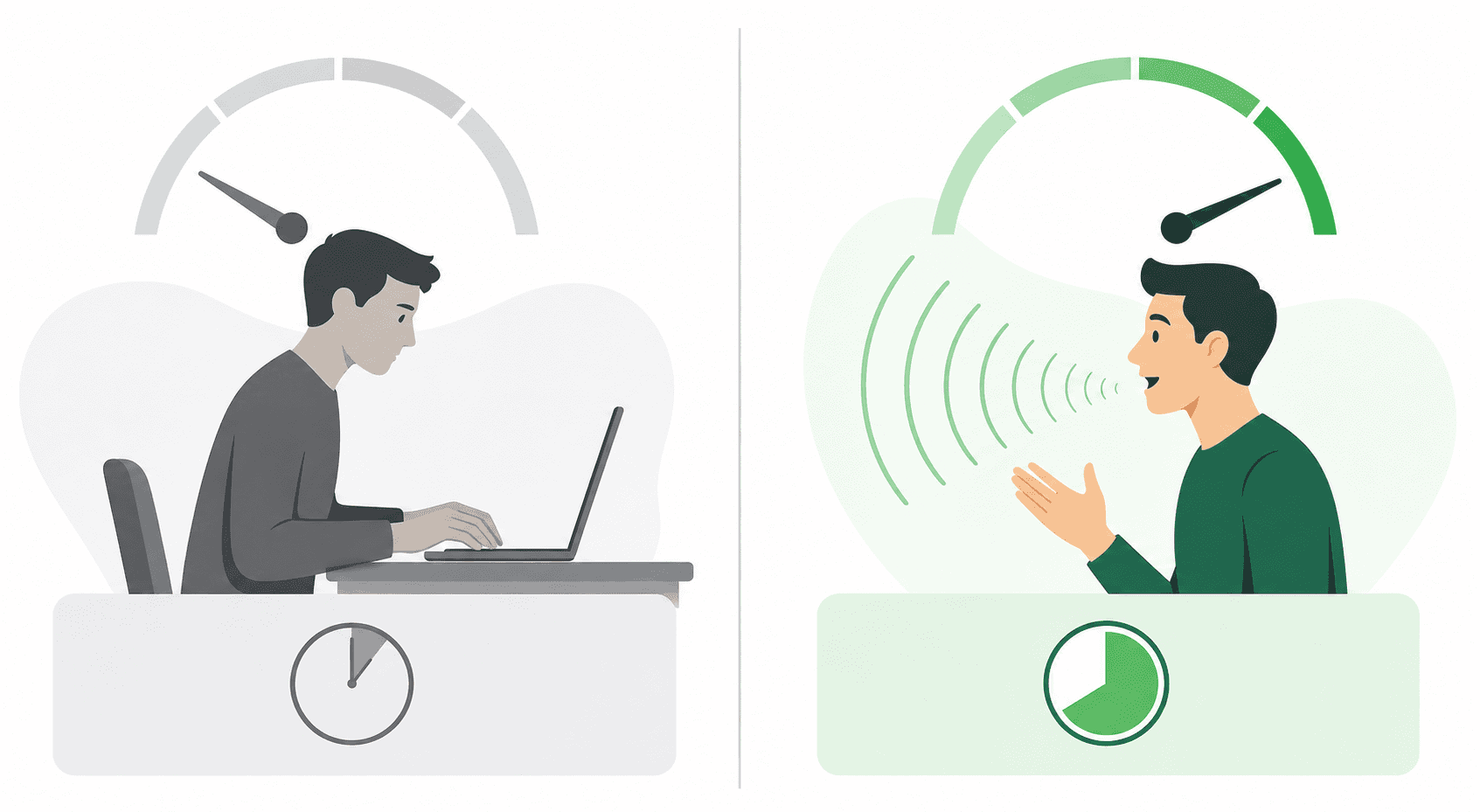
Notion's text-heavy workflows make it one of the best places to see the impact right away. Whether you're writing a product spec, filling out a project tracker, or capturing notes from a meeting, you're doing a lot of writing. Voice dictation doesn't change how Notion works. It just makes the writing part faster.
What You Can Do with Voice in Notion
Notion's default block is text, but the workspace goes much deeper than that. Pages, to-do lists, headings, database properties, inline comments, page-level comments: there's a lot of ground to cover. Willow Voice works across all of it on Mac, Windows, and iOS without any per-field setup.
Here's where voice dictation makes the biggest difference inside Notion:
Page content and long-form docs like project briefs, SOPs, and wikis where typing volume is highest for Notion speech to text tools
Meeting notes and daily journals that benefit from speaking naturally as thoughts come
To-do lists and task descriptions that are quick to say but tedious to type repeatedly
Database property fields including descriptions, notes, and status updates
Page-level comments and inline block comments during async collaboration
Headings and callout blocks when structuring a doc on the fly
The variety matters. Tools like Wispr Flow and Apple's built-in voice dictation stumble when you jump between a text block and a comment thread, or from a doc body into a database field. Willow recognizes the active input regardless of where your cursor lands. Comments, review threads, flagged sections: speaking them takes seconds instead of minutes across a week.
How Willow Runs Inside Notion
Willow works with Notion without any setup. No integration, no OAuth connection, no configuration needed. It runs at the OS level, so wherever your cursor lands, Willow types.
Activating Willow in Any Text Field
Click into any text field in Notion (a page body, a database description, a comment thread) and press the Function key (fn on Mac, Alt+Space on Windows). Speak. Text appears. No switching apps, no modal windows, no context breaks. Whether you're inside a nested page three levels deep or typing in a quick-capture database, the hotkey activation behaves the same way every time, on either platform.
Industry-Leading Speed
Most dictation tools run at 700ms or more before text appears when writing faster. Apple's built-in voice dictation lands at 700ms or higher; Wispr Flow operates at approximately 700ms. That lag breaks your train of thought more than you'd expect.
Willow processes at approximately 200ms, fast enough that text keeps pace with your voice. When you're mid-thought on a project spec or capturing a decision in real time, that difference is real.
Smart formatting handles the cleanup automatically, stripping filler words like "uh" and "um," repeated phrases, and stutters before text lands. What appears in your Notion page is clean, structured output, ready to read.
Willow Learns How You Write in Notion
Most dictation tools have no memory. Use Apple's built-in dictation or Wispr Flow today and you'll face the same errors tomorrow. Every session starts from zero. If your Notion workspace is full of product names, acronyms, or team-specific terms, those tools keep getting them wrong. Willow builds a personalized model of your vocabulary over time, so accuracy compounds with use instead of staying flat.
Auto-Dictionary for Notion Workspaces
When Willow gets a term wrong and you correct it, that correction sticks. The Auto-Dictionary logs it and applies it to every future session automatically. No manual entry, no dictionary management. If your workspace uses names like "Zephyr" for a product or "GTM" for a specific internal process, Willow starts getting those right without repeated intervention.
Context-Aware Recognition
Willow's context-aware engine reads your active workspace to recognize what you're working on. Database property names, custom field labels, page titles, project names: the AI picks up vocabulary patterns specific to how your team writes. Speak into a database field and Willow understands the terminology that belongs there. Speak a teammate's name into a comment thread and it lands correctly.
That kind of recognition is something Apple's built-in dictation and Wispr Flow simply cannot offer. For Notion-heavy workflows where terminology is dense and workspace-specific, personalization is what makes the tool actually usable for technical documentation.
Voice Dictation Built for Teams Using Notion
Notion is a team workspace, and when voice dictation rolls out across a team, the requirements go beyond individual speed gains. Shared vocabulary, compliance credentials, and deployment that works across a mixed-device fleet all factor in before a tool is worth adopting org-wide.
Apple's built-in dictation has no enterprise compliance framework or shared vocabulary tools. Wispr Flow offers compliance on certain plans, but without shared dictionaries, admin controls, or team-wide deployment. Willow Voice is SOC 2 Type II certified and HIPAA compliant, with signed BAAs on Enterprise plans, covering cross-platform teams on Windows, Mac, and iOS without a separate security procurement cycle.
The shared custom dictionaries are where team-level value really shows. When one person teaches Willow a product name or client abbreviation, the whole team benefits from that correction automatically across Windows, Mac, and iOS. Admin controls let managers push vocabulary updates across the group without touching individual installs, so new team members start with the same setup as everyone else from day one. No manual syncing, no per-device setup, no platform exceptions.
Feature | Willow | Apple Built-In | Wispr Flow |
|---|---|---|---|
SOC 2 Compliance | Yes (Type II) | No | Available on certain plans |
HIPAA Compliance | Yes (Enterprise) | No | Available on certain plans |
Shared Team Dictionaries | Yes | No | No |
Custom Terminology Sync | Automatic | Manual per device | Manual per device |
Admin Controls | Yes | No | Limited |
Willow in Action: What Notion Users Do Differently
Notion has grown into far more than a notes app. Notion functions as wiki, hub, and database, which means the writing happening inside it spans dozens of different workflow types. Here's what that looks like with voice.
Meeting Notes During Standups
A team lead is running a standup on Zoom, Notion open on the other screen. Someone flags a blocker. Instead of asking them to pause while typing, the lead presses the hotkey (fn on Mac, Alt+Space on Windows) and says the action item aloud. Assignee, due date, status field. The database row fills without the call skipping a beat. No one waits.
Writing Documentation on the Go
A product manager has twenty minutes on the subway. A PRD has been sitting half-finished for two days. With Willow on iOS, they open Notion, press the hotkey, and start speaking. By the time they reach their stop, the doc has a first draft. The same workflow applies on a Windows laptop at the office: same hotkey, same vocabulary, same output quality.
Populating Database Fields During Research
A researcher reviews papers with Notion open on the other screen. Instead of stopping to type summaries into database fields, they speak them using AI productivity tools. Source name, key finding, relevance note. The window never changes and the database fills as they read.
How to Start Using Willow in Notion
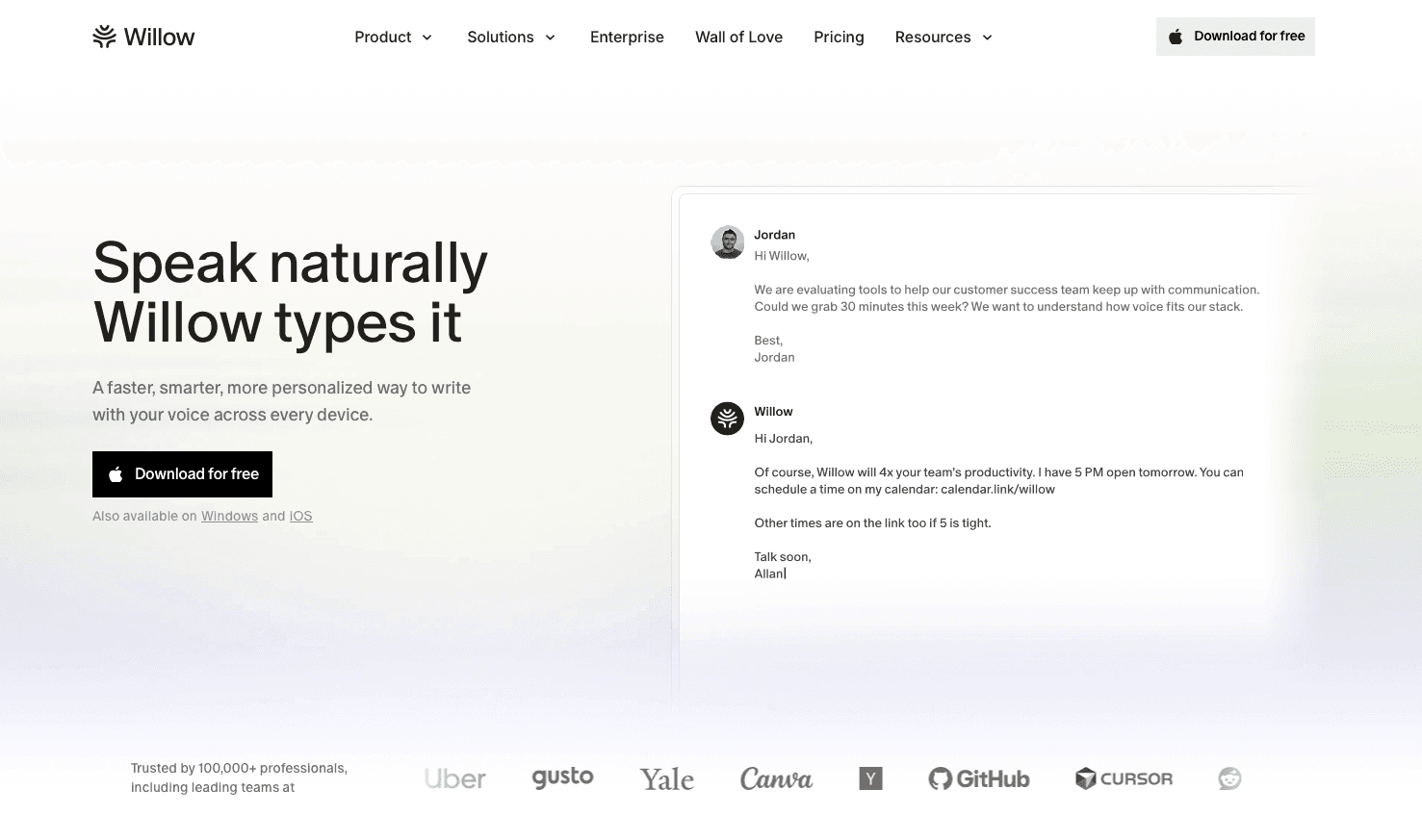
Getting started takes about two minutes. Download Willow, press the hotkey, and you're speaking into Notion. No browser extension, no Notion integration, no OAuth flow. It works because it runs at the system level on Windows, Mac, and iOS, not inside any specific app.
No Installation Required in Notion
If a text field exists in Notion, Willow types into it. That applies to every block type, every database field, and every comment thread. Nothing to configure on the Notion side, ever. Tools like Wispr Flow and Apple's built-in voice dictation can struggle with this kind of universal compatibility, often requiring workarounds depending on where your cursor lands.
Works on Mac, Windows, and iOS
Willow runs natively on Mac, Windows, and iOS. Your custom vocabulary syncs across all three, so the product names and terms you've taught Willow on your desktop carry over to your iPhone automatically, making you more productive at work.
Individual users can start with unlimited AI dictation for free, no credit card required. For professionals who want the fastest, most accurate dictation experience, the individual plan runs $12/month billed annually and includes unlimited Willow Scribe. Teams get everything in the individual plan plus shared custom dictionaries, voice shortcuts, admin controls, and team leaderboards at $10/user/month billed annually. Enterprise pricing is available for organizations needing centralized deployment, compliance documentation, and a signed BAA.
FAQs
Do I need to install a Notion integration to use Willow?
No. Willow works at the OS level, so it types into any text field in Notion without requiring any integration, OAuth connection, or setup. Click into any page, database field, or comment thread, press the hotkey, and speak.
Does Willow work across all my devices when I'm using Notion?
Yes. Willow runs natively on Mac, Windows, and iOS, and your custom vocabulary syncs automatically across all three platforms. Product names and terms you teach Willow on your desktop carry over to your iPhone immediately.
Is Willow secure enough for teams handling sensitive projects in Notion?
Yes. Willow is SOC 2 Type II certified and HIPAA compliant with signed BAAs available on Enterprise plans, making it suitable for teams working with confidential information. Apple's built-in dictation and Wispr Flow offer no enterprise compliance.
Final Thoughts on Getting More Out of Every Notion Workspace with Voice
Notion handles the structure. The writing is still on you, and that is where the hours go. AI voice dictation closes that gap without touching how Notion works: the same blocks, the same database fields, the same comment threads, all filled at 150 WPM instead of 40, with a tool that learns your workspace terminology over time. Willow Voice runs on Mac, Windows, and iOS, works in every text field in Notion without any integration or setup, and processes speech at approximately 200ms so text keeps pace with your thinking. For teams, shared custom dictionaries, admin controls, and SOC 2 Type II compliance mean one rollout covers every device in the org. Try Willow Voice free and see how much faster your pages fill when your voice does the typing.
Notion is built for writing, but writing is still slow. The average knowledge worker spends hours every week filling pages, updating databases, leaving comments, and capturing meeting notes, all at the speed their fingers allow. That ceiling is around 40 words per minute for most people. Speaking is closer to 150. That gap exists inside every Notion workspace, across every team, and AI voice dictation is one of the easiest ways to close it.
TLDR:
You can speak at 150 WPM versus typing at 40 WPM in Notion, closing a nearly 4x speed gap across pages, databases, and comments.
A dedicated voice dictation tool can process speech in roughly 200ms, which is 3-5x faster than Apple's built-in dictation and Wispr Flow, keeping text in sync with your thoughts.
A smart auto-dictionary learns your workspace terminology over time, so product names and acronyms land correctly after one correction with no manual setup.
The right tool works at the OS level, so it types into any Notion text field, including page bodies, database fields, and comment threads, with no integration needed.
Enterprise-grade options include SOC 2 Type II and HIPAA compliance alongside shared team dictionaries that sync custom terminology across your entire organization.
Voice Dictation in Notion: Why It Works
Notion is where knowledge workers live. It blends documents, wikis, project management, and databases into one workspace, which means people are constantly writing inside it. Meeting notes, SOPs, project briefs, team wikis: the text never stops.
The problem? Typing can't keep up with how fast you actually think. The average person types around 40 WPM but speaks at 150 WPM or more. That's nearly a 4:1 speed gap just sitting there, untapped, every time you sit down to write a page update or document a decision.
Voice dictation in Notion closes that gap. Instead of hunting for words while your fingers catch up, you speak the way you'd explain something to a teammate. The ideas flow. The page fills up. You spend less time in input mode and more time actually thinking.
Notion's text-heavy workflows make it one of the best places to see the impact right away. Whether you're writing a product spec, filling out a project tracker, or capturing notes from a meeting, you're doing a lot of writing. Voice dictation doesn't change how Notion works. It just makes the writing part faster.
What You Can Do with Voice in Notion
Notion's default block is text, but the workspace goes much deeper than that. Pages, to-do lists, headings, database properties, inline comments, page-level comments: there's a lot of ground to cover. Willow Voice works across all of it on Mac, Windows, and iOS without any per-field setup.
Here's where voice dictation makes the biggest difference inside Notion:
Page content and long-form docs like project briefs, SOPs, and wikis where typing volume is highest for Notion speech to text tools
Meeting notes and daily journals that benefit from speaking naturally as thoughts come
To-do lists and task descriptions that are quick to say but tedious to type repeatedly
Database property fields including descriptions, notes, and status updates
Page-level comments and inline block comments during async collaboration
Headings and callout blocks when structuring a doc on the fly
The variety matters. Tools like Wispr Flow and Apple's built-in voice dictation stumble when you jump between a text block and a comment thread, or from a doc body into a database field. Willow recognizes the active input regardless of where your cursor lands. Comments, review threads, flagged sections: speaking them takes seconds instead of minutes across a week.
How Willow Runs Inside Notion
Willow works with Notion without any setup. No integration, no OAuth connection, no configuration needed. It runs at the OS level, so wherever your cursor lands, Willow types.
Activating Willow in Any Text Field
Click into any text field in Notion (a page body, a database description, a comment thread) and press the Function key (fn on Mac, Alt+Space on Windows). Speak. Text appears. No switching apps, no modal windows, no context breaks. Whether you're inside a nested page three levels deep or typing in a quick-capture database, the hotkey activation behaves the same way every time, on either platform.
Industry-Leading Speed
Most dictation tools run at 700ms or more before text appears when writing faster. Apple's built-in voice dictation lands at 700ms or higher; Wispr Flow operates at approximately 700ms. That lag breaks your train of thought more than you'd expect.
Willow processes at approximately 200ms, fast enough that text keeps pace with your voice. When you're mid-thought on a project spec or capturing a decision in real time, that difference is real.
Smart formatting handles the cleanup automatically, stripping filler words like "uh" and "um," repeated phrases, and stutters before text lands. What appears in your Notion page is clean, structured output, ready to read.
Willow Learns How You Write in Notion
Most dictation tools have no memory. Use Apple's built-in dictation or Wispr Flow today and you'll face the same errors tomorrow. Every session starts from zero. If your Notion workspace is full of product names, acronyms, or team-specific terms, those tools keep getting them wrong. Willow builds a personalized model of your vocabulary over time, so accuracy compounds with use instead of staying flat.
Auto-Dictionary for Notion Workspaces
When Willow gets a term wrong and you correct it, that correction sticks. The Auto-Dictionary logs it and applies it to every future session automatically. No manual entry, no dictionary management. If your workspace uses names like "Zephyr" for a product or "GTM" for a specific internal process, Willow starts getting those right without repeated intervention.
Context-Aware Recognition
Willow's context-aware engine reads your active workspace to recognize what you're working on. Database property names, custom field labels, page titles, project names: the AI picks up vocabulary patterns specific to how your team writes. Speak into a database field and Willow understands the terminology that belongs there. Speak a teammate's name into a comment thread and it lands correctly.
That kind of recognition is something Apple's built-in dictation and Wispr Flow simply cannot offer. For Notion-heavy workflows where terminology is dense and workspace-specific, personalization is what makes the tool actually usable for technical documentation.
Voice Dictation Built for Teams Using Notion
Notion is a team workspace, and when voice dictation rolls out across a team, the requirements go beyond individual speed gains. Shared vocabulary, compliance credentials, and deployment that works across a mixed-device fleet all factor in before a tool is worth adopting org-wide.
Apple's built-in dictation has no enterprise compliance framework or shared vocabulary tools. Wispr Flow offers compliance on certain plans, but without shared dictionaries, admin controls, or team-wide deployment. Willow Voice is SOC 2 Type II certified and HIPAA compliant, with signed BAAs on Enterprise plans, covering cross-platform teams on Windows, Mac, and iOS without a separate security procurement cycle.
The shared custom dictionaries are where team-level value really shows. When one person teaches Willow a product name or client abbreviation, the whole team benefits from that correction automatically across Windows, Mac, and iOS. Admin controls let managers push vocabulary updates across the group without touching individual installs, so new team members start with the same setup as everyone else from day one. No manual syncing, no per-device setup, no platform exceptions.
Feature | Willow | Apple Built-In | Wispr Flow |
|---|---|---|---|
SOC 2 Compliance | Yes (Type II) | No | Available on certain plans |
HIPAA Compliance | Yes (Enterprise) | No | Available on certain plans |
Shared Team Dictionaries | Yes | No | No |
Custom Terminology Sync | Automatic | Manual per device | Manual per device |
Admin Controls | Yes | No | Limited |
Willow in Action: What Notion Users Do Differently
Notion has grown into far more than a notes app. Notion functions as wiki, hub, and database, which means the writing happening inside it spans dozens of different workflow types. Here's what that looks like with voice.
Meeting Notes During Standups
A team lead is running a standup on Zoom, Notion open on the other screen. Someone flags a blocker. Instead of asking them to pause while typing, the lead presses the hotkey (fn on Mac, Alt+Space on Windows) and says the action item aloud. Assignee, due date, status field. The database row fills without the call skipping a beat. No one waits.
Writing Documentation on the Go
A product manager has twenty minutes on the subway. A PRD has been sitting half-finished for two days. With Willow on iOS, they open Notion, press the hotkey, and start speaking. By the time they reach their stop, the doc has a first draft. The same workflow applies on a Windows laptop at the office: same hotkey, same vocabulary, same output quality.
Populating Database Fields During Research
A researcher reviews papers with Notion open on the other screen. Instead of stopping to type summaries into database fields, they speak them using AI productivity tools. Source name, key finding, relevance note. The window never changes and the database fills as they read.
How to Start Using Willow in Notion
Getting started takes about two minutes. Download Willow, press the hotkey, and you're speaking into Notion. No browser extension, no Notion integration, no OAuth flow. It works because it runs at the system level on Windows, Mac, and iOS, not inside any specific app.
No Installation Required in Notion
If a text field exists in Notion, Willow types into it. That applies to every block type, every database field, and every comment thread. Nothing to configure on the Notion side, ever. Tools like Wispr Flow and Apple's built-in voice dictation can struggle with this kind of universal compatibility, often requiring workarounds depending on where your cursor lands.
Works on Mac, Windows, and iOS
Willow runs natively on Mac, Windows, and iOS. Your custom vocabulary syncs across all three, so the product names and terms you've taught Willow on your desktop carry over to your iPhone automatically, making you more productive at work.
Individual users can start with unlimited AI dictation for free, no credit card required. For professionals who want the fastest, most accurate dictation experience, the individual plan runs $12/month billed annually and includes unlimited Willow Scribe. Teams get everything in the individual plan plus shared custom dictionaries, voice shortcuts, admin controls, and team leaderboards at $10/user/month billed annually. Enterprise pricing is available for organizations needing centralized deployment, compliance documentation, and a signed BAA.
FAQs
Do I need to install a Notion integration to use Willow?
No. Willow works at the OS level, so it types into any text field in Notion without requiring any integration, OAuth connection, or setup. Click into any page, database field, or comment thread, press the hotkey, and speak.
Does Willow work across all my devices when I'm using Notion?
Yes. Willow runs natively on Mac, Windows, and iOS, and your custom vocabulary syncs automatically across all three platforms. Product names and terms you teach Willow on your desktop carry over to your iPhone immediately.
Is Willow secure enough for teams handling sensitive projects in Notion?
Yes. Willow is SOC 2 Type II certified and HIPAA compliant with signed BAAs available on Enterprise plans, making it suitable for teams working with confidential information. Apple's built-in dictation and Wispr Flow offer no enterprise compliance.
Final Thoughts on Getting More Out of Every Notion Workspace with Voice
Notion handles the structure. The writing is still on you, and that is where the hours go. AI voice dictation closes that gap without touching how Notion works: the same blocks, the same database fields, the same comment threads, all filled at 150 WPM instead of 40, with a tool that learns your workspace terminology over time. Willow Voice runs on Mac, Windows, and iOS, works in every text field in Notion without any integration or setup, and processes speech at approximately 200ms so text keeps pace with your thinking. For teams, shared custom dictionaries, admin controls, and SOC 2 Type II compliance mean one rollout covers every device in the org. Try Willow Voice free and see how much faster your pages fill when your voice does the typing.

Try Willow for free
Instant, accurate voice dictation. No card required.
Try Willow for free
Instant, accurate voice dictation. No card required.
Other stories you’ll love
Other stories you’ll love


Your keyboard is optional now
" transform="translate(5 5)" width="9.791000051498413px"/></svg>)

The voice-first interface for modern work.
© Willow Care, Inc. 2026. All rights reserved
Your keyboard is optional now
The voice-first interface for modern work.
© Willow Care, Inc. 2026. All rights reserved
Your keyboard is optional now
The voice-first interface for modern work.
© Willow Care, Inc. 2026. All rights reserved