" transform="translate(5 2)" width="10px"/></svg>)

•
5 min read
How to Use Cursor AI Effectively: A Complete Guide for May 2026
•
5 min read
How to Use Cursor AI Effectively: A Complete Guide for May 2026
Knowing how to use Cursor AI effectively is less about memorizing commands and more about teaching it how you work. A short Cursor rules file tells Cursor your stack, your conventions, and what to avoid, so every response starts closer to what you actually want. A properly configured .cursorignore cuts indexing time from 8 minutes to 2 on large projects. And speaking your prompts instead of typing them gives Cursor three times more context in a third of the time. Those three changes turn Cursor from a suggestion engine into a tool that writes code the way you would.
TLDR:
Master Ctrl+L for chat and Ctrl+K for inline code generation to control Cursor AI without switching contexts.
Add project rules in
.cursor/rulesto define conventions and tech stack upfront.Configure
.cursorignoreand.cursorindexingignoreto reduce indexing time on large projects.Agent Mode handles multi-file refactors and feature builds by planning and executing steps across your codebase.
Voice dictation runs at roughly 150 words per minute versus roughly 40 words per minute when typing; a dedicated voice dictation tool with low latency learns your coding terminology for more accurate Cursor prompts.
Core Keyboard Shortcuts and Commands for Cursor AI
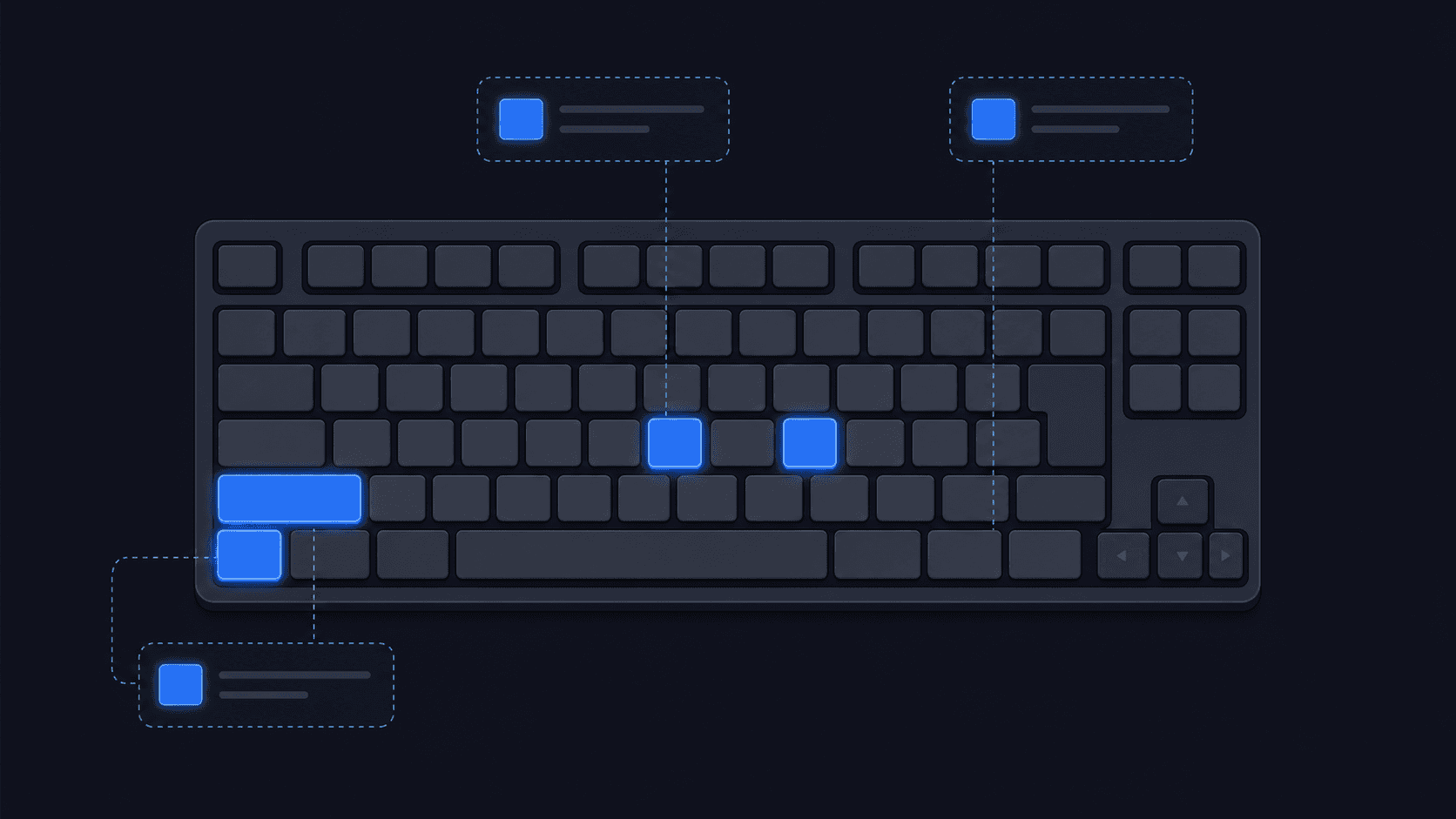
Memorizing the right shortcuts will cut your Cursor AI learning curve dramatically. These are the commands that experienced users rely on daily. For a complete reference, see the Cursor keyboard shortcuts reference.
Chat and AI Interaction
Ctrl+L(Windows) orCmd+L(Mac) opens the AI chat panel, where you can ask questions about your codebase or request explanations without leaving your editor.Ctrl+KorCmd+Ktriggers inline code generation directly in your file, letting you describe what you want and have Cursor write it in place.Ctrl+Shift+LorCmd+Shift+Ladds selected code to an existing chat thread for continued context.
Editing and Navigation
Tabaccepts an inline suggestion from Copilot++ when ghost text appears, which is often the fastest way to move through repetitive code.Escapedismisses a suggestion so you can keep typing without interruption.Ctrl+ZorCmd+Zundoes AI-generated changes just like any manual edit, giving you a clean rollback if a suggestion misses the mark.
Action | Windows | Mac |
|---|---|---|
Open AI chat | Ctrl+L | Cmd+L |
Inline generation | Ctrl+K | Cmd+K |
Accept suggestion | Tab | Tab |
Undo AI edit | Ctrl+Z | Cmd+Z |
Add to chat | Ctrl+Shift+L | Cmd+Shift+L |
Configuring .cursorrules for Project-Specific AI Instructions
Cursor project rules typically live in .cursor/rules and tells Cursor how to behave across every AI interaction in that codebase. Think of it as a standing instruction set that shapes responses before you type a single prompt. For the full spec, see Cursor's rules documentation.
What to Put in Your .cursorrules File
A well-structured .cursorrules file typically covers a few key areas:
Specify your tech stack and language versions so Cursor stops suggesting outdated syntax or incompatible libraries.
Define your coding conventions, like naming patterns, file structure preferences, and comment style, so generated code fits your existing codebase without heavy cleanup.
Set constraints around what Cursor should avoid, such as deprecated APIs or packages your team has banned.
Include context about the project's purpose so suggestions stay architecturally relevant.
A Quick Example Structure
Even a short .cursorrules file like this meaningfully improves output quality. Teams that invest five minutes here save hours of back-and-forth corrections across every session.
Managing Context With .cursorignore Files
Cursor indexes your entire project on startup, which is great for context but slow when it scans folders that don't need AI attention. Two files control this behavior. .cursorignore is a hard block: Cursor won't read those files under any circumstances. .cursorindexingignore is softer, excluding files from automatic indexing while still letting you reference them manually in chat when needed.
On large projects, proper ignore-file configuration can considerably reduce unnecessary indexing.
Common Patterns Worth Excluding
Here are the file types and directories you'll almost always want to add to these ignore files:
node_modules/and other package directories, which are rarely useful for AI context and massively inflate indexing timeBuild artifacts like
/dist,/build, and.next, since Cursor gains nothing from scanning compiled output.envfiles and any credentials or secrets, keeping sensitive data out of AI context entirelyAuto-generated output such as
coverage/and.cache, which adds noise without adding value
Both files follow standard gitignore syntax. If your project already has a .gitignore, most of it transfers directly with minimal adjustment.
Using Agent Mode for Multi-File Changes
Agent Mode is Cursor's answer to tasks that span multiple files, directories, or systems in a single session. Instead of making changes file by file, you describe a goal and Cursor plans and executes the steps needed to get there. For a deeper look at how to work with coding agents, see Cursor's agent best practices guide.
When to Use Agent Mode
Agent Mode works best for tasks with clear outcomes but non-trivial scope. Good candidates include:
Refactoring a shared utility that touches dozens of components across your codebase, where manual edits would be tedious and error-prone.
Setting up a new feature end-to-end, from creating config files to wiring up routes and writing initial tests.
Migrating between libraries or APIs, where the same pattern needs updating in many places consistently.
How to Get the Most Out of It
Agent Mode performs better when you give it structure upfront. A few habits that help:
Start with a scoped goal instead of a vague request. "Refactor all API calls to use the new fetch wrapper in
/lib/api.ts" outperforms "clean up the API stuff."Review each proposed change before confirming. Agent Mode shows a diff before applying, so treat that step seriously.
Break very large tasks into sequential agent runs. Smaller goals produce more reliable results than one massive instruction.
Agent Mode checkpoints its work, so if something goes wrong mid-task, you can roll back without losing everything. That safety net makes it practical for real refactors, beyond just small experiments.
Accelerating Prompts with Voice Dictation
The bottleneck in most Cursor workflows is the prompt itself. Under time pressure, developers shorten their instructions. Less context going in means worse output and more follow-up iterations to fix it.
Speaking solves this naturally. When you describe a task out loud, you include the full picture: the pattern you want, the edge cases to handle, which files to avoid. That detail ends up in your prompt without extra effort because you're not fighting the keyboard to get it there.
Voice runs at roughly 150 words per minute compared to 40 when typing. Across a full session of Cursor prompts, that difference compounds. Tools like Willow work in any text field, including Cursor's chat panel, transcribing with a single keyboard shortcut so you stay in the IDE without switching apps or hunting for a mic button.
Why Willow Stands Out for Cursor Users
Generic options like Wispr Flow and Apple's built-in voice dictation get the basics done, but they treat every user the same. Willow learns how you write over time, picking up your vocabulary, coding terminology, and phrasing habits so transcription gets more accurate the more you use it. It also runs at 200ms latency, the fastest available, so text appears before you lose your train of thought. For teams, Willow offers enterprise-grade security with SOC 2 and HIPAA compliance alongside shared shortcuts and dictionary terms, so everyone's prompts stay consistent across the codebase without sacrificing privacy.
Powering Your Cursor Workflow with Willow Voice Dictation
Cursor AI handles the code generation, but typing every prompt by hand slows you down more than you might expect. That's where Willow comes in.
Willow is the fastest voice dictation tool available, with 200ms latency that keeps you in flow state while you work. Compare that to Wispr Flow or Apple's built-in voice dictation, both of which lag at 700ms or more. When you're firing off Cursor prompts, context explanations, and inline comments back to back, that difference is felt immediately.
Beyond speed, Willow learns how you write over time. The more you use it, the more accurate it gets for your specific vocabulary, coding terminology, and communication style. No other dictation tool personalizes to that degree.
For teams, Willow offers SOC 2 and HIPAA compliance alongside shared shortcuts and dictionary terms, so everyone on your engineering team can move faster without sacrificing security.
Speak your Cursor prompts out loud. Get better output, faster.
FAQs
Can I use voice dictation for Cursor AI prompts without JavaScript?
Yes. Willow works in any text field, including Cursor's chat panel and inline generation prompts, with a single keyboard shortcut. You stay in your IDE without switching apps or configuring browser extensions.
Cursor AI voice prompts vs. typing, which is faster for complex instructions?
Voice runs at 150 words per minute compared to 40 when typing, letting you include full context, edge cases, and architectural details without fighting the keyboard. That detail produces better AI output and fewer correction rounds.
Willow vs. Wispr Flow for Cursor workflows?
Willow delivers 200ms latency compared to Wispr Flow's 700ms+, so text appears before you lose your train of thought. Willow also learns your coding terminology and writing style over time, making transcription more accurate the more you use it with Cursor.
How do I configure .cursorrules for my project?
Create a .cursorrules file in your project root and specify your tech stack, coding conventions, constraints, and project context. Cursor reads this file every session to shape AI responses before you type a single prompt.
What should I add to .cursorignore to speed up indexing?
Block node_modules/, build artifacts like /dist and .next, .env files, and auto-generated output such as coverage/. This can cut indexing time from 8 minutes down to 2 on large projects.
Final Thoughts on Maximizing Your Cursor Workflow
Knowing how to use Cursor AI effectively comes down to three things: the right shortcuts, a configured project setup, and prompts rich enough for the AI to act on. The fastest way to nail that third piece is speaking instead of typing. Willow gives you 200ms transcription in any text field, including Cursor's chat panel, so you can fire off detailed prompts without slowing down. Use Cursor AI effectively by mastering the mechanics first, then letting your voice do the heavy lifting.
Knowing how to use Cursor AI effectively is less about memorizing commands and more about teaching it how you work. A short Cursor rules file tells Cursor your stack, your conventions, and what to avoid, so every response starts closer to what you actually want. A properly configured .cursorignore cuts indexing time from 8 minutes to 2 on large projects. And speaking your prompts instead of typing them gives Cursor three times more context in a third of the time. Those three changes turn Cursor from a suggestion engine into a tool that writes code the way you would.
TLDR:
Master Ctrl+L for chat and Ctrl+K for inline code generation to control Cursor AI without switching contexts.
Add project rules in
.cursor/rulesto define conventions and tech stack upfront.Configure
.cursorignoreand.cursorindexingignoreto reduce indexing time on large projects.Agent Mode handles multi-file refactors and feature builds by planning and executing steps across your codebase.
Voice dictation runs at roughly 150 words per minute versus roughly 40 words per minute when typing; a dedicated voice dictation tool with low latency learns your coding terminology for more accurate Cursor prompts.
Core Keyboard Shortcuts and Commands for Cursor AI
Memorizing the right shortcuts will cut your Cursor AI learning curve dramatically. These are the commands that experienced users rely on daily. For a complete reference, see the Cursor keyboard shortcuts reference.
Chat and AI Interaction
Ctrl+L(Windows) orCmd+L(Mac) opens the AI chat panel, where you can ask questions about your codebase or request explanations without leaving your editor.Ctrl+KorCmd+Ktriggers inline code generation directly in your file, letting you describe what you want and have Cursor write it in place.Ctrl+Shift+LorCmd+Shift+Ladds selected code to an existing chat thread for continued context.
Editing and Navigation
Tabaccepts an inline suggestion from Copilot++ when ghost text appears, which is often the fastest way to move through repetitive code.Escapedismisses a suggestion so you can keep typing without interruption.Ctrl+ZorCmd+Zundoes AI-generated changes just like any manual edit, giving you a clean rollback if a suggestion misses the mark.
Action | Windows | Mac |
|---|---|---|
Open AI chat | Ctrl+L | Cmd+L |
Inline generation | Ctrl+K | Cmd+K |
Accept suggestion | Tab | Tab |
Undo AI edit | Ctrl+Z | Cmd+Z |
Add to chat | Ctrl+Shift+L | Cmd+Shift+L |
Configuring .cursorrules for Project-Specific AI Instructions
Cursor project rules typically live in .cursor/rules and tells Cursor how to behave across every AI interaction in that codebase. Think of it as a standing instruction set that shapes responses before you type a single prompt. For the full spec, see Cursor's rules documentation.
What to Put in Your .cursorrules File
A well-structured .cursorrules file typically covers a few key areas:
Specify your tech stack and language versions so Cursor stops suggesting outdated syntax or incompatible libraries.
Define your coding conventions, like naming patterns, file structure preferences, and comment style, so generated code fits your existing codebase without heavy cleanup.
Set constraints around what Cursor should avoid, such as deprecated APIs or packages your team has banned.
Include context about the project's purpose so suggestions stay architecturally relevant.
A Quick Example Structure
Even a short .cursorrules file like this meaningfully improves output quality. Teams that invest five minutes here save hours of back-and-forth corrections across every session.
Managing Context With .cursorignore Files
Cursor indexes your entire project on startup, which is great for context but slow when it scans folders that don't need AI attention. Two files control this behavior. .cursorignore is a hard block: Cursor won't read those files under any circumstances. .cursorindexingignore is softer, excluding files from automatic indexing while still letting you reference them manually in chat when needed.
On large projects, proper ignore-file configuration can considerably reduce unnecessary indexing.
Common Patterns Worth Excluding
Here are the file types and directories you'll almost always want to add to these ignore files:
node_modules/and other package directories, which are rarely useful for AI context and massively inflate indexing timeBuild artifacts like
/dist,/build, and.next, since Cursor gains nothing from scanning compiled output.envfiles and any credentials or secrets, keeping sensitive data out of AI context entirelyAuto-generated output such as
coverage/and.cache, which adds noise without adding value
Both files follow standard gitignore syntax. If your project already has a .gitignore, most of it transfers directly with minimal adjustment.
Using Agent Mode for Multi-File Changes
Agent Mode is Cursor's answer to tasks that span multiple files, directories, or systems in a single session. Instead of making changes file by file, you describe a goal and Cursor plans and executes the steps needed to get there. For a deeper look at how to work with coding agents, see Cursor's agent best practices guide.
When to Use Agent Mode
Agent Mode works best for tasks with clear outcomes but non-trivial scope. Good candidates include:
Refactoring a shared utility that touches dozens of components across your codebase, where manual edits would be tedious and error-prone.
Setting up a new feature end-to-end, from creating config files to wiring up routes and writing initial tests.
Migrating between libraries or APIs, where the same pattern needs updating in many places consistently.
How to Get the Most Out of It
Agent Mode performs better when you give it structure upfront. A few habits that help:
Start with a scoped goal instead of a vague request. "Refactor all API calls to use the new fetch wrapper in
/lib/api.ts" outperforms "clean up the API stuff."Review each proposed change before confirming. Agent Mode shows a diff before applying, so treat that step seriously.
Break very large tasks into sequential agent runs. Smaller goals produce more reliable results than one massive instruction.
Agent Mode checkpoints its work, so if something goes wrong mid-task, you can roll back without losing everything. That safety net makes it practical for real refactors, beyond just small experiments.
Accelerating Prompts with Voice Dictation
The bottleneck in most Cursor workflows is the prompt itself. Under time pressure, developers shorten their instructions. Less context going in means worse output and more follow-up iterations to fix it.
Speaking solves this naturally. When you describe a task out loud, you include the full picture: the pattern you want, the edge cases to handle, which files to avoid. That detail ends up in your prompt without extra effort because you're not fighting the keyboard to get it there.
Voice runs at roughly 150 words per minute compared to 40 when typing. Across a full session of Cursor prompts, that difference compounds. Tools like Willow work in any text field, including Cursor's chat panel, transcribing with a single keyboard shortcut so you stay in the IDE without switching apps or hunting for a mic button.
Why Willow Stands Out for Cursor Users
Generic options like Wispr Flow and Apple's built-in voice dictation get the basics done, but they treat every user the same. Willow learns how you write over time, picking up your vocabulary, coding terminology, and phrasing habits so transcription gets more accurate the more you use it. It also runs at 200ms latency, the fastest available, so text appears before you lose your train of thought. For teams, Willow offers enterprise-grade security with SOC 2 and HIPAA compliance alongside shared shortcuts and dictionary terms, so everyone's prompts stay consistent across the codebase without sacrificing privacy.
Powering Your Cursor Workflow with Willow Voice Dictation
Cursor AI handles the code generation, but typing every prompt by hand slows you down more than you might expect. That's where Willow comes in.
Willow is the fastest voice dictation tool available, with 200ms latency that keeps you in flow state while you work. Compare that to Wispr Flow or Apple's built-in voice dictation, both of which lag at 700ms or more. When you're firing off Cursor prompts, context explanations, and inline comments back to back, that difference is felt immediately.
Beyond speed, Willow learns how you write over time. The more you use it, the more accurate it gets for your specific vocabulary, coding terminology, and communication style. No other dictation tool personalizes to that degree.
For teams, Willow offers SOC 2 and HIPAA compliance alongside shared shortcuts and dictionary terms, so everyone on your engineering team can move faster without sacrificing security.
Speak your Cursor prompts out loud. Get better output, faster.
FAQs
Can I use voice dictation for Cursor AI prompts without JavaScript?
Yes. Willow works in any text field, including Cursor's chat panel and inline generation prompts, with a single keyboard shortcut. You stay in your IDE without switching apps or configuring browser extensions.
Cursor AI voice prompts vs. typing, which is faster for complex instructions?
Voice runs at 150 words per minute compared to 40 when typing, letting you include full context, edge cases, and architectural details without fighting the keyboard. That detail produces better AI output and fewer correction rounds.
Willow vs. Wispr Flow for Cursor workflows?
Willow delivers 200ms latency compared to Wispr Flow's 700ms+, so text appears before you lose your train of thought. Willow also learns your coding terminology and writing style over time, making transcription more accurate the more you use it with Cursor.
How do I configure .cursorrules for my project?
Create a .cursorrules file in your project root and specify your tech stack, coding conventions, constraints, and project context. Cursor reads this file every session to shape AI responses before you type a single prompt.
What should I add to .cursorignore to speed up indexing?
Block node_modules/, build artifacts like /dist and .next, .env files, and auto-generated output such as coverage/. This can cut indexing time from 8 minutes down to 2 on large projects.
Final Thoughts on Maximizing Your Cursor Workflow
Knowing how to use Cursor AI effectively comes down to three things: the right shortcuts, a configured project setup, and prompts rich enough for the AI to act on. The fastest way to nail that third piece is speaking instead of typing. Willow gives you 200ms transcription in any text field, including Cursor's chat panel, so you can fire off detailed prompts without slowing down. Use Cursor AI effectively by mastering the mechanics first, then letting your voice do the heavy lifting.

Try Willow for free
Instant, accurate voice dictation. No card required.
Try Willow for free
Instant, accurate voice dictation. No card required.
Other stories you’ll love
Other stories you’ll love


Your keyboard is optional now
" transform="translate(5 5)" width="9.791000051498413px"/></svg>)

The voice-first interface for modern work.
© Willow Care, Inc. 2026. All rights reserved
Your keyboard is optional now
The voice-first interface for modern work.
© Willow Care, Inc. 2026. All rights reserved
Your keyboard is optional now
The voice-first interface for modern work.
© Willow Care, Inc. 2026. All rights reserved