" transform="translate(5 2)" width="10px"/></svg>)

•
5 min read
Voice Dictation for Perplexity AI: 200ms Latency and Personalization in June 2026
•
5 min read
Voice Dictation for Perplexity AI: 200ms Latency and Personalization in June 2026
You type your Perplexity searches because that's how the interface works, but typing creates a bottleneck between your thought and the answer you get back. At 40 words per minute, a genuinely detailed research question takes long enough that you start cutting corners, and those corners are where the context lives. Voice dictation for Perplexity removes that friction entirely because you can speak at around 150 words per minute, which means the query you actually meant to ask gets in without the compromise.
TLDR:
Typing at 40 WPM forces you to compress detailed research questions into keyword strings, losing the context Perplexity needs to return useful answers; voice dictation at 150 WPM removes that friction.
Perplexity's Voice Mode adds a conversational layer with synthesized audio responses; voice dictation simply converts your speech to text in the search bar for faster text-based research.
Browser extensions like Voice In and VoiceWave run at 700ms+ latency and transcribe without memory, so technical terms and names get misheard repeatedly across sessions.
Specialized dictation tools run at around 200ms latency and build a personal vocabulary model over time, reaching 98%+ accuracy for your specific terms and speech patterns.
Tools that install at the OS level work across every text field with a single keyboard shortcut, so the same setup covers Perplexity, other AI tools, and any other application you use.
Perplexity's Native Voice Features: Voice Mode vs Voice Dictation
Perplexity offers two distinct ways to interact with voice, and they serve very different purposes. Understanding the difference matters before you decide how to set up your workflow.
Voice Mode vs. Voice Dictation
Voice Mode is Perplexity's conversational AI feature. You speak a question, the AI responds with synthesized audio, and you have a back-and-forth exchange. It handles the full input-to-output loop.
Voice dictation is different. It converts your spoken words into typed text inside the search bar, so you can trigger a search hands-free without engaging the conversational layer.
The gap here is personalization. Neither feature learns your vocabulary, adapts to your speech patterns, or remembers how you phrase things across sessions. For casual use that may be fine, but researchers and professionals who query Perplexity repeatedly throughout the day will feel the friction accumulate.
Third-Party Voice Dictation Tools for Perplexity
Desktop Perplexity users have a few browser extension options worth knowing.
VoiceWave is a Chrome extension supporting 145+ languages with over 150,000 users. It activates on a keyboard shortcut inside any text field, including Perplexity's search bar.
Voice In is the most widely adopted in this category, with 600,000+ users globally. No per-site configuration required.
SpeakOne AI takes a similar browser-based approach but layers some AI processing on top of basic transcription.
All three patch the same gap: Perplexity's desktop web interface has no built-in dictation, so these tools handle it at the browser level.
Tool | Installation Type | Latency | Personalization |
|---|---|---|---|
Willow Voice | System-level install works across all applications with single keyboard shortcut | Around 200ms response time | Learns your vocabulary over time and reaches 98%+ accuracy for technical terms |
Voice In | Browser extension requiring per-site configuration | 700ms or higher transcription delay | Transcribes without memory; names and acronyms get misheard repeatedly |
VoiceWave | Chrome extension supporting 145+ languages | 700ms or higher transcription delay | Transcribes without memory; names and acronyms get misheard repeatedly |
SpeakOne AI | Browser extension with AI processing layer | 700ms or higher transcription delay | Transcribes without memory; names and acronyms get misheard repeatedly |
Speed: How Voice Dictation Accelerates Perplexity Queries
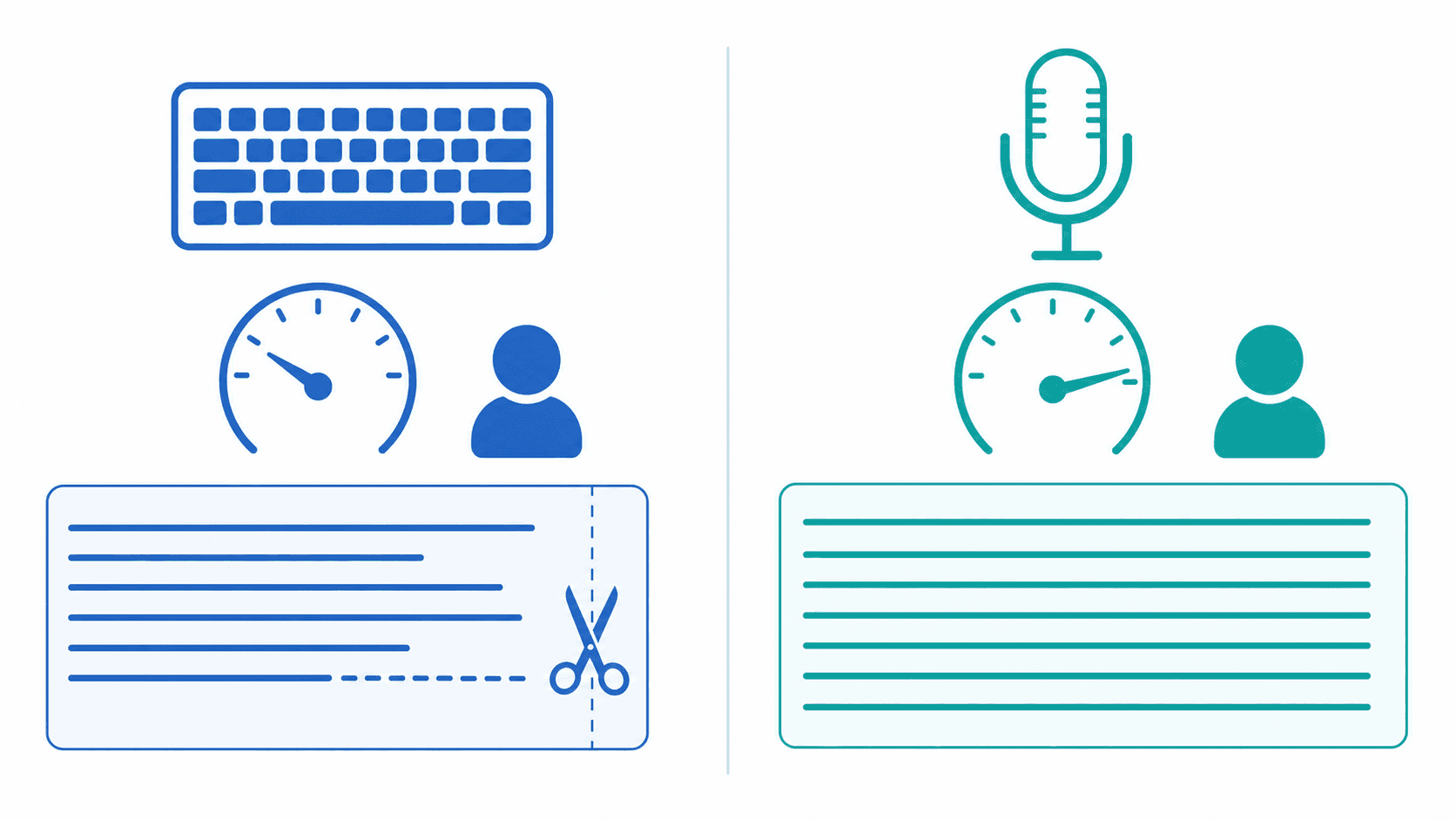
Speaking runs about 3 times faster than typing for most people, a finding supported by Stanford HCI research comparing speech to typing. For a short search, that gap barely registers. For the kind of detailed, contextual research question Perplexity handles well, it changes the whole interaction.
A query with real depth can easily run 50 to 100 words: the topic, the specific angle you need, which sources to trust, what format to return. Typing that out creates friction, so most people skip it. They compress the question, drop the nuance, and get a weaker answer back. Research on voice dictation and productivity consistently points to the same pattern: when input is fast, prompts get longer and more detailed. Voice removes the barrier, so you ask what you actually meant to ask, a principle that applies equally to voice prompting ChatGPT.
Latency Benchmarks: Response Time That Feels Natural
Willow runs at around 200ms latency. That's fast enough that text appears before you've fully registered a pause, keeping your train of thought intact while you type out a Perplexity query, just as it does when using voice dictation for faster ChatGPT prompts.
Most competing dictation tools sit at 700ms or higher. That gap is noticeable in practice: at 700ms, you catch yourself waiting, and the hesitation breaks focus. At 200ms, there's nothing to wait for.
For voice dictation in Perplexity, this matters more than it might in other contexts. Perplexity rewards precise, well-formed queries. Slow transcription creates a friction point right before the input field, which tends to push people back toward typing.
Personalization and Learning: Tools That Adapt to Your Vocabulary
Generic dictation tools transcribe what you say without any memory of who you are. Every session starts from scratch, which means names, acronyms, and domain-specific terms get misheard repeatedly.
Willow Voice learns your vocabulary over time. The more you use it with Perplexity, the fewer corrections you make, because Willow builds a personal model around your speech patterns, terminology, and phrasing. For researchers and analysts who rely on Perplexity daily, this compounds into real time saved across hundreds of queries.
What Personalization Looks Like in Practice
Some examples of what Willow learns:
Names of researchers, authors, or niche topics you query often, so they stop getting transcribed as something unrecognizable, similar to how developers prompt AI tools faster with Willow with technical vocabulary.
Recurring phrases or shorthand you use when forming questions, reducing the need to edit before submitting.
Your general speech rhythm, which helps Willow maintain accuracy even when you speak quickly or informally.
Over time, Willow can reach 98%+ accuracy for your specific voice and vocabulary, compared to roughly 3x more errors with built-in dictation tools.
How to Set Up Voice Dictation for Perplexity on Desktop
Open any browser, go to the Chrome Web Store, and search for your chosen extension. The steps below apply to Voice In, VoiceWave, or any similar option.
Click "Add to Chrome" and accept microphone permissions when the browser prompts you.
Open the extension's settings and select your preferred language.
Assign a keyboard shortcut, either inside the extension options or via
chrome://extensions/shortcuts.Open Perplexity, click into the search bar, press your hotkey, and speak.
Setup typically takes under two minutes.
How to Set Up Voice Dictation for Perplexity on Mobile
Both the iOS and Android Perplexity apps include a microphone icon inside the search bar. Tap it, speak your query, and it submits. No extensions or configuration required.
For hands-free use, Perplexity's app settings include an option to activate voice input without touching the screen, useful when you're cooking, commuting, or otherwise occupied. On iOS, adding Perplexity to your lock screen shortcuts reduces the steps down further.
The limitation worth knowing: on mobile, transcription runs through Apple or Google's native speech engine by default, which is why many users prefer dedicated desktop dictation tools. Accuracy holds up for general queries but can slip on technical vocabulary or proper nouns, since there's no personalization layer underneath.
Use Cases: When Voice Dictation Makes Perplexity More Effective
Voice dictation works best with Perplexity when you have a lot to say and limited time to type it. A few scenarios where it pays off most:
Researching a complex topic where you want to ask layered, multi-sentence questions instead of trimming your thoughts down to a search-friendly keyword string, much like using AI voice dictation with Claude.
Drafting follow-up queries mid-research, where your hands are already busy taking notes or referencing another document.
Mobile research sessions where the keyboard is the bottleneck, and you want to ask Perplexity something the moment the thought occurs to you.
The common thread is friction reduction. The more a question requires nuance, the more voice input helps you get it right the first time.
Willow Voice: 200ms Latency and Personalization for AI Prompting
For Perplexity users who need their setup to hold up professionally, Willow Voice adds two things most other tools skip entirely: compliance and team-level personalization.
Willow is SOC 2 and HIPAA compliant with zero data retention. If your research touches sensitive topics, proprietary information, or compliance-sensitive industries, that matters. Shared dictionaries and custom spelling overrides extend the learning engine across entire teams, so everyone querying Perplexity inputs consistent terminology without each person building their own vocabulary model from scratch.
The install happens once at the OS level. One keyboard shortcut works across every text field on Mac, Windows, and iOS, with no per-app setup. Perplexity on web, the Mac app, and every other tool you use sit behind the same shortcut.
That gap between what you type and what you actually meant to ask is where Willow does its work. A typed prompt is usually five words and gets five words of output quality back. A spoken one can be a fully formed thought with context, constraints, and intent intact, which is why choosing the best speech-to-text apps for ChatGPT matters for serious research work.
Typing compresses your thoughts into keyword strings, and Perplexity returns answers that match what you typed instead of what you meant. Voice dictation fixes that by letting you speak full, contextual questions without slowing down. For transcription that runs at around 200ms and learns your terminology over time, download Willow Voice and stop trimming your queries to fit a keyboard.
FAQs
Can I use voice dictation with Perplexity AI without installing anything?
Yes, but with limitations. Perplexity's web and desktop apps work with whatever voice input your browser or operating system provides by default, which means accuracy and speed vary widely depending on your setup. For better results, you'll want a dedicated voice dictation tool that works across all your applications.
What's the difference between Perplexity Voice Mode and voice dictation?
Voice Mode is Perplexity's conversational AI feature where you speak a question and get an audio response back, creating a dialogue loop. Voice dictation simply converts your spoken words into typed text inside the search bar, so you can submit queries hands-free without the conversational layer. If you want fast text-based research without waiting for synthesized audio responses, voice dictation is the better fit.
How does voice dictation improve Perplexity query quality?
Speaking runs around 150 WPM compared to 40 WPM typing, which removes the friction that pushes most people to compress their questions. When input is fast, you naturally ask longer, more detailed queries with full context and specific constraints, exactly the kind of well-formed questions Perplexity rewards with better answers.
Final Thoughts on Voice Dictation for Perplexity AI
Voice dictation for Perplexity works best when the tool behind it is fast enough to keep up with how you think and accurate enough that you stop second-guessing it. Willow Voice runs at around 200ms latency, learns your vocabulary over time, and works across every text field on your system with a single keyboard shortcut, so whether you're querying Perplexity, prompting another AI tool, or drafting in any other application, the same setup carries you through. If you're serious about getting more out of Perplexity, the input method is worth getting right.
You type your Perplexity searches because that's how the interface works, but typing creates a bottleneck between your thought and the answer you get back. At 40 words per minute, a genuinely detailed research question takes long enough that you start cutting corners, and those corners are where the context lives. Voice dictation for Perplexity removes that friction entirely because you can speak at around 150 words per minute, which means the query you actually meant to ask gets in without the compromise.
TLDR:
Typing at 40 WPM forces you to compress detailed research questions into keyword strings, losing the context Perplexity needs to return useful answers; voice dictation at 150 WPM removes that friction.
Perplexity's Voice Mode adds a conversational layer with synthesized audio responses; voice dictation simply converts your speech to text in the search bar for faster text-based research.
Browser extensions like Voice In and VoiceWave run at 700ms+ latency and transcribe without memory, so technical terms and names get misheard repeatedly across sessions.
Specialized dictation tools run at around 200ms latency and build a personal vocabulary model over time, reaching 98%+ accuracy for your specific terms and speech patterns.
Tools that install at the OS level work across every text field with a single keyboard shortcut, so the same setup covers Perplexity, other AI tools, and any other application you use.
Perplexity's Native Voice Features: Voice Mode vs Voice Dictation
Perplexity offers two distinct ways to interact with voice, and they serve very different purposes. Understanding the difference matters before you decide how to set up your workflow.
Voice Mode vs. Voice Dictation
Voice Mode is Perplexity's conversational AI feature. You speak a question, the AI responds with synthesized audio, and you have a back-and-forth exchange. It handles the full input-to-output loop.
Voice dictation is different. It converts your spoken words into typed text inside the search bar, so you can trigger a search hands-free without engaging the conversational layer.
The gap here is personalization. Neither feature learns your vocabulary, adapts to your speech patterns, or remembers how you phrase things across sessions. For casual use that may be fine, but researchers and professionals who query Perplexity repeatedly throughout the day will feel the friction accumulate.
Third-Party Voice Dictation Tools for Perplexity
Desktop Perplexity users have a few browser extension options worth knowing.
VoiceWave is a Chrome extension supporting 145+ languages with over 150,000 users. It activates on a keyboard shortcut inside any text field, including Perplexity's search bar.
Voice In is the most widely adopted in this category, with 600,000+ users globally. No per-site configuration required.
SpeakOne AI takes a similar browser-based approach but layers some AI processing on top of basic transcription.
All three patch the same gap: Perplexity's desktop web interface has no built-in dictation, so these tools handle it at the browser level.
Tool | Installation Type | Latency | Personalization |
|---|---|---|---|
Willow Voice | System-level install works across all applications with single keyboard shortcut | Around 200ms response time | Learns your vocabulary over time and reaches 98%+ accuracy for technical terms |
Voice In | Browser extension requiring per-site configuration | 700ms or higher transcription delay | Transcribes without memory; names and acronyms get misheard repeatedly |
VoiceWave | Chrome extension supporting 145+ languages | 700ms or higher transcription delay | Transcribes without memory; names and acronyms get misheard repeatedly |
SpeakOne AI | Browser extension with AI processing layer | 700ms or higher transcription delay | Transcribes without memory; names and acronyms get misheard repeatedly |
Speed: How Voice Dictation Accelerates Perplexity Queries
Speaking runs about 3 times faster than typing for most people, a finding supported by Stanford HCI research comparing speech to typing. For a short search, that gap barely registers. For the kind of detailed, contextual research question Perplexity handles well, it changes the whole interaction.
A query with real depth can easily run 50 to 100 words: the topic, the specific angle you need, which sources to trust, what format to return. Typing that out creates friction, so most people skip it. They compress the question, drop the nuance, and get a weaker answer back. Research on voice dictation and productivity consistently points to the same pattern: when input is fast, prompts get longer and more detailed. Voice removes the barrier, so you ask what you actually meant to ask, a principle that applies equally to voice prompting ChatGPT.
Latency Benchmarks: Response Time That Feels Natural
Willow runs at around 200ms latency. That's fast enough that text appears before you've fully registered a pause, keeping your train of thought intact while you type out a Perplexity query, just as it does when using voice dictation for faster ChatGPT prompts.
Most competing dictation tools sit at 700ms or higher. That gap is noticeable in practice: at 700ms, you catch yourself waiting, and the hesitation breaks focus. At 200ms, there's nothing to wait for.
For voice dictation in Perplexity, this matters more than it might in other contexts. Perplexity rewards precise, well-formed queries. Slow transcription creates a friction point right before the input field, which tends to push people back toward typing.
Personalization and Learning: Tools That Adapt to Your Vocabulary
Generic dictation tools transcribe what you say without any memory of who you are. Every session starts from scratch, which means names, acronyms, and domain-specific terms get misheard repeatedly.
Willow Voice learns your vocabulary over time. The more you use it with Perplexity, the fewer corrections you make, because Willow builds a personal model around your speech patterns, terminology, and phrasing. For researchers and analysts who rely on Perplexity daily, this compounds into real time saved across hundreds of queries.
What Personalization Looks Like in Practice
Some examples of what Willow learns:
Names of researchers, authors, or niche topics you query often, so they stop getting transcribed as something unrecognizable, similar to how developers prompt AI tools faster with Willow with technical vocabulary.
Recurring phrases or shorthand you use when forming questions, reducing the need to edit before submitting.
Your general speech rhythm, which helps Willow maintain accuracy even when you speak quickly or informally.
Over time, Willow can reach 98%+ accuracy for your specific voice and vocabulary, compared to roughly 3x more errors with built-in dictation tools.
How to Set Up Voice Dictation for Perplexity on Desktop
Open any browser, go to the Chrome Web Store, and search for your chosen extension. The steps below apply to Voice In, VoiceWave, or any similar option.
Click "Add to Chrome" and accept microphone permissions when the browser prompts you.
Open the extension's settings and select your preferred language.
Assign a keyboard shortcut, either inside the extension options or via
chrome://extensions/shortcuts.Open Perplexity, click into the search bar, press your hotkey, and speak.
Setup typically takes under two minutes.
How to Set Up Voice Dictation for Perplexity on Mobile
Both the iOS and Android Perplexity apps include a microphone icon inside the search bar. Tap it, speak your query, and it submits. No extensions or configuration required.
For hands-free use, Perplexity's app settings include an option to activate voice input without touching the screen, useful when you're cooking, commuting, or otherwise occupied. On iOS, adding Perplexity to your lock screen shortcuts reduces the steps down further.
The limitation worth knowing: on mobile, transcription runs through Apple or Google's native speech engine by default, which is why many users prefer dedicated desktop dictation tools. Accuracy holds up for general queries but can slip on technical vocabulary or proper nouns, since there's no personalization layer underneath.
Use Cases: When Voice Dictation Makes Perplexity More Effective
Voice dictation works best with Perplexity when you have a lot to say and limited time to type it. A few scenarios where it pays off most:
Researching a complex topic where you want to ask layered, multi-sentence questions instead of trimming your thoughts down to a search-friendly keyword string, much like using AI voice dictation with Claude.
Drafting follow-up queries mid-research, where your hands are already busy taking notes or referencing another document.
Mobile research sessions where the keyboard is the bottleneck, and you want to ask Perplexity something the moment the thought occurs to you.
The common thread is friction reduction. The more a question requires nuance, the more voice input helps you get it right the first time.
Willow Voice: 200ms Latency and Personalization for AI Prompting
For Perplexity users who need their setup to hold up professionally, Willow Voice adds two things most other tools skip entirely: compliance and team-level personalization.
Willow is SOC 2 and HIPAA compliant with zero data retention. If your research touches sensitive topics, proprietary information, or compliance-sensitive industries, that matters. Shared dictionaries and custom spelling overrides extend the learning engine across entire teams, so everyone querying Perplexity inputs consistent terminology without each person building their own vocabulary model from scratch.
The install happens once at the OS level. One keyboard shortcut works across every text field on Mac, Windows, and iOS, with no per-app setup. Perplexity on web, the Mac app, and every other tool you use sit behind the same shortcut.
That gap between what you type and what you actually meant to ask is where Willow does its work. A typed prompt is usually five words and gets five words of output quality back. A spoken one can be a fully formed thought with context, constraints, and intent intact, which is why choosing the best speech-to-text apps for ChatGPT matters for serious research work.
Typing compresses your thoughts into keyword strings, and Perplexity returns answers that match what you typed instead of what you meant. Voice dictation fixes that by letting you speak full, contextual questions without slowing down. For transcription that runs at around 200ms and learns your terminology over time, download Willow Voice and stop trimming your queries to fit a keyboard.
FAQs
Can I use voice dictation with Perplexity AI without installing anything?
Yes, but with limitations. Perplexity's web and desktop apps work with whatever voice input your browser or operating system provides by default, which means accuracy and speed vary widely depending on your setup. For better results, you'll want a dedicated voice dictation tool that works across all your applications.
What's the difference between Perplexity Voice Mode and voice dictation?
Voice Mode is Perplexity's conversational AI feature where you speak a question and get an audio response back, creating a dialogue loop. Voice dictation simply converts your spoken words into typed text inside the search bar, so you can submit queries hands-free without the conversational layer. If you want fast text-based research without waiting for synthesized audio responses, voice dictation is the better fit.
How does voice dictation improve Perplexity query quality?
Speaking runs around 150 WPM compared to 40 WPM typing, which removes the friction that pushes most people to compress their questions. When input is fast, you naturally ask longer, more detailed queries with full context and specific constraints, exactly the kind of well-formed questions Perplexity rewards with better answers.
Final Thoughts on Voice Dictation for Perplexity AI
Voice dictation for Perplexity works best when the tool behind it is fast enough to keep up with how you think and accurate enough that you stop second-guessing it. Willow Voice runs at around 200ms latency, learns your vocabulary over time, and works across every text field on your system with a single keyboard shortcut, so whether you're querying Perplexity, prompting another AI tool, or drafting in any other application, the same setup carries you through. If you're serious about getting more out of Perplexity, the input method is worth getting right.

Try Willow for free
Instant, accurate voice dictation. No card required.
Try Willow for free
Instant, accurate voice dictation. No card required.
Other stories you’ll love
Other stories you’ll love


Your keyboard is optional now
" transform="translate(5 5)" width="9.791000051498413px"/></svg>)

The voice-first interface for modern work.
© Willow Care, Inc. 2026. All rights reserved
Your keyboard is optional now
The voice-first interface for modern work.
© Willow Care, Inc. 2026. All rights reserved
Your keyboard is optional now
The voice-first interface for modern work.
© Willow Care, Inc. 2026. All rights reserved