" transform="translate(5 2)" width="10px"/></svg>)

•
5 min read
Slack Productivity Guide for Teams (July 2026)

•
5 min read
Slack Productivity Guide for Teams (July 2026)
Everyone blames Slack for killing productivity, but the real problem is how it’s set up out of the box. Most teams accept constant pings, cluttered channels, and slow back-and-forth as the norm, even though a few changes can fix them. With the right Slack productivity habits, smarter notification settings, and tools, your workspace can support focus instead of breaking it, helping you move through conversations faster without losing clarity.
TLDR:
The average Slack user sends around 32 messages per day, and 71% of notifications get a response within minutes; without a system, reactive habits eat into focus time.
Voice input at 150 WPM beats typing at 40 WPM; speaking is roughly 3x faster than typing.
Configure custom notification schedules and mute low-priority channels to reclaim deep work blocks.
Some AI-assisted voice tools can learn your writing style and process speech in ~200ms for faster, more natural Slack replies.
Star a small set of priority channels so you always know where to focus first instead of reacting to everything.
Understanding Slack Productivity in June 2026
Slack has evolved from a simple messaging tool into the center of daily work. The average team now spends about 90 minutes per workday actively using Slack, with heavy users spending even more.

That’s a meaningful chunk of your workday. The question is whether that time supports focused work or constantly interrupts it. For many teams, Slack sits in both roles at once.
Remote and hybrid work have pushed more conversations into channels, threads, and DMs. As Slack becomes the default for communication, message volume rises quickly. Without a clear system, it’s easy to fall into a reactive loop, jumping between conversations instead of making steady progress on important work.
Slack vs. Teams: Choosing the Right Productivity Tool
Microsoft Teams held about 37% of the global collaboration market in 2025, compared to Slack at around 13%. Much of that gap comes from Microsoft bundling Teams with Office 365, not from a clear difference in product quality.
Feature | Slack | Microsoft Teams |
|---|---|---|
Market Share (2025) | 13% of global collaboration market | 37% of global collaboration market |
Pricing Model | Separate subscription starting at $7.25 per user/month. Free plan limits message history to 90 days | Included with most Microsoft 365 plans. Standalone pricing starts at $4 per user/month |
Security & Compliance | SOC 2, GDPR compliance, encryption, flexible identity integrations, detailed permission controls | SOC 2, GDPR compliance, encryption, native Active Directory integration, Microsoft infrastructure |
Best Integration Ecosystem | Wide range of third-party apps via API. Works naturally with Google Workspace, Jira, Asana, and specialized tools | Deep native integration with Microsoft tools: SharePoint, OneDrive, Power Apps, and Office 365 suite |
Best Fit For | Teams using Google Workspace or diverse third-party tool stacks requiring flexible integrations | Organizations already invested in Microsoft 365 ecosystem seeking bundled collaboration solution |
If your company already uses Microsoft 365, Teams is included. Slack comes as a separate subscription.
Pricing reflects this. Slack's free plan limits message history to 90 days, while paid plans start at $7.25 per user per month (as of June 2026). Teams is included with most Microsoft 365 plans, and standalone pricing starts at $4 per user per month (as of June 2026).
Both tools meet enterprise security standards, including SOC 2, GDPR compliance, and encryption.
Where they differ most is in integrations. Slack offers flexible identity integrations and detailed permission controls. Slack supports a wide range of third-party apps built around its API. Teams benefits from Microsoft’s infrastructure and native integration with Active Directory. Teams connects deeply with Microsoft tools like SharePoint, OneDrive, and Power Apps.
If your team relies on Google Workspace or tools like Jira and Asana, Slack often fits more naturally.
Core Slack Configuration for Maximum Productivity
Slack's default notification setup sends alerts for almost everything, which quickly becomes overwhelming. Head to Preferences > Notifications, set a schedule that matches your actual working hours, and silence everything outside those windows.
Do Not Disturb is worth setting up early. A recurring schedule automatically keeps focus blocks intact, and you can toggle it manually when you need uninterrupted time. Important contacts or keywords can still break through if needed.
Most channels don't need to notify you for every message. Limit notifications to mentions and specific keywords, except for the few channels where every update matters. If you haven't opened a channel in weeks, it's a good candidate for archiving.
Channels you don't need in real time can be muted without losing access. Set your working hours in your status so teammates know when to expect a reply.
Category | Examples | Archive rule |
|---|---|---|
Project | #proj-website-redesign, #proj-q2-launch, #proj-mobile-app | 2 weeks after completion |
Team | #team-engineering, #team-marketing, #team-sales | Only when the team disbands |
Topic / Help | #help-it, #help-hr, #help-facilities | Only when the function is retired |
Social | #random, #celebrations, #local-nyc | Only when community is inactive |
Event / Temp | #event-2026-summit, #temp-office-move | 1 week after event; immediately when purpose is complete |
Channel structure shapes how your team communicates, and naming conventions matter more than they seem. Prefix channels by purpose: #proj- for projects, #team- for departments, #help- for support. Anyone should be able to understand what a channel is for before they open it.
Public channels keep information accessible. Private channels limit visibility and make it harder for others to find context later. If a conversation involves more than two people, it usually belongs somewhere shared.
Channels pile up faster than expected. If a project is done or no one has posted in a month, archive it. The content stays searchable without adding clutter to your sidebar.
Every channel works better with a clear purpose. Pin a short description explaining what belongs there to keep conversations focused and prevent channels from turning into catch-all threads.
Mastering Slack Communication Etiquette
Channels fill up fast, and without a consistent approach to threading, conversations scatter, and decisions get buried. The default rule: reply within a thread whenever you're responding to a specific message. If the conclusion matters to the full channel, share it back there afterward. The same logic applies to DMs: if someone else might need the answer later, it belongs in a public channel. Public conversations become shared knowledge and reduce the same questions from coming up repeatedly.
Short replies are worth swapping for reactions when you can: a quick emoji acknowledges a message without adding another notification. When you do write, lead with context. Giving teammates the details they need upfront means they can respond on their own time, without back-and-forth to first extract the information. This matters especially across time zones.
Here's what good Slack communication looks like in practice:
❌Vague question: "Hey, quick question about the project." No context means the recipient can't respond without a follow-up, and that back-and-forth becomes the bottleneck.
✅Contextual question: "Quick question about the Q2 website redesign: Should we focus on mobile optimization or new features in sprint 3? Context: we're 2 weeks from launch and can only fit one." One message, actionable reply.
❌Scattered DMs: Asking 5 people individually about a meeting time fragments the conversation and creates 5 separate threads to track.
✅Channel post: "Posting in #team-marketing: Need to schedule our content review. Please vote on times in thread: Option A, Option B, Option C." One channel post handles it for everyone.
❌Thread misuse: Replying to a day-old message directly in the main channel buries context and notifies people who've moved on.
✅Proper threading: Reply inside the original thread, then check "share to channel" only if the conclusion is relevant to the whole team.
Slack Workflow Automation for Repetitive Tasks
Onboarding pings, request routing, and recurring reminders take real time when handled manually. Slack's Workflow Builder lets you automate routine tasks without coding, covering onboarding, request intake, approvals, and recurring updates.
Good automations replace the manual work nobody wants to track. Welcome messages go out when someone joins a channel, form submissions route to the right person without a handoff conversation, and reminders fire as deadlines approach without anyone having to remember to send them.
Forms collect structured input without the usual back-and-forth. Design requests, bug reports, and approvals arrive with context already included, so whoever picks them up can act without a follow-up. For anything that runs on a schedule, like daily standups or weekly check-ins, scheduled messages handle the delivery automatically.
Best Productivity Apps and Integrations for Slack
Slack offers a large range of apps, but more tools don’t always mean better workflows. The most useful integrations fit quietly into your existing process.
Project tools like Asana, Trello, and Linear send updates into relevant channels. Time tracking tools like Toggl and Clockify let you manage timers without switching tabs. Google Drive and Dropbox previews save you from opening extra windows. Polling tools like Polly and Simple Poll help teams make quick decisions without meetings.
Willow Voice fits into this layer by reducing response time. It's used by teams at Uber, Reddit, and companies across 20% of the Fortune 500. You can speak messages instead of typing, which can speed up replies and reduce back-and-forth.
Managing Slack Message Overload and Communication Sprawl
The average Slack user sends around 32 messages per day, and 71% of Slack notifications get a response within minutes. Without a system, that reactive pull makes it easy to feel buried.
Star three to five channels where your core work happens. Everything else can wait. Check starred channels first, then decide if you have capacity for the rest.
Save messages that need action instead of leaving them unread. Review saved items once a day and clear them as you go.
Search operators cut through noise faster than scrolling:
from:@personfinds messages from specific teammatesin:#channel after:2026-03-01narrows date rangeshas:linkorhas:filesurfaces shared resources
Some channels are better treated as reference spaces you check when needed, not streams you follow constantly.
Advanced Slack Search Techniques to Find Information Fast
The average Slack user needs to retrieve information 5 to 7 times a day: a decision from last week's thread, a file a teammate shared, or a message that came in while you were heads down. Scrolling burns time. Knowing the right search operators doesn't.
from:@username- messages from a specific person, e.g.from:@sarahin:#channel- scopes search to one channel, e.g.in:#marketingbefore:YYYY-MM-DD- messages sent before a date, e.g.before:2026-07-01after:YYYY-MM-DD- messages sent after a date, e.g.after:2026-06-01during:month- narrows to a calendar month, e.g.during:junehas:link- surfaces messages containing URLshas:pin- finds messages pinned in any channel you have access tohas:reaction- returns messages that received at least one emoji reactionis:saved- shows only your saved (bookmarked) messageshas:file- finds messages with attachments
Operators stack. A few combinations that save real time:
from:@sarah in:#marketing has:link after:2026-06-01- every link Sarah shared in the marketing channel after June 1in:#engineering before:2026-07-01 has:file- files shared in engineering before Julyfrom:@alex is:saved during:june- your saved messages from Alex in June
If you run the same search repeatedly, save it. Open the search bar, run your query, then click Save this search to pin it for one-click access later. Pro and Business+ plans unlock additional filtering options, including message-type filters and expanded date range controls.
Using Voice Dictation to Speed Up Slack Communication
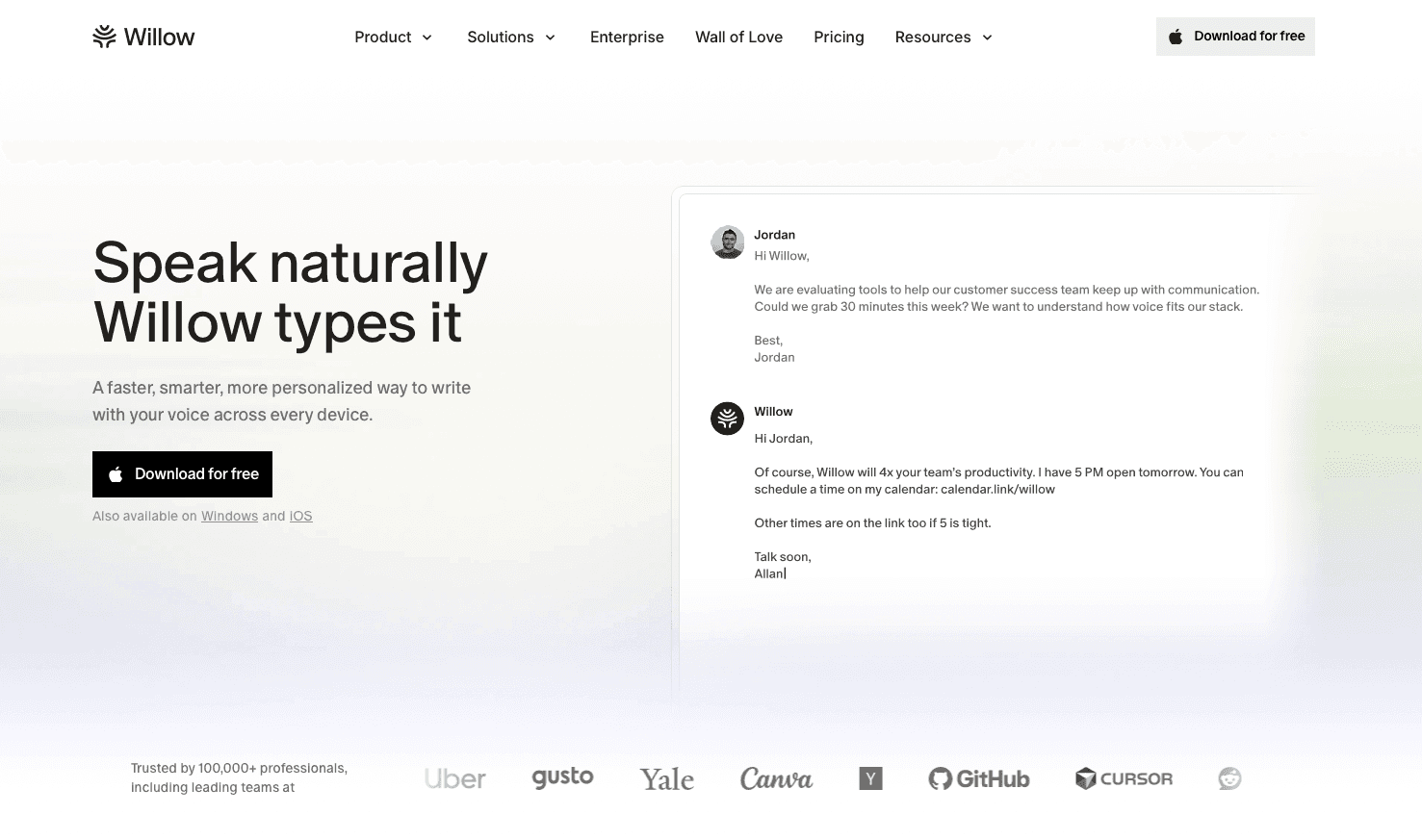
Knowledge workers spend 2 to 4 hours per day on written communication, and a large share of that flows through Slack. Typing creates a bottleneck. You know what to say, but your fingers can't keep up with your thoughts. Speaking eliminates that gap. You speak at around 150 words per minute compared to typing at 40 words per minute, making voice input roughly 3x faster.
Tools like Apple's built-in voice dictation and Wispr Flow handle basic transcription but are not optimized for your individual writing style. Willow is 3x more accurate than built-in OS dictation, so fewer errors make it into your messages in the first place. Willow also learns how you write over time, so spoken Slack messages require fewer edits and sound like you actually wrote them. The personalization improves with every message you send. Willow Voice works on Mac, Windows, and iOS, so the experience carries over whether you are on a work laptop or replying from your phone.
Speed matters beyond raw word count. Willow Voice processes speech in 200ms, while most alternatives take 700ms or longer. That difference keeps you in flow state instead of waiting for text to catch up. Set your activation hotkey (default is fn on Mac, Alt+Space on Windows; reassign to any key combination you prefer), speak your message, and move on. For example, speaking "hey alex quick note the product review is moving to Thursday afternoon can you update the calendar invite and ping the team" produces: "Hey Alex, quick note: the product review is moving to Thursday afternoon. Can you update the calendar invite and ping the team?" On iOS, Willow's custom voice keyboard lets you speak Slack messages directly from your phone with the same style-matching you get on desktop.
Scaling Willow from Individual Use to Org-Wide Rollout
Consumer dictation tools were built for individual use and stop there. When your org runs Slack on Windows desktops, Mac laptops, and iOS devices, you need something that deploys consistently across the entire fleet without per-device setup or separate licensing. Willow's admin controls let IT configure shared custom dictionaries and voice shortcuts at the org level, so product names, customer terminology, and internal acronyms are recognized correctly for every team member the moment they log in. Custom vocabulary syncs across devices, so a teammate moving from a Windows workstation to a Mac or their phone works from the same configuration without manual re-setup.
Willow is SOC 2 Type II certified and HIPAA compliant, which means org-wide deployment fits within existing security review requirements, including in compliance-sensitive industries. Team leaderboards surface usage and time-saved data across the group, giving leads a clear view of where voice adoption is taking hold without extra tooling. For organizations that have relied on consumer-grade dictation tools, that gap is real: most alternatives were built for one person on one device, not for a compliance-conscious rollout across a mixed-device fleet. Shared dictionaries, admin controls, and cross-device vocabulary sync scale from a single power user to hundreds of teammates without adding management overhead.
FAQ
How can I reduce Slack notifications without missing important messages?
Set custom notification schedules in Preferences > Notifications to match your actual working hours, then customize triggers per channel so only high-priority channels and direct mentions ping you. Star your three to five most important channels and check those first.
What's the main difference between Slack and Teams for productivity?
Slack offers a wide range of third-party integrations, while Teams comes bundled with Microsoft 365 and connects tightly to the Microsoft ecosystem. For teams using Google Workspace or specialized tools like Jira, Slack's integrations are often a better fit.
When should I use threads instead of posting new messages?
Use threads whenever you're replying to a specific message to keep conversations contained and prevent channel noise. Check the box to also send to the channel only when the thread contains information the full team needs to see.
How does voice dictation speed up Slack communication?
Speaking at 150 words per minute versus typing at 40 is roughly 3x faster, cutting the time you spend composing messages. Willow learns how you write over time so spoken messages require fewer edits, and its 200ms processing speed keeps you in flow state instead of waiting for text to catch up.
Which Slack channels should I archive and which should I keep active?
Archive any channel where no one has posted in 30 days or where the project ended more than three months ago. Members can still search archived content, but dead channels stop cluttering your sidebar and make it harder to find active conversations.
Final Thoughts on Improving Slack Productivity
Slack productivity isn't about using more tools or staying online longer; it comes down to how intentionally you set up and use it day to day. Small changes like refining notifications, keeping channels clean, and writing clearer messages add up quickly, especially as message volume grows. Removing friction matters just as much, and tools like Willow help by turning speech into fast, natural replies that match your style. When your setup supports focus and your communication flows easily, Slack starts to feel less like a constant interruption and more like a tool that actually helps you move work forward. Download Willow Voice and see how much faster your Slack replies move when speaking replaces typing.
Everyone blames Slack for killing productivity, but the real problem is how it’s set up out of the box. Most teams accept constant pings, cluttered channels, and slow back-and-forth as the norm, even though a few changes can fix them. With the right Slack productivity habits, smarter notification settings, and tools, your workspace can support focus instead of breaking it, helping you move through conversations faster without losing clarity.
TLDR:
The average Slack user sends around 32 messages per day, and 71% of notifications get a response within minutes; without a system, reactive habits eat into focus time.
Voice input at 150 WPM beats typing at 40 WPM; speaking is roughly 3x faster than typing.
Configure custom notification schedules and mute low-priority channels to reclaim deep work blocks.
Some AI-assisted voice tools can learn your writing style and process speech in ~200ms for faster, more natural Slack replies.
Star a small set of priority channels so you always know where to focus first instead of reacting to everything.
Understanding Slack Productivity in June 2026
Slack has evolved from a simple messaging tool into the center of daily work. The average team now spends about 90 minutes per workday actively using Slack, with heavy users spending even more.
That’s a meaningful chunk of your workday. The question is whether that time supports focused work or constantly interrupts it. For many teams, Slack sits in both roles at once.
Remote and hybrid work have pushed more conversations into channels, threads, and DMs. As Slack becomes the default for communication, message volume rises quickly. Without a clear system, it’s easy to fall into a reactive loop, jumping between conversations instead of making steady progress on important work.
Slack vs. Teams: Choosing the Right Productivity Tool
Microsoft Teams held about 37% of the global collaboration market in 2025, compared to Slack at around 13%. Much of that gap comes from Microsoft bundling Teams with Office 365, not from a clear difference in product quality.
Feature | Slack | Microsoft Teams |
|---|---|---|
Market Share (2025) | 13% of global collaboration market | 37% of global collaboration market |
Pricing Model | Separate subscription starting at $7.25 per user/month. Free plan limits message history to 90 days | Included with most Microsoft 365 plans. Standalone pricing starts at $4 per user/month |
Security & Compliance | SOC 2, GDPR compliance, encryption, flexible identity integrations, detailed permission controls | SOC 2, GDPR compliance, encryption, native Active Directory integration, Microsoft infrastructure |
Best Integration Ecosystem | Wide range of third-party apps via API. Works naturally with Google Workspace, Jira, Asana, and specialized tools | Deep native integration with Microsoft tools: SharePoint, OneDrive, Power Apps, and Office 365 suite |
Best Fit For | Teams using Google Workspace or diverse third-party tool stacks requiring flexible integrations | Organizations already invested in Microsoft 365 ecosystem seeking bundled collaboration solution |
If your company already uses Microsoft 365, Teams is included. Slack comes as a separate subscription.
Pricing reflects this. Slack's free plan limits message history to 90 days, while paid plans start at $7.25 per user per month (as of June 2026). Teams is included with most Microsoft 365 plans, and standalone pricing starts at $4 per user per month (as of June 2026).
Both tools meet enterprise security standards, including SOC 2, GDPR compliance, and encryption.
Where they differ most is in integrations. Slack offers flexible identity integrations and detailed permission controls. Slack supports a wide range of third-party apps built around its API. Teams benefits from Microsoft’s infrastructure and native integration with Active Directory. Teams connects deeply with Microsoft tools like SharePoint, OneDrive, and Power Apps.
If your team relies on Google Workspace or tools like Jira and Asana, Slack often fits more naturally.
Core Slack Configuration for Maximum Productivity
Slack's default notification setup sends alerts for almost everything, which quickly becomes overwhelming. Head to Preferences > Notifications, set a schedule that matches your actual working hours, and silence everything outside those windows.
Do Not Disturb is worth setting up early. A recurring schedule automatically keeps focus blocks intact, and you can toggle it manually when you need uninterrupted time. Important contacts or keywords can still break through if needed.
Most channels don't need to notify you for every message. Limit notifications to mentions and specific keywords, except for the few channels where every update matters. If you haven't opened a channel in weeks, it's a good candidate for archiving.
Channels you don't need in real time can be muted without losing access. Set your working hours in your status so teammates know when to expect a reply.
Category | Examples | Archive rule |
|---|---|---|
Project | #proj-website-redesign, #proj-q2-launch, #proj-mobile-app | 2 weeks after completion |
Team | #team-engineering, #team-marketing, #team-sales | Only when the team disbands |
Topic / Help | #help-it, #help-hr, #help-facilities | Only when the function is retired |
Social | #random, #celebrations, #local-nyc | Only when community is inactive |
Event / Temp | #event-2026-summit, #temp-office-move | 1 week after event; immediately when purpose is complete |
Channel structure shapes how your team communicates, and naming conventions matter more than they seem. Prefix channels by purpose: #proj- for projects, #team- for departments, #help- for support. Anyone should be able to understand what a channel is for before they open it.
Public channels keep information accessible. Private channels limit visibility and make it harder for others to find context later. If a conversation involves more than two people, it usually belongs somewhere shared.
Channels pile up faster than expected. If a project is done or no one has posted in a month, archive it. The content stays searchable without adding clutter to your sidebar.
Every channel works better with a clear purpose. Pin a short description explaining what belongs there to keep conversations focused and prevent channels from turning into catch-all threads.
Mastering Slack Communication Etiquette
Channels fill up fast, and without a consistent approach to threading, conversations scatter, and decisions get buried. The default rule: reply within a thread whenever you're responding to a specific message. If the conclusion matters to the full channel, share it back there afterward. The same logic applies to DMs: if someone else might need the answer later, it belongs in a public channel. Public conversations become shared knowledge and reduce the same questions from coming up repeatedly.
Short replies are worth swapping for reactions when you can: a quick emoji acknowledges a message without adding another notification. When you do write, lead with context. Giving teammates the details they need upfront means they can respond on their own time, without back-and-forth to first extract the information. This matters especially across time zones.
Here's what good Slack communication looks like in practice:
❌Vague question: "Hey, quick question about the project." No context means the recipient can't respond without a follow-up, and that back-and-forth becomes the bottleneck.
✅Contextual question: "Quick question about the Q2 website redesign: Should we focus on mobile optimization or new features in sprint 3? Context: we're 2 weeks from launch and can only fit one." One message, actionable reply.
❌Scattered DMs: Asking 5 people individually about a meeting time fragments the conversation and creates 5 separate threads to track.
✅Channel post: "Posting in #team-marketing: Need to schedule our content review. Please vote on times in thread: Option A, Option B, Option C." One channel post handles it for everyone.
❌Thread misuse: Replying to a day-old message directly in the main channel buries context and notifies people who've moved on.
✅Proper threading: Reply inside the original thread, then check "share to channel" only if the conclusion is relevant to the whole team.
Slack Workflow Automation for Repetitive Tasks
Onboarding pings, request routing, and recurring reminders take real time when handled manually. Slack's Workflow Builder lets you automate routine tasks without coding, covering onboarding, request intake, approvals, and recurring updates.
Good automations replace the manual work nobody wants to track. Welcome messages go out when someone joins a channel, form submissions route to the right person without a handoff conversation, and reminders fire as deadlines approach without anyone having to remember to send them.
Forms collect structured input without the usual back-and-forth. Design requests, bug reports, and approvals arrive with context already included, so whoever picks them up can act without a follow-up. For anything that runs on a schedule, like daily standups or weekly check-ins, scheduled messages handle the delivery automatically.
Best Productivity Apps and Integrations for Slack
Slack offers a large range of apps, but more tools don’t always mean better workflows. The most useful integrations fit quietly into your existing process.
Project tools like Asana, Trello, and Linear send updates into relevant channels. Time tracking tools like Toggl and Clockify let you manage timers without switching tabs. Google Drive and Dropbox previews save you from opening extra windows. Polling tools like Polly and Simple Poll help teams make quick decisions without meetings.
Willow Voice fits into this layer by reducing response time. It's used by teams at Uber, Reddit, and companies across 20% of the Fortune 500. You can speak messages instead of typing, which can speed up replies and reduce back-and-forth.
Managing Slack Message Overload and Communication Sprawl
The average Slack user sends around 32 messages per day, and 71% of Slack notifications get a response within minutes. Without a system, that reactive pull makes it easy to feel buried.
Star three to five channels where your core work happens. Everything else can wait. Check starred channels first, then decide if you have capacity for the rest.
Save messages that need action instead of leaving them unread. Review saved items once a day and clear them as you go.
Search operators cut through noise faster than scrolling:
from:@personfinds messages from specific teammatesin:#channel after:2026-03-01narrows date rangeshas:linkorhas:filesurfaces shared resources
Some channels are better treated as reference spaces you check when needed, not streams you follow constantly.
Advanced Slack Search Techniques to Find Information Fast
The average Slack user needs to retrieve information 5 to 7 times a day: a decision from last week's thread, a file a teammate shared, or a message that came in while you were heads down. Scrolling burns time. Knowing the right search operators doesn't.
from:@username- messages from a specific person, e.g.from:@sarahin:#channel- scopes search to one channel, e.g.in:#marketingbefore:YYYY-MM-DD- messages sent before a date, e.g.before:2026-07-01after:YYYY-MM-DD- messages sent after a date, e.g.after:2026-06-01during:month- narrows to a calendar month, e.g.during:junehas:link- surfaces messages containing URLshas:pin- finds messages pinned in any channel you have access tohas:reaction- returns messages that received at least one emoji reactionis:saved- shows only your saved (bookmarked) messageshas:file- finds messages with attachments
Operators stack. A few combinations that save real time:
from:@sarah in:#marketing has:link after:2026-06-01- every link Sarah shared in the marketing channel after June 1in:#engineering before:2026-07-01 has:file- files shared in engineering before Julyfrom:@alex is:saved during:june- your saved messages from Alex in June
If you run the same search repeatedly, save it. Open the search bar, run your query, then click Save this search to pin it for one-click access later. Pro and Business+ plans unlock additional filtering options, including message-type filters and expanded date range controls.
Using Voice Dictation to Speed Up Slack Communication
Knowledge workers spend 2 to 4 hours per day on written communication, and a large share of that flows through Slack. Typing creates a bottleneck. You know what to say, but your fingers can't keep up with your thoughts. Speaking eliminates that gap. You speak at around 150 words per minute compared to typing at 40 words per minute, making voice input roughly 3x faster.
Tools like Apple's built-in voice dictation and Wispr Flow handle basic transcription but are not optimized for your individual writing style. Willow is 3x more accurate than built-in OS dictation, so fewer errors make it into your messages in the first place. Willow also learns how you write over time, so spoken Slack messages require fewer edits and sound like you actually wrote them. The personalization improves with every message you send. Willow Voice works on Mac, Windows, and iOS, so the experience carries over whether you are on a work laptop or replying from your phone.
Speed matters beyond raw word count. Willow Voice processes speech in 200ms, while most alternatives take 700ms or longer. That difference keeps you in flow state instead of waiting for text to catch up. Set your activation hotkey (default is fn on Mac, Alt+Space on Windows; reassign to any key combination you prefer), speak your message, and move on. For example, speaking "hey alex quick note the product review is moving to Thursday afternoon can you update the calendar invite and ping the team" produces: "Hey Alex, quick note: the product review is moving to Thursday afternoon. Can you update the calendar invite and ping the team?" On iOS, Willow's custom voice keyboard lets you speak Slack messages directly from your phone with the same style-matching you get on desktop.
Scaling Willow from Individual Use to Org-Wide Rollout
Consumer dictation tools were built for individual use and stop there. When your org runs Slack on Windows desktops, Mac laptops, and iOS devices, you need something that deploys consistently across the entire fleet without per-device setup or separate licensing. Willow's admin controls let IT configure shared custom dictionaries and voice shortcuts at the org level, so product names, customer terminology, and internal acronyms are recognized correctly for every team member the moment they log in. Custom vocabulary syncs across devices, so a teammate moving from a Windows workstation to a Mac or their phone works from the same configuration without manual re-setup.
Willow is SOC 2 Type II certified and HIPAA compliant, which means org-wide deployment fits within existing security review requirements, including in compliance-sensitive industries. Team leaderboards surface usage and time-saved data across the group, giving leads a clear view of where voice adoption is taking hold without extra tooling. For organizations that have relied on consumer-grade dictation tools, that gap is real: most alternatives were built for one person on one device, not for a compliance-conscious rollout across a mixed-device fleet. Shared dictionaries, admin controls, and cross-device vocabulary sync scale from a single power user to hundreds of teammates without adding management overhead.
FAQ
How can I reduce Slack notifications without missing important messages?
Set custom notification schedules in Preferences > Notifications to match your actual working hours, then customize triggers per channel so only high-priority channels and direct mentions ping you. Star your three to five most important channels and check those first.
What's the main difference between Slack and Teams for productivity?
Slack offers a wide range of third-party integrations, while Teams comes bundled with Microsoft 365 and connects tightly to the Microsoft ecosystem. For teams using Google Workspace or specialized tools like Jira, Slack's integrations are often a better fit.
When should I use threads instead of posting new messages?
Use threads whenever you're replying to a specific message to keep conversations contained and prevent channel noise. Check the box to also send to the channel only when the thread contains information the full team needs to see.
How does voice dictation speed up Slack communication?
Speaking at 150 words per minute versus typing at 40 is roughly 3x faster, cutting the time you spend composing messages. Willow learns how you write over time so spoken messages require fewer edits, and its 200ms processing speed keeps you in flow state instead of waiting for text to catch up.
Which Slack channels should I archive and which should I keep active?
Archive any channel where no one has posted in 30 days or where the project ended more than three months ago. Members can still search archived content, but dead channels stop cluttering your sidebar and make it harder to find active conversations.
Final Thoughts on Improving Slack Productivity
Slack productivity isn't about using more tools or staying online longer; it comes down to how intentionally you set up and use it day to day. Small changes like refining notifications, keeping channels clean, and writing clearer messages add up quickly, especially as message volume grows. Removing friction matters just as much, and tools like Willow help by turning speech into fast, natural replies that match your style. When your setup supports focus and your communication flows easily, Slack starts to feel less like a constant interruption and more like a tool that actually helps you move work forward. Download Willow Voice and see how much faster your Slack replies move when speaking replaces typing.

Try Willow for free
Instant, accurate voice dictation. No card required.
Try Willow for free
Instant, accurate voice dictation. No card required.
Other stories you’ll love
Other stories you’ll love


Your keyboard is optional now
" transform="translate(5 5)" width="9.791000051498413px"/></svg>)

The voice-first interface for modern work.
© Willow Care, Inc. 2026. All rights reserved
Your keyboard is optional now
The voice-first interface for modern work.
© Willow Care, Inc. 2026. All rights reserved
Your keyboard is optional now
The voice-first interface for modern work.
© Willow Care, Inc. 2026. All rights reserved