" transform="translate(5 2)" width="10px"/></svg>)

•
5 min read
How to Speak Client Emails Quickly in March 2026: 5 Proven Methods

•
5 min read
How to Speak Client Emails Quickly in March 2026: 5 Proven Methods
Most professionals lose around 11 hours a week to client email, not because the work is complex, but because typing slows everything down. Learning how to dictate client emails efficiently removes that bottleneck by letting you speak at full speed while modern tools handle formatting and structure. Once you control background noise, save common responses as voice shortcuts, and use software that adapts to business writing, email stops feeling like a time sink. You respond faster, communicate more clearly, and spend less time reworking what you already know you want to say.
TLDR:
Dictation lets you write client emails at 120-150 words per minute versus 40 words per minute typing, considerably reducing response time.
Voice commands and templates eliminate repetitive typing for project updates, confirmations, and follow-ups.
AI tools auto-format emails and learn client names, reducing editing time with each correction you make.
Most professionals type slower than they think, which limits how clearly and completely they communicate.
Some advanced dictation tools learn your writing style over time, deliver sub-200ms latency, and include enterprise-grade security for client communication.
Voice Dictation vs. Traditional Typing for Client Emails
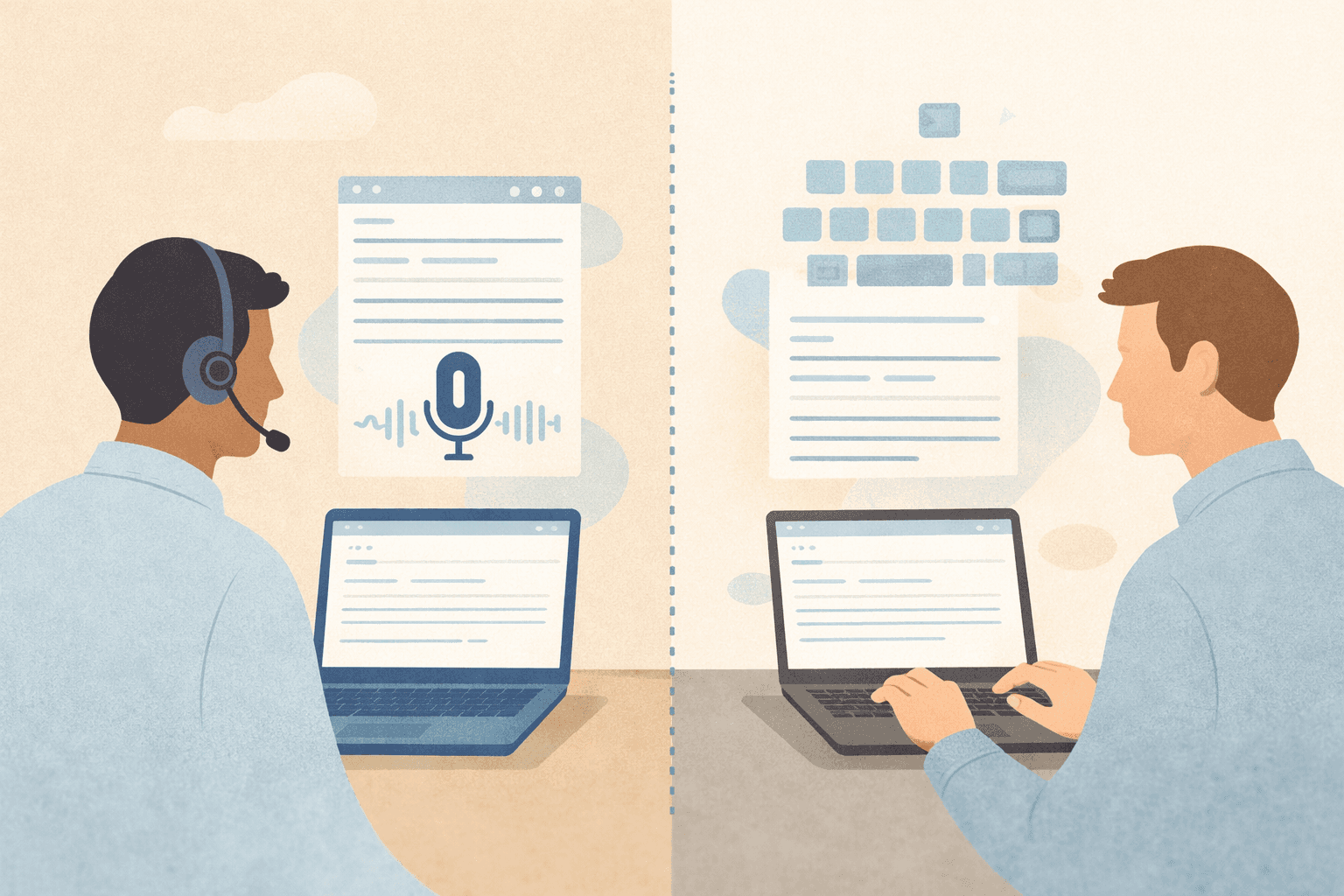
Client email takes up more time than most professionals realize. Knowledge workers spend 28% of their week reading, writing, and responding to messages. For anyone managing a busy client roster, that's over 11 hours every week on correspondence alone.
The math behind typing creates the bottleneck. Most people type around 40 words per minute when composing thoughtful client responses. You think faster than you type, which compresses ideas or forces you to simplify what you actually want to say.
Speaking changes that ratio completely. Dictation reaches 120-150 words per minute, three to four times faster than typing. The same client email that took seven minutes to type can take a fraction of the time when you speak it. You say exactly what you mean because the overhead of production disappears.
Speed matters beyond just saving time. Faster responses mean shorter turnaround cycles, which clients notice and value.
Method 1: Setting Up Your Environment for Client Email Dictation
The gear you already own probably works fine. Most laptops and phones have built-in microphones that can deliver reliable dictation when you're close to the device. You don't need studio equipment to start speaking your client emails.
What matters more is controlling your environment. Background noise trips up voice recognition faster than accent or speaking speed. Close the door if you're in an office. Mute notifications on nearby devices. If you work in an open space, wait for a quieter moment or step into a conference room for longer emails.
App compatibility has improved across most modern tools. Tools like Willow work inside Gmail, Outlook, Slack, Notion, or most text fields where you'd normally type. Press your designated hotkey, speak your message, and the text appears wherever your cursor sits. No copy-pasting between windows or switching contexts.
Test your setup with a short practice email before jumping into client communication. Speak a few sentences and check what appears. If accuracy feels off, adjust your distance from the mic or reduce ambient noise before writing anything that matters.
Method 2: Using Voice Commands for Email Structure and Formatting
Voice commands turn raw speech into structured business writing. The difference between speaking a wall of text and producing a properly formatted client email comes down to knowing which formatting phrases your tool recognizes.
Standard dictation tools like Apple's built-in voice dictation and Wispr Flow respond to basic punctuation commands. Say "period" to end sentences. "Comma" adds natural pauses. "Question mark" and "exclamation point" work as expected. Structural commands like "new paragraph" create breaks between ideas, while "new line" gives you single line breaks for lists or spacing.
Willow works differently. Instead of requiring you to say every punctuation mark, it applies formatting automatically based on context and your speaking patterns. The AI adds paragraph breaks where they belong and matches your tone to the channel. You speak naturally, and the email comes out formatted correctly the first time.
Method 3: Creating and Using Voice Shortcuts for Repeated Client Responses
Client communication follows patterns. You send the same types of messages repeatedly: project updates, confirmations, and follow-ups. Typing each one from scratch wastes time you've already spent solving that communication problem.
Voice shortcuts solve this by storing your most-used responses as templates you trigger by speaking a keyword. You say a short phrase, and the full text appears instantly. Instead of speaking 150 words for a standard project update, you say "project status template" and the entire formatted message populates your email.
Start by auditing your sent folder. Look for messages you write more than twice a week. Common candidates include meeting scheduling language, deliverable confirmations, feedback requests, delay notifications, and invoice follow-ups.
Willow saves these as voice-triggered snippets directly in settings. Record the full template once with all the structure and tone you want. Assign it a keyword. From that point forward, speaking the trigger phrase inserts the complete text wherever your cursor sits.
Method 4: Adapting Tone and Style by Client Type
Not every client relationship calls for the same communication style. A first email to a prospective enterprise buyer needs more formality than a project check-in with someone you've worked with for two years. Internal stakeholders expect brevity. External customers often need warmer framing and more context.
For new or formal relationships, slow your speaking pace slightly and choose complete sentences over conversational fragments. Say "I wanted to follow up regarding" instead of "following up on." Avoid verbal shortcuts you'd use with familiar contacts.
Long-term clients respond better to conversational warmth. Speak the way you'd talk in person. Use contractions. Lead with their name. Close with something personal if the relationship supports it.
Willow learns your patterns for different channels and contexts, then adjusts punctuation style, exclamation usage, and sentence structure based on where you're writing and how you typically communicate with that type of recipient.
Method 5: Reviewing and Editing Voice-Written Client Emails Before Sending
Read through every voice-written email before hitting send. Your eyes catch mistakes your ears miss when speaking. Look for homophone errors where the wrong word sounds right: "their" instead of "there," "principle" instead of "principal." Voice recognition tools guess based on audio, not meaning.
Check client-specific details twice. Names, company terminology, product codes, and project references need exact spelling. If you mention a deadline, budget figure, or deliverable quantity, verify the number matches what you intended to say.
Willow's learning engine reduces editing over time by remembering your corrections. Fix a client's name once, and the tool stores that spelling in your personal dictionary. The same goes for industry jargon and company-specific terms. Each correction trains the AI to match your actual needs, which means fewer mistakes on the next email.
Choosing between AI Dictation Tools and Built-In Options
Built-in dictation works for quick internal notes where errors don't matter much. Apple's built-in voice dictation and similar native tools cost nothing and need zero setup. If you're drafting casual Slack messages, the accuracy gap won't hurt.
Client emails need better precision. Apple's built-in voice dictation struggles with proper nouns, technical terms, and context-dependent spelling. Wispr Flow and Willow solve these problems through AI that learns your vocabulary and writing patterns. Willow personalizes to how you write, cutting corrections per email.
Speed separates good tools from great ones. Willow runs at 200ms versus 700ms-plus, keeping you in flow state. For teams handling sensitive client data, Willow provides SOC 2 and HIPAA compliance with shared shortcuts and dictionary terms.
Choose based on volume and stakes. Low-volume communication works fine with what's installed. High-volume client work benefits from tools built for business writing.
Tool | Latency | Accuracy | Best For | Compliance |
|---|---|---|---|---|
Willow Voice | 200ms | 3x more accurate than built-in tools | High-volume client work, business writing, teams needing shared shortcuts and dictionary | SOC 2, HIPAA compliant |
Wispr Flow | 700ms+ | Improved accuracy compared to basic built-in options | General dictation needs | Not specified |
Apple's built-in voice dictation | 700ms+ | Baseline accuracy, struggles with proper nouns and technical terms | Quick internal notes, casual messages where errors don't matter | Not specified |
How Willow Changes Client Email Workflows with AI-Powered Dictation
Client email volumes demand tools built for business communication. Willow's fine-tuned email model handles what generic dictation misses: subject lines, sign-offs, link formatting, and recipient details appear correctly without manual cleanup.
The difference starts with speed. 200ms latency keeps your thoughts and text synchronized, so you never wait for words to catch up. Compare that to 700ms-plus delays from Wispr Flow, Apple's built-in voice dictation, and other standard dictation tools that break your focus mid-sentence.
Personalization cuts editing time by learning how you write. The auto-dictionary remembers client names, company terms, and industry jargon after you correct them once. Voice shortcuts store your most-used responses as keywords, turning repetitive emails into one-word triggers.
For teams managing sensitive client relationships, SOC 2 and HIPAA compliance protect data while shared shortcuts and dictionary terms keep communication consistent across your organization. You speak, Willow formats, and your client gets a response that sounds exactly like you wrote it.
FAQs
How long does it take to start using voice dictation for client emails?
You can start immediately with the equipment you already own: most laptops and phones have microphones that work well for dictation. Willow installs in minutes and works inside Gmail, Outlook, Slack, and any text field without setup or configuration.
Can I use voice dictation in noisy environments?
Close doors and mute nearby devices for best results. Background noise affects recognition more than accent or speaking speed. If you work in open spaces, wait for quieter moments or step into a conference room for longer client emails. Willow also includes a Quiet Mode that lets you speak softly or whisper in public settings.
How do I handle technical terms and client names that voice recognition gets wrong?
Fix the spelling once and Willow's auto-dictionary remembers that correction for every future email. The learning engine stores client names, industry jargon, and company-specific terms in your personal dictionary, reducing mistakes each time you write.
When should I review voice-written emails before sending them to clients?
Read through every voice-written client email before hitting send. Your eyes catch homophone errors (like "their" versus "there") and verify client-specific details like names, project references, and numbers match what you intended to say.
Final Thoughts on Speaking Your Client Emails
Typing is rarely the real constraint in client communication; it’s the speed at which you can get your thoughts onto the page. Learning how to dictate client emails efficiently lets you speak at your natural pace while modern tools handle formatting, tone, and structure in the background. As these tools improve, dictation starts to feel less like a workaround and more like a default way to write. Willow takes this further by learning how you communicate, keeping latency low, and working across your inbox and apps, so you can respond faster without sacrificing clarity or professionalism.
Most professionals lose around 11 hours a week to client email, not because the work is complex, but because typing slows everything down. Learning how to dictate client emails efficiently removes that bottleneck by letting you speak at full speed while modern tools handle formatting and structure. Once you control background noise, save common responses as voice shortcuts, and use software that adapts to business writing, email stops feeling like a time sink. You respond faster, communicate more clearly, and spend less time reworking what you already know you want to say.
TLDR:
Dictation lets you write client emails at 120-150 words per minute versus 40 words per minute typing, considerably reducing response time.
Voice commands and templates eliminate repetitive typing for project updates, confirmations, and follow-ups.
AI tools auto-format emails and learn client names, reducing editing time with each correction you make.
Most professionals type slower than they think, which limits how clearly and completely they communicate.
Some advanced dictation tools learn your writing style over time, deliver sub-200ms latency, and include enterprise-grade security for client communication.
Voice Dictation vs. Traditional Typing for Client Emails
Client email takes up more time than most professionals realize. Knowledge workers spend 28% of their week reading, writing, and responding to messages. For anyone managing a busy client roster, that's over 11 hours every week on correspondence alone.
The math behind typing creates the bottleneck. Most people type around 40 words per minute when composing thoughtful client responses. You think faster than you type, which compresses ideas or forces you to simplify what you actually want to say.
Speaking changes that ratio completely. Dictation reaches 120-150 words per minute, three to four times faster than typing. The same client email that took seven minutes to type can take a fraction of the time when you speak it. You say exactly what you mean because the overhead of production disappears.
Speed matters beyond just saving time. Faster responses mean shorter turnaround cycles, which clients notice and value.
Method 1: Setting Up Your Environment for Client Email Dictation
The gear you already own probably works fine. Most laptops and phones have built-in microphones that can deliver reliable dictation when you're close to the device. You don't need studio equipment to start speaking your client emails.
What matters more is controlling your environment. Background noise trips up voice recognition faster than accent or speaking speed. Close the door if you're in an office. Mute notifications on nearby devices. If you work in an open space, wait for a quieter moment or step into a conference room for longer emails.
App compatibility has improved across most modern tools. Tools like Willow work inside Gmail, Outlook, Slack, Notion, or most text fields where you'd normally type. Press your designated hotkey, speak your message, and the text appears wherever your cursor sits. No copy-pasting between windows or switching contexts.
Test your setup with a short practice email before jumping into client communication. Speak a few sentences and check what appears. If accuracy feels off, adjust your distance from the mic or reduce ambient noise before writing anything that matters.
Method 2: Using Voice Commands for Email Structure and Formatting
Voice commands turn raw speech into structured business writing. The difference between speaking a wall of text and producing a properly formatted client email comes down to knowing which formatting phrases your tool recognizes.
Standard dictation tools like Apple's built-in voice dictation and Wispr Flow respond to basic punctuation commands. Say "period" to end sentences. "Comma" adds natural pauses. "Question mark" and "exclamation point" work as expected. Structural commands like "new paragraph" create breaks between ideas, while "new line" gives you single line breaks for lists or spacing.
Willow works differently. Instead of requiring you to say every punctuation mark, it applies formatting automatically based on context and your speaking patterns. The AI adds paragraph breaks where they belong and matches your tone to the channel. You speak naturally, and the email comes out formatted correctly the first time.
Method 3: Creating and Using Voice Shortcuts for Repeated Client Responses
Client communication follows patterns. You send the same types of messages repeatedly: project updates, confirmations, and follow-ups. Typing each one from scratch wastes time you've already spent solving that communication problem.
Voice shortcuts solve this by storing your most-used responses as templates you trigger by speaking a keyword. You say a short phrase, and the full text appears instantly. Instead of speaking 150 words for a standard project update, you say "project status template" and the entire formatted message populates your email.
Start by auditing your sent folder. Look for messages you write more than twice a week. Common candidates include meeting scheduling language, deliverable confirmations, feedback requests, delay notifications, and invoice follow-ups.
Willow saves these as voice-triggered snippets directly in settings. Record the full template once with all the structure and tone you want. Assign it a keyword. From that point forward, speaking the trigger phrase inserts the complete text wherever your cursor sits.
Method 4: Adapting Tone and Style by Client Type
Not every client relationship calls for the same communication style. A first email to a prospective enterprise buyer needs more formality than a project check-in with someone you've worked with for two years. Internal stakeholders expect brevity. External customers often need warmer framing and more context.
For new or formal relationships, slow your speaking pace slightly and choose complete sentences over conversational fragments. Say "I wanted to follow up regarding" instead of "following up on." Avoid verbal shortcuts you'd use with familiar contacts.
Long-term clients respond better to conversational warmth. Speak the way you'd talk in person. Use contractions. Lead with their name. Close with something personal if the relationship supports it.
Willow learns your patterns for different channels and contexts, then adjusts punctuation style, exclamation usage, and sentence structure based on where you're writing and how you typically communicate with that type of recipient.
Method 5: Reviewing and Editing Voice-Written Client Emails Before Sending
Read through every voice-written email before hitting send. Your eyes catch mistakes your ears miss when speaking. Look for homophone errors where the wrong word sounds right: "their" instead of "there," "principle" instead of "principal." Voice recognition tools guess based on audio, not meaning.
Check client-specific details twice. Names, company terminology, product codes, and project references need exact spelling. If you mention a deadline, budget figure, or deliverable quantity, verify the number matches what you intended to say.
Willow's learning engine reduces editing over time by remembering your corrections. Fix a client's name once, and the tool stores that spelling in your personal dictionary. The same goes for industry jargon and company-specific terms. Each correction trains the AI to match your actual needs, which means fewer mistakes on the next email.
Choosing between AI Dictation Tools and Built-In Options
Built-in dictation works for quick internal notes where errors don't matter much. Apple's built-in voice dictation and similar native tools cost nothing and need zero setup. If you're drafting casual Slack messages, the accuracy gap won't hurt.
Client emails need better precision. Apple's built-in voice dictation struggles with proper nouns, technical terms, and context-dependent spelling. Wispr Flow and Willow solve these problems through AI that learns your vocabulary and writing patterns. Willow personalizes to how you write, cutting corrections per email.
Speed separates good tools from great ones. Willow runs at 200ms versus 700ms-plus, keeping you in flow state. For teams handling sensitive client data, Willow provides SOC 2 and HIPAA compliance with shared shortcuts and dictionary terms.
Choose based on volume and stakes. Low-volume communication works fine with what's installed. High-volume client work benefits from tools built for business writing.
Tool | Latency | Accuracy | Best For | Compliance |
|---|---|---|---|---|
Willow Voice | 200ms | 3x more accurate than built-in tools | High-volume client work, business writing, teams needing shared shortcuts and dictionary | SOC 2, HIPAA compliant |
Wispr Flow | 700ms+ | Improved accuracy compared to basic built-in options | General dictation needs | Not specified |
Apple's built-in voice dictation | 700ms+ | Baseline accuracy, struggles with proper nouns and technical terms | Quick internal notes, casual messages where errors don't matter | Not specified |
How Willow Changes Client Email Workflows with AI-Powered Dictation
Client email volumes demand tools built for business communication. Willow's fine-tuned email model handles what generic dictation misses: subject lines, sign-offs, link formatting, and recipient details appear correctly without manual cleanup.
The difference starts with speed. 200ms latency keeps your thoughts and text synchronized, so you never wait for words to catch up. Compare that to 700ms-plus delays from Wispr Flow, Apple's built-in voice dictation, and other standard dictation tools that break your focus mid-sentence.
Personalization cuts editing time by learning how you write. The auto-dictionary remembers client names, company terms, and industry jargon after you correct them once. Voice shortcuts store your most-used responses as keywords, turning repetitive emails into one-word triggers.
For teams managing sensitive client relationships, SOC 2 and HIPAA compliance protect data while shared shortcuts and dictionary terms keep communication consistent across your organization. You speak, Willow formats, and your client gets a response that sounds exactly like you wrote it.
FAQs
How long does it take to start using voice dictation for client emails?
You can start immediately with the equipment you already own: most laptops and phones have microphones that work well for dictation. Willow installs in minutes and works inside Gmail, Outlook, Slack, and any text field without setup or configuration.
Can I use voice dictation in noisy environments?
Close doors and mute nearby devices for best results. Background noise affects recognition more than accent or speaking speed. If you work in open spaces, wait for quieter moments or step into a conference room for longer client emails. Willow also includes a Quiet Mode that lets you speak softly or whisper in public settings.
How do I handle technical terms and client names that voice recognition gets wrong?
Fix the spelling once and Willow's auto-dictionary remembers that correction for every future email. The learning engine stores client names, industry jargon, and company-specific terms in your personal dictionary, reducing mistakes each time you write.
When should I review voice-written emails before sending them to clients?
Read through every voice-written client email before hitting send. Your eyes catch homophone errors (like "their" versus "there") and verify client-specific details like names, project references, and numbers match what you intended to say.
Final Thoughts on Speaking Your Client Emails
Typing is rarely the real constraint in client communication; it’s the speed at which you can get your thoughts onto the page. Learning how to dictate client emails efficiently lets you speak at your natural pace while modern tools handle formatting, tone, and structure in the background. As these tools improve, dictation starts to feel less like a workaround and more like a default way to write. Willow takes this further by learning how you communicate, keeping latency low, and working across your inbox and apps, so you can respond faster without sacrificing clarity or professionalism.

Try Willow for free
Instant, accurate voice dictation. No card required.
Try Willow for free
Instant, accurate voice dictation. No card required.
Other stories you’ll love
Other stories you’ll love


Your keyboard is optional now
" transform="translate(5 5)" width="9.791000051498413px"/></svg>)

The voice-first interface for modern work.
© Willow Care, Inc. 2026. All rights reserved
Your keyboard is optional now
The voice-first interface for modern work.
© Willow Care, Inc. 2026. All rights reserved
Your keyboard is optional now
The voice-first interface for modern work.
© Willow Care, Inc. 2026. All rights reserved