" transform="translate(5 2)" width="10px"/></svg>)

•
5 min read
7 Proven Strategies to Write Faster Emails as a Manager in February 2026

•
5 min read
7 Proven Strategies to Write Faster Emails as a Manager in February 2026
Most managers don’t struggle with email because they type slowly. They struggle because they write in the wrong order. You open a blank draft, warm up with context, tweak every sentence as you go, and ten minutes later you’ve sent something that could have taken two. If you want to learn how to write faster emails as a manager, the fix is simple: put the ask first, speak your draft out loud, batch similar messages, and separate writing from editing. Pair that workflow with a voice tool that learns your tone and keeps up with you in real time, and your inbox stops eating your day.
TLDR:
Managers can reduce email writing time by speaking at around 150 WPM instead of typing at roughly 40 WPM.
Batching similar emails together and putting action items first can reduce drafting time substantially, in many cases from around 10 minutes to just a few minutes.
Templates with text replacements eliminate repetitive typing for the 5-10 email types you send most often.
Separating writing from editing prevents constant mid-draft revisions that slow you down.
Some newer platforms learn your writing style for the most intelligent personalized dictation with 200ms latency, team shortcuts, and SOC 2/HIPAA compliance.
Use Email Templates and Text Replacements
Every manager sends similar emails week after week. Meeting requests. Status updates. Feedback on deliverables. Writing these from scratch each time wastes hours you don't have.
Build Your Template Library
Start by identifying the five to ten email types you send most often. For each one, draft a base template that captures your standard structure and tone. A meeting request template might include your typical availability windows and agenda format. A project update template could have sections for progress, blockers, and next steps. Store these in a notes app or your email client's template feature for quick access.
Set Up Text Replacements
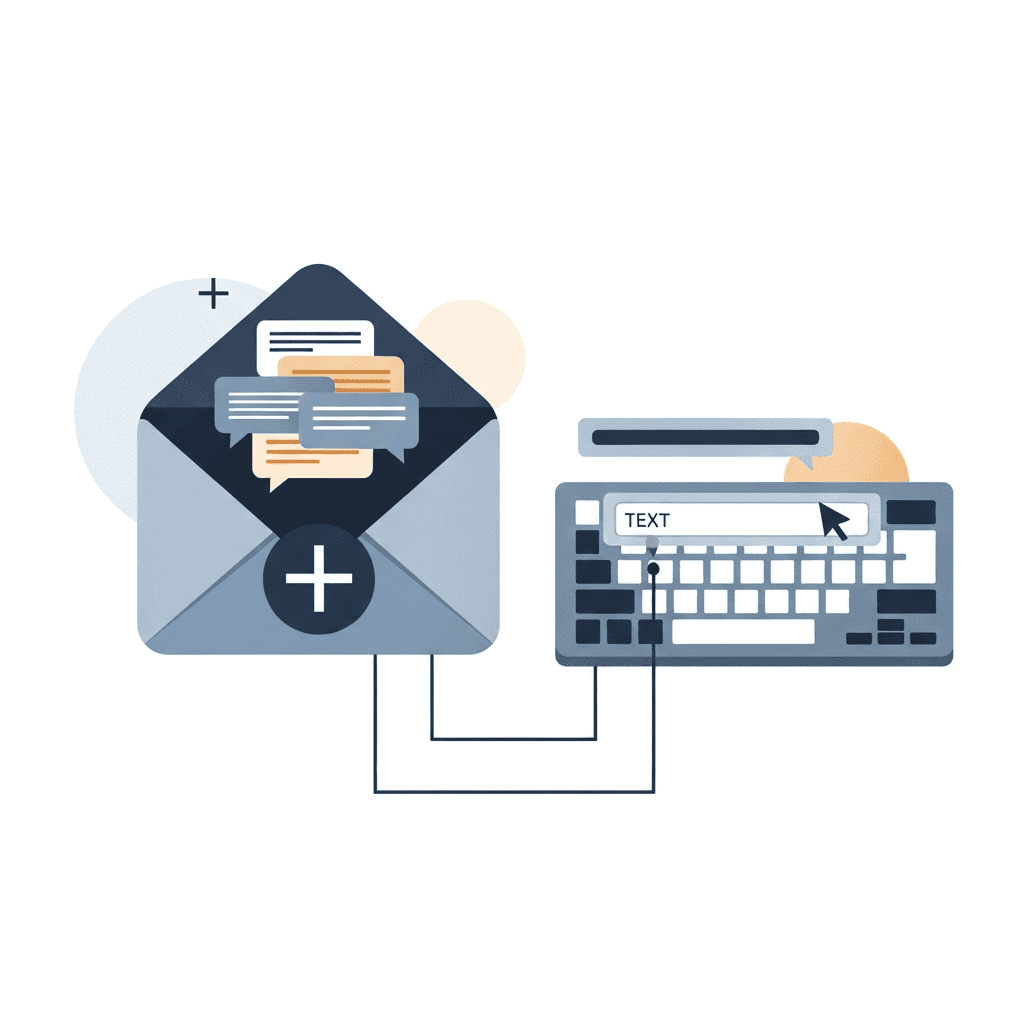
Text replacement shortcuts cut down on repetitive typing. Create shortcuts for your email signature, common phrases like "Let me know if you have questions," or frequently shared links. Most operating systems let you type a short code that auto-expands into longer text. For instance, type "meeting schedule shortcut" and watch it expand into your full meeting scheduling paragraph.
Personalize without Starting Over
Templates work best when you customize them quickly. Change the greeting, add a specific detail about the recipient's project, or adjust the tone slightly. Your goal is to sound like yourself while avoiding the blank page problem every time you write an email.
Batch Your Email Writing Sessions
Switching between inbox and other work fragments your attention and slows you down. Each time you stop writing a report to answer an email, you lose momentum and need time to rebuild focus.
Block Time for Email Writing
Set three specific email windows each day: one in the morning, one at midday, and one before you wrap up. During these blocks, write all the emails you need to send. Outside these windows, close your inbox. Knowledge workers spend up to 28% of their workweek reading and managing email, and batching cuts that time down by reducing context switches.
Group by Email Type
Within each session, tackle similar emails together. Handle all approval requests first, then move to project updates, then meeting requests. When you stay in one mental mode, you write faster because you're not shifting between different types of thinking.
Silence Notifications
Turn off email alerts during focused work blocks. Every ping pulls you out of deep work and creates the urge to respond immediately.
Keep Emails Short and Focused
Long emails take longer to write and longer to read. The average office worker receives approximately 121 emails every single day, which means your recipients are scanning, not reading. Write emails that respect their time and yours.
Put Your Ask First
Start with what you need. "Can you review the Q1 budget by Friday?" works better than three paragraphs of context followed by a buried question. Your recipient knows immediately what action to take, and you skip the slow windup that most people draft and then delete anyway.
Make It Scannable
Break up dense paragraphs. Use bullet points for lists of items or options. Add line breaks between ideas. White space helps busy readers process information faster, and it helps you organize your thoughts as you write.
Stick to One Topic Per Email
Each email should cover one decision or one request. When you mix project updates with budget approvals and meeting scheduling, you slow down responses and confuse priorities. Multiple topics also force you to write longer, more complex messages.
Start with the Action Item
Most managers write emails backwards. They explain the situation, add background, describe the problem, and finally mention what they need. By the time you've written three paragraphs of setup, you've spent five minutes composing something that could have taken one.
Flip the structure. Put the action item in your subject line or first sentence. "Approve the vendor contract by Thursday" or "Choose between Option A and Option B for the rebrand" tells the recipient exactly what you need before they've read anything else. You write faster because you're not building up to a point. You're stating it.
After the action item, add only the context someone needs to act. If you're asking for budget approval, include the amount and the project name. Skip the history of how you arrived at that number unless it directly affects the decision. Two sentences of context beat two paragraphs every time.
Add a clear deadline and next step to every request. "Please confirm by end of day Tuesday" or "Let me know by our Friday check-in" prevents the vague "when you get a chance" that leads to follow-up emails later. Specificity cuts down on back-and-forth and saves you from drafting reminder messages.
Speak Your Emails Instead of Typing Them
Most managers type emails at around 40 words per minute. That's slow when you're drafting dozens of messages each day. Speaking lets you compose at 150 words per minute or faster, which means you can write a five-sentence email in under 20 seconds instead of two minutes.
Voice dictation is often one of the fastest ways to compose emails. You hit a hotkey, say what you need to say, and the text appears in your email field. Willow learns your writing style over time, so perfect text appears that sounds like you wrote it. Fast processing speeds around 200 milliseconds keep you in flow instead of waiting for text to catch up.
Email Writing Method | Words Per Minute | Time for 200-Word Email | Time Savings vs. Typing |
|---|---|---|---|
Traditional Typing | 40 WPM | 5 minutes | Baseline |
Typing with Templates | 40 WPM | 3 minutes | 40% |
Voice Dictation | 150 WPM | ~1.3 minutes | ~75% |
Voice Dictation + Templates | 150 WPM | Under 1 minute | 80% |
Think before You Speak
Plan your email structure before you start speaking. Know your opening line, your main point, and your close. When you organize your thoughts first, you avoid rambling and keep your message tight. Speaking without a mental outline leads to longer, messier drafts that take more time to fix.
Edit After, Not During
Speak the full email first, then review and adjust. Speaking your message straight through is three to four times faster than typing, but only if you don't interrupt yourself to fix small errors. Let the words flow, then clean up typos or awkward phrasing in one quick pass at the end.
Separate Writing from Editing
Most managers slow themselves down by editing while they write. You type a sentence, delete half of it, rephrase, reconsider your word choice, and start over. That loop turns a two-minute email into a ten-minute task.
Break the process into two steps. First, write the entire email without stopping. Get your main point down, add the necessary context, and include your call to action. Don't pause to fix a typo or reword a sentence. Just keep moving until the draft is complete.
Second, read through once and clean it up. Fix obvious errors, tighten unclear sentences, and adjust tone if needed. This single review pass takes less time than constant mid-draft revisions because you're reviewing the full message instead of individual sentences.
When you separate drafting from editing, you write faster and think more clearly. Your first draft doesn't need to be perfect. It needs to communicate your point well enough that a quick polish makes it ready to send.
AI-Powered Voice Dictation for Managers
Voice dictation can be one of the fastest ways for managers to draft emails, often cutting writing time dramatically for those who send dozens of messages daily. Willow learns your writing style over time, so each draft needs fewer edits. The AI adapts to your tone and removes filler words automatically. You speak once, review briefly, and send.
Latency is the critical difference between staying focused and losing momentum. Willow processes speech in 200ms, which keeps text appearing instantly as you talk. Most dictation tools hit 700ms or slower, forcing you to pause while the screen catches up.
For teams, shared shortcuts and custom dictionary terms give everyone access to the same templates and text replacements. SOC 2 and HIPAA compliance let you voice budget figures, personnel notes, or client details without risking data exposure. Willow works inside Gmail, Slack, Notion, and any other app in your workflow.
FAQs
What's the fastest way to reduce time spent on repetitive manager emails?
Batch similar email types together during dedicated writing blocks and use text replacement shortcuts for frequently used phrases, signatures, and meeting templates. This approach cuts context-switching time and lets you stay in one mental mode while composing multiple messages.
When should I separate writing from editing my emails?
Always write your entire email draft first without stopping to fix typos or rephrase sentences, then review and clean up in one quick pass at the end. This two-step process prevents the constant revision loop that turns a two-minute email into a ten-minute task.
How do I keep my emails short when I have complex information to share?
Put your action item or request in the first sentence, then add only the context needed for the recipient to act (typically two sentences or less). Use bullet points for lists, add line breaks between ideas, and limit each email to one topic to keep messages scannable and focused.
Final Thoughts on Speeding Up Your Email Writing
If you want to master how to write faster emails as a manager, the real win comes from changing your workflow: put the action first, batch similar messages, build repeatable templates, and speak your drafts before you edit them. Those small changes compound quickly when you’re sending dozens of emails each week. Willow brings all of it together by turning your voice into clean drafts in real time, learning your writing style, and cutting the back-and-forth that slows you down. The result is fewer minutes in your inbox, clearer requests, and more time spent leading instead of rewriting.
Most managers don’t struggle with email because they type slowly. They struggle because they write in the wrong order. You open a blank draft, warm up with context, tweak every sentence as you go, and ten minutes later you’ve sent something that could have taken two. If you want to learn how to write faster emails as a manager, the fix is simple: put the ask first, speak your draft out loud, batch similar messages, and separate writing from editing. Pair that workflow with a voice tool that learns your tone and keeps up with you in real time, and your inbox stops eating your day.
TLDR:
Managers can reduce email writing time by speaking at around 150 WPM instead of typing at roughly 40 WPM.
Batching similar emails together and putting action items first can reduce drafting time substantially, in many cases from around 10 minutes to just a few minutes.
Templates with text replacements eliminate repetitive typing for the 5-10 email types you send most often.
Separating writing from editing prevents constant mid-draft revisions that slow you down.
Some newer platforms learn your writing style for the most intelligent personalized dictation with 200ms latency, team shortcuts, and SOC 2/HIPAA compliance.
Use Email Templates and Text Replacements
Every manager sends similar emails week after week. Meeting requests. Status updates. Feedback on deliverables. Writing these from scratch each time wastes hours you don't have.
Build Your Template Library
Start by identifying the five to ten email types you send most often. For each one, draft a base template that captures your standard structure and tone. A meeting request template might include your typical availability windows and agenda format. A project update template could have sections for progress, blockers, and next steps. Store these in a notes app or your email client's template feature for quick access.
Set Up Text Replacements
Text replacement shortcuts cut down on repetitive typing. Create shortcuts for your email signature, common phrases like "Let me know if you have questions," or frequently shared links. Most operating systems let you type a short code that auto-expands into longer text. For instance, type "meeting schedule shortcut" and watch it expand into your full meeting scheduling paragraph.
Personalize without Starting Over
Templates work best when you customize them quickly. Change the greeting, add a specific detail about the recipient's project, or adjust the tone slightly. Your goal is to sound like yourself while avoiding the blank page problem every time you write an email.
Batch Your Email Writing Sessions
Switching between inbox and other work fragments your attention and slows you down. Each time you stop writing a report to answer an email, you lose momentum and need time to rebuild focus.
Block Time for Email Writing
Set three specific email windows each day: one in the morning, one at midday, and one before you wrap up. During these blocks, write all the emails you need to send. Outside these windows, close your inbox. Knowledge workers spend up to 28% of their workweek reading and managing email, and batching cuts that time down by reducing context switches.
Group by Email Type
Within each session, tackle similar emails together. Handle all approval requests first, then move to project updates, then meeting requests. When you stay in one mental mode, you write faster because you're not shifting between different types of thinking.
Silence Notifications
Turn off email alerts during focused work blocks. Every ping pulls you out of deep work and creates the urge to respond immediately.
Keep Emails Short and Focused
Long emails take longer to write and longer to read. The average office worker receives approximately 121 emails every single day, which means your recipients are scanning, not reading. Write emails that respect their time and yours.
Put Your Ask First
Start with what you need. "Can you review the Q1 budget by Friday?" works better than three paragraphs of context followed by a buried question. Your recipient knows immediately what action to take, and you skip the slow windup that most people draft and then delete anyway.
Make It Scannable
Break up dense paragraphs. Use bullet points for lists of items or options. Add line breaks between ideas. White space helps busy readers process information faster, and it helps you organize your thoughts as you write.
Stick to One Topic Per Email
Each email should cover one decision or one request. When you mix project updates with budget approvals and meeting scheduling, you slow down responses and confuse priorities. Multiple topics also force you to write longer, more complex messages.
Start with the Action Item
Most managers write emails backwards. They explain the situation, add background, describe the problem, and finally mention what they need. By the time you've written three paragraphs of setup, you've spent five minutes composing something that could have taken one.
Flip the structure. Put the action item in your subject line or first sentence. "Approve the vendor contract by Thursday" or "Choose between Option A and Option B for the rebrand" tells the recipient exactly what you need before they've read anything else. You write faster because you're not building up to a point. You're stating it.
After the action item, add only the context someone needs to act. If you're asking for budget approval, include the amount and the project name. Skip the history of how you arrived at that number unless it directly affects the decision. Two sentences of context beat two paragraphs every time.
Add a clear deadline and next step to every request. "Please confirm by end of day Tuesday" or "Let me know by our Friday check-in" prevents the vague "when you get a chance" that leads to follow-up emails later. Specificity cuts down on back-and-forth and saves you from drafting reminder messages.
Speak Your Emails Instead of Typing Them
Most managers type emails at around 40 words per minute. That's slow when you're drafting dozens of messages each day. Speaking lets you compose at 150 words per minute or faster, which means you can write a five-sentence email in under 20 seconds instead of two minutes.
Voice dictation is often one of the fastest ways to compose emails. You hit a hotkey, say what you need to say, and the text appears in your email field. Willow learns your writing style over time, so perfect text appears that sounds like you wrote it. Fast processing speeds around 200 milliseconds keep you in flow instead of waiting for text to catch up.
Email Writing Method | Words Per Minute | Time for 200-Word Email | Time Savings vs. Typing |
|---|---|---|---|
Traditional Typing | 40 WPM | 5 minutes | Baseline |
Typing with Templates | 40 WPM | 3 minutes | 40% |
Voice Dictation | 150 WPM | ~1.3 minutes | ~75% |
Voice Dictation + Templates | 150 WPM | Under 1 minute | 80% |
Think before You Speak
Plan your email structure before you start speaking. Know your opening line, your main point, and your close. When you organize your thoughts first, you avoid rambling and keep your message tight. Speaking without a mental outline leads to longer, messier drafts that take more time to fix.
Edit After, Not During
Speak the full email first, then review and adjust. Speaking your message straight through is three to four times faster than typing, but only if you don't interrupt yourself to fix small errors. Let the words flow, then clean up typos or awkward phrasing in one quick pass at the end.
Separate Writing from Editing
Most managers slow themselves down by editing while they write. You type a sentence, delete half of it, rephrase, reconsider your word choice, and start over. That loop turns a two-minute email into a ten-minute task.
Break the process into two steps. First, write the entire email without stopping. Get your main point down, add the necessary context, and include your call to action. Don't pause to fix a typo or reword a sentence. Just keep moving until the draft is complete.
Second, read through once and clean it up. Fix obvious errors, tighten unclear sentences, and adjust tone if needed. This single review pass takes less time than constant mid-draft revisions because you're reviewing the full message instead of individual sentences.
When you separate drafting from editing, you write faster and think more clearly. Your first draft doesn't need to be perfect. It needs to communicate your point well enough that a quick polish makes it ready to send.
AI-Powered Voice Dictation for Managers
Voice dictation can be one of the fastest ways for managers to draft emails, often cutting writing time dramatically for those who send dozens of messages daily. Willow learns your writing style over time, so each draft needs fewer edits. The AI adapts to your tone and removes filler words automatically. You speak once, review briefly, and send.
Latency is the critical difference between staying focused and losing momentum. Willow processes speech in 200ms, which keeps text appearing instantly as you talk. Most dictation tools hit 700ms or slower, forcing you to pause while the screen catches up.
For teams, shared shortcuts and custom dictionary terms give everyone access to the same templates and text replacements. SOC 2 and HIPAA compliance let you voice budget figures, personnel notes, or client details without risking data exposure. Willow works inside Gmail, Slack, Notion, and any other app in your workflow.
FAQs
What's the fastest way to reduce time spent on repetitive manager emails?
Batch similar email types together during dedicated writing blocks and use text replacement shortcuts for frequently used phrases, signatures, and meeting templates. This approach cuts context-switching time and lets you stay in one mental mode while composing multiple messages.
When should I separate writing from editing my emails?
Always write your entire email draft first without stopping to fix typos or rephrase sentences, then review and clean up in one quick pass at the end. This two-step process prevents the constant revision loop that turns a two-minute email into a ten-minute task.
How do I keep my emails short when I have complex information to share?
Put your action item or request in the first sentence, then add only the context needed for the recipient to act (typically two sentences or less). Use bullet points for lists, add line breaks between ideas, and limit each email to one topic to keep messages scannable and focused.
Final Thoughts on Speeding Up Your Email Writing
If you want to master how to write faster emails as a manager, the real win comes from changing your workflow: put the action first, batch similar messages, build repeatable templates, and speak your drafts before you edit them. Those small changes compound quickly when you’re sending dozens of emails each week. Willow brings all of it together by turning your voice into clean drafts in real time, learning your writing style, and cutting the back-and-forth that slows you down. The result is fewer minutes in your inbox, clearer requests, and more time spent leading instead of rewriting.

Try Willow for free
Instant, accurate voice dictation. No card required.
Try Willow for free
Instant, accurate voice dictation. No card required.
Other stories you’ll love
Other stories you’ll love


Your keyboard is optional now
" transform="translate(5 5)" width="9.791000051498413px"/></svg>)

The voice-first interface for modern work.
© Willow Care, Inc. 2026. All rights reserved
Your keyboard is optional now
The voice-first interface for modern work.
© Willow Care, Inc. 2026. All rights reserved
Your keyboard is optional now
The voice-first interface for modern work.
© Willow Care, Inc. 2026. All rights reserved