" transform="translate(5 2)" width="10px"/></svg>)

•
5 min read
Voice Prompting for Cursor: Top Tools June 2026

•
5 min read
Voice Prompting for Cursor: Top Tools June 2026
Voice prompting in Cursor can move you from 40 words per minute typing to 150 words per minute speaking, but only if the tool keeps up. Apple's built-in dictation and Wispr Flow handle general prose but lack the technical vocabulary awareness that coding workflows require. Variable names get mangled, codebase-specific terms go unrecognized, and the lag compounds across a full session. That friction erases the speed gain.
TLDR:
Voice prompting lets you speak at 150 WPM, compared to typing at 40 WPM, delivering richer Cursor prompts faster.
Apple's built-in voice dictation and Wispr Flow lack technical vocabulary recognition for coding workflows.
Cursor 2.0's native voice mode only works inside the IDE, not in terminals, browsers, or PR descriptions.
Willow learns your codebase vocabulary, runs at 200ms latency, and works across every development environment on Mac, Windows, and iOS.
Teams can share custom dictionaries and codebase auto-tagging across Cursor and Windsurf IDEs, with SOC 2 Type II and HIPAA compliance for org-wide deployment.
Why Voice Prompting Changes Your Cursor Workflow
Many Cursor users spend a large portion of their day writing prompts, not code. That's the real bottleneck, and typing makes it worse. At 40 words per minute, you compress your thoughts just to reduce effort. Vague prompt in, mediocre code out, then you iterate twice more.
Voice changes the math. Voice input can reach around 150 words per minute, compared to 40 words per minute, making it roughly 3x faster. Standard options like Apple's built-in voice dictation and Wispr Flow handle general prose but lack the technical vocabulary awareness required for coding workflows. The same speed advantage applies to Claude Code and other AI coding assistants. When you speak, you naturally explain the why, describe edge cases, and mention constraints. Cursor gets a richer prompt and returns better code on the first attempt.
The Keyboard Bottleneck in AI Coding Assistants
AI coding tools were supposed to reduce workload, but detailed prompting still requires real typing effort. The friction shifted instead of disappearing.
When prompting feels like a chore, specificity suffers. You write "add error handling" instead of walking through the exact failure modes, the callers that depend on the function, and the edge cases worth preserving. Cursor executes what you typed, not what you meant.
That gap between intent and input is where iteration cycles compound. One vague prompt spawns three follow-up messages, and those follow-ups cost more time than a thorough prompt would have taken in the first place. This is why many developers are switching to voice instead.
Built-In Voice Options: Apple Dictation and Windows Speech Recognition
Transcription errors compound quickly in coding workflows. Built-in voice dictation on macOS and Windows requires no setup, but the moment you start speaking variable names, function references, or framework-specific terms, accuracy drops, and correction time starts eating away at the speed gain.
Apple's built-in dictation can struggle with longer sessions and has limited recognition of technical vocabulary. Variable names, function references, library names, framework-specific terms: it guesses without project context. Windows voice input tools have similar blind spots. Neither tool understands your codebase context, so you end up spending time correcting transcription errors, which defeats the purpose.
Wispr Flow handles everyday dictation better than either OS option, but it also wasn't built with coding workflows in mind. It lacks the auto-tagging of open files, variable names, and project-specific terms that make voice prompting actually useful inside an IDE.
The shortfall across all three is the same: generic transcription without any awareness of what you're building.
Dedicated Voice Dictation Tools for Cursor
Four things separate voice dictation tools that work in coding workflows from the ones that don't:
System-wide activation so the tool works inside your IDE without switching apps or breaking focus
Technical vocabulary recognition for variable names, libraries, and frameworks you actually use
Low latency so transcription keeps up with your thinking instead of falling behind
A learning engine that improves on your specific codebase and writing style over time
Wispr Flow and Apple's built-in voice dictation cover general dictation well, but weren't designed for coding-specific features like project vocabulary recognition or auto-tagging of open files and function names.
Willow was built for exactly this workflow. It activates anywhere on your machine with one shortcut, operates at 200ms latency, and can auto-tag open files, variable names, function names, and class names inside Cursor and Windsurf as you code. It learns your project vocabulary over time, so terms you repeat get recognized correctly without manual correction. For teams, shared custom dictionaries mean everyone prompts with the same technical vocabulary. Engineering teams running across Windows workstations, Mac laptops, and iOS devices get the same experience. Vocabulary and settings sync automatically, so there is no per-device setup when developers move between machines. SOC 2 Type II and HIPAA compliance, with signed BAAs available on request, give IT and legal the documentation they need for org-wide sign-off.
Tool | Latency | Technical Vocabulary | System-Wide | Device | Best For |
|---|---|---|---|---|---|
Willow Voice | 200ms | Auto-tags files, variables, and function names; learns project vocab over time | Yes - one hotkey across every app | Mac, Windows, iOS | Developers who prompt across Cursor, terminal, browser, and Slack |
Cursor Native Voice | Not publicly specified | Limited awareness of project-specific vocabulary | No - IDE only | Mac, Windows | Simple in-editor prompts without switching tools |
Superwhisper | Higher than cloud tools; local processing | Limited adaptation to project-specific vocabulary | Yes - runs locally on device | Mac, Windows, iOS | Privacy-focused developers who accept accuracy tradeoffs |
Wispr Flow | 700ms or higher | General dictation; no IDE-specific awareness | Yes | Mac, Windows | General dictation with HIPAA/SOC 2 available on certain plans; not optimized for medical or coding workflows |
Apple Built-In Dictation | 700ms or higher; can struggle with longer sessions | Guesses at code terms; no project context | Yes - macOS only | Mac only | Basic prose on Mac; not suited for coding workflows |
Windows Speech Recognition | 700ms or higher | Similar blind spots to Apple dictation | Yes - Windows only | Windows only | Basic prose on Windows; limited for developer use |
Native Voice Mode in Cursor 2.0
Cursor introduced native voice input in a recent 2025 release, adding a /voice command and push-to-talk button directly inside the editor. Hold a key, speak your prompt, release, and the text lands in the chat field. Developers who spend considerable time writing natural-language prompts will find voice dictation in Cursor worth adding to their workflow.
The catch is scope. Native voice mode only works inside Cursor. Switch to a terminal, browser, or PR description field, and you're back to typing. It also requires a cloud connection and has limited awareness of personal vocabulary or project-specific terminology.
How to Set Up Voice Prompting for Cursor
Using Willow Voice
Download Willow from willowvoice.com
Grant microphone permissions when prompted
Set your activation hotkey (default is
fnon Mac,Alt+Spaceon Windows, reassign to any key combination you prefer)Open Cursor, click into the prompt field, press the hotkey, and speak
No IDE plugin required. Willow activates inside Cursor the same way it activates anywhere else on your machine. It runs on Mac, Windows 10 and 11, and iOS. Your custom dictionary and team settings sync automatically across all three, so switching between a Windows workstation, a Mac laptop, or your phone means picking up exactly where you left off. On iOS, you can review a PR description, speak a GitHub issue comment, or draft a Slack message with the same vocabulary and latency you get on desktop.
Using Cursor's Native Voice Mode
Update to Cursor 2.0 or later
Turn on voice input in Settings under the Voice section
Grant microphone access
Use the push-to-talk button or
/voicecommand inside the chat panel
Quick Tips for Any Setup
Test your microphone input levels before your first real session
Speak at a normal pace; accurate transcription does not require slowing down
If technical terms get mangled early on, add them to your custom dictionary right away
Voice Prompting Techniques That Generate Better Code
Speaking more words does not automatically mean better prompts. Structure matters.
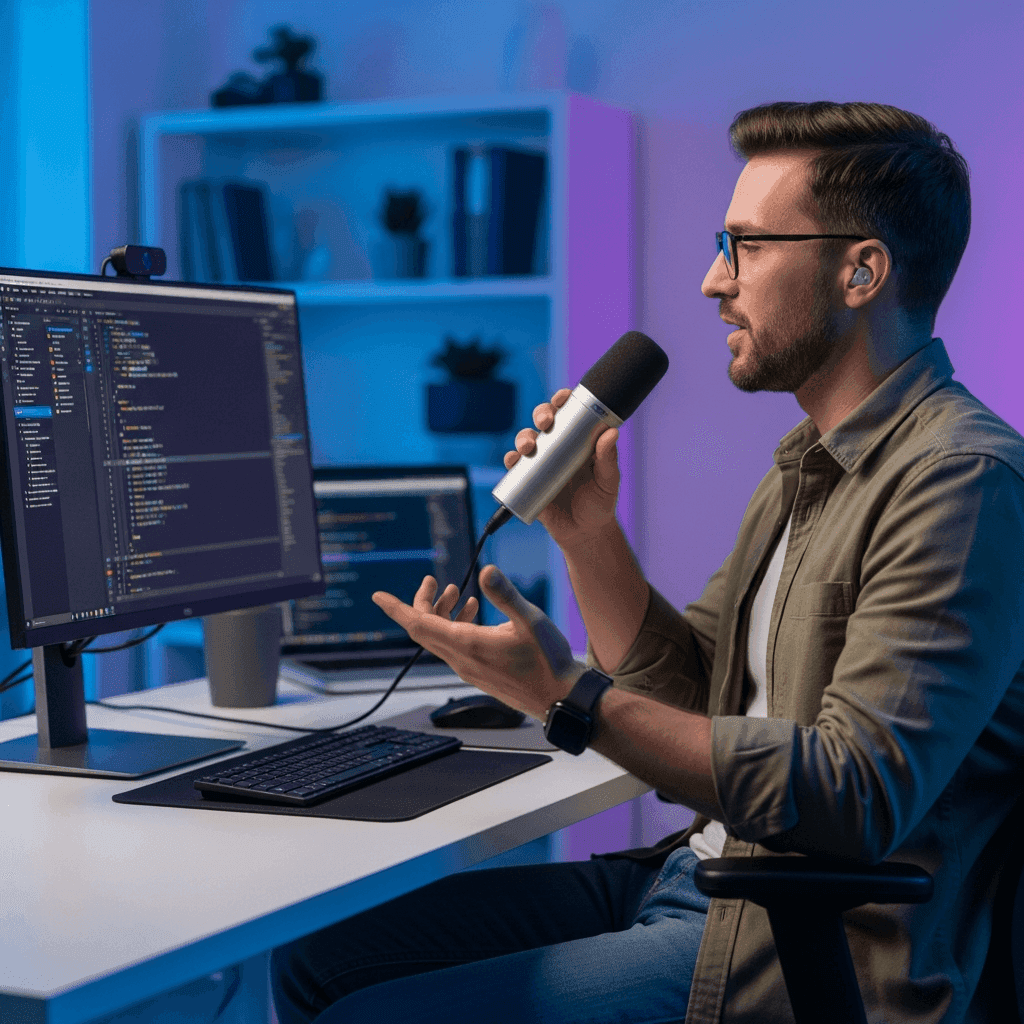
Open with explicit intent: "I want to refactor this function so that..." gives Cursor a frame before the details arrive
Name the files and functions in scope: "In
authService.ts, thevalidateTokenfunction..." focuses the response immediatelyDescribe edge cases out loud: typing discourages this, but speaking makes it natural (the vibe coding tutorial for beginners covers this in depth)
State your constraints upfront: language version, library restrictions, performance requirements
The biggest shift is stopping the habit of abbreviating. When typing, you write "add error handling." When speaking, you say what you actually mean: which errors, which callers, and what the failure behavior should be. That fuller context closes the gap between what you prompt and what Cursor returns.
Common Challenges and How to Solve Them
Most friction disappears within the first session. The few issues that do come up have fast fixes.
Open-office noise: Most dedicated voice tools include background-noise filtering. For louder spaces, a directional microphone or switching to a more focused tool can help. The best voice dictation tools for vibe coding cover these options.
Mangled technical terms: Add them to your custom dictionary right after the first mistake. Most dedicated tools pick up corrections quickly and won't repeat the same error.
Punctuation control: Use voice commands like "new line" or "open bracket" to handle structure without breaking your rhythm.
Speaking feels unnatural at first: Start with low-stakes prompts before moving on to complex refactors.
Voice Prompting Beyond Cursor: System-Wide Workflows
Cursor's native voice mode solves one input field. Your actual workflow spans a dozen others.
A typical coding session touches the terminal, Slack, GitHub PR descriptions, issue trackers, and documentation tools. Stopping to type in each one breaks the same flow you were trying to protect inside the IDE.
System-wide voice input covers it all. One shortcut, every app. A tool with system-wide activation works in your terminal for CLI prompts, in your browser for issue tickets, in Notion for architecture notes, and in Slack for async updates, with no context switching and no hunting for a mic button.
Willow Voice for Cursor: The Complete Voice Prompting Solution
Willow pulls together everything covered in this post into one tool built for the way developers actually work. More than 100,000 active users run it daily, including developers at top YC startup engineering teams and at companies across 20% of Fortune 500, which means the tool works across a wide range of real codebases and team sizes.
Speed: 200ms latency means transcription keeps up with your thinking, with no waiting or flow state interruption. Background noise filtering handles most office environments, so ambient sound doesn't break a session. Competing tools sit at 700ms or higher.
Personalization: Willow learns your codebase vocabulary, writing style, and corrections over time. Add a technical term, variable name, or function name to your custom dictionary once, and it sticks across every future session. The more you use it, the fewer edits you make. Tools like Wispr Flow and Apple's built-in voice dictation have more limited adaptation to your project-specific vocabulary.
Built for teams: Shared custom dictionaries mean every developer uses the same technical vocabulary across every prompt, and settings sync automatically, so there is no per-device setup when moving between machines. Teams at top YC startups and companies across 20% of Fortune 500 run Willow at scale across Mac, Windows, and iOS from a single deployment. SOC 2 Type II and HIPAA compliance, with signed BAAs available on request, means IT and legal can approve the tool without the usual back-and-forth over security documentation.
Willow activates with a single hotkey across your terminal, browser, Slack, and GitHub, bringing the same accuracy and latency you get in Cursor to every other app where you write. Add auto-tagging for open files, variables, and function names in Cursor and Windsurf, and you get dictation for developers who understand your project context and your words.
FAQs
Can I use voice prompting outside of Cursor's chat panel?
Cursor's native /voice command only works inside the editor, but system-wide tools like Willow activate with one hotkey across your terminal, browser, Slack, GitHub, and any other app where you write prompts or documentation.
Why doesn't Apple's built-in dictation work well for coding prompts?
Apple dictation can struggle during longer sessions and lacks awareness of technical vocabulary such as variable names, function references, and framework-specific terms. It guesses at code-related language without learning your project's context, leading to transcription errors that waste time.
How does Willow handle technical terms and project-specific vocabulary?
Willow auto-tags open files, variable names, and function names inside Cursor as you code, learning your project vocabulary over time. When you correct a term once, it remembers that correction across all future sessions, and teams can share custom dictionaries for consistent recognition.
What latency should I expect from different voice dictation tools?
Willow operates at 200ms latency, keeping transcription synchronized with your thinking speed. Standard dictation tools like Wispr Flow and Apple's built-in voice dictation run at 700ms or higher, creating noticeable lag that breaks flow state during complex prompting sessions.
Final Thoughts on Voice Dictation for Cursor Users
Most developers spend more time writing prompts than they realize. Typing at 40 words per minute forces you to compress your thoughts, and vague prompts produce mediocre code. Voice input changes that math: you speak at 150 words per minute and naturally include the context Cursor needs. Try Willow Voice if you want dictation that actually understands codebase terms and activates across your entire workflow.
Voice prompting in Cursor can move you from 40 words per minute typing to 150 words per minute speaking, but only if the tool keeps up. Apple's built-in dictation and Wispr Flow handle general prose but lack the technical vocabulary awareness that coding workflows require. Variable names get mangled, codebase-specific terms go unrecognized, and the lag compounds across a full session. That friction erases the speed gain.
TLDR:
Voice prompting lets you speak at 150 WPM, compared to typing at 40 WPM, delivering richer Cursor prompts faster.
Apple's built-in voice dictation and Wispr Flow lack technical vocabulary recognition for coding workflows.
Cursor 2.0's native voice mode only works inside the IDE, not in terminals, browsers, or PR descriptions.
Willow learns your codebase vocabulary, runs at 200ms latency, and works across every development environment on Mac, Windows, and iOS.
Teams can share custom dictionaries and codebase auto-tagging across Cursor and Windsurf IDEs, with SOC 2 Type II and HIPAA compliance for org-wide deployment.
Why Voice Prompting Changes Your Cursor Workflow
Many Cursor users spend a large portion of their day writing prompts, not code. That's the real bottleneck, and typing makes it worse. At 40 words per minute, you compress your thoughts just to reduce effort. Vague prompt in, mediocre code out, then you iterate twice more.
Voice changes the math. Voice input can reach around 150 words per minute, compared to 40 words per minute, making it roughly 3x faster. Standard options like Apple's built-in voice dictation and Wispr Flow handle general prose but lack the technical vocabulary awareness required for coding workflows. The same speed advantage applies to Claude Code and other AI coding assistants. When you speak, you naturally explain the why, describe edge cases, and mention constraints. Cursor gets a richer prompt and returns better code on the first attempt.
The Keyboard Bottleneck in AI Coding Assistants
AI coding tools were supposed to reduce workload, but detailed prompting still requires real typing effort. The friction shifted instead of disappearing.
When prompting feels like a chore, specificity suffers. You write "add error handling" instead of walking through the exact failure modes, the callers that depend on the function, and the edge cases worth preserving. Cursor executes what you typed, not what you meant.
That gap between intent and input is where iteration cycles compound. One vague prompt spawns three follow-up messages, and those follow-ups cost more time than a thorough prompt would have taken in the first place. This is why many developers are switching to voice instead.
Built-In Voice Options: Apple Dictation and Windows Speech Recognition
Transcription errors compound quickly in coding workflows. Built-in voice dictation on macOS and Windows requires no setup, but the moment you start speaking variable names, function references, or framework-specific terms, accuracy drops, and correction time starts eating away at the speed gain.
Apple's built-in dictation can struggle with longer sessions and has limited recognition of technical vocabulary. Variable names, function references, library names, framework-specific terms: it guesses without project context. Windows voice input tools have similar blind spots. Neither tool understands your codebase context, so you end up spending time correcting transcription errors, which defeats the purpose.
Wispr Flow handles everyday dictation better than either OS option, but it also wasn't built with coding workflows in mind. It lacks the auto-tagging of open files, variable names, and project-specific terms that make voice prompting actually useful inside an IDE.
The shortfall across all three is the same: generic transcription without any awareness of what you're building.
Dedicated Voice Dictation Tools for Cursor
Four things separate voice dictation tools that work in coding workflows from the ones that don't:
System-wide activation so the tool works inside your IDE without switching apps or breaking focus
Technical vocabulary recognition for variable names, libraries, and frameworks you actually use
Low latency so transcription keeps up with your thinking instead of falling behind
A learning engine that improves on your specific codebase and writing style over time
Wispr Flow and Apple's built-in voice dictation cover general dictation well, but weren't designed for coding-specific features like project vocabulary recognition or auto-tagging of open files and function names.
Willow was built for exactly this workflow. It activates anywhere on your machine with one shortcut, operates at 200ms latency, and can auto-tag open files, variable names, function names, and class names inside Cursor and Windsurf as you code. It learns your project vocabulary over time, so terms you repeat get recognized correctly without manual correction. For teams, shared custom dictionaries mean everyone prompts with the same technical vocabulary. Engineering teams running across Windows workstations, Mac laptops, and iOS devices get the same experience. Vocabulary and settings sync automatically, so there is no per-device setup when developers move between machines. SOC 2 Type II and HIPAA compliance, with signed BAAs available on request, give IT and legal the documentation they need for org-wide sign-off.
Tool | Latency | Technical Vocabulary | System-Wide | Device | Best For |
|---|---|---|---|---|---|
Willow Voice | 200ms | Auto-tags files, variables, and function names; learns project vocab over time | Yes - one hotkey across every app | Mac, Windows, iOS | Developers who prompt across Cursor, terminal, browser, and Slack |
Cursor Native Voice | Not publicly specified | Limited awareness of project-specific vocabulary | No - IDE only | Mac, Windows | Simple in-editor prompts without switching tools |
Superwhisper | Higher than cloud tools; local processing | Limited adaptation to project-specific vocabulary | Yes - runs locally on device | Mac, Windows, iOS | Privacy-focused developers who accept accuracy tradeoffs |
Wispr Flow | 700ms or higher | General dictation; no IDE-specific awareness | Yes | Mac, Windows | General dictation with HIPAA/SOC 2 available on certain plans; not optimized for medical or coding workflows |
Apple Built-In Dictation | 700ms or higher; can struggle with longer sessions | Guesses at code terms; no project context | Yes - macOS only | Mac only | Basic prose on Mac; not suited for coding workflows |
Windows Speech Recognition | 700ms or higher | Similar blind spots to Apple dictation | Yes - Windows only | Windows only | Basic prose on Windows; limited for developer use |
Native Voice Mode in Cursor 2.0
Cursor introduced native voice input in a recent 2025 release, adding a /voice command and push-to-talk button directly inside the editor. Hold a key, speak your prompt, release, and the text lands in the chat field. Developers who spend considerable time writing natural-language prompts will find voice dictation in Cursor worth adding to their workflow.
The catch is scope. Native voice mode only works inside Cursor. Switch to a terminal, browser, or PR description field, and you're back to typing. It also requires a cloud connection and has limited awareness of personal vocabulary or project-specific terminology.
How to Set Up Voice Prompting for Cursor
Using Willow Voice
Download Willow from willowvoice.com
Grant microphone permissions when prompted
Set your activation hotkey (default is
fnon Mac,Alt+Spaceon Windows, reassign to any key combination you prefer)Open Cursor, click into the prompt field, press the hotkey, and speak
No IDE plugin required. Willow activates inside Cursor the same way it activates anywhere else on your machine. It runs on Mac, Windows 10 and 11, and iOS. Your custom dictionary and team settings sync automatically across all three, so switching between a Windows workstation, a Mac laptop, or your phone means picking up exactly where you left off. On iOS, you can review a PR description, speak a GitHub issue comment, or draft a Slack message with the same vocabulary and latency you get on desktop.
Using Cursor's Native Voice Mode
Update to Cursor 2.0 or later
Turn on voice input in Settings under the Voice section
Grant microphone access
Use the push-to-talk button or
/voicecommand inside the chat panel
Quick Tips for Any Setup
Test your microphone input levels before your first real session
Speak at a normal pace; accurate transcription does not require slowing down
If technical terms get mangled early on, add them to your custom dictionary right away
Voice Prompting Techniques That Generate Better Code
Speaking more words does not automatically mean better prompts. Structure matters.
Open with explicit intent: "I want to refactor this function so that..." gives Cursor a frame before the details arrive
Name the files and functions in scope: "In
authService.ts, thevalidateTokenfunction..." focuses the response immediatelyDescribe edge cases out loud: typing discourages this, but speaking makes it natural (the vibe coding tutorial for beginners covers this in depth)
State your constraints upfront: language version, library restrictions, performance requirements
The biggest shift is stopping the habit of abbreviating. When typing, you write "add error handling." When speaking, you say what you actually mean: which errors, which callers, and what the failure behavior should be. That fuller context closes the gap between what you prompt and what Cursor returns.
Common Challenges and How to Solve Them
Most friction disappears within the first session. The few issues that do come up have fast fixes.
Open-office noise: Most dedicated voice tools include background-noise filtering. For louder spaces, a directional microphone or switching to a more focused tool can help. The best voice dictation tools for vibe coding cover these options.
Mangled technical terms: Add them to your custom dictionary right after the first mistake. Most dedicated tools pick up corrections quickly and won't repeat the same error.
Punctuation control: Use voice commands like "new line" or "open bracket" to handle structure without breaking your rhythm.
Speaking feels unnatural at first: Start with low-stakes prompts before moving on to complex refactors.
Voice Prompting Beyond Cursor: System-Wide Workflows
Cursor's native voice mode solves one input field. Your actual workflow spans a dozen others.
A typical coding session touches the terminal, Slack, GitHub PR descriptions, issue trackers, and documentation tools. Stopping to type in each one breaks the same flow you were trying to protect inside the IDE.
System-wide voice input covers it all. One shortcut, every app. A tool with system-wide activation works in your terminal for CLI prompts, in your browser for issue tickets, in Notion for architecture notes, and in Slack for async updates, with no context switching and no hunting for a mic button.
Willow Voice for Cursor: The Complete Voice Prompting Solution
Willow pulls together everything covered in this post into one tool built for the way developers actually work. More than 100,000 active users run it daily, including developers at top YC startup engineering teams and at companies across 20% of Fortune 500, which means the tool works across a wide range of real codebases and team sizes.
Speed: 200ms latency means transcription keeps up with your thinking, with no waiting or flow state interruption. Background noise filtering handles most office environments, so ambient sound doesn't break a session. Competing tools sit at 700ms or higher.
Personalization: Willow learns your codebase vocabulary, writing style, and corrections over time. Add a technical term, variable name, or function name to your custom dictionary once, and it sticks across every future session. The more you use it, the fewer edits you make. Tools like Wispr Flow and Apple's built-in voice dictation have more limited adaptation to your project-specific vocabulary.
Built for teams: Shared custom dictionaries mean every developer uses the same technical vocabulary across every prompt, and settings sync automatically, so there is no per-device setup when moving between machines. Teams at top YC startups and companies across 20% of Fortune 500 run Willow at scale across Mac, Windows, and iOS from a single deployment. SOC 2 Type II and HIPAA compliance, with signed BAAs available on request, means IT and legal can approve the tool without the usual back-and-forth over security documentation.
Willow activates with a single hotkey across your terminal, browser, Slack, and GitHub, bringing the same accuracy and latency you get in Cursor to every other app where you write. Add auto-tagging for open files, variables, and function names in Cursor and Windsurf, and you get dictation for developers who understand your project context and your words.
FAQs
Can I use voice prompting outside of Cursor's chat panel?
Cursor's native /voice command only works inside the editor, but system-wide tools like Willow activate with one hotkey across your terminal, browser, Slack, GitHub, and any other app where you write prompts or documentation.
Why doesn't Apple's built-in dictation work well for coding prompts?
Apple dictation can struggle during longer sessions and lacks awareness of technical vocabulary such as variable names, function references, and framework-specific terms. It guesses at code-related language without learning your project's context, leading to transcription errors that waste time.
How does Willow handle technical terms and project-specific vocabulary?
Willow auto-tags open files, variable names, and function names inside Cursor as you code, learning your project vocabulary over time. When you correct a term once, it remembers that correction across all future sessions, and teams can share custom dictionaries for consistent recognition.
What latency should I expect from different voice dictation tools?
Willow operates at 200ms latency, keeping transcription synchronized with your thinking speed. Standard dictation tools like Wispr Flow and Apple's built-in voice dictation run at 700ms or higher, creating noticeable lag that breaks flow state during complex prompting sessions.
Final Thoughts on Voice Dictation for Cursor Users
Most developers spend more time writing prompts than they realize. Typing at 40 words per minute forces you to compress your thoughts, and vague prompts produce mediocre code. Voice input changes that math: you speak at 150 words per minute and naturally include the context Cursor needs. Try Willow Voice if you want dictation that actually understands codebase terms and activates across your entire workflow.

Try Willow for free
Instant, accurate voice dictation. No card required.
Try Willow for free
Instant, accurate voice dictation. No card required.
Other stories you’ll love
Other stories you’ll love


Your keyboard is optional now
" transform="translate(5 5)" width="9.791000051498413px"/></svg>)

The voice-first interface for modern work.
© Willow Care, Inc. 2026. All rights reserved
Your keyboard is optional now
The voice-first interface for modern work.
© Willow Care, Inc. 2026. All rights reserved
Your keyboard is optional now
The voice-first interface for modern work.
© Willow Care, Inc. 2026. All rights reserved