" transform="translate(5 2)" width="10px"/></svg>)

•
5 min read
Email Productivity in March 2026: The Complete Guide to Saving Hours Weekly
•
5 min read
Email Productivity in March 2026: The Complete Guide to Saving Hours Weekly
You know that feeling when you close your inbox and reopen it minutes later? That’s not a discipline problem; it’s how email is set up to pull you back in. With over a hundred messages arriving daily and constant notifications breaking your focus, most email productivity advice barely makes a dent. A better approach is changing how you handle communication itself, from when you check your inbox to how you write replies, using methods like voice input and modern tools to move through email faster without losing clarity.
TLDR:
Professionals waste 260-800 hours yearly on email, costing up to $38,000 in salary annually.
Batch processing emails 3-4 times daily and using the 4 Ds framework can save 2+ hours daily.
Voice dictation at 150 WPM versus typing at 40 WPM cuts email drafting time by 75%.
Some AI voice tools can learn your writing style and run at ~200ms latency, supporting fast, natural emails without heavy editing.
Turning off email notifications between scheduled check-ins reduces context switching and helps maintain longer focus blocks.
The Hidden Cost of Email Overload in March 2026
Office workers now receive around 121 business emails daily while sending about 40 of their own. That volume builds quickly. Most professionals spend between 5 and 15.5 hours per week managing their inbox.
Over a year, that adds up. At the low end, it’s about 260 hours. At the high end, it exceeds 800 hours spent reading, sorting, and replying. For someone earning $100,000 annually, that upper range equates to roughly $38,000 of time spent on email alone.
The issue isn’t just volume. It’s interruption. Each inbox check breaks your focus, and getting back into deep work takes time you don’t get back. The real cost isn’t reading messages; it’s the constant context switching and the mental load of keeping up.
Why Email Feels Impossible to Manage
Email isn’t just a time problem; it’s a cognitive one. Around 70% of professionals say email is their top source of workplace stress, and 42% describe their inbox as “out of control.”
The main driver is interruption. Every notification pulls your attention away. You check the subject line, maybe skim the message, and even if you don’t reply, your focus has already shifted.
According to workplace productivity research, employees experience interruptions approximately 275 times per day from meetings, emails, messages, and constant context switching. Research shows it takes about 23 minutes to fully regain focus after an interruption, yet most people check email every 37 minutes or less.
Unread messages create a form of mental backlog. Each open thread sits in your working memory, even when you’re not actively looking at your inbox. That background pressure drains attention throughout the day.
Email Triage Systems That Actually Work
Email triage works best when decisions are quick and clear. Each message needs a simple call: handle it now or later. The 4 Ds framework keeps this process straightforward.
Delete anything that doesn’t need action or future reference, like newsletters you won’t read or outdated threads.
Delegate messages that someone else should own. Forward them with clear instructions, then archive.
"Do" applies to anything you can handle in under two minutes. Reply immediately and move on.
Defer everything else. Flag it, move it to a folder, or leave it for your next email block.
Inbox Zero isn’t about having no unread messages. It’s about knowing exactly what each message requires next.
Batch Processing: The Single Habit That Saves 2+ Hours Daily
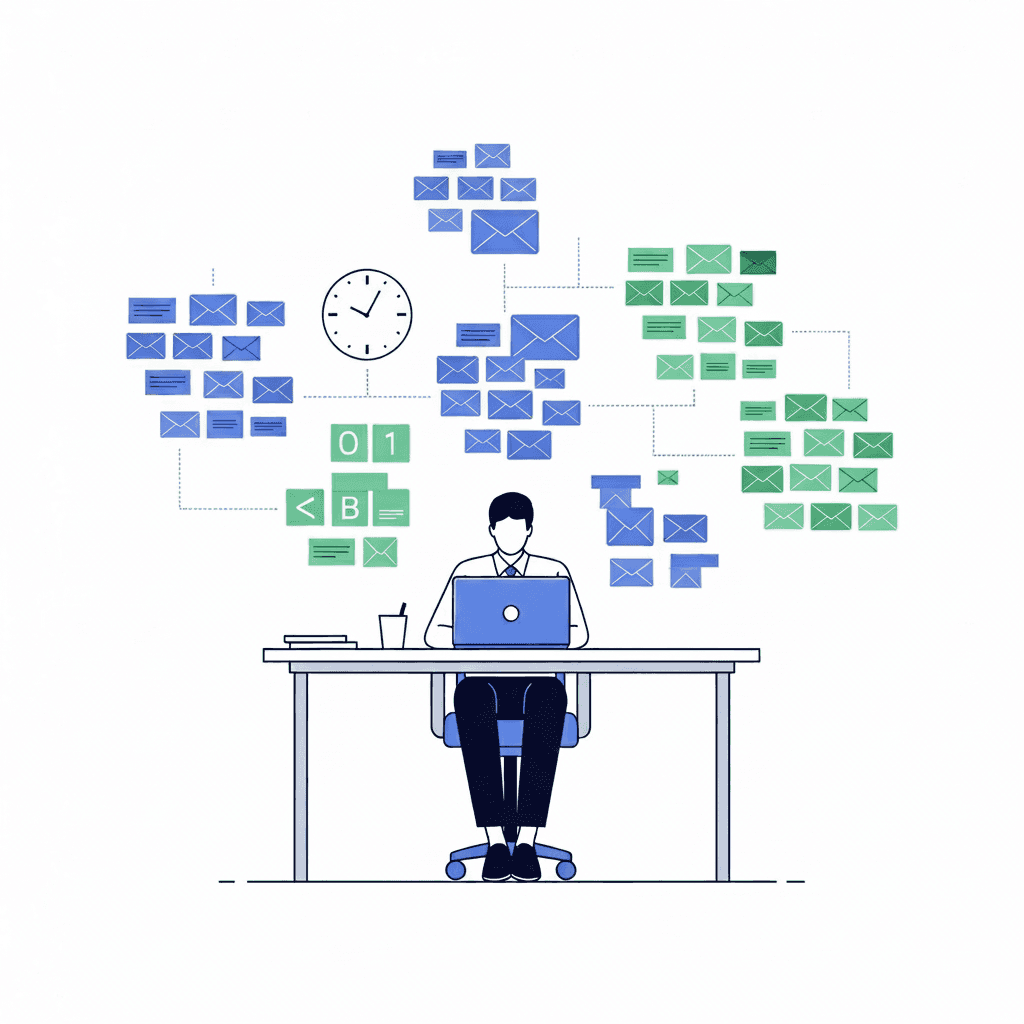
Batch processing means closing your inbox between scheduled sessions. Instead of reacting to every new message, you handle email in defined blocks. This protects your attention for work that requires focus.
For most knowledge workers, three to four sessions per day works well: morning, midday, mid-afternoon, and end of day. Client-facing roles may need an extra check-in. Teams across time zones might add an evening pass.
Each session should run 20 to 30 minutes. Set a timer, process everything since your last check, then close your inbox when time is up.
Turn off notifications between sessions. Even a quick glance at a new email breaks your focus. Let your calendar dictate when you return to your inbox.
Strategic Folder Systems and Automated Filtering
Many people overcomplicate folder systems. They build detailed structures by project or priority, then spend time deciding where each email belongs.
A simpler setup works better. Keep three folders: Action Required, Waiting For, and Archive. Action Required holds emails you need to respond to. Waiting For tracks replies you’re expecting. Everything else goes to Archive once processed.
Your inbox becomes a temporary workspace, not long-term storage. Messages stay there only during your current session, then move out once you’ve made a decision.
Automation can handle predictable emails. Use filters for newsletters, reports, and notifications so they skip your main inbox. Review them weekly instead of daily.
You can also flag key contacts or projects so urgent messages stand out, while everything else waits for your next session.
Writing Faster Emails without Sacrificing Quality
Templates remove the friction of starting from scratch. Create simple frameworks for common emails like meeting requests, updates, or follow-ups. Then adjust only the details each time.
Clear subject lines save time for everyone. Lead with the action and timing: “Decision needed: Q2 budget by Friday” is easier to act on than a vague subject.
Keep messages concise. One idea per email. A simple structure works well: context, request, deadline. If it runs longer than a couple of paragraphs, a meeting may be faster.
Clarity matters more than formality. Skip long intros and get to the point.
The fastest way to write emails is to stop typing them. Speaking at around 150 words per minute versus typing at 40 removes much of the friction from drafting.
Voice Dictation: The 4X Speed Multiplier for Email
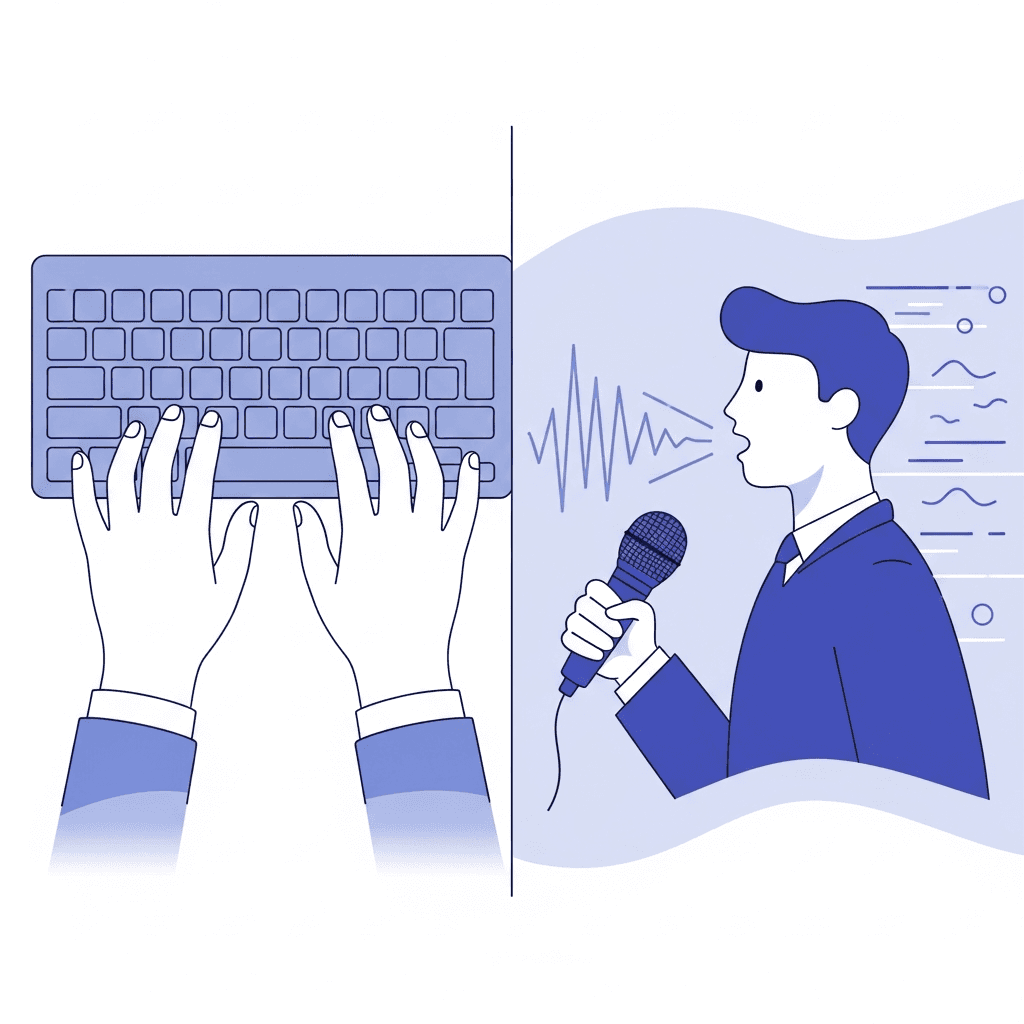
Typing at 40 words per minute means a 200-word email takes about five minutes. Speaking that same message at 150 words per minute cuts it to under 90 seconds. Research also shows speech recognition can be about 3x faster than typing on mobile.
Voice dictation works best for longer messages, like detailed updates or thoughtful responses. Short replies are still often quicker to type once you factor in setup time.
The time savings add up quickly. Writing 15 emails a day at 150 words each totals 2,250 words. Typing takes about 56 minutes. Speaking takes roughly 15.
Method | Input Speed | Latency | Accuracy vs Built-in Tools | Key Features |
|---|---|---|---|---|
Standard Typing | 40 words per minute | 0ms (instant) | 100% (manual input) | Works everywhere, no setup required, full control over formatting |
Willow Voice | 160 words per minute | 200ms | 3x more accurate than built-in dictation | Learns your writing patterns, SOC 2 and HIPAA compliant, works across all apps with one hotkey, personalized dictionary |
Wispr Flow | 150 words per minute | 700ms+ | Standard dictation accuracy | Basic voice-to-text functionality, requires per-app activation |
Apple Built-in Dictation | 150 words per minute | 700ms+ | Baseline accuracy | Free with macOS and iOS, basic punctuation support, generic vocabulary |
Building Team Email Norms to Reduce Volume
Individual habits help, but team norms reduce volume at the source. When everyone follows the same rules, fewer unnecessary emails get sent in the first place.
Define when to use email versus other tools. Email suits decisions, external updates, and non-urgent communication. Slack works for quick questions and coordination. Calendar invites replace long scheduling threads.
Be selective with CCs. Every extra recipient increases the chance of reply-all chains. Only include people who need to act.
Set clear expectations around response times. Most internal emails don’t require immediate replies. When teams agree on reasonable timelines, the urge to check constantly drops. Mark truly urgent emails clearly.
How AI Voice Dictation Changes Email Productivity
Voice dictation at 150 words per minute versus typing at 40 means email composition stops being the bottleneck.
Willow Voice turns that speed advantage into a workflow built for professionals handling high-volume communication. Personalization means the tool learns your writing patterns over time, so you spend less time making edits and messages sound like you. 200ms latency keeps you in flow state instead of waiting for text to catch up (standard dictation tools like Wispr Flow and Apple's built-in voice dictation sit at 700ms+). SOC 2 and HIPAA compliance let teams handling client data, patient records, or confidential communications speak without security concerns.
For customer success teams clearing ticket queues or executives managing dense inboxes, the impact is clear. Messages that once took several minutes to write can often be completed much faster.
FAQs
How can I reduce the time I spend managing email each day?
Batch your email into 3-4 scheduled blocks of 20-30 minutes instead of checking constantly, turn off all notifications between blocks, and use the 4 Ds framework (Delete, Delegate, Do, Defer) to make quick decisions on every message. This approach protects your focus and can save 2+ hours daily.
What's the fastest way to write emails without losing quality?
Voice dictation is the fastest method: speaking at 150 words per minute versus typing at 40 means you can draft a 200-word email in under 90 seconds instead of five minutes. Pair this with templates for common email types to eliminate the blank-page problem while maintaining your natural tone.
When should I use voice dictation instead of typing for email?
Use voice for longer messages like detailed client updates, thoughtful feedback, or multi-paragraph explanations where typing feels slow. Short one-line replies often take longer to speak once you factor in activation time, so stick with typing for those.
How does Willow Voice make voice dictation faster than other tools?
Willow operates at 200ms latency compared to 700ms+ for standard dictation tools like Wispr Flow and Apple's built-in voice dictation, keeping you in flow state instead of waiting for text to appear. It also learns your writing patterns over time so messages sound like you with minimal editing required.
What email folder system actually works for busy professionals?
Keep just three folders: Action Required for messages needing your reply, Waiting For to track expected responses, and Archive for everything else. Your inbox becomes a temporary holding area that you clear during each batch processing session, not a permanent filing system.
Final Thoughts on Work Email Productivity
Email productivity doesn’t improve with more folders or stricter rules; it improves when you remove the friction that slows you down. Small changes like batching your inbox, limiting interruptions, and simplifying decisions make a noticeable difference, but the biggest gain comes from how quickly you can write. Voice input changes that dynamic, and tools like Willow take it further by helping your emails sound natural without extra editing. When your workflow supports focus and your replies keep pace with your thoughts, email becomes far easier to manage.
You know that feeling when you close your inbox and reopen it minutes later? That’s not a discipline problem; it’s how email is set up to pull you back in. With over a hundred messages arriving daily and constant notifications breaking your focus, most email productivity advice barely makes a dent. A better approach is changing how you handle communication itself, from when you check your inbox to how you write replies, using methods like voice input and modern tools to move through email faster without losing clarity.
TLDR:
Professionals waste 260-800 hours yearly on email, costing up to $38,000 in salary annually.
Batch processing emails 3-4 times daily and using the 4 Ds framework can save 2+ hours daily.
Voice dictation at 150 WPM versus typing at 40 WPM cuts email drafting time by 75%.
Some AI voice tools can learn your writing style and run at ~200ms latency, supporting fast, natural emails without heavy editing.
Turning off email notifications between scheduled check-ins reduces context switching and helps maintain longer focus blocks.
The Hidden Cost of Email Overload in March 2026
Office workers now receive around 121 business emails daily while sending about 40 of their own. That volume builds quickly. Most professionals spend between 5 and 15.5 hours per week managing their inbox.
Over a year, that adds up. At the low end, it’s about 260 hours. At the high end, it exceeds 800 hours spent reading, sorting, and replying. For someone earning $100,000 annually, that upper range equates to roughly $38,000 of time spent on email alone.
The issue isn’t just volume. It’s interruption. Each inbox check breaks your focus, and getting back into deep work takes time you don’t get back. The real cost isn’t reading messages; it’s the constant context switching and the mental load of keeping up.
Why Email Feels Impossible to Manage
Email isn’t just a time problem; it’s a cognitive one. Around 70% of professionals say email is their top source of workplace stress, and 42% describe their inbox as “out of control.”
The main driver is interruption. Every notification pulls your attention away. You check the subject line, maybe skim the message, and even if you don’t reply, your focus has already shifted.
According to workplace productivity research, employees experience interruptions approximately 275 times per day from meetings, emails, messages, and constant context switching. Research shows it takes about 23 minutes to fully regain focus after an interruption, yet most people check email every 37 minutes or less.
Unread messages create a form of mental backlog. Each open thread sits in your working memory, even when you’re not actively looking at your inbox. That background pressure drains attention throughout the day.
Email Triage Systems That Actually Work
Email triage works best when decisions are quick and clear. Each message needs a simple call: handle it now or later. The 4 Ds framework keeps this process straightforward.
Delete anything that doesn’t need action or future reference, like newsletters you won’t read or outdated threads.
Delegate messages that someone else should own. Forward them with clear instructions, then archive.
"Do" applies to anything you can handle in under two minutes. Reply immediately and move on.
Defer everything else. Flag it, move it to a folder, or leave it for your next email block.
Inbox Zero isn’t about having no unread messages. It’s about knowing exactly what each message requires next.
Batch Processing: The Single Habit That Saves 2+ Hours Daily
Batch processing means closing your inbox between scheduled sessions. Instead of reacting to every new message, you handle email in defined blocks. This protects your attention for work that requires focus.
For most knowledge workers, three to four sessions per day works well: morning, midday, mid-afternoon, and end of day. Client-facing roles may need an extra check-in. Teams across time zones might add an evening pass.
Each session should run 20 to 30 minutes. Set a timer, process everything since your last check, then close your inbox when time is up.
Turn off notifications between sessions. Even a quick glance at a new email breaks your focus. Let your calendar dictate when you return to your inbox.
Strategic Folder Systems and Automated Filtering
Many people overcomplicate folder systems. They build detailed structures by project or priority, then spend time deciding where each email belongs.
A simpler setup works better. Keep three folders: Action Required, Waiting For, and Archive. Action Required holds emails you need to respond to. Waiting For tracks replies you’re expecting. Everything else goes to Archive once processed.
Your inbox becomes a temporary workspace, not long-term storage. Messages stay there only during your current session, then move out once you’ve made a decision.
Automation can handle predictable emails. Use filters for newsletters, reports, and notifications so they skip your main inbox. Review them weekly instead of daily.
You can also flag key contacts or projects so urgent messages stand out, while everything else waits for your next session.
Writing Faster Emails without Sacrificing Quality
Templates remove the friction of starting from scratch. Create simple frameworks for common emails like meeting requests, updates, or follow-ups. Then adjust only the details each time.
Clear subject lines save time for everyone. Lead with the action and timing: “Decision needed: Q2 budget by Friday” is easier to act on than a vague subject.
Keep messages concise. One idea per email. A simple structure works well: context, request, deadline. If it runs longer than a couple of paragraphs, a meeting may be faster.
Clarity matters more than formality. Skip long intros and get to the point.
The fastest way to write emails is to stop typing them. Speaking at around 150 words per minute versus typing at 40 removes much of the friction from drafting.
Voice Dictation: The 4X Speed Multiplier for Email
Typing at 40 words per minute means a 200-word email takes about five minutes. Speaking that same message at 150 words per minute cuts it to under 90 seconds. Research also shows speech recognition can be about 3x faster than typing on mobile.
Voice dictation works best for longer messages, like detailed updates or thoughtful responses. Short replies are still often quicker to type once you factor in setup time.
The time savings add up quickly. Writing 15 emails a day at 150 words each totals 2,250 words. Typing takes about 56 minutes. Speaking takes roughly 15.
Method | Input Speed | Latency | Accuracy vs Built-in Tools | Key Features |
|---|---|---|---|---|
Standard Typing | 40 words per minute | 0ms (instant) | 100% (manual input) | Works everywhere, no setup required, full control over formatting |
Willow Voice | 160 words per minute | 200ms | 3x more accurate than built-in dictation | Learns your writing patterns, SOC 2 and HIPAA compliant, works across all apps with one hotkey, personalized dictionary |
Wispr Flow | 150 words per minute | 700ms+ | Standard dictation accuracy | Basic voice-to-text functionality, requires per-app activation |
Apple Built-in Dictation | 150 words per minute | 700ms+ | Baseline accuracy | Free with macOS and iOS, basic punctuation support, generic vocabulary |
Building Team Email Norms to Reduce Volume
Individual habits help, but team norms reduce volume at the source. When everyone follows the same rules, fewer unnecessary emails get sent in the first place.
Define when to use email versus other tools. Email suits decisions, external updates, and non-urgent communication. Slack works for quick questions and coordination. Calendar invites replace long scheduling threads.
Be selective with CCs. Every extra recipient increases the chance of reply-all chains. Only include people who need to act.
Set clear expectations around response times. Most internal emails don’t require immediate replies. When teams agree on reasonable timelines, the urge to check constantly drops. Mark truly urgent emails clearly.
How AI Voice Dictation Changes Email Productivity
Voice dictation at 150 words per minute versus typing at 40 means email composition stops being the bottleneck.
Willow Voice turns that speed advantage into a workflow built for professionals handling high-volume communication. Personalization means the tool learns your writing patterns over time, so you spend less time making edits and messages sound like you. 200ms latency keeps you in flow state instead of waiting for text to catch up (standard dictation tools like Wispr Flow and Apple's built-in voice dictation sit at 700ms+). SOC 2 and HIPAA compliance let teams handling client data, patient records, or confidential communications speak without security concerns.
For customer success teams clearing ticket queues or executives managing dense inboxes, the impact is clear. Messages that once took several minutes to write can often be completed much faster.
FAQs
How can I reduce the time I spend managing email each day?
Batch your email into 3-4 scheduled blocks of 20-30 minutes instead of checking constantly, turn off all notifications between blocks, and use the 4 Ds framework (Delete, Delegate, Do, Defer) to make quick decisions on every message. This approach protects your focus and can save 2+ hours daily.
What's the fastest way to write emails without losing quality?
Voice dictation is the fastest method: speaking at 150 words per minute versus typing at 40 means you can draft a 200-word email in under 90 seconds instead of five minutes. Pair this with templates for common email types to eliminate the blank-page problem while maintaining your natural tone.
When should I use voice dictation instead of typing for email?
Use voice for longer messages like detailed client updates, thoughtful feedback, or multi-paragraph explanations where typing feels slow. Short one-line replies often take longer to speak once you factor in activation time, so stick with typing for those.
How does Willow Voice make voice dictation faster than other tools?
Willow operates at 200ms latency compared to 700ms+ for standard dictation tools like Wispr Flow and Apple's built-in voice dictation, keeping you in flow state instead of waiting for text to appear. It also learns your writing patterns over time so messages sound like you with minimal editing required.
What email folder system actually works for busy professionals?
Keep just three folders: Action Required for messages needing your reply, Waiting For to track expected responses, and Archive for everything else. Your inbox becomes a temporary holding area that you clear during each batch processing session, not a permanent filing system.
Final Thoughts on Work Email Productivity
Email productivity doesn’t improve with more folders or stricter rules; it improves when you remove the friction that slows you down. Small changes like batching your inbox, limiting interruptions, and simplifying decisions make a noticeable difference, but the biggest gain comes from how quickly you can write. Voice input changes that dynamic, and tools like Willow take it further by helping your emails sound natural without extra editing. When your workflow supports focus and your replies keep pace with your thoughts, email becomes far easier to manage.

Try Willow for free
Instant, accurate voice dictation. No card required.
Try Willow for free
Instant, accurate voice dictation. No card required.
Other stories you’ll love
Other stories you’ll love


Your keyboard is optional now
" transform="translate(5 5)" width="9.791000051498413px"/></svg>)

The voice-first interface for modern work.
© Willow Care, Inc. 2026. All rights reserved
Your keyboard is optional now
The voice-first interface for modern work.
© Willow Care, Inc. 2026. All rights reserved
Your keyboard is optional now
The voice-first interface for modern work.
© Willow Care, Inc. 2026. All rights reserved