" transform="translate(5 2)" width="10px"/></svg>)

•
5 min read
Gmail Voice Dictation Guide (June 2026)

•
5 min read
Gmail Voice Dictation Guide (June 2026)
Emails still eat up a huge chunk of the workday, but typing every word no longer has to be the bottleneck. Most people can type about 40 words per minute, while speaking flows closer to 150, making dictation one of the fastest ways to get through a crowded inbox. With speech-to-text in Gmail, emails feel more like talking through your thoughts than typing for hours, freeing up time and attention for the rest of your work. Modern tools, including advanced features like Gmail voice dictation, take this a step further by automatically cleaning up your speech so messages sound clear, polished, and ready to send without extra editing.
TLDR:
You can compose Gmail emails by voice up to 4x faster than typing using operating system dictation tools or Chrome extensions.
Basic dictation using your operating system or browser-based tools works in Chrome without downloads but requires manual formatting and punctuation cleanup.
AI-powered tools like Willow remove filler words, format paragraphs automatically, and adapt their tone to the context.
Mobile dictation works through the iPhone's keyboard microphone or Android's Gboard for quick replies on the go.
Some modern tools work across Gmail and all Mac and Windows apps with a single hotkey, delivering ~200ms latency and 3x fewer errors than built-in dictation tools, based on Willow's internal benchmarks.
Why Use Voice Dictation for Gmail
If you're drowning in email, voice dictation can pull you back to the surface. Most people type at around 40 words per minute, but speak at roughly 150 words per minute. That's nearly 4x faster.
Knowledge workers spend 28% of their workweek reading and responding to emails. If you're in sales, management, or running a company, that percentage climbs even higher. Voice dictation turns email from a typing marathon into a quick conversation.
How to Use Basic Dictation Tools in Gmail
Google Chrome does not include native voice typing inside Gmail, but you can use browser-based dictation features or Chrome extensions without downloading a separate desktop app.
To turn it on, open Gmail in Chrome and click inside the compose window. Use your operating system’s dictation feature or a Chrome extension, since Gmail does not offer a built-in right-click voice typing option or a native microphone icon in the compose window.
Activate dictation using your system shortcut or extension. The first time, your browser or operating system will ask for microphone permission. Once granted, dictation begins listening immediately.
Speak naturally, and your words appear in the email body. Click the microphone again to stop, or start typing to turn it off automatically.
Many browser-based and extension-based dictation tools require a stable internet connection, since speech processing often happens in the cloud. They recognize basic punctuation commands like "period" and "comma," but don't format or clean up text like AI-powered tools.
Using Chrome Extensions for Gmail Dictation
Chrome extensions add AI-powered accuracy, automatic formatting, and context-aware corrections beyond basic dictation tools.
Extensions like Voice In install in Chrome and work inside Gmail's compose window. They process speech through advanced models that understand context, remove filler words, and format writing with proper paragraphs and punctuation. For Mac users comparing desktop dictation apps, tools like Willow vs Super Whisper offer different approaches to system-wide voice input beyond browser-only solutions.
While built-in tools like Apple's voice dictation transcribe word-for-word with limited context-awareness, AI-powered extensions can adapt to your recipient's tone, properly handle names and formatting, and structure messages that read naturally without manual cleanup.
Most extensions require one-time installation from the Chrome Web Store and work across all browser-based apps.
Dictation Method Comparison
Feature | OS Built-in Dictation | Chrome Extensions | Willow |
|---|---|---|---|
Setup | No install needed | One-time Chrome install | Desktop app (Mac & Windows) + iOS keyboard |
Accuracy | Basic; word-for-word transcription | Improved; some context-awareness | 3x fewer errors than built-in tools |
Filler word removal | No | Varies by extension | Yes, automatic |
Auto-formatting | No | Limited | Yes (paragraphs, punctuation, capitalization) |
Works outside Gmail | Yes (system-wide) | Browser tabs only | Yes (every app on Mac, Windows, and iOS) |
Latency | 700ms+ | 700ms+ | ~200ms |
Enterprise compliance | No | No | SOC 2 Type II, HIPAA, zero data retention |
Mobile support | iOS/Android keyboard mic | No | Custom iOS keyboard (Willow Voice app) |
How to Use Willow for Gmail Dictation
Willow Voice is a desktop app for Mac and Windows, and is also available on iOS as a custom voice keyboard, working across Gmail and every other app on your devices.
Download Willow, complete setup, then open Gmail in any browser. Click inside your compose window and press and hold the Function (fn) key while speaking.
Willow analyzes your email thread to understand names, technical terms, and tone. It formats paragraphs, removes filler words, and adjusts formality based on your recipient. An Auto-Dictionary learns your corrections over time, including names, technical terms, company names, jargon, and email contacts, applying them automatically to every future session. The more you use it, the more it shapes your writing style and vocabulary, so future drafts need less cleanup and sound more like you wrote them.
Release the fn key when finished. The same hotkey works in Slack, Notion, Google Docs, Warp, or anywhere else you type.
Willow also has a second mode called Scribe, activated with fn + Control. Where Dictation Mode captures and cleans up your spoken words, Scribe acts more like a voice-driven writing assistant. You can describe what you want, such as "write a follow-up to the client about the contract delay" or "make this more formal," and Scribe generates a complete draft or rewrites a passage without you typing a word. It reads your email thread for context, so replies stay relevant to the conversation already in progress.
For teams and organizations, Willow is SOC 2 Type II and HIPAA compliant, with zero data retention and a signed BAA available. Admins can roll out Willow org-wide, set shared custom shortcuts and dictionary terms, and manage access through admin controls, making it a workable fit for industries and organizations with strict compliance requirements where both individual privacy and enterprise security matter.
Voice Dictation on Gmail Mobile (iPhone and Android)
Mobile voice input on iOS goes beyond basic system-level tools. On iPhone, you can use the built-in keyboard microphone: tap the microphone icon in the bottom right of the keyboard while composing in Gmail, speak your message, and tap the keyboard icon to stop. For better accuracy and formatting, Willow Voice offers a custom iOS keyboard that delivers the same AI-powered voice input as the desktop version, including filler word removal, context-aware text, and Auto-Dictionary corrections, without switching apps or relying on the system microphone.
Android uses Google's Gboard keyboard. Tap the microphone icon at the top of the keyboard, speak naturally, and tap again to stop. If no microphone appears, turn on voice input support under Languages & Input in your keyboard settings.
Both systems handle basic punctuation commands, though offline support is limited and accuracy is considerably lower than in online dictation. Mobile voice typing handles quick replies well, though desktop solutions offer better formatting for longer emails.
Common Voice Typing Issues and How to Fix Them
Microphone Not Working
Check system permissions first. On Mac, go to System Settings > Privacy & Security > Microphone and confirm Chrome or your dictation app has access. On Windows, check Settings > Privacy > Microphone.
If dictation isn’t starting, check that your browser or dictation tool has microphone permission activated, then refresh Gmail and try again. Test your microphone in another app to confirm the hardware works properly.
Poor Accuracy and Transcription Errors
Background noise degrades accuracy. Work in quieter environments or use headphones with a built-in microphone, keeping it close to your mouth.
Speak clearly at a normal pace. Rushing words or mumbling confuses transcription models. If accuracy remains poor with built-in tools, switch to AI-powered options that better handle accents and context.
Voice Typing Stops Randomly
This usually indicates connectivity issues. Built-in voice typing requires a stable internet since processing happens on Google's servers. Check your connection or move closer to your router.
Some tools stop listening after pauses. Continue speaking without long gaps, or restart by clicking the microphone icon again.
Voice Commands and Punctuation in Gmail Dictation
Every dictation tool recognizes basic punctuation commands. Say "period," "comma," "question mark," or "exclamation point" to add punctuation. Use "new line" for a single break or "new paragraph" for spacing.
Common formatting commands include "colon," "semicolon," "dash," and "quote" to open quotation marks. Say "close quote" or "end quote" to close them. Say "at sign" when spelling out an email and "hashtag" for social references.
Basic dictation tools typically transcribe speech word-for-word without intelligent formatting. You'll need to manually fix capitalization on sentences and correct spacing afterward.
AI-powered dictation tools add punctuation based on your speech patterns, apply proper noun capitalization from context, and format paragraphs without explicit commands.
Accessibility Benefits of Voice Typing in Gmail
Voice dictation removes barriers for people with repetitive strain injuries, carpal tunnel, arthritis, or limited mobility by eliminating typing strain. For users with dyslexia or dysgraphia, speaking bypasses the cognitive load of spelling and keyboard navigation. Neurodivergent users often find talking more natural than typing.
Best Practices for Clear and Accurate Gmail Dictation
Use a quality headset microphone positioned two to three inches from your mouth to reduce background noise and improve recognition accuracy.
Outline your email mentally before speaking. Know your opening, main points, and closing to avoid rambling and excessive corrections.
Speak in complete thoughts instead of fragments. Frequent pauses disrupt flow and lower accuracy.
Review and edit after speaking instead of stopping repeatedly to fix small errors. Maintaining momentum produces better results than constant interruptions.
A Smarter Way to Dictate Emails (and Everything Else)
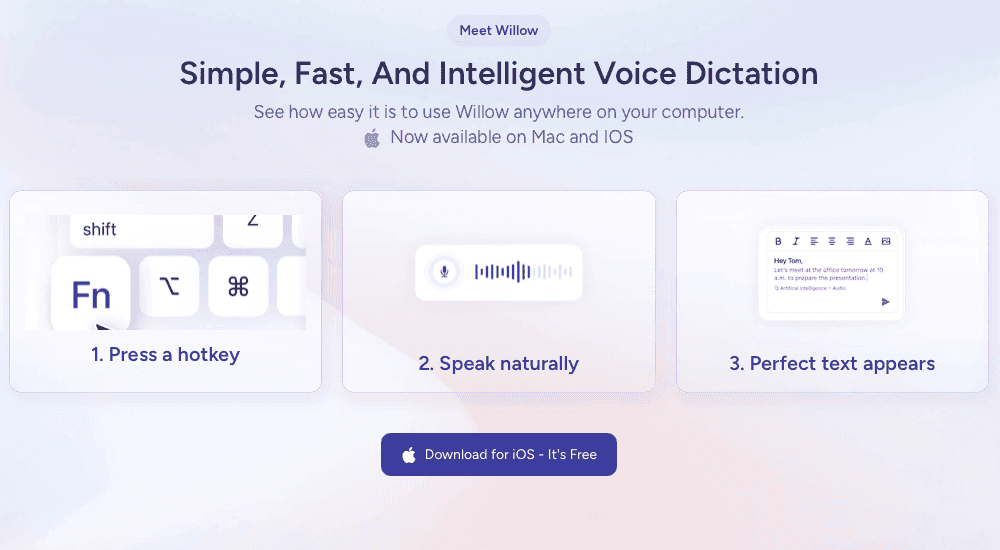
If you speak more than you type, basic voice tools start to feel limiting. That's where Willow Voice fits in. Three things set it apart for email work:
Speed: Text appears in ~200 milliseconds, so your next thought is never lost waiting for the tool to catch up.
Personalization: Willow learns how you write over time, adapting to your recipients, vocabulary, and tone, so messages sound like you — not a rough transcript.
Built for teams: Willow is SOC 2 Type II and HIPAA-compliant, with zero data retention and a signed BAA, making it a viable choice for organizations handling sensitive communications.
A single hotkey works in Gmail, Slack, Notion, Google Docs, ChatGPT, or anywhere you type on Mac, Windows, or iOS. Willow Voice sits alongside other AI productivity tools designed to cut repetitive work and speed up daily workflows.
For busy founders, executives, sales teams, and anyone buried in email, tools like AI voice dictation for Gmail let you replace most typing with speech and move through written work at the speed you actually think.
Final thoughts on Gmail voice typing
Gmail voice dictation gives you a faster, more natural way to communicate, whether you rely on Chrome's built-in voice typing for quick notes or want smarter tools that clean up your writing as you speak. Browser extensions can help inside Gmail, but they stop at the edge of the tab. Solutions like Willow go further by working across Gmail and every other app with a single hotkey, turning spoken thoughts into clear, well-structured messages without extra editing passes. If email is a daily constant in your work, upgrading to something like advanced voice dictation for Gmail can make writing feel lighter, quicker, and far less tied to the keyboard, giving your hands a real break while keeping your messages sharp. We think the fastest way to see the difference is to just try it, download Willow Voice, and run it through your next inbox session.
FAQs
Can I use voice typing in Gmail on my iPhone?
Yes, open Gmail and tap the microphone icon in the bottom right of your iPhone keyboard while composing an email. Speak your message, then tap the keyboard icon when finished. iOS voice typing works automatically without special Gmail settings.
Why does my Gmail voice typing keep stopping randomly?
This usually happens because of internet connectivity issues since Google's voice typing processes speech on its servers. Check your connection strength or move closer to your router, and try to speak without long pauses between sentences.
What's the difference between basic dictation tools and AI-powered tools?
Basic dictation tools transcribe word-for-word without formatting, requiring manual cleanup of capitalization and paragraphs. AI-powered tools automatically add punctuation, format paragraphs, remove filler words, and adjust tone based on context.
Emails still eat up a huge chunk of the workday, but typing every word no longer has to be the bottleneck. Most people can type about 40 words per minute, while speaking flows closer to 150, making dictation one of the fastest ways to get through a crowded inbox. With speech-to-text in Gmail, emails feel more like talking through your thoughts than typing for hours, freeing up time and attention for the rest of your work. Modern tools, including advanced features like Gmail voice dictation, take this a step further by automatically cleaning up your speech so messages sound clear, polished, and ready to send without extra editing.
TLDR:
You can compose Gmail emails by voice up to 4x faster than typing using operating system dictation tools or Chrome extensions.
Basic dictation using your operating system or browser-based tools works in Chrome without downloads but requires manual formatting and punctuation cleanup.
AI-powered tools like Willow remove filler words, format paragraphs automatically, and adapt their tone to the context.
Mobile dictation works through the iPhone's keyboard microphone or Android's Gboard for quick replies on the go.
Some modern tools work across Gmail and all Mac and Windows apps with a single hotkey, delivering ~200ms latency and 3x fewer errors than built-in dictation tools, based on Willow's internal benchmarks.
Why Use Voice Dictation for Gmail
If you're drowning in email, voice dictation can pull you back to the surface. Most people type at around 40 words per minute, but speak at roughly 150 words per minute. That's nearly 4x faster.
Knowledge workers spend 28% of their workweek reading and responding to emails. If you're in sales, management, or running a company, that percentage climbs even higher. Voice dictation turns email from a typing marathon into a quick conversation.
How to Use Basic Dictation Tools in Gmail
Google Chrome does not include native voice typing inside Gmail, but you can use browser-based dictation features or Chrome extensions without downloading a separate desktop app.
To turn it on, open Gmail in Chrome and click inside the compose window. Use your operating system’s dictation feature or a Chrome extension, since Gmail does not offer a built-in right-click voice typing option or a native microphone icon in the compose window.
Activate dictation using your system shortcut or extension. The first time, your browser or operating system will ask for microphone permission. Once granted, dictation begins listening immediately.
Speak naturally, and your words appear in the email body. Click the microphone again to stop, or start typing to turn it off automatically.
Many browser-based and extension-based dictation tools require a stable internet connection, since speech processing often happens in the cloud. They recognize basic punctuation commands like "period" and "comma," but don't format or clean up text like AI-powered tools.
Using Chrome Extensions for Gmail Dictation
Chrome extensions add AI-powered accuracy, automatic formatting, and context-aware corrections beyond basic dictation tools.
Extensions like Voice In install in Chrome and work inside Gmail's compose window. They process speech through advanced models that understand context, remove filler words, and format writing with proper paragraphs and punctuation. For Mac users comparing desktop dictation apps, tools like Willow vs Super Whisper offer different approaches to system-wide voice input beyond browser-only solutions.
While built-in tools like Apple's voice dictation transcribe word-for-word with limited context-awareness, AI-powered extensions can adapt to your recipient's tone, properly handle names and formatting, and structure messages that read naturally without manual cleanup.
Most extensions require one-time installation from the Chrome Web Store and work across all browser-based apps.
Dictation Method Comparison
Feature | OS Built-in Dictation | Chrome Extensions | Willow |
|---|---|---|---|
Setup | No install needed | One-time Chrome install | Desktop app (Mac & Windows) + iOS keyboard |
Accuracy | Basic; word-for-word transcription | Improved; some context-awareness | 3x fewer errors than built-in tools |
Filler word removal | No | Varies by extension | Yes, automatic |
Auto-formatting | No | Limited | Yes (paragraphs, punctuation, capitalization) |
Works outside Gmail | Yes (system-wide) | Browser tabs only | Yes (every app on Mac, Windows, and iOS) |
Latency | 700ms+ | 700ms+ | ~200ms |
Enterprise compliance | No | No | SOC 2 Type II, HIPAA, zero data retention |
Mobile support | iOS/Android keyboard mic | No | Custom iOS keyboard (Willow Voice app) |
How to Use Willow for Gmail Dictation
Willow Voice is a desktop app for Mac and Windows, and is also available on iOS as a custom voice keyboard, working across Gmail and every other app on your devices.
Download Willow, complete setup, then open Gmail in any browser. Click inside your compose window and press and hold the Function (fn) key while speaking.
Willow analyzes your email thread to understand names, technical terms, and tone. It formats paragraphs, removes filler words, and adjusts formality based on your recipient. An Auto-Dictionary learns your corrections over time, including names, technical terms, company names, jargon, and email contacts, applying them automatically to every future session. The more you use it, the more it shapes your writing style and vocabulary, so future drafts need less cleanup and sound more like you wrote them.
Release the fn key when finished. The same hotkey works in Slack, Notion, Google Docs, Warp, or anywhere else you type.
Willow also has a second mode called Scribe, activated with fn + Control. Where Dictation Mode captures and cleans up your spoken words, Scribe acts more like a voice-driven writing assistant. You can describe what you want, such as "write a follow-up to the client about the contract delay" or "make this more formal," and Scribe generates a complete draft or rewrites a passage without you typing a word. It reads your email thread for context, so replies stay relevant to the conversation already in progress.
For teams and organizations, Willow is SOC 2 Type II and HIPAA compliant, with zero data retention and a signed BAA available. Admins can roll out Willow org-wide, set shared custom shortcuts and dictionary terms, and manage access through admin controls, making it a workable fit for industries and organizations with strict compliance requirements where both individual privacy and enterprise security matter.
Voice Dictation on Gmail Mobile (iPhone and Android)
Mobile voice input on iOS goes beyond basic system-level tools. On iPhone, you can use the built-in keyboard microphone: tap the microphone icon in the bottom right of the keyboard while composing in Gmail, speak your message, and tap the keyboard icon to stop. For better accuracy and formatting, Willow Voice offers a custom iOS keyboard that delivers the same AI-powered voice input as the desktop version, including filler word removal, context-aware text, and Auto-Dictionary corrections, without switching apps or relying on the system microphone.
Android uses Google's Gboard keyboard. Tap the microphone icon at the top of the keyboard, speak naturally, and tap again to stop. If no microphone appears, turn on voice input support under Languages & Input in your keyboard settings.
Both systems handle basic punctuation commands, though offline support is limited and accuracy is considerably lower than in online dictation. Mobile voice typing handles quick replies well, though desktop solutions offer better formatting for longer emails.
Common Voice Typing Issues and How to Fix Them
Microphone Not Working
Check system permissions first. On Mac, go to System Settings > Privacy & Security > Microphone and confirm Chrome or your dictation app has access. On Windows, check Settings > Privacy > Microphone.
If dictation isn’t starting, check that your browser or dictation tool has microphone permission activated, then refresh Gmail and try again. Test your microphone in another app to confirm the hardware works properly.
Poor Accuracy and Transcription Errors
Background noise degrades accuracy. Work in quieter environments or use headphones with a built-in microphone, keeping it close to your mouth.
Speak clearly at a normal pace. Rushing words or mumbling confuses transcription models. If accuracy remains poor with built-in tools, switch to AI-powered options that better handle accents and context.
Voice Typing Stops Randomly
This usually indicates connectivity issues. Built-in voice typing requires a stable internet since processing happens on Google's servers. Check your connection or move closer to your router.
Some tools stop listening after pauses. Continue speaking without long gaps, or restart by clicking the microphone icon again.
Voice Commands and Punctuation in Gmail Dictation
Every dictation tool recognizes basic punctuation commands. Say "period," "comma," "question mark," or "exclamation point" to add punctuation. Use "new line" for a single break or "new paragraph" for spacing.
Common formatting commands include "colon," "semicolon," "dash," and "quote" to open quotation marks. Say "close quote" or "end quote" to close them. Say "at sign" when spelling out an email and "hashtag" for social references.
Basic dictation tools typically transcribe speech word-for-word without intelligent formatting. You'll need to manually fix capitalization on sentences and correct spacing afterward.
AI-powered dictation tools add punctuation based on your speech patterns, apply proper noun capitalization from context, and format paragraphs without explicit commands.
Accessibility Benefits of Voice Typing in Gmail
Voice dictation removes barriers for people with repetitive strain injuries, carpal tunnel, arthritis, or limited mobility by eliminating typing strain. For users with dyslexia or dysgraphia, speaking bypasses the cognitive load of spelling and keyboard navigation. Neurodivergent users often find talking more natural than typing.
Best Practices for Clear and Accurate Gmail Dictation
Use a quality headset microphone positioned two to three inches from your mouth to reduce background noise and improve recognition accuracy.
Outline your email mentally before speaking. Know your opening, main points, and closing to avoid rambling and excessive corrections.
Speak in complete thoughts instead of fragments. Frequent pauses disrupt flow and lower accuracy.
Review and edit after speaking instead of stopping repeatedly to fix small errors. Maintaining momentum produces better results than constant interruptions.
A Smarter Way to Dictate Emails (and Everything Else)
If you speak more than you type, basic voice tools start to feel limiting. That's where Willow Voice fits in. Three things set it apart for email work:
Speed: Text appears in ~200 milliseconds, so your next thought is never lost waiting for the tool to catch up.
Personalization: Willow learns how you write over time, adapting to your recipients, vocabulary, and tone, so messages sound like you — not a rough transcript.
Built for teams: Willow is SOC 2 Type II and HIPAA-compliant, with zero data retention and a signed BAA, making it a viable choice for organizations handling sensitive communications.
A single hotkey works in Gmail, Slack, Notion, Google Docs, ChatGPT, or anywhere you type on Mac, Windows, or iOS. Willow Voice sits alongside other AI productivity tools designed to cut repetitive work and speed up daily workflows.
For busy founders, executives, sales teams, and anyone buried in email, tools like AI voice dictation for Gmail let you replace most typing with speech and move through written work at the speed you actually think.
Final thoughts on Gmail voice typing
Gmail voice dictation gives you a faster, more natural way to communicate, whether you rely on Chrome's built-in voice typing for quick notes or want smarter tools that clean up your writing as you speak. Browser extensions can help inside Gmail, but they stop at the edge of the tab. Solutions like Willow go further by working across Gmail and every other app with a single hotkey, turning spoken thoughts into clear, well-structured messages without extra editing passes. If email is a daily constant in your work, upgrading to something like advanced voice dictation for Gmail can make writing feel lighter, quicker, and far less tied to the keyboard, giving your hands a real break while keeping your messages sharp. We think the fastest way to see the difference is to just try it, download Willow Voice, and run it through your next inbox session.
FAQs
Can I use voice typing in Gmail on my iPhone?
Yes, open Gmail and tap the microphone icon in the bottom right of your iPhone keyboard while composing an email. Speak your message, then tap the keyboard icon when finished. iOS voice typing works automatically without special Gmail settings.
Why does my Gmail voice typing keep stopping randomly?
This usually happens because of internet connectivity issues since Google's voice typing processes speech on its servers. Check your connection strength or move closer to your router, and try to speak without long pauses between sentences.
What's the difference between basic dictation tools and AI-powered tools?
Basic dictation tools transcribe word-for-word without formatting, requiring manual cleanup of capitalization and paragraphs. AI-powered tools automatically add punctuation, format paragraphs, remove filler words, and adjust tone based on context.

Try Willow for free
Instant, accurate voice dictation. No card required.
Try Willow for free
Instant, accurate voice dictation. No card required.
Other stories you’ll love
Other stories you’ll love


Your keyboard is optional now
" transform="translate(5 5)" width="9.791000051498413px"/></svg>)

The voice-first interface for modern work.
© Willow Care, Inc. 2026. All rights reserved
Your keyboard is optional now
The voice-first interface for modern work.
© Willow Care, Inc. 2026. All rights reserved
Your keyboard is optional now
The voice-first interface for modern work.
© Willow Care, Inc. 2026. All rights reserved