" transform="translate(5 2)" width="10px"/></svg>)

•
5 min read
Best Voice Input Tools for Cursor - August 2026
•
5 min read
Best Voice Input Tools for Cursor - August 2026
Cursor voice input works well until you step outside the chat panel and try to use it across your full workflow in your terminal, browser, GitHub, Slack, sprint planning, and async reviews. At that point, you're back to typing at 40 words per minute while knowing you could be speaking at 150. How much that gap slows you down is a choice. This guide covers how Cursor's built-in voice works, why its microphone sometimes fails, and how to set up full-workflow tools that let enterprise engineering teams share custom codebase dictionaries while maintaining desktop-to-mobile continuity across Mac, Windows, and iOS.
TLDR:
Cursor's native voice only works in chat, leaving terminals, browsers, and PRs silent.
Speaking at 150 WPM vs. typing at 40 WPM is 3x faster for detailed AI prompts.
Cursor voice fails often due to Web Audio API bugs, which can require rechecking microphone permissions.
Dedicated coding dictation tools work everywhere across Mac, Windows, and iOS at ~200ms latency, learn your codebase, and hold SOC 2 Type II certification.
Enterprise engineering organizations use shared custom dictionaries and codebase auto-tagging to keep technical vocabulary consistent across entire dev teams.
Why Developers Choose External Voice Tools Over Built-In Options
Tool | Platforms | Latency | Works Outside Cursor | Learns Codebase | Security |
|---|---|---|---|---|---|
Willow Voice | Mac, Windows, iOS | ~200ms | Yes - every app, one hotkey | Yes - auto-tags Cursor & Devin Desktop | SOC 2 Type II, HIPAA |
Cursor Built-In | Mac, Windows, Linux | Variable / Slower | No - chat panel only | No | Not specified |
superwhisper | Mac, Windows, iOS | Varies by model and hardware | Yes - OS-level | No | SOC 2 Type II, HIPAA |
Apple Dictation | Mac, iOS | 700ms+ | Yes - OS-level | No | Basic OS privacy |
Wispr Flow | Mac, iOS (Windows in limited rollout) | ~700ms | Yes - OS-level | No | HIPAA/SOC 2 on certain plans |
Built-in voice handles the basics. External tools handle the real job. Three things separate them:
Technical vocabulary: Dedicated tools learn your codebase over time, getting more accurate for your specific stack and terminology. Built-in options like Apple's native dictation and Wispr Flow lack IDE-specific awareness and codebase context to draw on.
Speed: Willow runs at 200ms latency. In comparison, Wispr Flow runs at ~700ms, and Apple's native dictation is noticeably slower, which breaks your focus every single time you speak.
Scope: A developer's workflow spans terminal, browser, GitHub, Slack, and more. One hotkey that works everywhere beats a mic button locked to a single window. For a full comparison, check out the best vibe coding tools.
As guides on voice prompting in Cursor note, speaking can be several times faster than typing a detailed prompt, and that gap widens when prompts include edge cases and architecture context.
Understanding Voice Input for Cursor AI Editor
Cursor introduced native voice features in 2025 and released major upgrades throughout 2026, changing how developers think about prompting. In an AI-driven IDE, most of your time goes into writing instructions, not code. A vague prompt gets mediocre output. A detailed one ships. Typing detailed prompts is slow enough that most developers cut corners.
Voice input solves that bottleneck. Speaking at 150 words per minute versus typing at 40 words per minute is a real gap. Because developers, PMs, and engineers work across a fragmented setup (switching between Cursor, Claude Code, and terminal workflows), native IDE dictation creates a silo. To break this ceiling, developers are increasingly reaching for system-wide voice layers like Wispr Flow or Willow Voice to maintain a unified, fast prompting experience across their entire workflow.
How Cursor 3.1 Built-In Voice Mode Works
Cursor 3.1's voice mode is straightforward to activate, featuring a new recording UI and batch speech-to-text. A microphone icon sits in the chat input area, or you can press Ctrl+M to speak. Click it, grant microphone permissions when prompted, and you're in push-to-talk mode. Hold to speak, release to transcribe, and your prompt drops directly into the agent input.
For quick, single-turn prompts, it works. The mic only works inside Cursor's chat input, though. Terminal, browser, PR descriptions, and issue tickets are all left out. Transcription accuracy lags behind dedicated tools, and there's no custom vocabulary for your codebase.
What the Built-In Voice Mode Cannot Do
It only captures input inside the Cursor chat window, leaving your terminal, browser, PR descriptions, sprint tickets, and async Slack messages without voice support.
There is no way to teach it project-specific terms, function names, or library references, and it lacks shared custom dictionaries that let entire dev teams standardize vocabulary.
Latency is noticeably slower than dedicated dictation tools, which breaks your focus when you have to wait for text to catch up.
Common Issues: Why Cursor Voice Input Stops Working
Cursor's voice input can stop working in some cases. A common cause is issues with the browser-based audio layer Cursor relies on, where the internal browser layer loses microphone access. The mic icon either disappears after you type or stops responding without any error message.
Before assuming it's broken permanently, run through these checks:
Verify microphone permissions in System Settings (Mac) or Privacy & Security settings (Windows 11) to confirm Cursor has access at the OS level.
Confirm you're on the latest Cursor version, since older builds have known audio API conflicts that newer releases may patch.
Restart Cursor fully after granting permissions (the entire app, never only the window) as partial restarts often fail to reinitialize the audio layer.
Check that no other app has exclusive mic access, which can silently block Cursor from capturing input at all.
If none of that works, you're not alone. Cursor's forum thread on voice failures shows this is a recurring issue without a single consistent fix. The practical move is switching to an external dictation tool that works regardless of Cursor's internal audio layer.
How to Set Up Voice Input for Cursor AI
Voice Input on Mac for Cursor
Getting voice running on Mac starts in System Settings > Privacy & Security > Microphone. Confirm Cursor is toggled on, or the mic icon will appear but never activate. On Apple Silicon, transcription is snappier than on Intel builds.
Mac developers tend to outgrow the built-in option fast. Your coding day spans Cursor, terminal, browser, GitHub, and Slack. A mic that only works in one chat panel covers maybe 20% of where you actually type prompts.
Voice Input on Windows 11 for Cursor
Because Windows is the primary operating system for many enterprise engineering environments, reliable voice support is a deployment prerequisite instead of a convenience feature. Windows 11 requires two toggles: go to Settings > Privacy & Security > Microphone, turn on "Let apps access your microphone," then scroll down and confirm Cursor has permission. Without both active, the mic icon silently fails. Realtek audio drivers can sometimes conflict with Chromium-based audio APIs. If voice stops working after a Windows update, rolling back or updating the driver is often the fix.
WSL users hit a separate issue: voice input does not carry across the WSL boundary. The same challenge exists when using voice dictation in VS Code with WSL.
Willow Voice for Full-Workflow Voice (Mac & Windows)
A cross-platform tool like Willow Voice sidesteps OS-level and WSL boundaries. Because Windows is a deployment prerequisite for enterprise engineering organizations, Willow offers full feature parity on Windows 11, letting you drop text directly into WSL terminals. It installs natively on both Mac and Windows and works everywhere you type with a single hotkey. Setup takes under two minutes:
Download and install Willow from willowvoice.com
Grant microphone access in System Settings (Mac) or Privacy & Security (Windows)
Set your activation hotkey (default is fn on Mac, Alt+Space on Windows; reassign to any key combination you prefer)
Start speaking in Cursor, WSL, terminal, browser, or anywhere else instantly
Once running, Willow Voice automatically picks up your codebase vocabulary, including variable names, function names, and library references, so you stop correcting transcription errors mid-prompt. At ~200ms latency, it's faster than Cursor's built-in option, 3x more accurate than Apple's native dictation, and 2x more accurate than Wispr Flow. For mixed-device teams, custom vocabulary settings sync across Mac, Windows, and iOS devices automatically, providing desktop-to-mobile continuity so developers get consistent accuracy whether they are at a workstation or drafting PR reviews on their phone.
Speed Comparison: Voice vs. Typing for AI Prompting
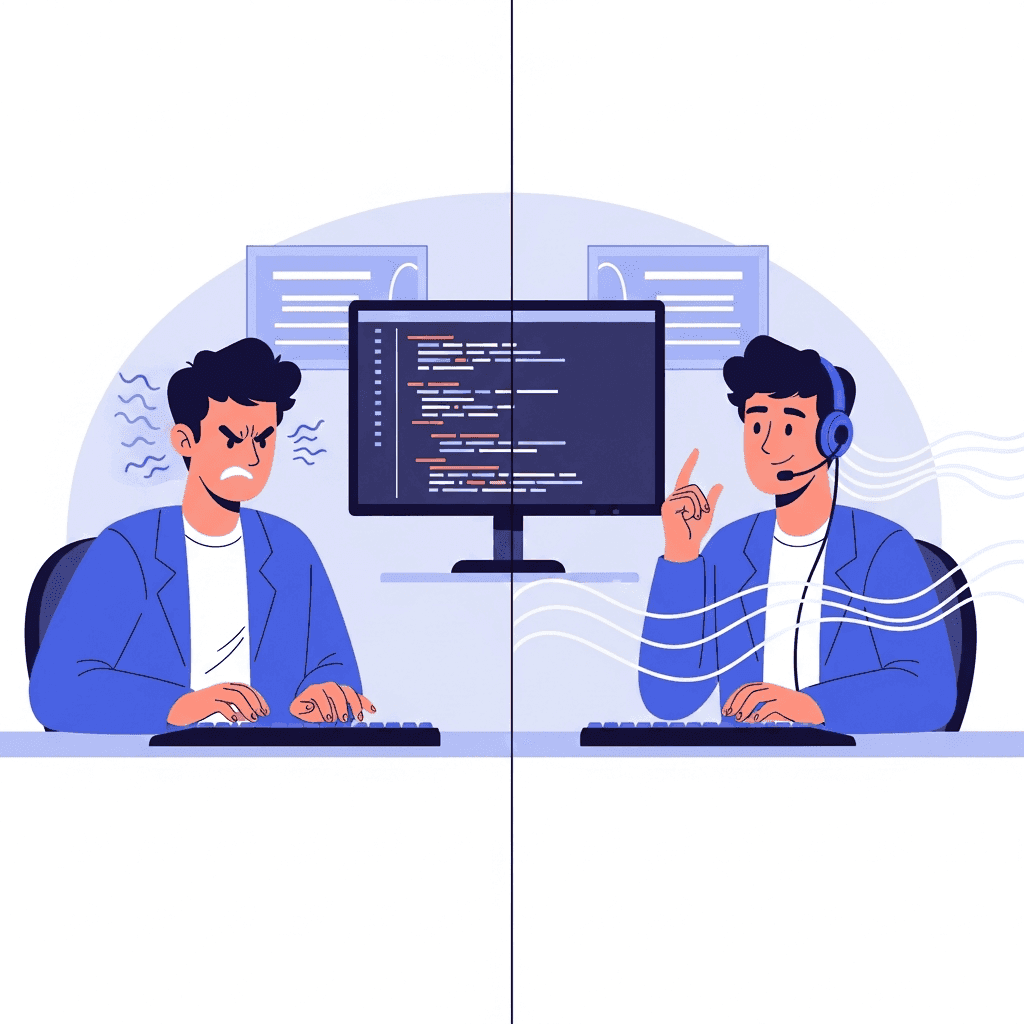
Programmers type at an average of 53.7 words per minute, while speaking lands between 120 and 150 words per minute. That's roughly a 3x gap before factoring in mental compression. Learning how to start voice coding helps build this habit. When you type, you compress your thoughts to reduce effort. When you speak, you naturally explain the why, mention edge cases, and describe the constraints. The AI gets richer context and returns a better first draft.
That completeness is the real speed gain. Fewer iterations per prompt compounds fast across a full coding day.
Agentic Engineering in Mid-2026
As 2026 progresses, the trend of vibe coding has grown up. While pure vibe coding works for quick prototypes, mature development teams now lean toward agentic engineering. This approach relies on structured plans, project-specific rule files, and automated testing before accepting any agent-generated changes.
In this environment, the quality of your prompt is everything. Gartner predicted that 40% of enterprise applications would include task-specific AI agents by the end of 2026, up from fewer than 5% in 2025, and that shift is now playing out. Speaking generates the richer, more contextual prompts that agentic engineering demands. For engineering teams where output quality is mission-critical, Willow Voice delivers the accuracy and speed required to prompt effectively across complex codebases. Over 100,000 professionals use Willow Voice for daily documentation, including teams at Uber and Reddit, as well as companies across 20% of the Fortune 500.
Willow Voice: Purpose-Built Voice Dictation for Cursor and AI Coding
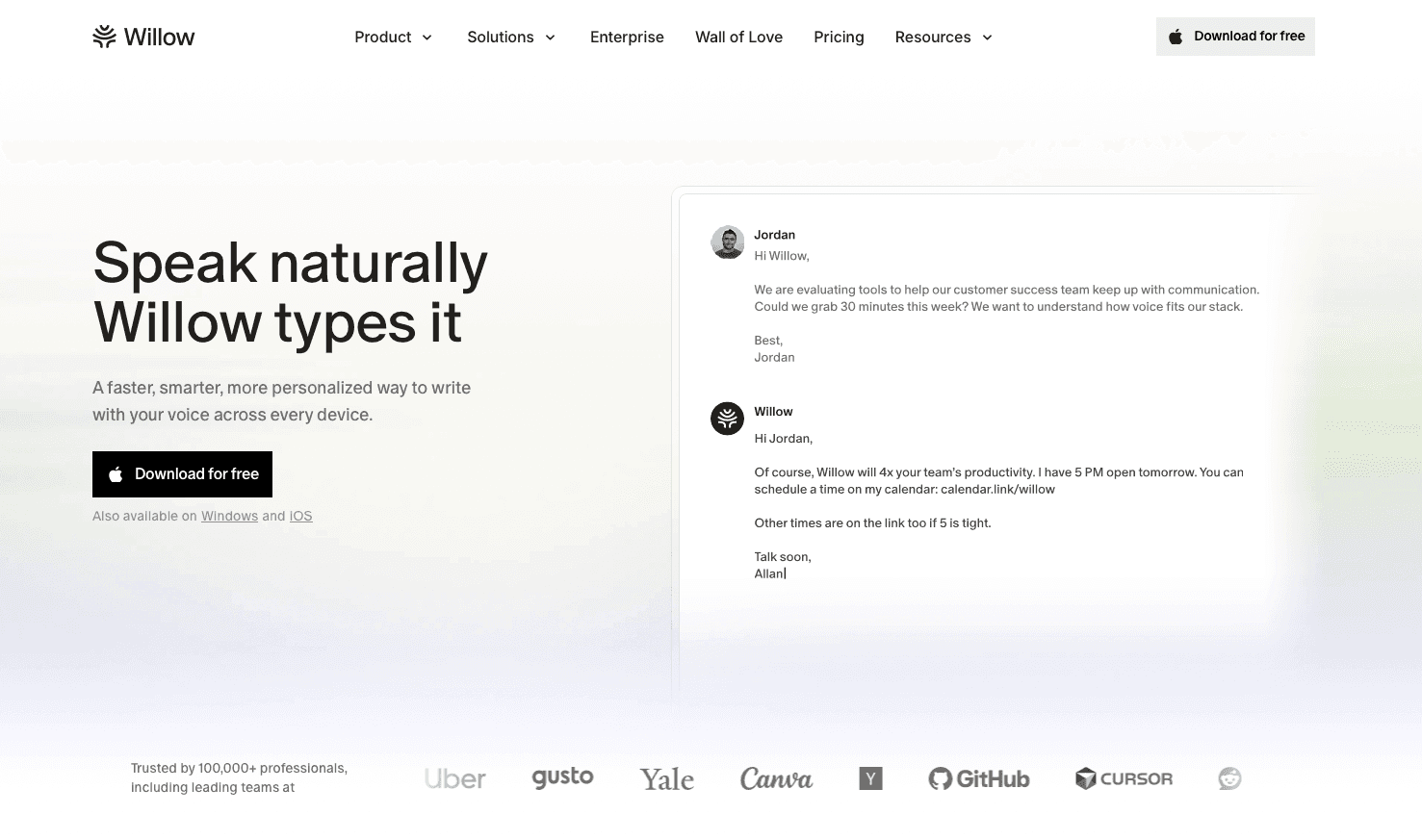
Willow Voice was built for developers using AI coding assistants across fragmented environments. Instead of relying on a microphone locked to a single chat panel, it uses one global hotkey that works across every app on Mac, Windows, and iOS. On Mac and Windows, that single hotkey activates dictation anywhere (terminal, browser, IDE, Slack) without per-app configuration. On iOS, the voice keyboard lets you speak into any app without switching keyboards, providing true desktop-to-mobile continuity for reviewing AI-generated code or writing commit messages on the go. No mic buttons to hunt for, no permissions to re-grant, no audio layer that silently fails. For a full breakdown of AI speech-to-text tools and how they compare, check out our detailed comparison guide.
Three things make it the right fit for professional coding workflows:
Team personalization: Shared dictionaries let teams trigger common phrases and boilerplate by voice without retyping. Engineering organizations use shared custom dictionaries for codebases and team-specific terminology so entire dev teams share vocabulary and shortcuts. Willow Voice learns your codebase vocabulary over time through codebase auto-tagging. In Cursor and Devin Desktop (formerly Windsurf), it pulls class names, function names, and variable references directly from open project files with no manual dictionary entry needed. This cross-device synchronization guarantees that whether a developer is at a Windows workstation or on a Mac laptop, the entire group stays aligned on technical terminology.
Speed: ~200ms latency keeps you in flow state. Wispr Flow runs at ~700ms, and Apple's native dictation is noticeably slower.
Team security: SOC 2 Type II certified and HIPAA compliant, with zero data retention architecture. Admin controls and team leaderboards give engineering leads visibility into adoption, making it ready to deploy across engineering orgs at top YC startups and companies across 20% of the Fortune 500.
For professionals and power users, the Pro plan starts at $12 per month. It offers faster, more accurate dictation plus unlimited Willow Scribe. Other plans are also available to fit organizational needs. You can also get started with the Free plan, which provides unlimited free AI dictation with no word cap and no credit card required.
FAQs
How do I fix Cursor's voice input when the microphone icon disappears?
Verify Cursor has microphone permissions in System Settings (Mac) or Privacy & Security (Windows 11), then fully restart Cursor. If that doesn't work, it's likely an issue with the browser-based audio layer Cursor relies on. Switching to an external tool like Willow Voice that operates at the OS level gives you reliable voice input across your full workflow.
What makes external voice tools faster than Cursor's built-in voice mode?
Willow Voice runs at 200ms latency compared to ~700ms for Wispr Flow and slower variable speeds for Apple's built-in dictation, so text appears nearly instantly instead of lagging behind your thoughts. That speed difference keeps you in flow state, which compounds across dozens of prompts per day.
Can I use voice input in my terminal and browser, beyond Cursor's chat?
Cursor's built-in voice only works inside the chat panel, leaving terminal, browser, GitHub, and Slack silent. Willow Voice works everywhere you type with a single hotkey (fn key by default), so you can speak in Cursor, write commit messages in terminal, draft PR descriptions in GitHub, and respond in Slack without switching tools.
Why does voice transcription keep getting my function names and library references wrong?
Standard dictation tools like Apple's built-in voice and Wispr Flow don't learn your codebase vocabulary, so they guess without project context. Willow Voice learns your project-specific terms, function names, and library references over time, getting more accurate the more you use it.
Is voice input actually faster than typing detailed AI prompts?
Speaking lands at 150 words per minute while developers type at roughly 54 words per minute, giving you a 3x speed advantage. When using tools like Willow Voice, you naturally include edge cases, constraints, and context you'd skip while typing, which means better prompts in less time and fewer iteration loops with the AI.
Does voice input work in Devin Desktop and other AI IDEs?
Yes. While built-in IDE voice tools often lock you to a single chat panel, system-wide global voice layers operate across your entire workflow. Willow Voice works natively in Devin Desktop, Claude Code, Replit, Lovable, and your terminal, letting you speak prompts anywhere with a single hotkey.
Is voice input secure for enterprise codebases?
It depends on the tool you use. Many consumer voice apps lack the compliance certifications IT departments require. Willow Voice is purpose-built for compliance-driven teams with enterprise-grade security and a zero-data-retention architecture. It holds SOC 2 Type II certification, allowing engineering teams to deploy voice tools org-wide while fitting within existing security review requirements.
How do I speak special characters and coding syntax?
Dedicated voice tools support voice commands for punctuation and structure. You can speak commands like "open parenthesis," "close bracket," "new line," or "tab" to format your output. For project-specific variables and class names, Willow Voice includes codebase auto-tagging that reads open files in supported IDEs like Cursor and Devin Desktop to learn your terminology automatically.
Can I use voice input to write code, or is it just for prompts?
Voice input is primarily used for crafting detailed natural-language prompts, providing context, and explaining edge cases to AI coding assistants. While you can speak code directly using tools like Willow Voice, speaking at 150 words per minute is most effective when explaining the architecture and logic, leaving the AI agent to generate the actual syntax.
Speed Up Your AI Coding Workflows
Typing detailed prompts slows you down enough that most developers start cutting corners, which leads to weaker outputs and more back-and-forth with the AI. Cursor voice input removes that friction inside the IDE, but professional engineering requires reliable voice everywhere you write. Willow Voice brings that consistency across your entire stack. With one hotkey, you can speak prompts at 150 words per minute in Cursor, terminal, GitHub, and Slack, backed by enterprise-grade compliance and shared team dictionaries that adapt to your codebase. Download Willow Voice for free and start speaking your prompts today.
Cursor voice input works well until you step outside the chat panel and try to use it across your full workflow in your terminal, browser, GitHub, Slack, sprint planning, and async reviews. At that point, you're back to typing at 40 words per minute while knowing you could be speaking at 150. How much that gap slows you down is a choice. This guide covers how Cursor's built-in voice works, why its microphone sometimes fails, and how to set up full-workflow tools that let enterprise engineering teams share custom codebase dictionaries while maintaining desktop-to-mobile continuity across Mac, Windows, and iOS.
TLDR:
Cursor's native voice only works in chat, leaving terminals, browsers, and PRs silent.
Speaking at 150 WPM vs. typing at 40 WPM is 3x faster for detailed AI prompts.
Cursor voice fails often due to Web Audio API bugs, which can require rechecking microphone permissions.
Dedicated coding dictation tools work everywhere across Mac, Windows, and iOS at ~200ms latency, learn your codebase, and hold SOC 2 Type II certification.
Enterprise engineering organizations use shared custom dictionaries and codebase auto-tagging to keep technical vocabulary consistent across entire dev teams.
Why Developers Choose External Voice Tools Over Built-In Options
Tool | Platforms | Latency | Works Outside Cursor | Learns Codebase | Security |
|---|---|---|---|---|---|
Willow Voice | Mac, Windows, iOS | ~200ms | Yes - every app, one hotkey | Yes - auto-tags Cursor & Devin Desktop | SOC 2 Type II, HIPAA |
Cursor Built-In | Mac, Windows, Linux | Variable / Slower | No - chat panel only | No | Not specified |
superwhisper | Mac, Windows, iOS | Varies by model and hardware | Yes - OS-level | No | SOC 2 Type II, HIPAA |
Apple Dictation | Mac, iOS | 700ms+ | Yes - OS-level | No | Basic OS privacy |
Wispr Flow | Mac, iOS (Windows in limited rollout) | ~700ms | Yes - OS-level | No | HIPAA/SOC 2 on certain plans |
Built-in voice handles the basics. External tools handle the real job. Three things separate them:
Technical vocabulary: Dedicated tools learn your codebase over time, getting more accurate for your specific stack and terminology. Built-in options like Apple's native dictation and Wispr Flow lack IDE-specific awareness and codebase context to draw on.
Speed: Willow runs at 200ms latency. In comparison, Wispr Flow runs at ~700ms, and Apple's native dictation is noticeably slower, which breaks your focus every single time you speak.
Scope: A developer's workflow spans terminal, browser, GitHub, Slack, and more. One hotkey that works everywhere beats a mic button locked to a single window. For a full comparison, check out the best vibe coding tools.
As guides on voice prompting in Cursor note, speaking can be several times faster than typing a detailed prompt, and that gap widens when prompts include edge cases and architecture context.
Understanding Voice Input for Cursor AI Editor
Cursor introduced native voice features in 2025 and released major upgrades throughout 2026, changing how developers think about prompting. In an AI-driven IDE, most of your time goes into writing instructions, not code. A vague prompt gets mediocre output. A detailed one ships. Typing detailed prompts is slow enough that most developers cut corners.
Voice input solves that bottleneck. Speaking at 150 words per minute versus typing at 40 words per minute is a real gap. Because developers, PMs, and engineers work across a fragmented setup (switching between Cursor, Claude Code, and terminal workflows), native IDE dictation creates a silo. To break this ceiling, developers are increasingly reaching for system-wide voice layers like Wispr Flow or Willow Voice to maintain a unified, fast prompting experience across their entire workflow.
How Cursor 3.1 Built-In Voice Mode Works
Cursor 3.1's voice mode is straightforward to activate, featuring a new recording UI and batch speech-to-text. A microphone icon sits in the chat input area, or you can press Ctrl+M to speak. Click it, grant microphone permissions when prompted, and you're in push-to-talk mode. Hold to speak, release to transcribe, and your prompt drops directly into the agent input.
For quick, single-turn prompts, it works. The mic only works inside Cursor's chat input, though. Terminal, browser, PR descriptions, and issue tickets are all left out. Transcription accuracy lags behind dedicated tools, and there's no custom vocabulary for your codebase.
What the Built-In Voice Mode Cannot Do
It only captures input inside the Cursor chat window, leaving your terminal, browser, PR descriptions, sprint tickets, and async Slack messages without voice support.
There is no way to teach it project-specific terms, function names, or library references, and it lacks shared custom dictionaries that let entire dev teams standardize vocabulary.
Latency is noticeably slower than dedicated dictation tools, which breaks your focus when you have to wait for text to catch up.
Common Issues: Why Cursor Voice Input Stops Working
Cursor's voice input can stop working in some cases. A common cause is issues with the browser-based audio layer Cursor relies on, where the internal browser layer loses microphone access. The mic icon either disappears after you type or stops responding without any error message.
Before assuming it's broken permanently, run through these checks:
Verify microphone permissions in System Settings (Mac) or Privacy & Security settings (Windows 11) to confirm Cursor has access at the OS level.
Confirm you're on the latest Cursor version, since older builds have known audio API conflicts that newer releases may patch.
Restart Cursor fully after granting permissions (the entire app, never only the window) as partial restarts often fail to reinitialize the audio layer.
Check that no other app has exclusive mic access, which can silently block Cursor from capturing input at all.
If none of that works, you're not alone. Cursor's forum thread on voice failures shows this is a recurring issue without a single consistent fix. The practical move is switching to an external dictation tool that works regardless of Cursor's internal audio layer.
How to Set Up Voice Input for Cursor AI
Voice Input on Mac for Cursor
Getting voice running on Mac starts in System Settings > Privacy & Security > Microphone. Confirm Cursor is toggled on, or the mic icon will appear but never activate. On Apple Silicon, transcription is snappier than on Intel builds.
Mac developers tend to outgrow the built-in option fast. Your coding day spans Cursor, terminal, browser, GitHub, and Slack. A mic that only works in one chat panel covers maybe 20% of where you actually type prompts.
Voice Input on Windows 11 for Cursor
Because Windows is the primary operating system for many enterprise engineering environments, reliable voice support is a deployment prerequisite instead of a convenience feature. Windows 11 requires two toggles: go to Settings > Privacy & Security > Microphone, turn on "Let apps access your microphone," then scroll down and confirm Cursor has permission. Without both active, the mic icon silently fails. Realtek audio drivers can sometimes conflict with Chromium-based audio APIs. If voice stops working after a Windows update, rolling back or updating the driver is often the fix.
WSL users hit a separate issue: voice input does not carry across the WSL boundary. The same challenge exists when using voice dictation in VS Code with WSL.
Willow Voice for Full-Workflow Voice (Mac & Windows)
A cross-platform tool like Willow Voice sidesteps OS-level and WSL boundaries. Because Windows is a deployment prerequisite for enterprise engineering organizations, Willow offers full feature parity on Windows 11, letting you drop text directly into WSL terminals. It installs natively on both Mac and Windows and works everywhere you type with a single hotkey. Setup takes under two minutes:
Download and install Willow from willowvoice.com
Grant microphone access in System Settings (Mac) or Privacy & Security (Windows)
Set your activation hotkey (default is fn on Mac, Alt+Space on Windows; reassign to any key combination you prefer)
Start speaking in Cursor, WSL, terminal, browser, or anywhere else instantly
Once running, Willow Voice automatically picks up your codebase vocabulary, including variable names, function names, and library references, so you stop correcting transcription errors mid-prompt. At ~200ms latency, it's faster than Cursor's built-in option, 3x more accurate than Apple's native dictation, and 2x more accurate than Wispr Flow. For mixed-device teams, custom vocabulary settings sync across Mac, Windows, and iOS devices automatically, providing desktop-to-mobile continuity so developers get consistent accuracy whether they are at a workstation or drafting PR reviews on their phone.
Speed Comparison: Voice vs. Typing for AI Prompting
Programmers type at an average of 53.7 words per minute, while speaking lands between 120 and 150 words per minute. That's roughly a 3x gap before factoring in mental compression. Learning how to start voice coding helps build this habit. When you type, you compress your thoughts to reduce effort. When you speak, you naturally explain the why, mention edge cases, and describe the constraints. The AI gets richer context and returns a better first draft.
That completeness is the real speed gain. Fewer iterations per prompt compounds fast across a full coding day.
Agentic Engineering in Mid-2026
As 2026 progresses, the trend of vibe coding has grown up. While pure vibe coding works for quick prototypes, mature development teams now lean toward agentic engineering. This approach relies on structured plans, project-specific rule files, and automated testing before accepting any agent-generated changes.
In this environment, the quality of your prompt is everything. Gartner predicted that 40% of enterprise applications would include task-specific AI agents by the end of 2026, up from fewer than 5% in 2025, and that shift is now playing out. Speaking generates the richer, more contextual prompts that agentic engineering demands. For engineering teams where output quality is mission-critical, Willow Voice delivers the accuracy and speed required to prompt effectively across complex codebases. Over 100,000 professionals use Willow Voice for daily documentation, including teams at Uber and Reddit, as well as companies across 20% of the Fortune 500.
Willow Voice: Purpose-Built Voice Dictation for Cursor and AI Coding
Willow Voice was built for developers using AI coding assistants across fragmented environments. Instead of relying on a microphone locked to a single chat panel, it uses one global hotkey that works across every app on Mac, Windows, and iOS. On Mac and Windows, that single hotkey activates dictation anywhere (terminal, browser, IDE, Slack) without per-app configuration. On iOS, the voice keyboard lets you speak into any app without switching keyboards, providing true desktop-to-mobile continuity for reviewing AI-generated code or writing commit messages on the go. No mic buttons to hunt for, no permissions to re-grant, no audio layer that silently fails. For a full breakdown of AI speech-to-text tools and how they compare, check out our detailed comparison guide.
Three things make it the right fit for professional coding workflows:
Team personalization: Shared dictionaries let teams trigger common phrases and boilerplate by voice without retyping. Engineering organizations use shared custom dictionaries for codebases and team-specific terminology so entire dev teams share vocabulary and shortcuts. Willow Voice learns your codebase vocabulary over time through codebase auto-tagging. In Cursor and Devin Desktop (formerly Windsurf), it pulls class names, function names, and variable references directly from open project files with no manual dictionary entry needed. This cross-device synchronization guarantees that whether a developer is at a Windows workstation or on a Mac laptop, the entire group stays aligned on technical terminology.
Speed: ~200ms latency keeps you in flow state. Wispr Flow runs at ~700ms, and Apple's native dictation is noticeably slower.
Team security: SOC 2 Type II certified and HIPAA compliant, with zero data retention architecture. Admin controls and team leaderboards give engineering leads visibility into adoption, making it ready to deploy across engineering orgs at top YC startups and companies across 20% of the Fortune 500.
For professionals and power users, the Pro plan starts at $12 per month. It offers faster, more accurate dictation plus unlimited Willow Scribe. Other plans are also available to fit organizational needs. You can also get started with the Free plan, which provides unlimited free AI dictation with no word cap and no credit card required.
FAQs
How do I fix Cursor's voice input when the microphone icon disappears?
Verify Cursor has microphone permissions in System Settings (Mac) or Privacy & Security (Windows 11), then fully restart Cursor. If that doesn't work, it's likely an issue with the browser-based audio layer Cursor relies on. Switching to an external tool like Willow Voice that operates at the OS level gives you reliable voice input across your full workflow.
What makes external voice tools faster than Cursor's built-in voice mode?
Willow Voice runs at 200ms latency compared to ~700ms for Wispr Flow and slower variable speeds for Apple's built-in dictation, so text appears nearly instantly instead of lagging behind your thoughts. That speed difference keeps you in flow state, which compounds across dozens of prompts per day.
Can I use voice input in my terminal and browser, beyond Cursor's chat?
Cursor's built-in voice only works inside the chat panel, leaving terminal, browser, GitHub, and Slack silent. Willow Voice works everywhere you type with a single hotkey (fn key by default), so you can speak in Cursor, write commit messages in terminal, draft PR descriptions in GitHub, and respond in Slack without switching tools.
Why does voice transcription keep getting my function names and library references wrong?
Standard dictation tools like Apple's built-in voice and Wispr Flow don't learn your codebase vocabulary, so they guess without project context. Willow Voice learns your project-specific terms, function names, and library references over time, getting more accurate the more you use it.
Is voice input actually faster than typing detailed AI prompts?
Speaking lands at 150 words per minute while developers type at roughly 54 words per minute, giving you a 3x speed advantage. When using tools like Willow Voice, you naturally include edge cases, constraints, and context you'd skip while typing, which means better prompts in less time and fewer iteration loops with the AI.
Does voice input work in Devin Desktop and other AI IDEs?
Yes. While built-in IDE voice tools often lock you to a single chat panel, system-wide global voice layers operate across your entire workflow. Willow Voice works natively in Devin Desktop, Claude Code, Replit, Lovable, and your terminal, letting you speak prompts anywhere with a single hotkey.
Is voice input secure for enterprise codebases?
It depends on the tool you use. Many consumer voice apps lack the compliance certifications IT departments require. Willow Voice is purpose-built for compliance-driven teams with enterprise-grade security and a zero-data-retention architecture. It holds SOC 2 Type II certification, allowing engineering teams to deploy voice tools org-wide while fitting within existing security review requirements.
How do I speak special characters and coding syntax?
Dedicated voice tools support voice commands for punctuation and structure. You can speak commands like "open parenthesis," "close bracket," "new line," or "tab" to format your output. For project-specific variables and class names, Willow Voice includes codebase auto-tagging that reads open files in supported IDEs like Cursor and Devin Desktop to learn your terminology automatically.
Can I use voice input to write code, or is it just for prompts?
Voice input is primarily used for crafting detailed natural-language prompts, providing context, and explaining edge cases to AI coding assistants. While you can speak code directly using tools like Willow Voice, speaking at 150 words per minute is most effective when explaining the architecture and logic, leaving the AI agent to generate the actual syntax.
Speed Up Your AI Coding Workflows
Typing detailed prompts slows you down enough that most developers start cutting corners, which leads to weaker outputs and more back-and-forth with the AI. Cursor voice input removes that friction inside the IDE, but professional engineering requires reliable voice everywhere you write. Willow Voice brings that consistency across your entire stack. With one hotkey, you can speak prompts at 150 words per minute in Cursor, terminal, GitHub, and Slack, backed by enterprise-grade compliance and shared team dictionaries that adapt to your codebase. Download Willow Voice for free and start speaking your prompts today.

Try Willow for free
Instant, accurate voice dictation. No card required.
Try Willow for free
Instant, accurate voice dictation. No card required.
Other stories you’ll love
Other stories you’ll love


Your keyboard is optional now
" transform="translate(5 5)" width="9.791000051498413px"/></svg>)

The voice-first interface for modern work.
© Willow Care, Inc. 2026. All rights reserved
Your keyboard is optional now
The voice-first interface for modern work.
© Willow Care, Inc. 2026. All rights reserved
Your keyboard is optional now
The voice-first interface for modern work.
© Willow Care, Inc. 2026. All rights reserved