" transform="translate(5 2)" width="10px"/></svg>)

•
5 min read
Best Speech-to-Text Tools for Quiet Environments and Whisper Mode (January 2026)

•
5 min read
Best Speech-to-Text Tools for Quiet Environments and Whisper Mode (January 2026)
Whispering to your laptop shouldn’t feel like trying to reason with a brick wall, yet that’s exactly how most dictation tools behave when your voice drops below normal conversation levels. In a coffee shop, shared office, or quiet home workspace, speaking softly often leads to dropped words, garbled phrases, or complete transcription failures, because true low-volume voice typing requires acoustic modeling that most software simply doesn’t get right. After putting the best speech-to-text tools to the test, we set out to see which tools can actually hear you when you’re barely above a whisper.
TLDR:
Quiet Mode tools let you whisper or speak softly for dictation in shared spaces like offices and cafes.
Many dictation software tools struggle at low volumes, requiring normal speaking volume to work properly.
Leading quiet-mode solutions offer dedicated whisper recognition with background noise filtering.
Standard tools like Apple Dictation and Google Docs struggle with quiet speech and ambient noise.
Quiet-optimized tools deliver sub-200 millsecond speed and maintain accuracy at whisper levels.
What Are Speech-to-Text Tools for Quiet Environments?
Speech-to-text tools for quiet environments are voice recognition systems built to transcribe whispered or softly spoken words. Standard dictation software requires clear, projected speech and struggles with low-volume input, often producing garbled text or failing to register speech entirely.
These specialized tools use acoustic modeling trained on datasets containing whispered and soft-spoken audio. They detect subtle vocal variations and breathing patterns that occur during quiet speech while filtering out ambient sounds.
This matters if you work in shared offices, libraries, coffee shops, or anywhere normal speaking volume would disrupt others. You'll find these tools useful for discrete dictation during meetings, writing in noise-sensitive spaces, or situations where privacy matters and you don't want others overhearing your words.
How We Ranked Speech-to-Text Tools for Quiet Environments
We tested each tool against criteria that matter for soft-spoken and whispered dictation:
Quiet Voice Recognition Accuracy: How well each tool transcribes whispered or soft speech compared to normal volume. We assessed quality of speech recognition during low-volume conditions using public benchmarks and user reports.
Background Noise Filtering: The ability to isolate your quiet voice from ambient sounds like typing, HVAC systems, or distant conversations.
Whisper Mode Availability: Whether the tool offers a dedicated quiet mode or setting optimized for low-volume input.
Universal App Compatibility: If it works across email clients, messaging apps, documents, and browsers instead of limiting you to specific applications.
Processing Speed: How quickly transcription appears when speaking softly, since delayed feedback makes quiet dictation harder to use naturally.
Privacy and Security: Whether your voice data is stored, shared, or used for training.
Ease of Use: Simple activation and setup without complex calibration or training sessions.
Willow
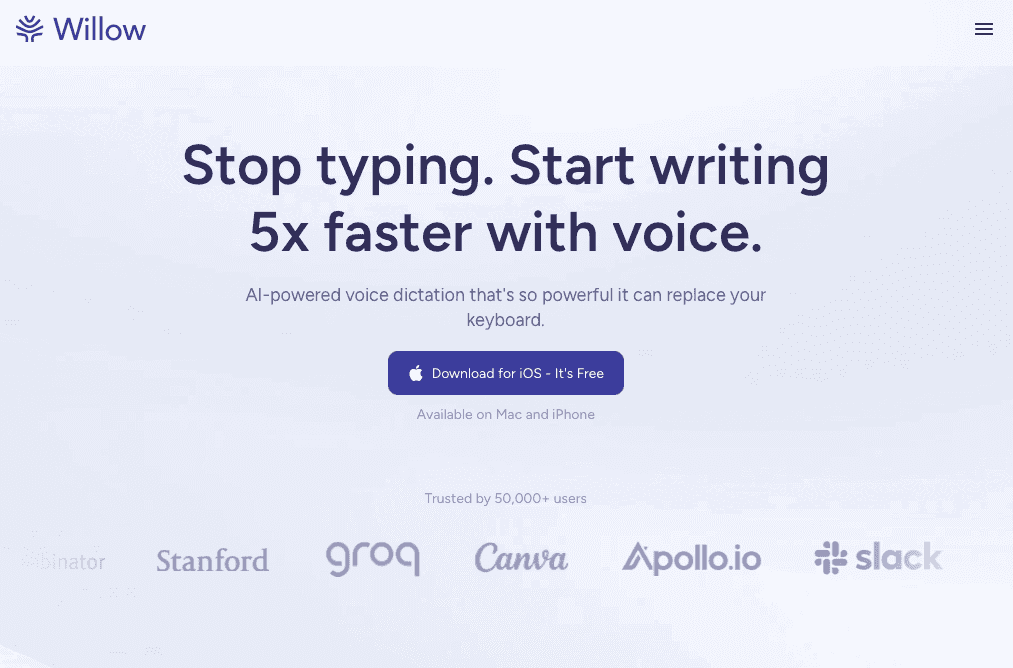
Willow's Quiet Mode optimizes for whisper-level and soft-spoken input. The system maintains accuracy when you lower your voice, unlike tools that require normal speaking volume.
Background noise filtering isolates quiet speech from ambient sounds in coffee shops, open offices, or shared workspaces. Context-aware AI recognizes technical terms and professional language at low volumes, reducing corrections for names, jargon, or specialized vocabulary.
Universal Compatibility
Press the Function key to whisper into any application:
Gmail and Outlook for email composition
Slack and Teams for messaging
Notion, Google Docs, and Word for document writing
Cursor, VS Code, and development environments for coding
Sub-200 millisecond processing delivers near-instant transcription, maintaining natural flow without lag between speech and text appearance. Available across Mac, Windows, and iOS, Willow works wherever you do. The iOS version functions as a custom voice keyboard, letting you dictate into any app while seamlessly switching between voice and text input without reverting to Apple's default keyboard.
Dragon

Dragon requires specific microphone positioning and controlled environments to maintain accuracy. The system needs several hours of voice profile training, with users reading provided scripts so Dragon learns their pronunciation patterns.
The software includes voice profile-based learning, application-specific compatibility modules for Microsoft Office, custom command creation, and professional vocabulary training. This works well if you're dictating in Microsoft Word, Excel, or Outlook and can invest time building a detailed voice profile.
Dragon struggles with background noise and appears to have limited support for whisper or very low-volume input. The system expects normal speaking volume with consistent microphone distance, making it unsuitable for quiet voice dictation or whisper-level scenarios.
Apple Dictation
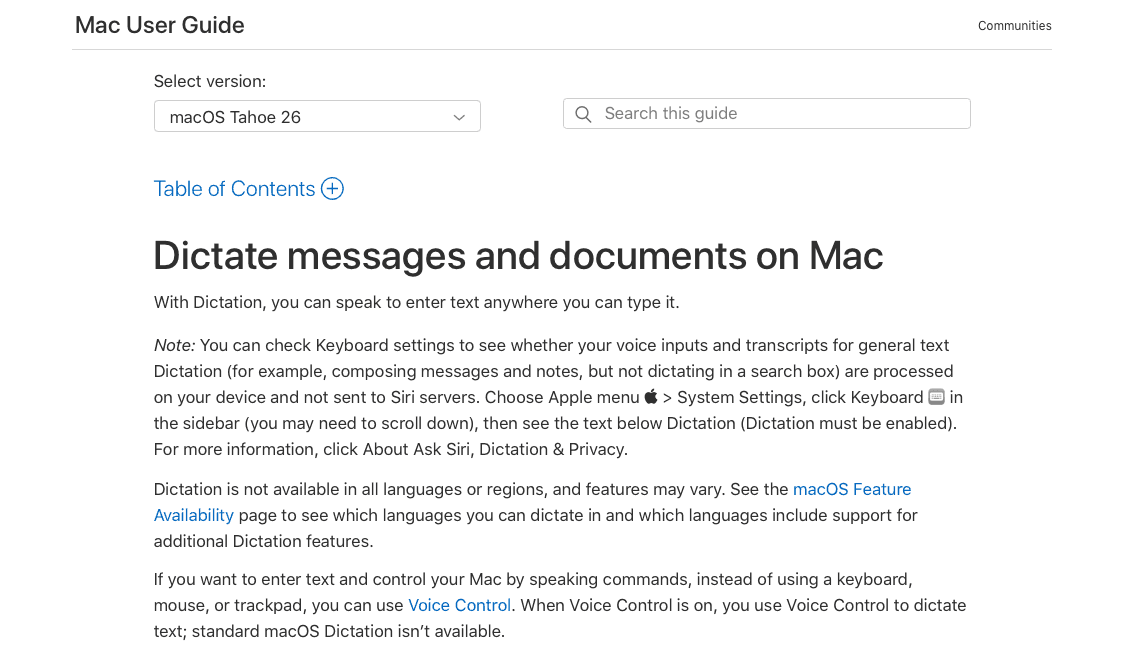
Apple's built-in dictation comes free with every Mac and iPhone, accessible through keyboard shortcuts or the microphone button. The system works in quiet settings but produces errors that take longer to fix than typing manually.
Enhanced Dictation allows offline use and includes basic voice commands for punctuation across 66 language options.
The system generally does not recognize whispered speech reliably, making it ineffective for low-volume dictation.
Microsoft Word Dictation
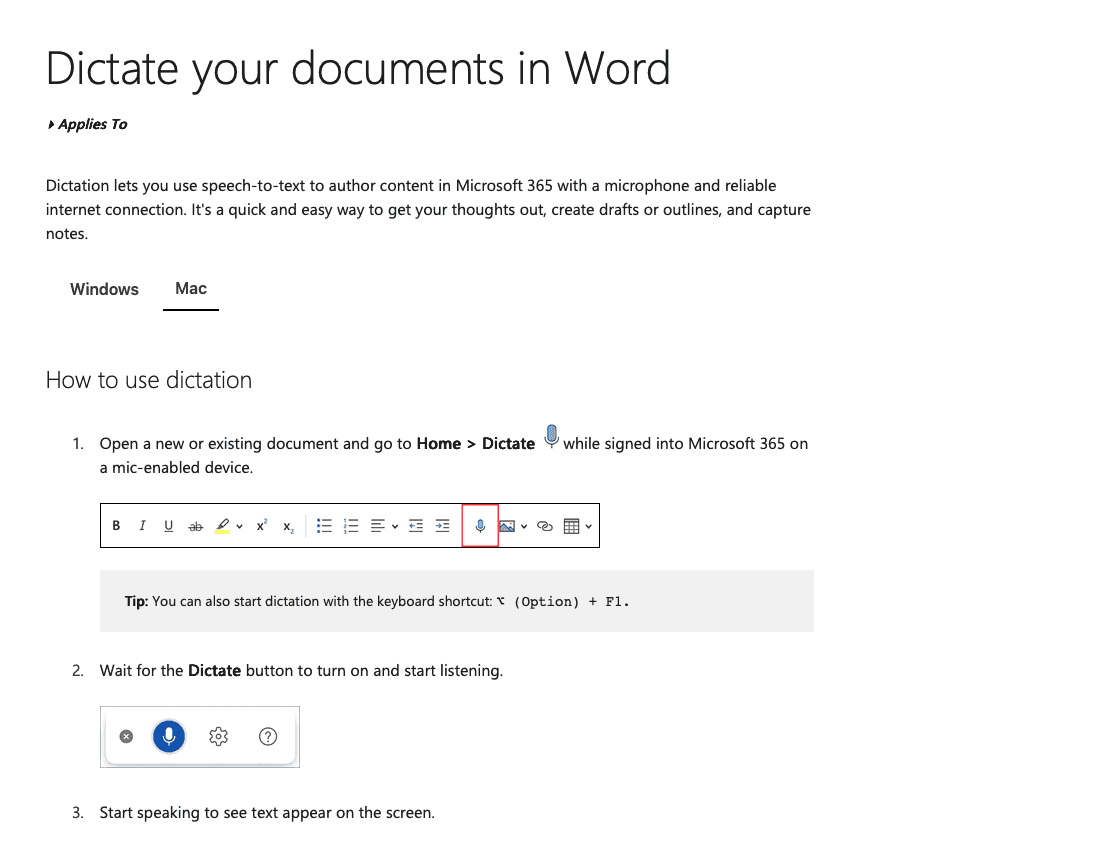
Microsoft Word's built-in dictation converts spoken words directly into documents through cloud-based voice recognition. Available to Microsoft 365 subscribers at no additional cost, the feature requires stable internet and proper microphone setup.
The system includes Office 365 integration, multi-language support, and voice commands for formatting like "new paragraph" or "delete that." You can activate dictation through the Home tab or keyboard shortcuts.
The tool struggles with background noise and requires clear speech to maintain accuracy. The system times out during longer writing sessions, interrupting your workflow. Word dictation doesn't include whisper mode or quiet voice optimization, making it ineffective for low-volume scenarios.
Suitable for basic document creation when you speak at normal volume, but it lacks the specialized quiet mode functionality needed for whisper-level dictation.
Google Docs Voice Typing
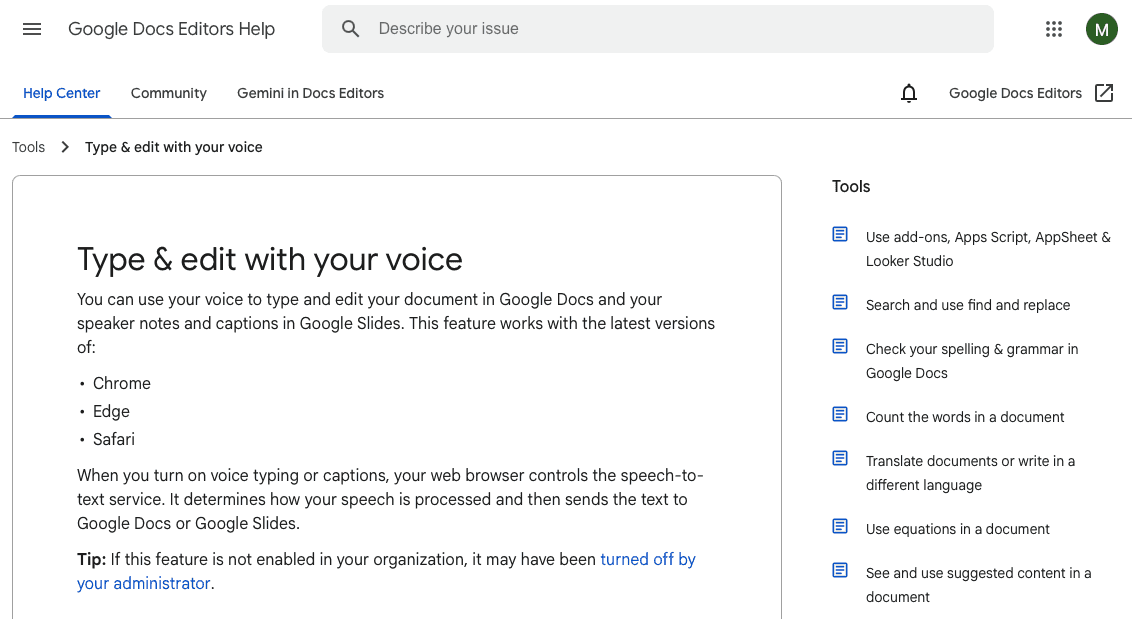
Google Docs voice typing works for basic transcription in quiet rooms. Background noise drops accuracy fast. Open offices and cafés create enough ambient sound to disrupt recognition.
Browser-based dictation in Chrome at no cost with real-time transcription. Voice commands handle formatting like punctuation and lists. Multi-language support covers dozens of languages.
Useful for drafting documents at home in silent rooms. Accuracy falls within 85–95% under ideal conditions with clear, normal-volume speech.
Requires normal speaking volume. Whispering produces garbled text or no recognition. Background conversations, typing sounds, or HVAC noise reduce accuracy enough to make manual editing slower than typing.
The browser-only limitation blocks use in email clients, messaging apps, or other writing environments.
Adequate for Google Docs users with silent workspaces. Noise sensitivity and missing whisper recognition make it impractical for shared spaces or discrete dictation where you need to keep your voice down.
Wispr Flow
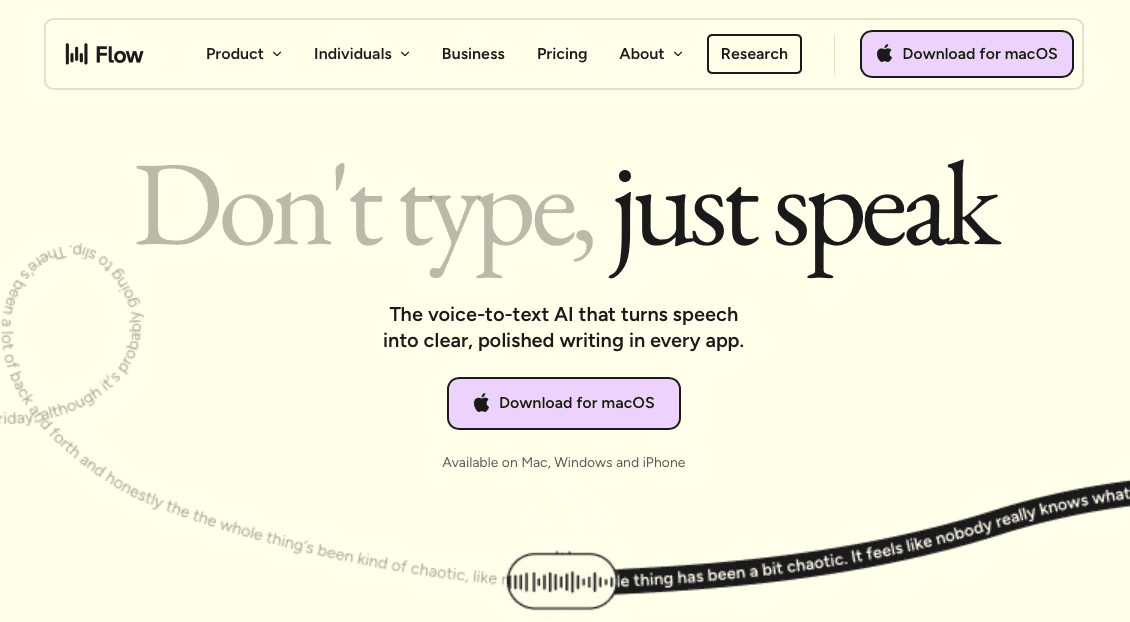
Wispr Flow includes dedicated Whisper Mode that recognizes and transcribes quietly spoken words. The acoustic modeling handles whisper-level input where other dictation tools require normal volume.
The system provides whisper recognition, AI-powered real-time editing that removes filler words and fixes formatting, universal app compatibility, and context-aware tone adjustment based on your typing location.
Best for professionals in open offices, libraries, public transportation, and shared workspaces where normal speaking volume would disturb others.
Wispr Flow depends on an active internet connection. Cloud-based processing may stop dictation completely if connectivity drops, which can be challenging for frequent travelers or in areas with unstable connections.
The dedicated whisper recognition works well for quiet environments, but internet dependency creates reliability concerns for consistent professional use.
Why Willow Is the Best Speech-to-Text Tool for Quiet Environments
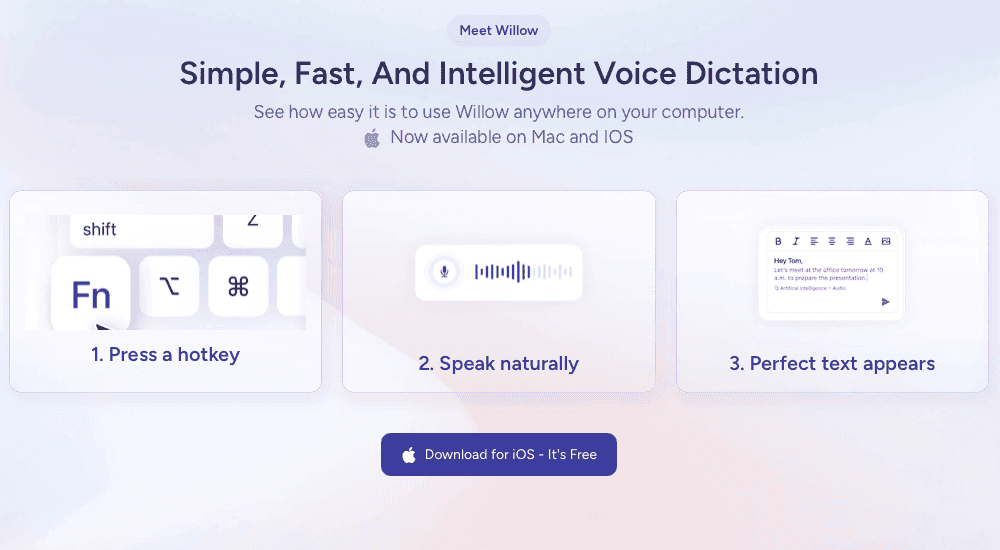
Willow solves the core problem that makes most dictation software unreliable in quiet settings: they require a normal speaking volume to perform well. Quiet Mode is built to pick up whispers and soft speech while filtering out background sounds in offices, libraries, classrooms, planes, and other shared spaces where talking out loud isn’t practical.
Many voice tools expect clear, strong audio to work properly. Willow takes a different approach. Its speech engine is tuned to understand low-volume input without pulling in room noise, allowing you to speak softly without sacrificing accuracy or privacy.
Willow also works anywhere you type on your Mac. With Quiet Mode active, Willow’s context-aware AI uses what’s on your screen to correctly interpret acronyms, technical language, product names, and industry terms, even when you say them under your breath. This cuts down on the rewriting and manual corrections that slow down tools like Google Docs or built-in dictation options.
Unlike cloud-dependent competitors, Willow also offers Offline Mode for users who need fully private, local dictation without an internet connection. This ensures you can continue working even when connectivity drops, combining the speed of cloud processing with the reliability of local models.
Soft dictation also adds a layer of privacy: people around you hear far less, but Willow still captures what you say with clarity. For founders, developers, students, and professionals who often work around others, Quiet Mode allows quick writing without disrupting anyone nearby.
Willow is SOC 2 and HIPAA compliant with zero data retention policies, making it suitable for healthcare professionals and enterprise users who require strict privacy standards, a level of security that free tools and basic competitors simply don't offer.
Combined with Willow’s hotkey activation, custom dictionaries, smart formatting, noise filtering, and a large accuracy advantage over built-in dictation tools, Quiet Mode creates a reliable way to write quickly in places where most speech tools fall apart.
FAQs
How do I use speech-to-text tools when I need to speak quietly?
Look for tools with dedicated Quiet Mode or whisper recognition features that can accurately transcribe soft-spoken or whispered speech. Most standard dictation software requires normal speaking volume and will produce errors or fail to register quiet speech at all.
What's the main difference between Willow and Wispr Flow for quiet dictation?
Both offer whisper recognition, but Willow works across all applications with sub-200 millisecond processing, while Wispr Flow depends on an active internet connection and may stop working completely if connectivity drops.
When should I consider switching from free dictation tools to a paid option?
If you regularly work in quiet environments where normal speaking volume would disturb others, or if you're spending more time correcting transcription errors than you would typing manually, a specialized quiet mode tool will save you time.
Why does background noise affect some speech-to-text tools more than others?
Tools without dedicated noise filtering struggle to isolate your voice from ambient sounds like typing, HVAC systems, or conversations, causing accuracy to drop considerably in shared workspaces or coffee shops.
Final thoughts on finding the right quiet dictation tool
The real difference between quiet speech-to-text tools comes down to whether they can truly understand whispered or soft speech, and most can’t. Low-volume voice typing with Willow stays accurate even when you speak barely above a whisper, thanks to advanced acoustic modeling and noise filtering that keep transcripts clean in cafés, open offices, and other shared spaces. While typical dictation software still forces you to raise your voice, Willow lets you work discreetly and naturally wherever you are. If you're looking for a tool built precisely for quiet environments, you can learn about it through Willow.
Whispering to your laptop shouldn’t feel like trying to reason with a brick wall, yet that’s exactly how most dictation tools behave when your voice drops below normal conversation levels. In a coffee shop, shared office, or quiet home workspace, speaking softly often leads to dropped words, garbled phrases, or complete transcription failures, because true low-volume voice typing requires acoustic modeling that most software simply doesn’t get right. After putting the best speech-to-text tools to the test, we set out to see which tools can actually hear you when you’re barely above a whisper.
TLDR:
Quiet Mode tools let you whisper or speak softly for dictation in shared spaces like offices and cafes.
Many dictation software tools struggle at low volumes, requiring normal speaking volume to work properly.
Leading quiet-mode solutions offer dedicated whisper recognition with background noise filtering.
Standard tools like Apple Dictation and Google Docs struggle with quiet speech and ambient noise.
Quiet-optimized tools deliver sub-200 millsecond speed and maintain accuracy at whisper levels.
What Are Speech-to-Text Tools for Quiet Environments?
Speech-to-text tools for quiet environments are voice recognition systems built to transcribe whispered or softly spoken words. Standard dictation software requires clear, projected speech and struggles with low-volume input, often producing garbled text or failing to register speech entirely.
These specialized tools use acoustic modeling trained on datasets containing whispered and soft-spoken audio. They detect subtle vocal variations and breathing patterns that occur during quiet speech while filtering out ambient sounds.
This matters if you work in shared offices, libraries, coffee shops, or anywhere normal speaking volume would disrupt others. You'll find these tools useful for discrete dictation during meetings, writing in noise-sensitive spaces, or situations where privacy matters and you don't want others overhearing your words.
How We Ranked Speech-to-Text Tools for Quiet Environments
We tested each tool against criteria that matter for soft-spoken and whispered dictation:
Quiet Voice Recognition Accuracy: How well each tool transcribes whispered or soft speech compared to normal volume. We assessed quality of speech recognition during low-volume conditions using public benchmarks and user reports.
Background Noise Filtering: The ability to isolate your quiet voice from ambient sounds like typing, HVAC systems, or distant conversations.
Whisper Mode Availability: Whether the tool offers a dedicated quiet mode or setting optimized for low-volume input.
Universal App Compatibility: If it works across email clients, messaging apps, documents, and browsers instead of limiting you to specific applications.
Processing Speed: How quickly transcription appears when speaking softly, since delayed feedback makes quiet dictation harder to use naturally.
Privacy and Security: Whether your voice data is stored, shared, or used for training.
Ease of Use: Simple activation and setup without complex calibration or training sessions.
Willow
Willow's Quiet Mode optimizes for whisper-level and soft-spoken input. The system maintains accuracy when you lower your voice, unlike tools that require normal speaking volume.
Background noise filtering isolates quiet speech from ambient sounds in coffee shops, open offices, or shared workspaces. Context-aware AI recognizes technical terms and professional language at low volumes, reducing corrections for names, jargon, or specialized vocabulary.
Universal Compatibility
Press the Function key to whisper into any application:
Gmail and Outlook for email composition
Slack and Teams for messaging
Notion, Google Docs, and Word for document writing
Cursor, VS Code, and development environments for coding
Sub-200 millisecond processing delivers near-instant transcription, maintaining natural flow without lag between speech and text appearance. Available across Mac, Windows, and iOS, Willow works wherever you do. The iOS version functions as a custom voice keyboard, letting you dictate into any app while seamlessly switching between voice and text input without reverting to Apple's default keyboard.
Dragon
Dragon requires specific microphone positioning and controlled environments to maintain accuracy. The system needs several hours of voice profile training, with users reading provided scripts so Dragon learns their pronunciation patterns.
The software includes voice profile-based learning, application-specific compatibility modules for Microsoft Office, custom command creation, and professional vocabulary training. This works well if you're dictating in Microsoft Word, Excel, or Outlook and can invest time building a detailed voice profile.
Dragon struggles with background noise and appears to have limited support for whisper or very low-volume input. The system expects normal speaking volume with consistent microphone distance, making it unsuitable for quiet voice dictation or whisper-level scenarios.
Apple Dictation
Apple's built-in dictation comes free with every Mac and iPhone, accessible through keyboard shortcuts or the microphone button. The system works in quiet settings but produces errors that take longer to fix than typing manually.
Enhanced Dictation allows offline use and includes basic voice commands for punctuation across 66 language options.
The system generally does not recognize whispered speech reliably, making it ineffective for low-volume dictation.
Microsoft Word Dictation
Microsoft Word's built-in dictation converts spoken words directly into documents through cloud-based voice recognition. Available to Microsoft 365 subscribers at no additional cost, the feature requires stable internet and proper microphone setup.
The system includes Office 365 integration, multi-language support, and voice commands for formatting like "new paragraph" or "delete that." You can activate dictation through the Home tab or keyboard shortcuts.
The tool struggles with background noise and requires clear speech to maintain accuracy. The system times out during longer writing sessions, interrupting your workflow. Word dictation doesn't include whisper mode or quiet voice optimization, making it ineffective for low-volume scenarios.
Suitable for basic document creation when you speak at normal volume, but it lacks the specialized quiet mode functionality needed for whisper-level dictation.
Google Docs Voice Typing
Google Docs voice typing works for basic transcription in quiet rooms. Background noise drops accuracy fast. Open offices and cafés create enough ambient sound to disrupt recognition.
Browser-based dictation in Chrome at no cost with real-time transcription. Voice commands handle formatting like punctuation and lists. Multi-language support covers dozens of languages.
Useful for drafting documents at home in silent rooms. Accuracy falls within 85–95% under ideal conditions with clear, normal-volume speech.
Requires normal speaking volume. Whispering produces garbled text or no recognition. Background conversations, typing sounds, or HVAC noise reduce accuracy enough to make manual editing slower than typing.
The browser-only limitation blocks use in email clients, messaging apps, or other writing environments.
Adequate for Google Docs users with silent workspaces. Noise sensitivity and missing whisper recognition make it impractical for shared spaces or discrete dictation where you need to keep your voice down.
Wispr Flow
Wispr Flow includes dedicated Whisper Mode that recognizes and transcribes quietly spoken words. The acoustic modeling handles whisper-level input where other dictation tools require normal volume.
The system provides whisper recognition, AI-powered real-time editing that removes filler words and fixes formatting, universal app compatibility, and context-aware tone adjustment based on your typing location.
Best for professionals in open offices, libraries, public transportation, and shared workspaces where normal speaking volume would disturb others.
Wispr Flow depends on an active internet connection. Cloud-based processing may stop dictation completely if connectivity drops, which can be challenging for frequent travelers or in areas with unstable connections.
The dedicated whisper recognition works well for quiet environments, but internet dependency creates reliability concerns for consistent professional use.
Why Willow Is the Best Speech-to-Text Tool for Quiet Environments
Willow solves the core problem that makes most dictation software unreliable in quiet settings: they require a normal speaking volume to perform well. Quiet Mode is built to pick up whispers and soft speech while filtering out background sounds in offices, libraries, classrooms, planes, and other shared spaces where talking out loud isn’t practical.
Many voice tools expect clear, strong audio to work properly. Willow takes a different approach. Its speech engine is tuned to understand low-volume input without pulling in room noise, allowing you to speak softly without sacrificing accuracy or privacy.
Willow also works anywhere you type on your Mac. With Quiet Mode active, Willow’s context-aware AI uses what’s on your screen to correctly interpret acronyms, technical language, product names, and industry terms, even when you say them under your breath. This cuts down on the rewriting and manual corrections that slow down tools like Google Docs or built-in dictation options.
Unlike cloud-dependent competitors, Willow also offers Offline Mode for users who need fully private, local dictation without an internet connection. This ensures you can continue working even when connectivity drops, combining the speed of cloud processing with the reliability of local models.
Soft dictation also adds a layer of privacy: people around you hear far less, but Willow still captures what you say with clarity. For founders, developers, students, and professionals who often work around others, Quiet Mode allows quick writing without disrupting anyone nearby.
Willow is SOC 2 and HIPAA compliant with zero data retention policies, making it suitable for healthcare professionals and enterprise users who require strict privacy standards, a level of security that free tools and basic competitors simply don't offer.
Combined with Willow’s hotkey activation, custom dictionaries, smart formatting, noise filtering, and a large accuracy advantage over built-in dictation tools, Quiet Mode creates a reliable way to write quickly in places where most speech tools fall apart.
FAQs
How do I use speech-to-text tools when I need to speak quietly?
Look for tools with dedicated Quiet Mode or whisper recognition features that can accurately transcribe soft-spoken or whispered speech. Most standard dictation software requires normal speaking volume and will produce errors or fail to register quiet speech at all.
What's the main difference between Willow and Wispr Flow for quiet dictation?
Both offer whisper recognition, but Willow works across all applications with sub-200 millisecond processing, while Wispr Flow depends on an active internet connection and may stop working completely if connectivity drops.
When should I consider switching from free dictation tools to a paid option?
If you regularly work in quiet environments where normal speaking volume would disturb others, or if you're spending more time correcting transcription errors than you would typing manually, a specialized quiet mode tool will save you time.
Why does background noise affect some speech-to-text tools more than others?
Tools without dedicated noise filtering struggle to isolate your voice from ambient sounds like typing, HVAC systems, or conversations, causing accuracy to drop considerably in shared workspaces or coffee shops.
Final thoughts on finding the right quiet dictation tool
The real difference between quiet speech-to-text tools comes down to whether they can truly understand whispered or soft speech, and most can’t. Low-volume voice typing with Willow stays accurate even when you speak barely above a whisper, thanks to advanced acoustic modeling and noise filtering that keep transcripts clean in cafés, open offices, and other shared spaces. While typical dictation software still forces you to raise your voice, Willow lets you work discreetly and naturally wherever you are. If you're looking for a tool built precisely for quiet environments, you can learn about it through Willow.

Try Willow for free
Instant, accurate voice dictation. No card required.
Try Willow for free
Instant, accurate voice dictation. No card required.
Other stories you’ll love
Other stories you’ll love


Your keyboard is optional now
" transform="translate(5 5)" width="9.791000051498413px"/></svg>)

The voice-first interface for modern work.
© Willow Care, Inc. 2026. All rights reserved
Your keyboard is optional now
The voice-first interface for modern work.
© Willow Care, Inc. 2026. All rights reserved
Your keyboard is optional now
The voice-first interface for modern work.
© Willow Care, Inc. 2026. All rights reserved