" transform="translate(5 2)" width="10px"/></svg>)

•
5 min read
Dictation Not Working? Here's How to Fix It in December 2025

•
5 min read
Dictation Not Working? Here's How to Fix It in December 2025
Mac dictation tends to fail at the worst possible moment, cutting off mid-sentence, refusing to start, or dropping words just as you find your flow. You can troubleshoot permissions, microphones, and system settings, but those fixes only solve surface-level glitches. The deeper issue is that Apple’s built-in dictation was not optimized for continuous writing, technical language, or consistent daily workloads. That’s why many people end up looking beyond system tools toward a cross-app voice typing solution that keeps working when built-in dictation stops.
TLDR:
Mac dictation fails due to short automatic timeouts, limited noise handling, and often drops well below ideal accuracy in real-world conditions.
Fix temporary issues by checking mic permissions, resetting dictation-related system settings, and updating macOS.
Built-in dictation lacks context awareness, so technical terms and jargon get mangled consistently.
Some modern solutions offer 3x+ higher accuracy with sub-200 milliseconds speed and work across all Mac apps via hotkey.
Speaking at 150 WPM vs typing at 40 WPM gives you 4x faster productivity for emails and docs.
Why Mac Dictation Keeps Failing
Mac's built-in dictation breaks down for two reasons: technical glitches and system limitations. Temporary issues include mic permission errors or corrupted preference files. The deeper problem is general-purpose speech recognition models that struggle with background noise, miss contextual cues, and fail beyond basic speech patterns.
Network problems compound the issue. Some dictation modes rely on Apple’s servers for processing, so weak Wi-Fi or Apple server outages cause mid-sentence failures. Offline dictation can show reduced accuracy depending on language support, model availability, and system performance.
Quick Fixes to Try First
Start with these basic troubleshooting steps to resolve temporary glitches:
Verify dictation is activated in System Settings under Keyboard > Dictation. Toggle it off and back on to refresh the connection.
Check microphone permissions under Privacy & Security > Microphone and confirm your apps have access.
Restart your Mac to clear corrupted cache files or stuck background services that interfere with dictation.
Test your internet connection if you're using Enhanced Dictation. Run a speed test and confirm you have stable Wi-Fi, or switch networks if the connection drops frequently.
These steps work for one-off problems but rarely solve recurring accuracy issues or the automatic shutoff behavior that stems from deeper system constraints.
Check Your Microphone Settings and Hardware
Open System Settings and go to Sound > Input to confirm your Mac is using the right microphone. If you have multiple audio devices connected, the wrong one might be active by default. Select your preferred mic from the list and watch the input level meter as you speak. The bars should reach the middle range without hitting the maximum.
For external microphones, check the physical connection. USB mics should appear immediately in the input list, while 3.5mm connections might need adapter configuration. If your input levels are too low, speak closer to the mic. If they're too high and clipping, adjust the input volume slider or move back slightly.
Clean your microphone port if you're using the built-in mic. Dust and debris block sound, especially on older MacBooks. Compressed air works well for clearing the small holes near your keyboard.
Even with perfect hardware configuration and crystal-clear audio input, Mac's dictation still struggles in real-world conditions. Background conversations, keyboard clicks, or ambient noise can considerably reduce recognition accuracy. The system lacks sophisticated noise filtering, so what sounds clear to you may be unintelligible to the software.
Fix Voice Control and Siri Conflicts
Voice Control and dictation can compete for microphone access. When Voice Control is active, it may block dictation from working in certain apps.
Go to System Settings > Accessibility > Voice Control and toggle it off if you're not using it. The same applies to Siri. Check System Settings > Siri & Spotlight and disable "Listen for 'Hey Siri'" if voice commands keep interrupting your dictation sessions.
If you need both features activated, the conflict persists. You're forced to choose between dictation and voice commands instead of having them work together.
Update macOS to Fix Known Bugs
Open System Settings and click General > Software Update. If an update is available, click Update Now and let your Mac restart. Apple patches dictation bugs with each macOS release.
Check your current version by clicking the Apple menu and selecting About This Mac. Recent macOS versions include improved speech recognition components that handle some crashes and connection issues reported in earlier releases.
Updates help with technical bugs but don't solve accuracy problems. Even on the latest macOS, dictation still misses context, struggles with technical terms, and shuts off unexpectedly during long sessions.
Why Mac Dictation Accuracy Falls Short
Mac dictation uses basic speech recognition models without contextual awareness. The system does not meaningfully use surrounding text or application context, missing important contextual cues. When you're writing an email versus coding, the software can't tell the difference between "their" and "there" or technical jargon versus common words.
Background noise dramatically impacts performance. In quiet rooms, Mac dictation can perform reasonably well, but in noisy offices, accuracy can drop to 65-75%. That 15-25% drop makes the difference between useful and frustrating. Every fourth or fifth word needs manual correction, eliminating any productivity gains from voice input.
Technical vocabulary exposes the biggest weakness. Industry terms, product names, and acronyms get mangled consistently. The system can't learn your specific context, so you're stuck manually fixing the same mistakes repeatedly. There is no user-managed custom dictionary for specialized vocabulary to handle the specialized language most professionals use daily.
The recognition engine also struggles with accents, speaking pace variations, and conversational patterns. If you pause mid-thought or speed up when excited, accuracy drops further. These limitations stem from older speech models that can't adapt to individual speaking styles or environmental changes in real time.
The Speed Problem: Why Built-in Dictation Can't Keep Up
Speaking is three times faster than typing. Most people type around 40 words per minute while speaking naturally at 130-150 words per minute.
Mac’s dictation rarely delivers the full speed advantage of speaking. The system automatically stops after relatively short periods of inactivity, so any pause to think, rephrase, or handle a quick interruption ends the session and forces you to start again. For longer writing, those repeated cutoffs break flow, add restart friction, and erase much of the time you save by dictating instead of typing.
Processing delays add friction. Each time you finish speaking, there's a noticeable delay before text appears. For extended writing sessions, these delays accumulate into minutes of dead time.
Correction overhead kills the speed benefit. When dictation misunderstands one word per sentence, you spend more time fixing errors than you saved by not typing. Constant switching between voice input and keyboard disrupts flow and cognitive focus.
Mac Dictation vs. Professional Voice Tools
Professional voice tools outperform Mac's built-in dictation across core metrics. Accuracy gaps are widest in technical writing and AI prompting. When dictating to ChatGPT or Cursor with specialized terminology, built-in dictation often struggles with accuracy, while tools like Dragon or Superwhisper can reach considerably higher accuracy in structured or technical use cases through context-aware models.
App compatibility matters for workflow continuity. Mac dictation requires manual activation per session and stops between apps. Professional tools use universal hotkeys that work consistently across Gmail, Slack, Notion, and development environments without interruption or mode switching.
How Willow Solves What Mac Dictation Can't
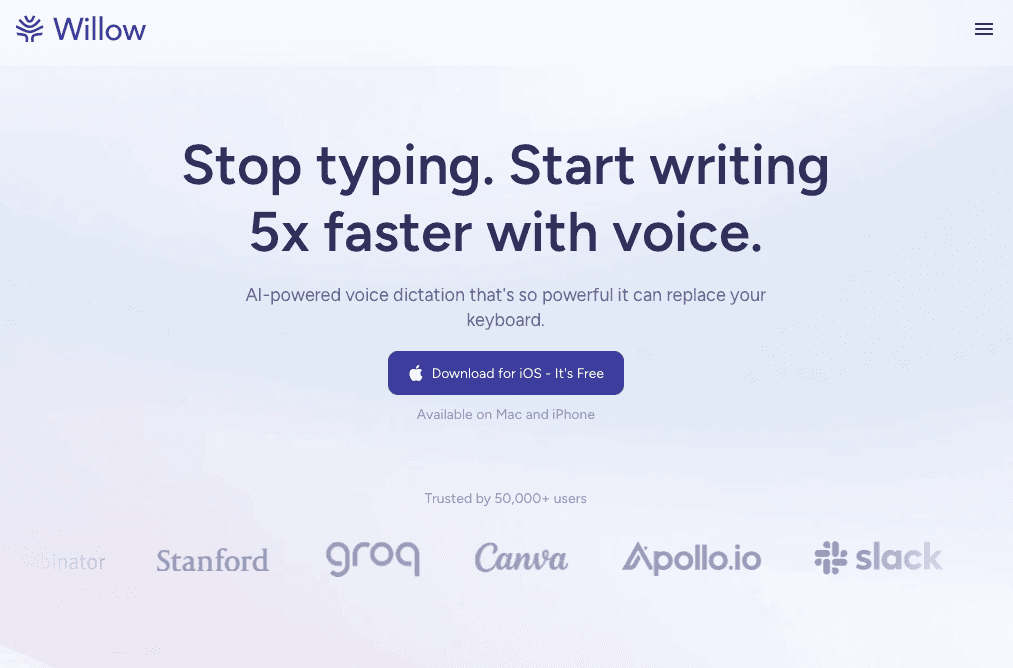
Press the Function key and start speaking in virtually any app where you can type. Your words appear in under 200 milliseconds with 3x+ higher accuracy than built-in dictation.
Context-aware AI reads what you're working on to nail technical terms, product names, and industry jargon without manual corrections. Custom dictionaries make sure company names and team slang always appear correctly. Smart formatting adds paragraphs, bullet points, and tone adjustments automatically based on whether you're writing emails, docs, or AI prompts.
Universal compatibility means dictation works consistently in Gmail, Slack, Notion, Cursor, ChatGPT, and anywhere you type. No mode switching or per-app configuration required.
Setting Up Better Voice Dictation on Your Mac and Windows with Willow
Download Willow and launch the app. Setup is quick and requires minimal configuration. The Function key activates dictation by default, though you can customize the hotkey in preferences.
Start with a 2,000-word free trial to test across your workflow. Open Gmail and press the hotkey to dictate an email. Switch to Slack and do the same. Try Cursor or ChatGPT for AI prompts with technical terms. The experience stays identical across every app without reconfiguration.
Add custom dictionary entries for company names, product terminology, or industry jargon. Text replacements handle frequently used links or phrases with shorthand triggers.
Press a key, speak naturally, and your words appear accurately in under 200 milliseconds.
FAQs
Can I add custom words to Mac and Windows dictation for technical terms?
Mac's dictation doesn't support custom dictionaries for technical vocabulary, product names, or industry jargon. The system processes audio in isolation without learning your specific context, so you'll repeatedly fix the same terminology mistakes.
Why does Mac dictation stop when I touch my keyboard?
Any keyboard input typically deactivates Mac dictation by design. You can't make quick edits mid-thought or fix obvious errors without completely stopping your voice input and restarting the session.
How much faster is speaking compared to typing on Mac and Windows?
Most people type around 40 words per minute but speak naturally at 130-150 words per minute, three times faster. However, Mac's processing delays, 30-second timeouts, and correction overhead eliminate most of this speed advantage in real-world use.
Final thoughts on making voice dictation work on Mac and Windows
At some point, troubleshooting stops helping because the limits are built into the system itself. Mac dictation works for short phrases, but it breaks down once writing gets longer, vocabulary gets specific, or speed actually matters. That gap is where Willow fits, offering voice input that stays on, keeps up with how you speak, and handles real work across apps without constant restarts or corrections. For anyone who wants dictation to feel dependable instead of fragile, a cross-app voice dictation tool like Willow turns voice typing into something you can actually rely on day to day.
Mac dictation tends to fail at the worst possible moment, cutting off mid-sentence, refusing to start, or dropping words just as you find your flow. You can troubleshoot permissions, microphones, and system settings, but those fixes only solve surface-level glitches. The deeper issue is that Apple’s built-in dictation was not optimized for continuous writing, technical language, or consistent daily workloads. That’s why many people end up looking beyond system tools toward a cross-app voice typing solution that keeps working when built-in dictation stops.
TLDR:
Mac dictation fails due to short automatic timeouts, limited noise handling, and often drops well below ideal accuracy in real-world conditions.
Fix temporary issues by checking mic permissions, resetting dictation-related system settings, and updating macOS.
Built-in dictation lacks context awareness, so technical terms and jargon get mangled consistently.
Some modern solutions offer 3x+ higher accuracy with sub-200 milliseconds speed and work across all Mac apps via hotkey.
Speaking at 150 WPM vs typing at 40 WPM gives you 4x faster productivity for emails and docs.
Why Mac Dictation Keeps Failing
Mac's built-in dictation breaks down for two reasons: technical glitches and system limitations. Temporary issues include mic permission errors or corrupted preference files. The deeper problem is general-purpose speech recognition models that struggle with background noise, miss contextual cues, and fail beyond basic speech patterns.
Network problems compound the issue. Some dictation modes rely on Apple’s servers for processing, so weak Wi-Fi or Apple server outages cause mid-sentence failures. Offline dictation can show reduced accuracy depending on language support, model availability, and system performance.
Quick Fixes to Try First
Start with these basic troubleshooting steps to resolve temporary glitches:
Verify dictation is activated in System Settings under Keyboard > Dictation. Toggle it off and back on to refresh the connection.
Check microphone permissions under Privacy & Security > Microphone and confirm your apps have access.
Restart your Mac to clear corrupted cache files or stuck background services that interfere with dictation.
Test your internet connection if you're using Enhanced Dictation. Run a speed test and confirm you have stable Wi-Fi, or switch networks if the connection drops frequently.
These steps work for one-off problems but rarely solve recurring accuracy issues or the automatic shutoff behavior that stems from deeper system constraints.
Check Your Microphone Settings and Hardware
Open System Settings and go to Sound > Input to confirm your Mac is using the right microphone. If you have multiple audio devices connected, the wrong one might be active by default. Select your preferred mic from the list and watch the input level meter as you speak. The bars should reach the middle range without hitting the maximum.
For external microphones, check the physical connection. USB mics should appear immediately in the input list, while 3.5mm connections might need adapter configuration. If your input levels are too low, speak closer to the mic. If they're too high and clipping, adjust the input volume slider or move back slightly.
Clean your microphone port if you're using the built-in mic. Dust and debris block sound, especially on older MacBooks. Compressed air works well for clearing the small holes near your keyboard.
Even with perfect hardware configuration and crystal-clear audio input, Mac's dictation still struggles in real-world conditions. Background conversations, keyboard clicks, or ambient noise can considerably reduce recognition accuracy. The system lacks sophisticated noise filtering, so what sounds clear to you may be unintelligible to the software.
Fix Voice Control and Siri Conflicts
Voice Control and dictation can compete for microphone access. When Voice Control is active, it may block dictation from working in certain apps.
Go to System Settings > Accessibility > Voice Control and toggle it off if you're not using it. The same applies to Siri. Check System Settings > Siri & Spotlight and disable "Listen for 'Hey Siri'" if voice commands keep interrupting your dictation sessions.
If you need both features activated, the conflict persists. You're forced to choose between dictation and voice commands instead of having them work together.
Update macOS to Fix Known Bugs
Open System Settings and click General > Software Update. If an update is available, click Update Now and let your Mac restart. Apple patches dictation bugs with each macOS release.
Check your current version by clicking the Apple menu and selecting About This Mac. Recent macOS versions include improved speech recognition components that handle some crashes and connection issues reported in earlier releases.
Updates help with technical bugs but don't solve accuracy problems. Even on the latest macOS, dictation still misses context, struggles with technical terms, and shuts off unexpectedly during long sessions.
Why Mac Dictation Accuracy Falls Short
Mac dictation uses basic speech recognition models without contextual awareness. The system does not meaningfully use surrounding text or application context, missing important contextual cues. When you're writing an email versus coding, the software can't tell the difference between "their" and "there" or technical jargon versus common words.
Background noise dramatically impacts performance. In quiet rooms, Mac dictation can perform reasonably well, but in noisy offices, accuracy can drop to 65-75%. That 15-25% drop makes the difference between useful and frustrating. Every fourth or fifth word needs manual correction, eliminating any productivity gains from voice input.
Technical vocabulary exposes the biggest weakness. Industry terms, product names, and acronyms get mangled consistently. The system can't learn your specific context, so you're stuck manually fixing the same mistakes repeatedly. There is no user-managed custom dictionary for specialized vocabulary to handle the specialized language most professionals use daily.
The recognition engine also struggles with accents, speaking pace variations, and conversational patterns. If you pause mid-thought or speed up when excited, accuracy drops further. These limitations stem from older speech models that can't adapt to individual speaking styles or environmental changes in real time.
The Speed Problem: Why Built-in Dictation Can't Keep Up
Speaking is three times faster than typing. Most people type around 40 words per minute while speaking naturally at 130-150 words per minute.
Mac’s dictation rarely delivers the full speed advantage of speaking. The system automatically stops after relatively short periods of inactivity, so any pause to think, rephrase, or handle a quick interruption ends the session and forces you to start again. For longer writing, those repeated cutoffs break flow, add restart friction, and erase much of the time you save by dictating instead of typing.
Processing delays add friction. Each time you finish speaking, there's a noticeable delay before text appears. For extended writing sessions, these delays accumulate into minutes of dead time.
Correction overhead kills the speed benefit. When dictation misunderstands one word per sentence, you spend more time fixing errors than you saved by not typing. Constant switching between voice input and keyboard disrupts flow and cognitive focus.
Mac Dictation vs. Professional Voice Tools
Professional voice tools outperform Mac's built-in dictation across core metrics. Accuracy gaps are widest in technical writing and AI prompting. When dictating to ChatGPT or Cursor with specialized terminology, built-in dictation often struggles with accuracy, while tools like Dragon or Superwhisper can reach considerably higher accuracy in structured or technical use cases through context-aware models.
App compatibility matters for workflow continuity. Mac dictation requires manual activation per session and stops between apps. Professional tools use universal hotkeys that work consistently across Gmail, Slack, Notion, and development environments without interruption or mode switching.
How Willow Solves What Mac Dictation Can't
Press the Function key and start speaking in virtually any app where you can type. Your words appear in under 200 milliseconds with 3x+ higher accuracy than built-in dictation.
Context-aware AI reads what you're working on to nail technical terms, product names, and industry jargon without manual corrections. Custom dictionaries make sure company names and team slang always appear correctly. Smart formatting adds paragraphs, bullet points, and tone adjustments automatically based on whether you're writing emails, docs, or AI prompts.
Universal compatibility means dictation works consistently in Gmail, Slack, Notion, Cursor, ChatGPT, and anywhere you type. No mode switching or per-app configuration required.
Setting Up Better Voice Dictation on Your Mac and Windows with Willow
Download Willow and launch the app. Setup is quick and requires minimal configuration. The Function key activates dictation by default, though you can customize the hotkey in preferences.
Start with a 2,000-word free trial to test across your workflow. Open Gmail and press the hotkey to dictate an email. Switch to Slack and do the same. Try Cursor or ChatGPT for AI prompts with technical terms. The experience stays identical across every app without reconfiguration.
Add custom dictionary entries for company names, product terminology, or industry jargon. Text replacements handle frequently used links or phrases with shorthand triggers.
Press a key, speak naturally, and your words appear accurately in under 200 milliseconds.
FAQs
Can I add custom words to Mac and Windows dictation for technical terms?
Mac's dictation doesn't support custom dictionaries for technical vocabulary, product names, or industry jargon. The system processes audio in isolation without learning your specific context, so you'll repeatedly fix the same terminology mistakes.
Why does Mac dictation stop when I touch my keyboard?
Any keyboard input typically deactivates Mac dictation by design. You can't make quick edits mid-thought or fix obvious errors without completely stopping your voice input and restarting the session.
How much faster is speaking compared to typing on Mac and Windows?
Most people type around 40 words per minute but speak naturally at 130-150 words per minute, three times faster. However, Mac's processing delays, 30-second timeouts, and correction overhead eliminate most of this speed advantage in real-world use.
Final thoughts on making voice dictation work on Mac and Windows
At some point, troubleshooting stops helping because the limits are built into the system itself. Mac dictation works for short phrases, but it breaks down once writing gets longer, vocabulary gets specific, or speed actually matters. That gap is where Willow fits, offering voice input that stays on, keeps up with how you speak, and handles real work across apps without constant restarts or corrections. For anyone who wants dictation to feel dependable instead of fragile, a cross-app voice dictation tool like Willow turns voice typing into something you can actually rely on day to day.

Try Willow for free
Instant, accurate voice dictation. No card required.
Try Willow for free
Instant, accurate voice dictation. No card required.
Other stories you’ll love
Other stories you’ll love


Your keyboard is optional now
" transform="translate(5 5)" width="9.791000051498413px"/></svg>)

The voice-first interface for modern work.
© Willow Care, Inc. 2026. All rights reserved
Your keyboard is optional now
The voice-first interface for modern work.
© Willow Care, Inc. 2026. All rights reserved
Your keyboard is optional now
The voice-first interface for modern work.
© Willow Care, Inc. 2026. All rights reserved