" transform="translate(5 2)" width="10px"/></svg>)

•
5 min read
Apple Speech to Text: Complete Guide to iPhone Dictation in April 2026
•
5 min read
Apple Speech to Text: Complete Guide to iPhone Dictation in April 2026
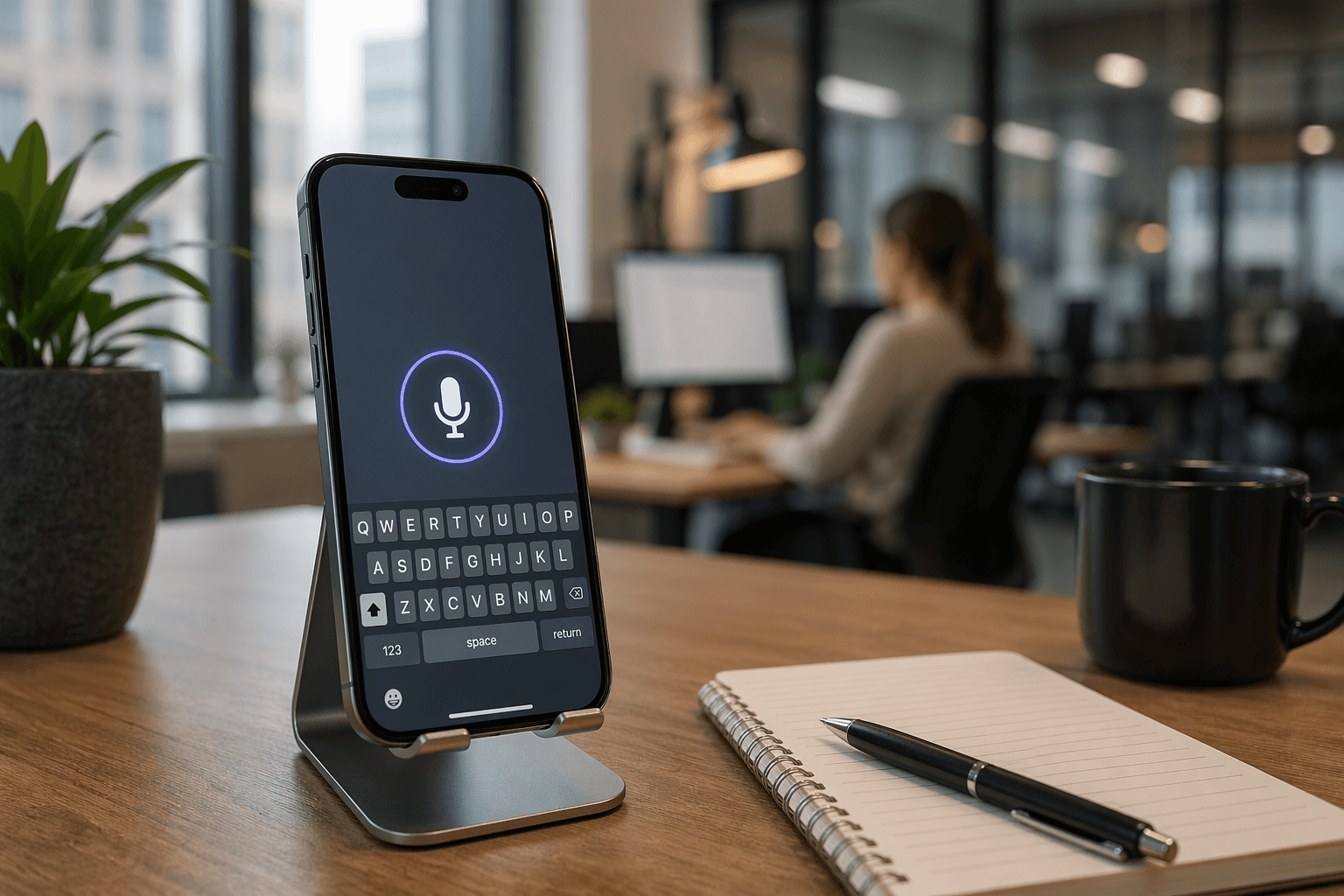
When Apple speech to text isn't working the way you expect, it's usually because you're pushing it past what it was designed to do. The built-in dictation handles everyday words fine, but technical jargon, proper nouns, and longer sessions expose its limits fast. This guide walks through setup on every iPhone model, explains how on-device processing actually works in 2026, and covers the specific scenarios where you'll need something that learns from your corrections instead of starting fresh every time.
TLDR:
Apple's free dictation turns on in Settings > General > Keyboard > Dictation.
Voice commands like "period" and "new line" work, but require precise phrasing.
Built-in dictation won't learn your vocabulary or fix repeated mistakes across sessions.
Background noise and technical terms reduce accuracy fast with no way to train corrections.
Third-party dictation tools personalize to your writing style at lower latency with better compliance.
How to Turn On Voice to Text on iPhone
Setup takes less than a minute on any iPhone model.
Turn On Dictation on iPhone (All Models)
Open Settings
Tap General
Tap Keyboard
Turn on Dictation
Once active, a microphone icon appears on your keyboard. Tap it to start speaking.
iPhone 16 and iOS 18+ Users
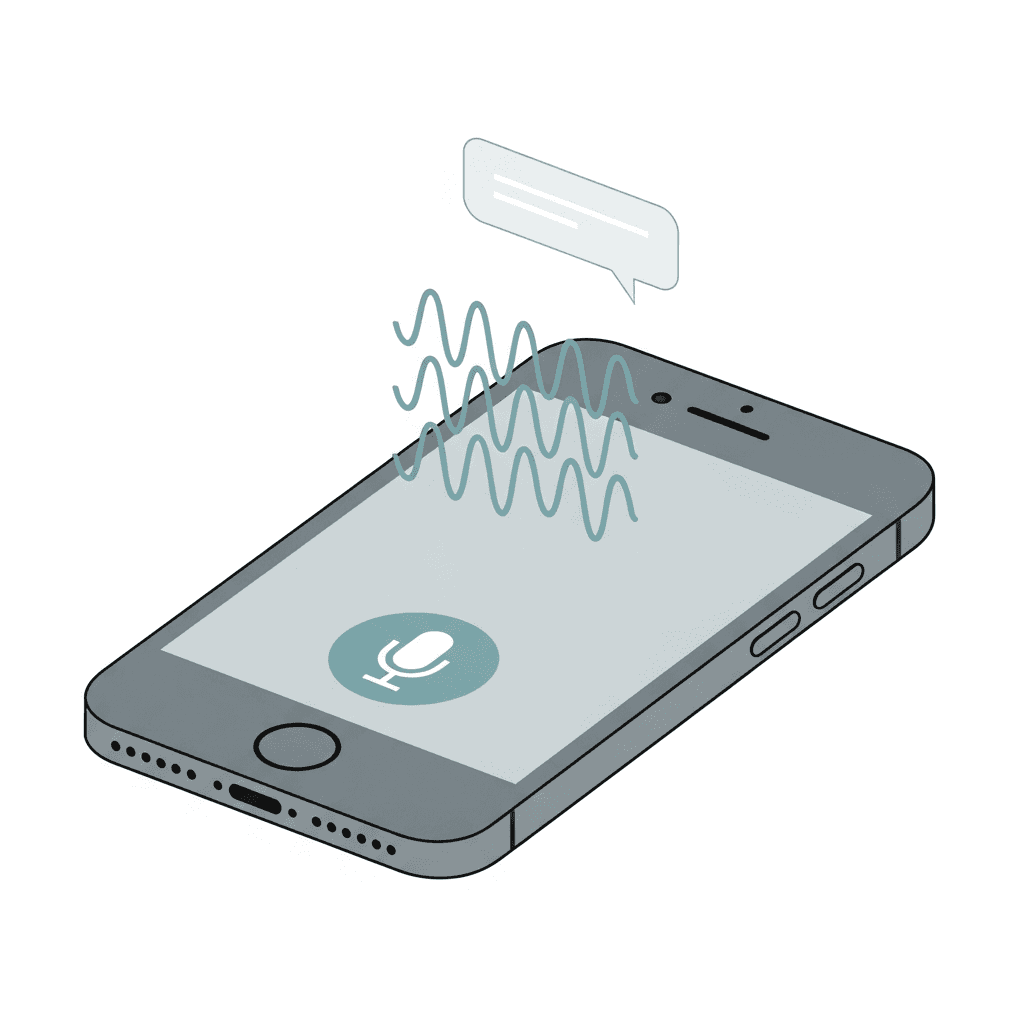
Apple reorganized some Settings menus in iOS 18. If you don't see Dictation under General > Keyboard, check Settings > Apple Intelligence & Siri instead.
The microphone key sits next to the spacebar. Tap once to start, tap again to stop.
How Apple Dictation Works in 2026
Starting with iOS 16, Apple moved dictation processing onto the device itself. Before that, your voice data traveled to Apple's servers, introducing latency and privacy concerns. On-device processing fixed both.
Today, dictation runs through Apple's Neural Engine. For supported languages, much of the dictation processing happens on-device, which reduces the need for an internet connection and limits how much audio is sent to Apple servers. Apple's Siri, Dictation & Privacy page confirms that on-device requests are not sent to Apple servers.
On-device processing has trade-offs. Apple's model is optimized for privacy and broad compatibility, not contextual awareness. It won't learn your writing style, adapt to your vocabulary, or understand that "Figma" belongs in a design doc. It transcribes what it hears, literally.
Using Voice Commands and Formatting
Apple supports a full list of dictation voice commands for punctuation, formatting, and capitalization. With the right phrasing, you can structure text without touching the keyboard.
Punctuation Commands
Say these out loud and they appear inline:
"period" or "full stop" to end a sentence
"comma" to add a pause or separate clauses
"question mark" or "exclamation point" to close with intent
"open quote" / "close quote" to wrap speech or titles
"new line" or "new paragraph" to break up your text
Emoji and Formatting
Say the emoji name directly, like "smiley face emoji," and Apple inserts it. Say "all caps" before a word to make it uppercase, or wrap a phrase with "caps on / caps off" for full uppercase.
The Catch
These commands require precise phrasing. Say "new line" casually mid-thought and it may transcribe it literally. Command recognition works in focused dictation mode but breaks down with natural speech.
How to Turn Off Voice to Text on iPhone
Common reasons to disable dictation: privacy concerns, accidental activations, or parental controls.
Standard Toggle Off
Open Settings
Tap General
Tap Keyboard
Toggle off Dictation
The microphone icon disappears from your keyboard immediately.
Using Screen Time to Restrict It
To prevent dictation from being reactivated (useful for kids' devices), Screen Time locks the setting:
Go to Settings > Screen Time
Tap Content & Privacy Restrictions
Tap Allowed Apps
Toggle off Siri & Dictation
This blocks the feature until a Screen Time passcode is entered.
Troubleshooting Voice to Text Not Working on iPhone
Start with the quick fixes before assuming something deeper is wrong.
Quick Fixes First
Toggle Dictation off and back on in Settings > General > Keyboard
Check microphone permissions under Settings > Privacy & Security > Microphone, then confirm your app has access
Verify you have an internet connection, which is required for some iOS versions and certain languages
Restart the app you're using, or restart your iPhone entirely
If basic troubleshooting doesn't resolve the issue, Apple's official dictation support guide covers additional device-specific solutions.
If That Doesn't Work
Screen Time is a common culprit people overlook. If Siri & Dictation is disabled under Screen Time's Allowed Apps, the microphone icon won't appear at all. Check Settings > Screen Time > Content & Privacy Restrictions > Allowed Apps and confirm it's turned on.
Network settings can also interfere. If dictation worked before but stopped after a carrier or Wi-Fi change, go to Settings > General > Transfer or Reset iPhone > Reset > Reset Network Settings. You'll need to reconnect to Wi-Fi afterward, but this clears corrupted network configs that can block dictation requests.
A Few Other Common Causes
Low Power Mode can throttle background processes, including dictation
Outdated iOS versions occasionally carry dictation bugs that get patched in the next update
Some third-party keyboards suppress the microphone key entirely, so switch back to the default Apple keyboard to test
Using Apple Dictation Across Different Apps
The microphone icon works in any native text field, but experience varies by app.
Notes
Apple Notes is one of the cleaner use cases. Tap the microphone, speak, and text flows in real time. Longer entries work well since you're not rushing to hit send.
Messages and Mail
Short messages transcribe fine. Longer emails get tricky. Punctuation commands don't always fire cleanly mid-sentence, and the lack of tone awareness means formal emails can come out flat or oddly phrased.
Third-Party Apps
Dictation works in most third-party apps that use a standard iOS text field. Gmail, WhatsApp, and Slack all support the microphone key. Where it breaks down is apps with custom input views, which sometimes block the native keyboard entirely.
Apple Speech to Text on Mac
Mac dictation works through System Settings > Keyboard > Dictation. Set a custom shortcut there, with the default being the fn key pressed twice. Unlike iPhone, Mac lets you choose your input source, so an external microphone works fine.
The core limitation carries over from iOS: no style learning, no context awareness. It transcribes accurately enough for short bursts but struggles with longer, unscripted content.
Voice to Text Accuracy and Limitations
Apple's dictation is reliable for short, focused input in quiet environments. It handles everyday vocabulary well and rarely drops words in clean audio conditions.
The gaps show up fast in real use:
Background noise degrades accuracy noticeably, often turning usable audio into garbled output. Research on speech recognition confirms that even slight background noise interferes with word recognition accuracy.
Technical jargon, proper nouns, and industry terms get mangled regularly with no way to train corrections.
Long-form dictation accumulates small errors that add up to real editing time.
No vocabulary learning means the same mistakes repeat indefinitely across every session.
Accuracy drops with accented speech or faster delivery.
It won't adapt, remember corrections, or get better for your needs. Every session starts fresh.
When to Upgrade Beyond Apple's Built-In Dictation
Apple's free dictation covers the basics. But a few patterns signal you've outgrown it.
You're probably ready for something more if:
You use voice frequently and keep fixing the same errors every session, wasting time on corrections that should not need to happen.
Your work involves technical terms, product names, or industry jargon that never transcribes correctly no matter how clearly you speak.
You write across multiple apps and need consistent formatting without manually issuing commands each time.
You're on a team with shared vocabulary needs or compliance requirements like HIPAA or SOC 2.
Accented speech or faster delivery consistently produces errors that slow your output.
The core issue is that Apple dictation does not learn. High-volume users, healthcare professionals, and anyone doing serious writing hit a ceiling fast. Tools like Willow solve this with three core advantages: personalization that adapts to how you write over time and reduces edits with every session, 200ms latency that keeps you in flow state instead of waiting for text to catch up, and enterprise-grade security (SOC 2, HIPAA) with collaboration features like shared dictionaries for team productivity.
Feature | Apple Dictation | Wispr Flow | Willow |
|---|---|---|---|
Latency | Variable, depends on iOS version and network | 700ms+ | 200ms |
Vocabulary Learning | None, resets every session | Limited custom vocabulary | Learns from your corrections over time |
Personalization | No style or tone adaptation | Basic voice profiles | Adapts to your writing style with every use |
Team Collaboration | Not available | Not available | Shared dictionaries and shortcuts |
Compliance | On-device processing, no certifications | No SOC 2 or HIPAA | SOC 2 certified, HIPAA compliant |
Price | Free with any iPhone or Mac | Paid subscription | Free tier: 2,000 words/week |
Willow: Next-Generation Voice Dictation for Power Users
Willow is built for users who need dictation that actually keeps up with them. Three things set it apart from Apple's built-in dictation and Wispr Flow.
First, personalization. Willow learns how you write over time, so you spend less time making edits. It becomes the most accurate dictation tool for you because the model adapts to your vocabulary, style, and corrections.
Second, speed. At 200ms latency, Willow is the fastest dictation tool available. For a broader comparison, see our voice recognition software guide. Everyone else sits at 700ms or more, which means you stay in flow state instead of waiting for text to catch up.
Third, built for teams. Enterprise-grade security (SOC 2, HIPAA) and privacy plus collaboration features like shared shortcuts and dictionary terms make Willow viable for healthcare teams, enterprise orgs, and anyone with real compliance requirements while accelerating team productivity.
It works in every app where Apple dictation works, and then some. Gmail, Slack, Notion, Cursor, ChatGPT. Press a hotkey, speak, and clean text appears. No setup friction, no commands to memorize. Try Willow free with 2,000 words weekly, no credit card required.
FAQs
How to turn on voice to text on iPhone 16?
Open Settings > General > Keyboard and turn on Dictation. On iOS 18+, the toggle may also appear under Settings > Apple Intelligence & Siri depending on your software version. Once active, tap the microphone icon next to your spacebar to start speaking.
Can I use Apple speech to text on Mac without internet?
Yes, starting with recent macOS versions, Apple processes dictation on-device through the Neural Engine for supported languages. Turn it on under System Settings > Keyboard > Dictation and set your preferred shortcut (default is pressing the fn key twice).
When should I upgrade beyond Apple's built-in dictation?
If you're fixing the same transcription errors every session, speaking technical terms or jargon that never transcribes correctly, or working on a team that needs shared vocabulary and compliance standards like HIPAA or SOC 2. Apple speech to text won't improve for your specific needs because it doesn't learn from corrections.
Final Thoughts on Apple Speech to Text
The free Apple speech to text option works for basic needs, but you hit a ceiling fast if you use voice regularly or work with specialized vocabulary. No matter how many times you correct the same error, it won't remember next session. That repetition turns dictation into more work instead of less. Start with Willow at 2,000 free words per week to try dictation that actually learns from your corrections and gets better with every use.
When Apple speech to text isn't working the way you expect, it's usually because you're pushing it past what it was designed to do. The built-in dictation handles everyday words fine, but technical jargon, proper nouns, and longer sessions expose its limits fast. This guide walks through setup on every iPhone model, explains how on-device processing actually works in 2026, and covers the specific scenarios where you'll need something that learns from your corrections instead of starting fresh every time.
TLDR:
Apple's free dictation turns on in Settings > General > Keyboard > Dictation.
Voice commands like "period" and "new line" work, but require precise phrasing.
Built-in dictation won't learn your vocabulary or fix repeated mistakes across sessions.
Background noise and technical terms reduce accuracy fast with no way to train corrections.
Third-party dictation tools personalize to your writing style at lower latency with better compliance.
How to Turn On Voice to Text on iPhone
Setup takes less than a minute on any iPhone model.
Turn On Dictation on iPhone (All Models)
Open Settings
Tap General
Tap Keyboard
Turn on Dictation
Once active, a microphone icon appears on your keyboard. Tap it to start speaking.
iPhone 16 and iOS 18+ Users
Apple reorganized some Settings menus in iOS 18. If you don't see Dictation under General > Keyboard, check Settings > Apple Intelligence & Siri instead.
The microphone key sits next to the spacebar. Tap once to start, tap again to stop.
How Apple Dictation Works in 2026
Starting with iOS 16, Apple moved dictation processing onto the device itself. Before that, your voice data traveled to Apple's servers, introducing latency and privacy concerns. On-device processing fixed both.
Today, dictation runs through Apple's Neural Engine. For supported languages, much of the dictation processing happens on-device, which reduces the need for an internet connection and limits how much audio is sent to Apple servers. Apple's Siri, Dictation & Privacy page confirms that on-device requests are not sent to Apple servers.
On-device processing has trade-offs. Apple's model is optimized for privacy and broad compatibility, not contextual awareness. It won't learn your writing style, adapt to your vocabulary, or understand that "Figma" belongs in a design doc. It transcribes what it hears, literally.
Using Voice Commands and Formatting
Apple supports a full list of dictation voice commands for punctuation, formatting, and capitalization. With the right phrasing, you can structure text without touching the keyboard.
Punctuation Commands
Say these out loud and they appear inline:
"period" or "full stop" to end a sentence
"comma" to add a pause or separate clauses
"question mark" or "exclamation point" to close with intent
"open quote" / "close quote" to wrap speech or titles
"new line" or "new paragraph" to break up your text
Emoji and Formatting
Say the emoji name directly, like "smiley face emoji," and Apple inserts it. Say "all caps" before a word to make it uppercase, or wrap a phrase with "caps on / caps off" for full uppercase.
The Catch
These commands require precise phrasing. Say "new line" casually mid-thought and it may transcribe it literally. Command recognition works in focused dictation mode but breaks down with natural speech.
How to Turn Off Voice to Text on iPhone
Common reasons to disable dictation: privacy concerns, accidental activations, or parental controls.
Standard Toggle Off
Open Settings
Tap General
Tap Keyboard
Toggle off Dictation
The microphone icon disappears from your keyboard immediately.
Using Screen Time to Restrict It
To prevent dictation from being reactivated (useful for kids' devices), Screen Time locks the setting:
Go to Settings > Screen Time
Tap Content & Privacy Restrictions
Tap Allowed Apps
Toggle off Siri & Dictation
This blocks the feature until a Screen Time passcode is entered.
Troubleshooting Voice to Text Not Working on iPhone
Start with the quick fixes before assuming something deeper is wrong.
Quick Fixes First
Toggle Dictation off and back on in Settings > General > Keyboard
Check microphone permissions under Settings > Privacy & Security > Microphone, then confirm your app has access
Verify you have an internet connection, which is required for some iOS versions and certain languages
Restart the app you're using, or restart your iPhone entirely
If basic troubleshooting doesn't resolve the issue, Apple's official dictation support guide covers additional device-specific solutions.
If That Doesn't Work
Screen Time is a common culprit people overlook. If Siri & Dictation is disabled under Screen Time's Allowed Apps, the microphone icon won't appear at all. Check Settings > Screen Time > Content & Privacy Restrictions > Allowed Apps and confirm it's turned on.
Network settings can also interfere. If dictation worked before but stopped after a carrier or Wi-Fi change, go to Settings > General > Transfer or Reset iPhone > Reset > Reset Network Settings. You'll need to reconnect to Wi-Fi afterward, but this clears corrupted network configs that can block dictation requests.
A Few Other Common Causes
Low Power Mode can throttle background processes, including dictation
Outdated iOS versions occasionally carry dictation bugs that get patched in the next update
Some third-party keyboards suppress the microphone key entirely, so switch back to the default Apple keyboard to test
Using Apple Dictation Across Different Apps
The microphone icon works in any native text field, but experience varies by app.
Notes
Apple Notes is one of the cleaner use cases. Tap the microphone, speak, and text flows in real time. Longer entries work well since you're not rushing to hit send.
Messages and Mail
Short messages transcribe fine. Longer emails get tricky. Punctuation commands don't always fire cleanly mid-sentence, and the lack of tone awareness means formal emails can come out flat or oddly phrased.
Third-Party Apps
Dictation works in most third-party apps that use a standard iOS text field. Gmail, WhatsApp, and Slack all support the microphone key. Where it breaks down is apps with custom input views, which sometimes block the native keyboard entirely.
Apple Speech to Text on Mac
Mac dictation works through System Settings > Keyboard > Dictation. Set a custom shortcut there, with the default being the fn key pressed twice. Unlike iPhone, Mac lets you choose your input source, so an external microphone works fine.
The core limitation carries over from iOS: no style learning, no context awareness. It transcribes accurately enough for short bursts but struggles with longer, unscripted content.
Voice to Text Accuracy and Limitations
Apple's dictation is reliable for short, focused input in quiet environments. It handles everyday vocabulary well and rarely drops words in clean audio conditions.
The gaps show up fast in real use:
Background noise degrades accuracy noticeably, often turning usable audio into garbled output. Research on speech recognition confirms that even slight background noise interferes with word recognition accuracy.
Technical jargon, proper nouns, and industry terms get mangled regularly with no way to train corrections.
Long-form dictation accumulates small errors that add up to real editing time.
No vocabulary learning means the same mistakes repeat indefinitely across every session.
Accuracy drops with accented speech or faster delivery.
It won't adapt, remember corrections, or get better for your needs. Every session starts fresh.
When to Upgrade Beyond Apple's Built-In Dictation
Apple's free dictation covers the basics. But a few patterns signal you've outgrown it.
You're probably ready for something more if:
You use voice frequently and keep fixing the same errors every session, wasting time on corrections that should not need to happen.
Your work involves technical terms, product names, or industry jargon that never transcribes correctly no matter how clearly you speak.
You write across multiple apps and need consistent formatting without manually issuing commands each time.
You're on a team with shared vocabulary needs or compliance requirements like HIPAA or SOC 2.
Accented speech or faster delivery consistently produces errors that slow your output.
The core issue is that Apple dictation does not learn. High-volume users, healthcare professionals, and anyone doing serious writing hit a ceiling fast. Tools like Willow solve this with three core advantages: personalization that adapts to how you write over time and reduces edits with every session, 200ms latency that keeps you in flow state instead of waiting for text to catch up, and enterprise-grade security (SOC 2, HIPAA) with collaboration features like shared dictionaries for team productivity.
Feature | Apple Dictation | Wispr Flow | Willow |
|---|---|---|---|
Latency | Variable, depends on iOS version and network | 700ms+ | 200ms |
Vocabulary Learning | None, resets every session | Limited custom vocabulary | Learns from your corrections over time |
Personalization | No style or tone adaptation | Basic voice profiles | Adapts to your writing style with every use |
Team Collaboration | Not available | Not available | Shared dictionaries and shortcuts |
Compliance | On-device processing, no certifications | No SOC 2 or HIPAA | SOC 2 certified, HIPAA compliant |
Price | Free with any iPhone or Mac | Paid subscription | Free tier: 2,000 words/week |
Willow: Next-Generation Voice Dictation for Power Users
Willow is built for users who need dictation that actually keeps up with them. Three things set it apart from Apple's built-in dictation and Wispr Flow.
First, personalization. Willow learns how you write over time, so you spend less time making edits. It becomes the most accurate dictation tool for you because the model adapts to your vocabulary, style, and corrections.
Second, speed. At 200ms latency, Willow is the fastest dictation tool available. For a broader comparison, see our voice recognition software guide. Everyone else sits at 700ms or more, which means you stay in flow state instead of waiting for text to catch up.
Third, built for teams. Enterprise-grade security (SOC 2, HIPAA) and privacy plus collaboration features like shared shortcuts and dictionary terms make Willow viable for healthcare teams, enterprise orgs, and anyone with real compliance requirements while accelerating team productivity.
It works in every app where Apple dictation works, and then some. Gmail, Slack, Notion, Cursor, ChatGPT. Press a hotkey, speak, and clean text appears. No setup friction, no commands to memorize. Try Willow free with 2,000 words weekly, no credit card required.
FAQs
How to turn on voice to text on iPhone 16?
Open Settings > General > Keyboard and turn on Dictation. On iOS 18+, the toggle may also appear under Settings > Apple Intelligence & Siri depending on your software version. Once active, tap the microphone icon next to your spacebar to start speaking.
Can I use Apple speech to text on Mac without internet?
Yes, starting with recent macOS versions, Apple processes dictation on-device through the Neural Engine for supported languages. Turn it on under System Settings > Keyboard > Dictation and set your preferred shortcut (default is pressing the fn key twice).
When should I upgrade beyond Apple's built-in dictation?
If you're fixing the same transcription errors every session, speaking technical terms or jargon that never transcribes correctly, or working on a team that needs shared vocabulary and compliance standards like HIPAA or SOC 2. Apple speech to text won't improve for your specific needs because it doesn't learn from corrections.
Final Thoughts on Apple Speech to Text
The free Apple speech to text option works for basic needs, but you hit a ceiling fast if you use voice regularly or work with specialized vocabulary. No matter how many times you correct the same error, it won't remember next session. That repetition turns dictation into more work instead of less. Start with Willow at 2,000 free words per week to try dictation that actually learns from your corrections and gets better with every use.

Try Willow for free
Instant, accurate voice dictation. No card required.
Try Willow for free
Instant, accurate voice dictation. No card required.
Other stories you’ll love
Other stories you’ll love


Your keyboard is optional now
" transform="translate(5 5)" width="9.791000051498413px"/></svg>)

The voice-first interface for modern work.
© Willow Care, Inc. 2026. All rights reserved
Your keyboard is optional now
The voice-first interface for modern work.
© Willow Care, Inc. 2026. All rights reserved
Your keyboard is optional now
The voice-first interface for modern work.
© Willow Care, Inc. 2026. All rights reserved