" transform="translate(5 2)" width="10px"/></svg>)

•
5 min read
8 Free Speech-to-Text Tools (July 2026)
•
5 min read
8 Free Speech-to-Text Tools (July 2026)
If you're still typing everything by hand, you're working three times slower than you need to. Free dictation software can close that gap without costing you anything. In 2026, AI models push accuracy past 95% on consumer devices, on-device processing on Apple Silicon Macs and Windows 11 keeps audio local, and latency has dropped below 500ms on modern tools. Free options are now viable alternatives to $500+ professional software for the first time. Apple Dictation, Windows Voice Typing, and a handful of other tools are already installed on your devices. The catch is knowing which one to use for what, because they're not all built the same.
TLDR:
Apple Dictation, Windows Voice Access, and Google Docs Voice Typing offer free speech-to-text built into your devices.
Free tools typically deliver 85-95% accuracy but lack learning engines, hitting 700ms+ latency on most platforms.
Speaking at 150 WPM vs. typing at 40 WPM saves professionals hours weekly, according to research.
Most free options require internet and send audio to cloud servers, which can make them less suitable for medical or legal work depending on requirements.
Dedicated tools deliver 200ms latency, personalized learning, SOC 2 Type II/HIPAA compliance, and team deployment features across Mac, Windows, and iOS.
What Free Dictation Software Is and Why Use It in 2026
Free dictation software converts your spoken words into text, in real time, inside any app you're already working in. Willow Voice use cases span emails, meeting notes, medical documentation, and long-form writing. The voice recognition market is projected to hit $30 billion in 2026, which explains why every major OS now ships with built-in dictation.

The speed case is straightforward: the average person types at 40 words per minute while speaking at 150 words per minute. Research from the National Center for Voice and Speech confirms 150 WPM as the average English conversation rate, about 3x faster than typing. For professionals clearing email, documentation, or AI prompts, that gap compounds fast across a workday.
Apple Dictation for Mac, iPhone, and iPad
Apple Dictation comes pre-installed on every Mac, iPhone, and iPad. No downloads, no accounts. On a Mac, double-tap the Fn key to start. On iPhone and iPad, tap the microphone icon on the keyboard.
How to Set Up Apple Dictation
On Mac:
Open System Settings from the Apple menu or Dock
Go to Keyboard, then click the Dictation tab
Toggle dictation on; the system will download necessary files on first activation
Choose your keyboard shortcut preference (default is double-tap Fn, or select a custom shortcut)
Grant microphone permission when prompted (this appears the first time you activate dictation in any app)
On iPhone and iPad, dictation is on by default. If the microphone icon doesn't appear on your keyboard, go to Settings > General > Keyboard and toggle Dictation on. The first time you use it in any app, iOS will request microphone access.
Basic voice commands cover the essentials: say "period," "comma," "new line," or "new paragraph" to format as you speak. Newer devices handle auto-punctuation automatically. Apple Dictation supports over 30 languages.
When Apple Dictation stops working, common causes are internet issues, blocked microphone permissions, or a glitch a quick restart usually fixes. Apple Silicon Macs can switch to on-device processing via the enhanced dictation setting in System Settings.
Pros & Cons
Pros:
Already installed on every Mac, iPhone, and iPad: no downloads, no account setup, no cost
Works across all apps system-wide with a single keyboard shortcut (double-tap Fn on Mac, microphone icon on iOS)
Apple Silicon Macs with enhanced dictation turned on process audio locally, keeping sensitive content off cloud servers
Supports over 30 languages with automatic language detection
Auto-punctuation on newer devices eliminates the need to say "period" or "comma" for most use cases
Cons:
Accuracy degrades noticeably on passages longer than a few paragraphs, with no learning engine to improve over time
700ms+ latency creates a noticeable gap between speaking and seeing text appear
No editing commands like "delete that" or "select": you stop speaking and fix errors manually with keyboard or trackpad
Most devices require internet connection, sending audio to Apple servers unless you've turned on enhanced dictation on compatible hardware
No custom vocabulary support, so specialized terms, product names, and technical jargon require repeated manual corrections
Tool | Device | Offline | Accuracy | Best For |
|---|---|---|---|---|
Apple Dictation | Mac, iPhone, iPad | Yes (Apple Silicon) | 85-95% | Apple users, quick notes |
Windows Voice Typing | Windows 10/11 | No | 85-90% | Any app, zero setup |
Windows Voice Access | Windows 11 only | Yes (after download) | 85-95% | Hands-free PC control |
Microsoft Word Voice Input | Word, OneNote, Outlook | No | 85-95% | Microsoft 365 subscribers |
Google Docs Voice Typing | Chrome only | No | 85-95% | Google Workspace users |
Gboard | Android, iOS | No | 85-95% | Mobile dictation |
Browser tools | Chrome, Edge | No | Varies | Casual, quick notes |
Willow | Mac, Windows, iOS | Yes | 98%+ | Teams, professional use |
Windows Voice Access and Voice Typing
Windows ships with two built-in dictation options, and picking the right one depends on what you actually need.
Windows Voice Typing
Press Windows+H in any text field and Voice Typing opens immediately. No setup required. It handles basic speech-to-text across apps, with auto-punctuation on by default. Fast to start, easy to ignore when you don't need it.
Windows Voice Access
Voice Access is the bigger tool. Available only on Windows 11, it combines dictation with full hands-free PC control: navigation, clicking, and window management. It runs offline after the initial model download and supports multi-monitor setups. A custom vocabulary option lets you add names or industry terms.
How to Set Up Windows Voice Access
Open Settings from the Start menu or press Windows+I
Go to Accessibility in the left sidebar, then select Speech
Click Voice Access and toggle it on. Windows will download the speech recognition model (approximately 200MB) on first setup
Complete the brief interactive tutorial that walks through basic commands like "click Start," "open Edge," and dictation basics
Grant microphone permissions when prompted, then choose whether Voice Access starts automatically when you sign in
A numbered grid overlay appears when you say "show grid" or "show numbers," letting you click anywhere on screen by voice. For multi-monitor setups, say "show numbers" followed by the monitor number to target a specific display.
Microsoft Word Voice Input
Word's built-in voice input is in the Home tab (or press Alt+`). It covers Word, OneNote, and Outlook only, and requires a Microsoft 365 subscription. Users on a one-time license can't access it.
Pros & Cons
Pros:
Built directly into Word, OneNote, and Outlook with a single button in the Home tab, no app switching required
85-95% accuracy matches other Microsoft cloud-based tools
Auto-punctuation toggle lets you switch between manual and automatic punctuation mid-session
Works with your existing Microsoft 365 subscription, so teams already paying for Office get voice typing at no additional cost
Cons:
Microsoft 365 subscription required, so users with a one-time Office license purchase cannot access it
Limited to Office apps only, so dictation stops working in email clients, Slack, browsers, or any non-Microsoft software
Requires internet connection for all processing, with no offline mode available
700ms+ latency creates a noticeable delay during longer dictation sessions
No custom vocabulary or learning engine, so repeated industry terms and proper nouns require manual correction every time
Google Docs Voice Typing
Google Docs Voice Typing runs entirely inside Chrome with no installation needed. Open any Google Doc, go to Tools > Voice Typing, and click the microphone to start.
Google Docs has the richest formatting command set of any free tool: say "bold," "create bulleted list," or "apply heading 2" while speaking. Everything runs through Google's cloud, so a dropped connection drops your text, and it only works inside Google Docs and Slides.
Gboard for Android and iOS
Gboard is Google's keyboard app, free on both Android and iOS. Set it as your default keyboard and the microphone icon sits one tap away in any app, following your cursor across Gmail, Messages, WhatsApp, and anywhere else. Accuracy improves as it learns your patterns, though iOS support is slightly limited by Apple's keyboard restrictions.
Pros & Cons
Pros:
Works across every app on your phone: Gmail, Messages, WhatsApp, Slack, browser text fields, anywhere your keyboard appears
Learns your writing patterns over time, improving accuracy on words and phrases you use frequently
Available on both Android and iOS, one of the few free mobile options that work across both systems
One tap away: the microphone icon sits directly on the keyboard, no app switching required
Free with no subscription or account requirement beyond Google account for sync
Cons:
Mobile devices only, with no desktop version, so workflows crossing phone and computer require switching to different tools
Requires internet connection for all processing, with no offline mode available
700ms+ latency creates noticeable delay between speaking and text appearing on screen
iOS experience more limited than Android due to Apple's third-party keyboard restrictions
Cloud processing sends all audio through Google servers, making it unsuitable for sensitive or confidential content
Dragon NaturallySpeaking Free Alternatives and Trials
Dragon Professional carries a $500+ price tag and has no free version. Nuance discontinued the consumer Dragon Home line, leaving only the professional tier. The tools in this guide cover everyday dictation without the cost.
Browser-Based Free Dictation Tools
Browser-based tools like Speechnotes and SpeechTexter run on the Web Speech API. No download or account needed. Open the URL in Chrome or Edge and start speaking.
Full internet dependency means a dropped connection drops your text. Accuracy varies more than with dedicated apps, and there's little transparency around voice data handling. Fine for a quick note, less ideal for anything sensitive or long.
How Willow Compares to Free Dictation Software
Apple Dictation and similar free tools share the same ceiling: 700ms+ latency, accuracy that degrades on longer sessions, and no compliance certifications for sensitive data. For a broader look at how these stack up, see our roundup of the best AI speech to text tools.
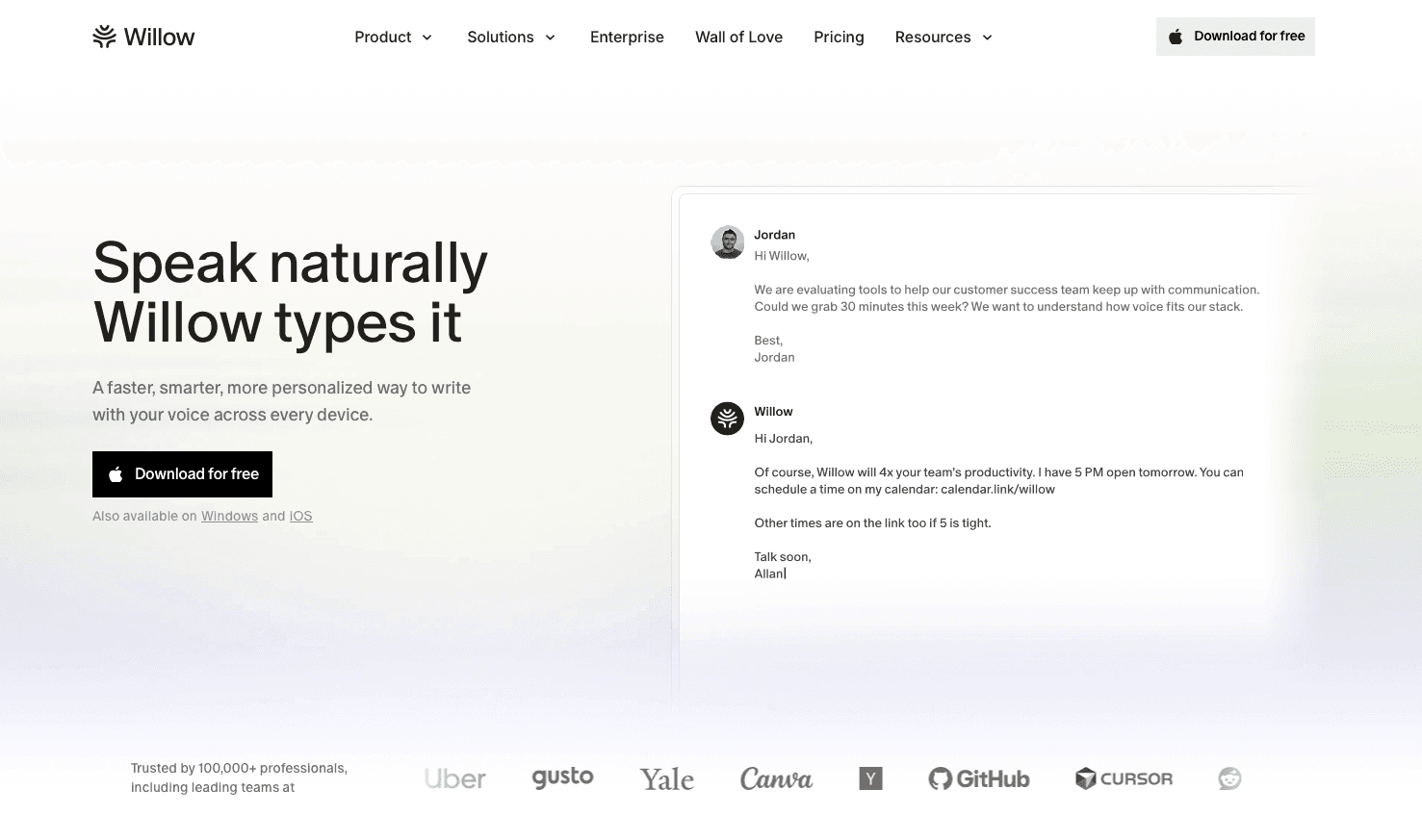
Willow Voice closes those gaps. It learns your vocabulary and tone across emails, documents, and AI prompts without manual setup. At 200ms latency, transcription keeps pace with your thinking. SOC 2 Type II and HIPAA compliance, shared team dictionaries, voice shortcuts, and admin controls give organizations a path from individual use to org-wide deployment on Mac, Windows, and iOS. Optional offline mode adds privacy control when you need it.
The free trial includes 2,000 words weekly. Compare it side by side against whatever you've been using.
FAQs
What's the best free dictation software for Windows 10?
Windows Voice Typing (Windows+H) and Windows Voice Access are the strongest built-in options, offering auto-punctuation and hands-free control without downloads. For professional or team use, Willow Voice runs natively on Windows with 200ms latency, shared team dictionaries, and SOC 2 Type II compliance: the same full feature set available on Mac and iOS.
Can I use free dictation software offline?
Yes, but options are limited. Windows Voice Access on Windows 11 and Apple's enhanced dictation on Apple Silicon Macs both process locally after initial setup. Most free browser-based tools and mobile apps require constant internet connectivity, which means dropped connections stop transcription mid-sentence.
How do I improve accuracy with free dictation apps?
Switch to a headset or USB microphone, work in a quiet space, and speak at a steady pace. Correcting errors immediately helps, though most free options cap at 85-95% accuracy even with clean audio.
Final Thoughts on Free Dictation Software
Most free dictation software works well enough for quick notes, but the experience breaks down for consistent professional use. Apple's built-in voice dictation, Wispr Flow, and browser tools carry real accuracy and latency ceilings. For individuals and teams on Windows, Mac, or iOS handling real daily volume, those gaps compound. Try Willow Voice free and see how it handles your actual workload: accuracy improves as it learns, without extra effort.
If you're still typing everything by hand, you're working three times slower than you need to. Free dictation software can close that gap without costing you anything. In 2026, AI models push accuracy past 95% on consumer devices, on-device processing on Apple Silicon Macs and Windows 11 keeps audio local, and latency has dropped below 500ms on modern tools. Free options are now viable alternatives to $500+ professional software for the first time. Apple Dictation, Windows Voice Typing, and a handful of other tools are already installed on your devices. The catch is knowing which one to use for what, because they're not all built the same.
TLDR:
Apple Dictation, Windows Voice Access, and Google Docs Voice Typing offer free speech-to-text built into your devices.
Free tools typically deliver 85-95% accuracy but lack learning engines, hitting 700ms+ latency on most platforms.
Speaking at 150 WPM vs. typing at 40 WPM saves professionals hours weekly, according to research.
Most free options require internet and send audio to cloud servers, which can make them less suitable for medical or legal work depending on requirements.
Dedicated tools deliver 200ms latency, personalized learning, SOC 2 Type II/HIPAA compliance, and team deployment features across Mac, Windows, and iOS.
What Free Dictation Software Is and Why Use It in 2026
Free dictation software converts your spoken words into text, in real time, inside any app you're already working in. Willow Voice use cases span emails, meeting notes, medical documentation, and long-form writing. The voice recognition market is projected to hit $30 billion in 2026, which explains why every major OS now ships with built-in dictation.
The speed case is straightforward: the average person types at 40 words per minute while speaking at 150 words per minute. Research from the National Center for Voice and Speech confirms 150 WPM as the average English conversation rate, about 3x faster than typing. For professionals clearing email, documentation, or AI prompts, that gap compounds fast across a workday.
Apple Dictation for Mac, iPhone, and iPad
Apple Dictation comes pre-installed on every Mac, iPhone, and iPad. No downloads, no accounts. On a Mac, double-tap the Fn key to start. On iPhone and iPad, tap the microphone icon on the keyboard.
How to Set Up Apple Dictation
On Mac:
Open System Settings from the Apple menu or Dock
Go to Keyboard, then click the Dictation tab
Toggle dictation on; the system will download necessary files on first activation
Choose your keyboard shortcut preference (default is double-tap Fn, or select a custom shortcut)
Grant microphone permission when prompted (this appears the first time you activate dictation in any app)
On iPhone and iPad, dictation is on by default. If the microphone icon doesn't appear on your keyboard, go to Settings > General > Keyboard and toggle Dictation on. The first time you use it in any app, iOS will request microphone access.
Basic voice commands cover the essentials: say "period," "comma," "new line," or "new paragraph" to format as you speak. Newer devices handle auto-punctuation automatically. Apple Dictation supports over 30 languages.
When Apple Dictation stops working, common causes are internet issues, blocked microphone permissions, or a glitch a quick restart usually fixes. Apple Silicon Macs can switch to on-device processing via the enhanced dictation setting in System Settings.
Pros & Cons
Pros:
Already installed on every Mac, iPhone, and iPad: no downloads, no account setup, no cost
Works across all apps system-wide with a single keyboard shortcut (double-tap Fn on Mac, microphone icon on iOS)
Apple Silicon Macs with enhanced dictation turned on process audio locally, keeping sensitive content off cloud servers
Supports over 30 languages with automatic language detection
Auto-punctuation on newer devices eliminates the need to say "period" or "comma" for most use cases
Cons:
Accuracy degrades noticeably on passages longer than a few paragraphs, with no learning engine to improve over time
700ms+ latency creates a noticeable gap between speaking and seeing text appear
No editing commands like "delete that" or "select": you stop speaking and fix errors manually with keyboard or trackpad
Most devices require internet connection, sending audio to Apple servers unless you've turned on enhanced dictation on compatible hardware
No custom vocabulary support, so specialized terms, product names, and technical jargon require repeated manual corrections
Tool | Device | Offline | Accuracy | Best For |
|---|---|---|---|---|
Apple Dictation | Mac, iPhone, iPad | Yes (Apple Silicon) | 85-95% | Apple users, quick notes |
Windows Voice Typing | Windows 10/11 | No | 85-90% | Any app, zero setup |
Windows Voice Access | Windows 11 only | Yes (after download) | 85-95% | Hands-free PC control |
Microsoft Word Voice Input | Word, OneNote, Outlook | No | 85-95% | Microsoft 365 subscribers |
Google Docs Voice Typing | Chrome only | No | 85-95% | Google Workspace users |
Gboard | Android, iOS | No | 85-95% | Mobile dictation |
Browser tools | Chrome, Edge | No | Varies | Casual, quick notes |
Willow | Mac, Windows, iOS | Yes | 98%+ | Teams, professional use |
Windows Voice Access and Voice Typing
Windows ships with two built-in dictation options, and picking the right one depends on what you actually need.
Windows Voice Typing
Press Windows+H in any text field and Voice Typing opens immediately. No setup required. It handles basic speech-to-text across apps, with auto-punctuation on by default. Fast to start, easy to ignore when you don't need it.
Windows Voice Access
Voice Access is the bigger tool. Available only on Windows 11, it combines dictation with full hands-free PC control: navigation, clicking, and window management. It runs offline after the initial model download and supports multi-monitor setups. A custom vocabulary option lets you add names or industry terms.
How to Set Up Windows Voice Access
Open Settings from the Start menu or press Windows+I
Go to Accessibility in the left sidebar, then select Speech
Click Voice Access and toggle it on. Windows will download the speech recognition model (approximately 200MB) on first setup
Complete the brief interactive tutorial that walks through basic commands like "click Start," "open Edge," and dictation basics
Grant microphone permissions when prompted, then choose whether Voice Access starts automatically when you sign in
A numbered grid overlay appears when you say "show grid" or "show numbers," letting you click anywhere on screen by voice. For multi-monitor setups, say "show numbers" followed by the monitor number to target a specific display.
Microsoft Word Voice Input
Word's built-in voice input is in the Home tab (or press Alt+`). It covers Word, OneNote, and Outlook only, and requires a Microsoft 365 subscription. Users on a one-time license can't access it.
Pros & Cons
Pros:
Built directly into Word, OneNote, and Outlook with a single button in the Home tab, no app switching required
85-95% accuracy matches other Microsoft cloud-based tools
Auto-punctuation toggle lets you switch between manual and automatic punctuation mid-session
Works with your existing Microsoft 365 subscription, so teams already paying for Office get voice typing at no additional cost
Cons:
Microsoft 365 subscription required, so users with a one-time Office license purchase cannot access it
Limited to Office apps only, so dictation stops working in email clients, Slack, browsers, or any non-Microsoft software
Requires internet connection for all processing, with no offline mode available
700ms+ latency creates a noticeable delay during longer dictation sessions
No custom vocabulary or learning engine, so repeated industry terms and proper nouns require manual correction every time
Google Docs Voice Typing
Google Docs Voice Typing runs entirely inside Chrome with no installation needed. Open any Google Doc, go to Tools > Voice Typing, and click the microphone to start.
Google Docs has the richest formatting command set of any free tool: say "bold," "create bulleted list," or "apply heading 2" while speaking. Everything runs through Google's cloud, so a dropped connection drops your text, and it only works inside Google Docs and Slides.
Gboard for Android and iOS
Gboard is Google's keyboard app, free on both Android and iOS. Set it as your default keyboard and the microphone icon sits one tap away in any app, following your cursor across Gmail, Messages, WhatsApp, and anywhere else. Accuracy improves as it learns your patterns, though iOS support is slightly limited by Apple's keyboard restrictions.
Pros & Cons
Pros:
Works across every app on your phone: Gmail, Messages, WhatsApp, Slack, browser text fields, anywhere your keyboard appears
Learns your writing patterns over time, improving accuracy on words and phrases you use frequently
Available on both Android and iOS, one of the few free mobile options that work across both systems
One tap away: the microphone icon sits directly on the keyboard, no app switching required
Free with no subscription or account requirement beyond Google account for sync
Cons:
Mobile devices only, with no desktop version, so workflows crossing phone and computer require switching to different tools
Requires internet connection for all processing, with no offline mode available
700ms+ latency creates noticeable delay between speaking and text appearing on screen
iOS experience more limited than Android due to Apple's third-party keyboard restrictions
Cloud processing sends all audio through Google servers, making it unsuitable for sensitive or confidential content
Dragon NaturallySpeaking Free Alternatives and Trials
Dragon Professional carries a $500+ price tag and has no free version. Nuance discontinued the consumer Dragon Home line, leaving only the professional tier. The tools in this guide cover everyday dictation without the cost.
Browser-Based Free Dictation Tools
Browser-based tools like Speechnotes and SpeechTexter run on the Web Speech API. No download or account needed. Open the URL in Chrome or Edge and start speaking.
Full internet dependency means a dropped connection drops your text. Accuracy varies more than with dedicated apps, and there's little transparency around voice data handling. Fine for a quick note, less ideal for anything sensitive or long.
How Willow Compares to Free Dictation Software
Apple Dictation and similar free tools share the same ceiling: 700ms+ latency, accuracy that degrades on longer sessions, and no compliance certifications for sensitive data. For a broader look at how these stack up, see our roundup of the best AI speech to text tools.
Willow Voice closes those gaps. It learns your vocabulary and tone across emails, documents, and AI prompts without manual setup. At 200ms latency, transcription keeps pace with your thinking. SOC 2 Type II and HIPAA compliance, shared team dictionaries, voice shortcuts, and admin controls give organizations a path from individual use to org-wide deployment on Mac, Windows, and iOS. Optional offline mode adds privacy control when you need it.
The free trial includes 2,000 words weekly. Compare it side by side against whatever you've been using.
FAQs
What's the best free dictation software for Windows 10?
Windows Voice Typing (Windows+H) and Windows Voice Access are the strongest built-in options, offering auto-punctuation and hands-free control without downloads. For professional or team use, Willow Voice runs natively on Windows with 200ms latency, shared team dictionaries, and SOC 2 Type II compliance: the same full feature set available on Mac and iOS.
Can I use free dictation software offline?
Yes, but options are limited. Windows Voice Access on Windows 11 and Apple's enhanced dictation on Apple Silicon Macs both process locally after initial setup. Most free browser-based tools and mobile apps require constant internet connectivity, which means dropped connections stop transcription mid-sentence.
How do I improve accuracy with free dictation apps?
Switch to a headset or USB microphone, work in a quiet space, and speak at a steady pace. Correcting errors immediately helps, though most free options cap at 85-95% accuracy even with clean audio.
Final Thoughts on Free Dictation Software
Most free dictation software works well enough for quick notes, but the experience breaks down for consistent professional use. Apple's built-in voice dictation, Wispr Flow, and browser tools carry real accuracy and latency ceilings. For individuals and teams on Windows, Mac, or iOS handling real daily volume, those gaps compound. Try Willow Voice free and see how it handles your actual workload: accuracy improves as it learns, without extra effort.

Try Willow for free
Instant, accurate voice dictation. No card required.
Try Willow for free
Instant, accurate voice dictation. No card required.
Other stories you’ll love
Other stories you’ll love


Your keyboard is optional now
" transform="translate(5 5)" width="9.791000051498413px"/></svg>)

The voice-first interface for modern work.
© Willow Care, Inc. 2026. All rights reserved
Your keyboard is optional now
The voice-first interface for modern work.
© Willow Care, Inc. 2026. All rights reserved
Your keyboard is optional now
The voice-first interface for modern work.
© Willow Care, Inc. 2026. All rights reserved