" transform="translate(5 2)" width="10px"/></svg>)

•
5 min read
Voice Dictation Open Offices Guide June 2026

•
5 min read
Voice Dictation Open Offices Guide June 2026
Your coworkers are only a few feet away, your inbox is overflowing, and typing everything out feels painfully slow. Speaking would be faster, but not if it means announcing every sentence to the room. There's now a way to quietly speak your thoughts into text using a sensitive microphone and smart dictation software, so you can whisper through emails, messages, documents, and AI prompts without drawing attention. With quiet dictating tools, you can work at the speed of speech while keeping the office calm and your writing private.
TLDR:
Quiet Mode lets you whisper at your desk and still get accurate transcriptions without disturbing coworkers.
You can recover nearly 6 hours per week by cutting email writing time from 10 minutes to 3 minutes each.
Position your desk away from high-traffic areas and face walls to keep whispered speech contained.
A high-sensitivity microphone paired with modern speech models captures soft speech with over 40% better accuracy than built-in dictation tools.
Advanced voice dictation works across most Mac and Windows apps and supports speaking speeds up to 150 words per minute with context awareness.
Why Open Office Noise Is Killing Your Productivity
You're trying to write an email, and someone three desks over is having a loud conversation about their weekend. Your focus shatters. By the time they finish, you've forgotten what you were going to say.
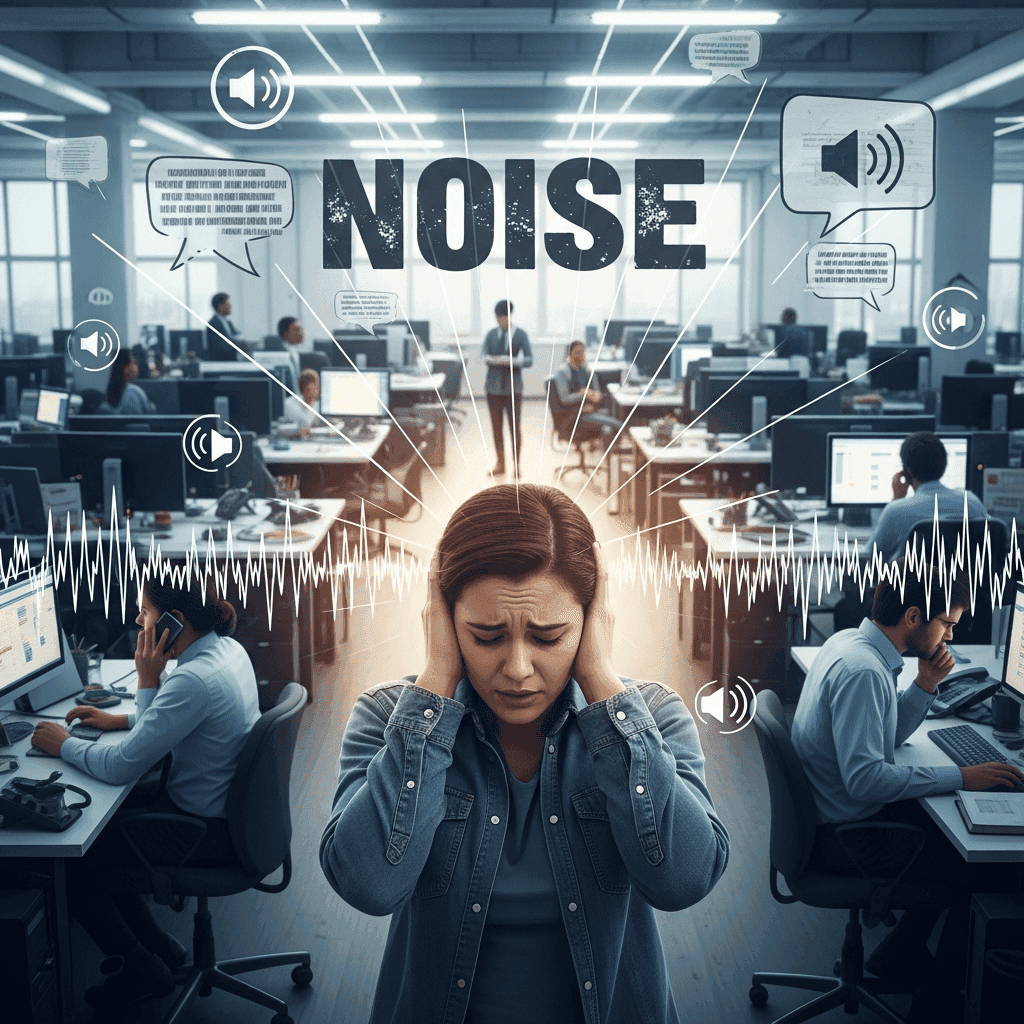
Roughly 48% of employees say speech is the most distracting source of office noise. Workers waste an average of 21.5 minutes per day due to conversational distractions, nearly two hours per week of lost productivity.
The irony? You might want to use voice dictation to speed up your work, but you're worried about becoming the noise problem yourself. That's where quiet dictation changes the equation.
The Social Anxiety of Voice Dictation (And Why It Matters)
The biggest reason people avoid dictation isn't the tech. It's the fear of looking ridiculous.
Traditional voice dictation requires normal speaking volume, making your work audible to anyone nearby. That's why Quiet Mode matters.
Willow's Quiet Mode lets you whisper or speak softly, barely above a breath. Your words still convert to text with high accuracy, but your coworkers won't hear what you're saying. You can draft a sensitive email, respond to a difficult Slack message, or write a performance review without broadcasting it across the office.
You get the 4x speed boost without becoming the loud distraction.
How Quiet Mode Technology Works
Quiet Mode combines a sensitive microphone with AI trained on whispered speech patterns. Standard dictation software fails with quiet input because it's built for normal volume.
Background noise filtering isolates your voice from office sounds when speaking just above a whisper. The AI analyzes acoustic characteristics unique to soft speech, which differ from regular talking.
Context awareness helps by reading what's on your screen to understand technical terms and names you're likely to use. This compensates for reduced audio clarity from whispered input.
The output remains highly accurate at sound levels that stay within your workspace. Processing happens under a second with no lag between speaking and text appearing.
Feature | Quiet Mode (Willow) | Standard Dictation | Built-in OS Dictation |
|---|---|---|---|
Whisper accuracy | High - AI trained on soft speech | Low - requires normal volume | Very low - drops off sharply |
Background noise filtering | Yes - isolates voice from office sounds | Basic | Minimal |
Context awareness | Yes - reads on-screen content | No | No |
Latency | ~200ms | 500ms-1 second | 700ms+ |
Filler word removal | Yes - automatic | Rarely | No |
Works across most apps | Yes | Limited | Varies by OS |
Setting Up Your Workspace for Quiet Dictation
Position your desk away from high-traffic areas like doorways and break rooms. Corner spots or wall-adjacent locations reduce sound bouncing and give you a physical barrier.
Face away from your team when you dictate. This directs your whispered speech toward a wall instead of colleagues, keeping your voice contained.
If you're using an external microphone, position it 2-3 inches from your mouth at a slight angle to capture whispered speech without picking up breathing sounds.
Add soft materials to your immediate workspace. A desk mat or fabric organizers absorb sound reflections and reduce how far your whispered words carry.
Office Etiquette: When and Where to Dictate
Reserve quiet dictation for focused work times, not during team meetings or collaborative discussions. Your whispered input blends better when colleagues are on calls or in concentration mode.
Avoid dictating during peak silence, early mornings or unusually quiet stretches. Whispers carry further with no ambient noise to mask them.
Conference rooms work well for longer sessions when drafting complex or sensitive content. Book 15-30 minutes when you need extended focus.
Test your volume first. Whisper a sentence and ask a nearby colleague if they can make out words. Six feet of distance with no comprehension is the right benchmark.
Headphones signal to teammates that you're concentrating, even if you're not playing audio. Pairing them with a do-not-disturb status in Slack or Teams gives you a second layer of protection against mid-sentence interruptions.
Training Your Team to Accept Voice Dictation
Start with transparency. Send a brief message explaining you're testing voice dictation to speed up writing tasks, and you'll be speaking quietly at your desk. Most resistance comes from surprise, not the actual practice.
Frame it as a productivity experiment the whole team could benefit from. When multiple people use it, the practice becomes normal instead of odd. Teams can also share custom vocabulary and shortcuts across the group, so company names, project terms, and frequently used phrases stay consistent in everyone's transcriptions from day one. For larger rollouts, admin controls let managers track adoption, adjust settings across the group, and bring new hires up to the same setup without individual configuration.
Lead by example with Quiet Mode. When teammates see you whisper instead of talk at full volume, they'll notice the minimal disruption. Results matter more than perception.
Microphone Setup and Audio Quality for Whisper Input
Check your system input level in Sound Settings. Set it between 60-80% to capture soft speech without amplifying background noise. On Windows, open Sound Settings from the taskbar tray, select your microphone under Input, and use the volume slider; the same 60-80% range applies regardless of whether you're on a desktop or laptop.
Disable automatic gain control if your Mac or Windows machine offers it. This feature boosts volume during silence, which amplifies ambient office sounds between whispered phrases.
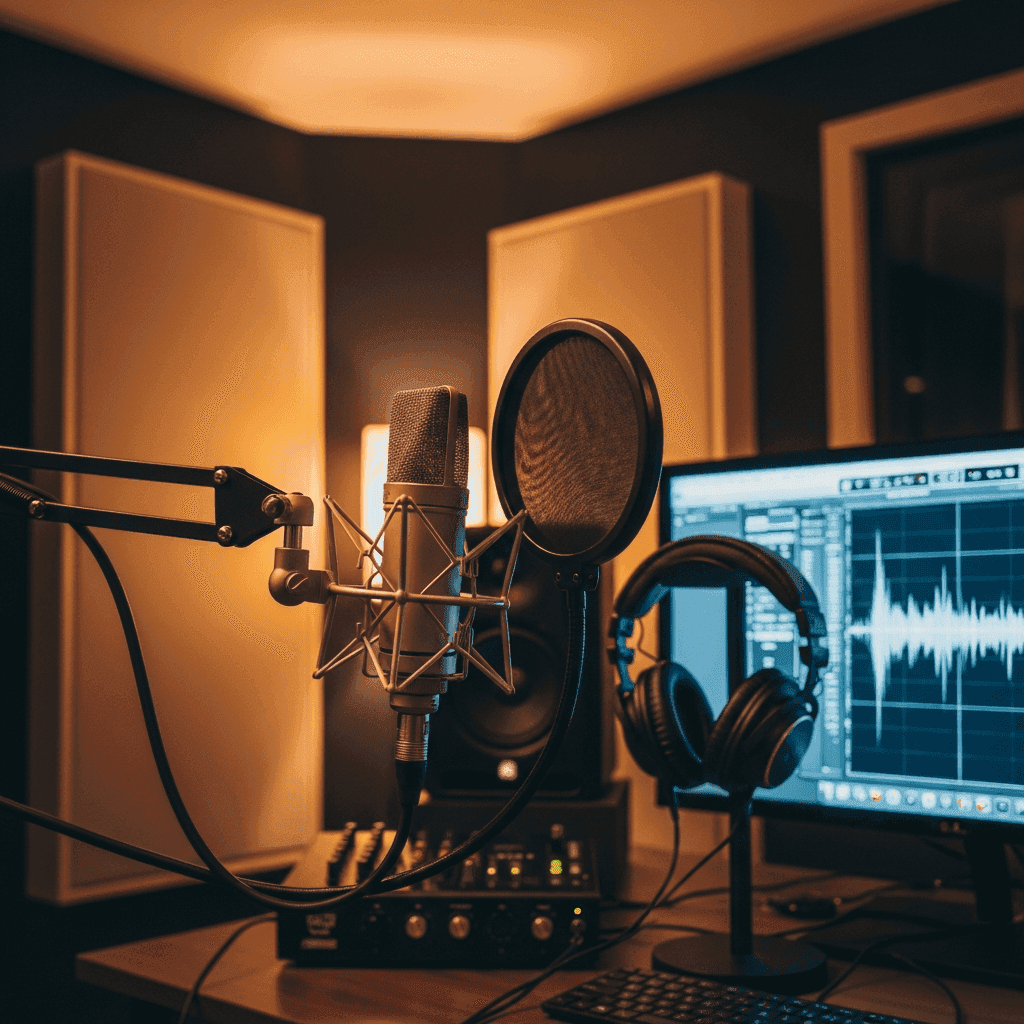
Test your setup by whispering a complex sentence with technical terms. If accuracy drops, slightly increase input volume or move closer to the microphone.
Built-in laptop microphones work fine for Willow's Quiet Mode without requiring external gear.
Common Mistakes That Make You Look (and Sound) Awkward
Over-enunciating draws more attention than normal soft speech. Speak naturally at low volume.
Apologizing repeatedly for using dictation turns a normal tool into a spectacle. A single heads-up to your team is enough.
Switching mid-sentence between typing and dictating creates visible confusion. Commit to one input method per thought or paragraph.
Forgetting to pause the microphone during spontaneous conversations will transcribe side chatter into your document.
Dictating confidential information in shared spaces breaks trust, even in Quiet Mode. Salary discussions and sensitive client details belong in a private space regardless of volume.
Willow handles formatting automatically, so you don't need to narrate punctuation unless you want manual control.
Dictation Workflows for Different Communication Types
Emails need complete thoughts and proper structure. Dictate the entire message in one flow instead of stopping between sentences. Willow handles greetings, sign-offs, and paragraph breaks automatically, so focus on your core message.
Slack messages work best with short bursts. Dictate one or two sentences at a time, matching the quick back-and-forth rhythm of chat. Skip formal openings and get straight to the point.
Long documents benefit from outlining first. Whisper your main points as bullets, then expand each section in separate dictation passes to keep your structure tight.
AI prompts require precision. Dictate specific instructions clearly, including examples or constraints. Since 66% of workers report workplace distractions impacting focus, quiet dictation helps you maintain concentration while crafting complex requests to tools like ChatGPT, Claude, Gemini, or Cursor. Every prompt you dictate instead of type is a task completed without breaking your train of thought.
Emails and documents need consistent flow; messages and prompts work better in deliberate chunks.
Measuring Your Productivity Gains
Time your email writing before and after switching to quiet dictation. Write five emails manually and record the duration, then repeat the task using Willow. The gap between these numbers reveals your actual speed gain.
Compare daily word counts between typing and dictation days. Most users produce 3-4x more content in the same timeframe when dictating.
Track your inbox processing speed. Monitor how many messages you handle per hour with each method. If your response time drops or backlog shrinks, dictation delivers measurable value. Teams rolling it out org-wide can check built-in leaderboards showing words dictated and time saved per person, giving managers a clear view of adoption without requiring manual tracking.
Calculate weekly time savings. Writing 50 emails at 10 minutes each takes 500 minutes. At 3 minutes per email with dictation, you spend 150 minutes and recover nearly 6 hours per week.
Why Teams Use Willow for Quiet Voice Dictation
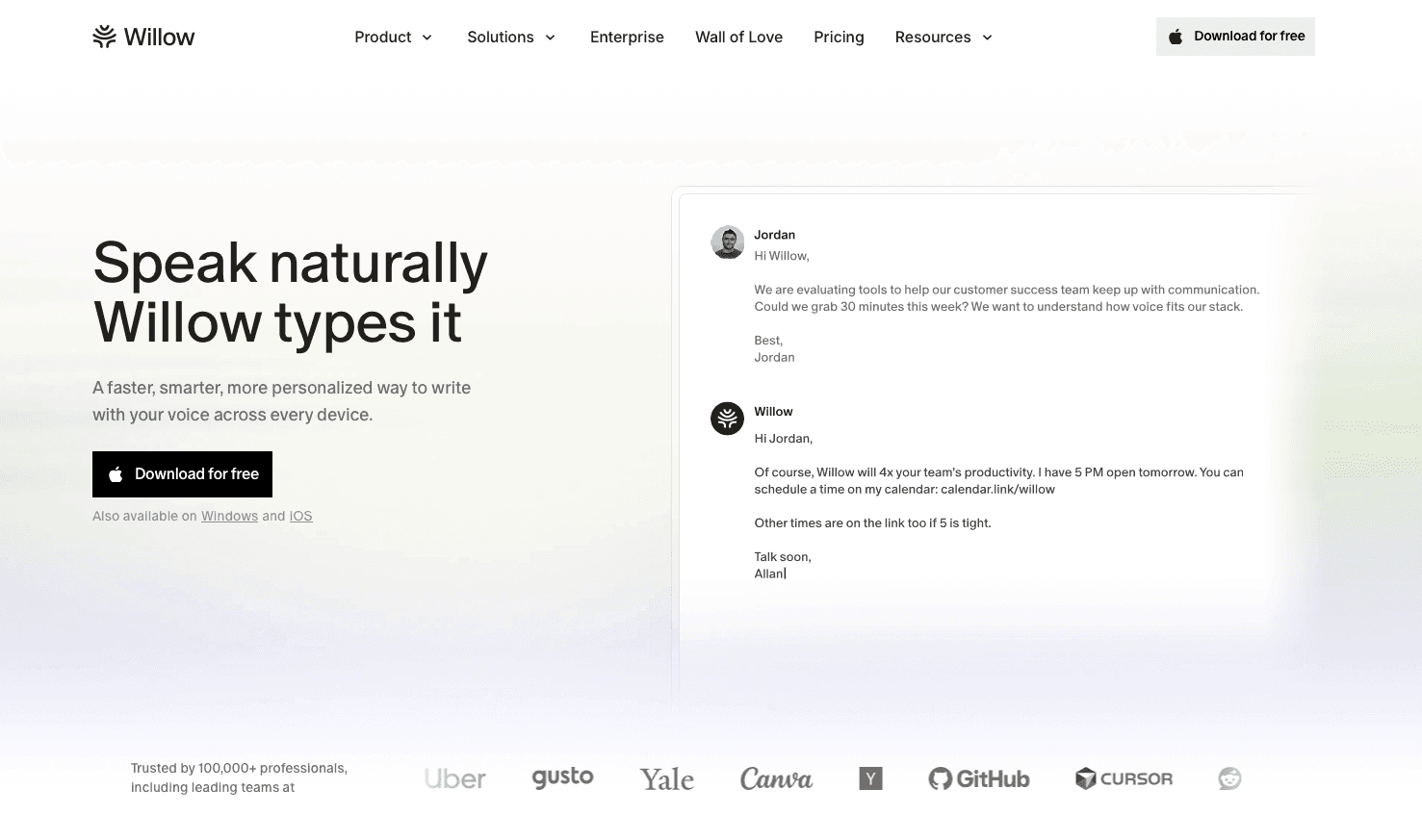
Willow Voice runs on Mac, Windows, and iOS, built for professionals who spend most of their day writing (emails, Slack messages, documents, and AI prompts) and want to move faster without disrupting the room. It works in most apps where you type and activates instantly with a hotkey, turning natural speech into polished text in under a second. Quiet Mode lets you speak softly or whisper at your desk while background noise filtering and context-aware models keep transcription accurate, even in open offices. For teams deploying it across an organization, Willow is SOC 2 Type II and HIPAA compliant, with shared custom dictionaries and shortcuts that keep terminology consistent across the whole group.
Unlike built-in dictation tools, Willow adapts to your writing context, capturing names, technical terms, and tone more reliably, formatting text as you speak, removing filler words, and handling different contexts like email versus chat. Whether your team works on Mac, Windows, or a mix of both, custom vocabulary and settings carry over so everyone works from the same setup. Many users speak around 150 words per minute, replacing nearly all manual typing and reclaiming hours each week. Backed by Y Combinator and trusted by teams at companies like Uber, Gusto, and Reddit, Willow offers a free trial with no credit card required.
FAQs
How quiet can I actually speak with Willow's Quiet Mode?
You can whisper just above a breath, quiet enough that coworkers 6 feet away won't understand your words. The sensitive microphone and AI trained on whispered speech patterns maintain high accuracy even at very low speaking volumes.
What's the best way to introduce voice dictation to my team without making it awkward?
Send a brief message explaining you're testing voice dictation to speed up writing tasks and will be speaking quietly at your desk. Frame it as a productivity experiment the whole team could benefit from, and let your results speak for themselves.
Can I use Quiet Mode for sensitive emails and performance reviews?
Yes, Quiet Mode keeps your whispered words within your immediate workspace, but always move to a private space like a conference room for highly confidential content like salary discussions or sensitive client details regardless of volume level.
Final Thoughts on Making Dictation Work in Shared Spaces
You don't need a private office to make voice dictation part of your daily workflow. Set up your desk to limit sound spread, test your volume once, and start with low-stakes writing. Quiet dictating tools like Willow turn soft speech into clean text without disrupting the people around you. For individuals and teams alike, it's a way to write faster, prompt AI tools more freely, and stay considerate in shared spaces.
Your coworkers are only a few feet away, your inbox is overflowing, and typing everything out feels painfully slow. Speaking would be faster, but not if it means announcing every sentence to the room. There's now a way to quietly speak your thoughts into text using a sensitive microphone and smart dictation software, so you can whisper through emails, messages, documents, and AI prompts without drawing attention. With quiet dictating tools, you can work at the speed of speech while keeping the office calm and your writing private.
TLDR:
Quiet Mode lets you whisper at your desk and still get accurate transcriptions without disturbing coworkers.
You can recover nearly 6 hours per week by cutting email writing time from 10 minutes to 3 minutes each.
Position your desk away from high-traffic areas and face walls to keep whispered speech contained.
A high-sensitivity microphone paired with modern speech models captures soft speech with over 40% better accuracy than built-in dictation tools.
Advanced voice dictation works across most Mac and Windows apps and supports speaking speeds up to 150 words per minute with context awareness.
Why Open Office Noise Is Killing Your Productivity
You're trying to write an email, and someone three desks over is having a loud conversation about their weekend. Your focus shatters. By the time they finish, you've forgotten what you were going to say.
Roughly 48% of employees say speech is the most distracting source of office noise. Workers waste an average of 21.5 minutes per day due to conversational distractions, nearly two hours per week of lost productivity.
The irony? You might want to use voice dictation to speed up your work, but you're worried about becoming the noise problem yourself. That's where quiet dictation changes the equation.
The Social Anxiety of Voice Dictation (And Why It Matters)
The biggest reason people avoid dictation isn't the tech. It's the fear of looking ridiculous.
Traditional voice dictation requires normal speaking volume, making your work audible to anyone nearby. That's why Quiet Mode matters.
Willow's Quiet Mode lets you whisper or speak softly, barely above a breath. Your words still convert to text with high accuracy, but your coworkers won't hear what you're saying. You can draft a sensitive email, respond to a difficult Slack message, or write a performance review without broadcasting it across the office.
You get the 4x speed boost without becoming the loud distraction.
How Quiet Mode Technology Works
Quiet Mode combines a sensitive microphone with AI trained on whispered speech patterns. Standard dictation software fails with quiet input because it's built for normal volume.
Background noise filtering isolates your voice from office sounds when speaking just above a whisper. The AI analyzes acoustic characteristics unique to soft speech, which differ from regular talking.
Context awareness helps by reading what's on your screen to understand technical terms and names you're likely to use. This compensates for reduced audio clarity from whispered input.
The output remains highly accurate at sound levels that stay within your workspace. Processing happens under a second with no lag between speaking and text appearing.
Feature | Quiet Mode (Willow) | Standard Dictation | Built-in OS Dictation |
|---|---|---|---|
Whisper accuracy | High - AI trained on soft speech | Low - requires normal volume | Very low - drops off sharply |
Background noise filtering | Yes - isolates voice from office sounds | Basic | Minimal |
Context awareness | Yes - reads on-screen content | No | No |
Latency | ~200ms | 500ms-1 second | 700ms+ |
Filler word removal | Yes - automatic | Rarely | No |
Works across most apps | Yes | Limited | Varies by OS |
Setting Up Your Workspace for Quiet Dictation
Position your desk away from high-traffic areas like doorways and break rooms. Corner spots or wall-adjacent locations reduce sound bouncing and give you a physical barrier.
Face away from your team when you dictate. This directs your whispered speech toward a wall instead of colleagues, keeping your voice contained.
If you're using an external microphone, position it 2-3 inches from your mouth at a slight angle to capture whispered speech without picking up breathing sounds.
Add soft materials to your immediate workspace. A desk mat or fabric organizers absorb sound reflections and reduce how far your whispered words carry.
Office Etiquette: When and Where to Dictate
Reserve quiet dictation for focused work times, not during team meetings or collaborative discussions. Your whispered input blends better when colleagues are on calls or in concentration mode.
Avoid dictating during peak silence, early mornings or unusually quiet stretches. Whispers carry further with no ambient noise to mask them.
Conference rooms work well for longer sessions when drafting complex or sensitive content. Book 15-30 minutes when you need extended focus.
Test your volume first. Whisper a sentence and ask a nearby colleague if they can make out words. Six feet of distance with no comprehension is the right benchmark.
Headphones signal to teammates that you're concentrating, even if you're not playing audio. Pairing them with a do-not-disturb status in Slack or Teams gives you a second layer of protection against mid-sentence interruptions.
Training Your Team to Accept Voice Dictation
Start with transparency. Send a brief message explaining you're testing voice dictation to speed up writing tasks, and you'll be speaking quietly at your desk. Most resistance comes from surprise, not the actual practice.
Frame it as a productivity experiment the whole team could benefit from. When multiple people use it, the practice becomes normal instead of odd. Teams can also share custom vocabulary and shortcuts across the group, so company names, project terms, and frequently used phrases stay consistent in everyone's transcriptions from day one. For larger rollouts, admin controls let managers track adoption, adjust settings across the group, and bring new hires up to the same setup without individual configuration.
Lead by example with Quiet Mode. When teammates see you whisper instead of talk at full volume, they'll notice the minimal disruption. Results matter more than perception.
Microphone Setup and Audio Quality for Whisper Input
Check your system input level in Sound Settings. Set it between 60-80% to capture soft speech without amplifying background noise. On Windows, open Sound Settings from the taskbar tray, select your microphone under Input, and use the volume slider; the same 60-80% range applies regardless of whether you're on a desktop or laptop.
Disable automatic gain control if your Mac or Windows machine offers it. This feature boosts volume during silence, which amplifies ambient office sounds between whispered phrases.
Test your setup by whispering a complex sentence with technical terms. If accuracy drops, slightly increase input volume or move closer to the microphone.
Built-in laptop microphones work fine for Willow's Quiet Mode without requiring external gear.
Common Mistakes That Make You Look (and Sound) Awkward
Over-enunciating draws more attention than normal soft speech. Speak naturally at low volume.
Apologizing repeatedly for using dictation turns a normal tool into a spectacle. A single heads-up to your team is enough.
Switching mid-sentence between typing and dictating creates visible confusion. Commit to one input method per thought or paragraph.
Forgetting to pause the microphone during spontaneous conversations will transcribe side chatter into your document.
Dictating confidential information in shared spaces breaks trust, even in Quiet Mode. Salary discussions and sensitive client details belong in a private space regardless of volume.
Willow handles formatting automatically, so you don't need to narrate punctuation unless you want manual control.
Dictation Workflows for Different Communication Types
Emails need complete thoughts and proper structure. Dictate the entire message in one flow instead of stopping between sentences. Willow handles greetings, sign-offs, and paragraph breaks automatically, so focus on your core message.
Slack messages work best with short bursts. Dictate one or two sentences at a time, matching the quick back-and-forth rhythm of chat. Skip formal openings and get straight to the point.
Long documents benefit from outlining first. Whisper your main points as bullets, then expand each section in separate dictation passes to keep your structure tight.
AI prompts require precision. Dictate specific instructions clearly, including examples or constraints. Since 66% of workers report workplace distractions impacting focus, quiet dictation helps you maintain concentration while crafting complex requests to tools like ChatGPT, Claude, Gemini, or Cursor. Every prompt you dictate instead of type is a task completed without breaking your train of thought.
Emails and documents need consistent flow; messages and prompts work better in deliberate chunks.
Measuring Your Productivity Gains
Time your email writing before and after switching to quiet dictation. Write five emails manually and record the duration, then repeat the task using Willow. The gap between these numbers reveals your actual speed gain.
Compare daily word counts between typing and dictation days. Most users produce 3-4x more content in the same timeframe when dictating.
Track your inbox processing speed. Monitor how many messages you handle per hour with each method. If your response time drops or backlog shrinks, dictation delivers measurable value. Teams rolling it out org-wide can check built-in leaderboards showing words dictated and time saved per person, giving managers a clear view of adoption without requiring manual tracking.
Calculate weekly time savings. Writing 50 emails at 10 minutes each takes 500 minutes. At 3 minutes per email with dictation, you spend 150 minutes and recover nearly 6 hours per week.
Why Teams Use Willow for Quiet Voice Dictation
Willow Voice runs on Mac, Windows, and iOS, built for professionals who spend most of their day writing (emails, Slack messages, documents, and AI prompts) and want to move faster without disrupting the room. It works in most apps where you type and activates instantly with a hotkey, turning natural speech into polished text in under a second. Quiet Mode lets you speak softly or whisper at your desk while background noise filtering and context-aware models keep transcription accurate, even in open offices. For teams deploying it across an organization, Willow is SOC 2 Type II and HIPAA compliant, with shared custom dictionaries and shortcuts that keep terminology consistent across the whole group.
Unlike built-in dictation tools, Willow adapts to your writing context, capturing names, technical terms, and tone more reliably, formatting text as you speak, removing filler words, and handling different contexts like email versus chat. Whether your team works on Mac, Windows, or a mix of both, custom vocabulary and settings carry over so everyone works from the same setup. Many users speak around 150 words per minute, replacing nearly all manual typing and reclaiming hours each week. Backed by Y Combinator and trusted by teams at companies like Uber, Gusto, and Reddit, Willow offers a free trial with no credit card required.
FAQs
How quiet can I actually speak with Willow's Quiet Mode?
You can whisper just above a breath, quiet enough that coworkers 6 feet away won't understand your words. The sensitive microphone and AI trained on whispered speech patterns maintain high accuracy even at very low speaking volumes.
What's the best way to introduce voice dictation to my team without making it awkward?
Send a brief message explaining you're testing voice dictation to speed up writing tasks and will be speaking quietly at your desk. Frame it as a productivity experiment the whole team could benefit from, and let your results speak for themselves.
Can I use Quiet Mode for sensitive emails and performance reviews?
Yes, Quiet Mode keeps your whispered words within your immediate workspace, but always move to a private space like a conference room for highly confidential content like salary discussions or sensitive client details regardless of volume level.
Final Thoughts on Making Dictation Work in Shared Spaces
You don't need a private office to make voice dictation part of your daily workflow. Set up your desk to limit sound spread, test your volume once, and start with low-stakes writing. Quiet dictating tools like Willow turn soft speech into clean text without disrupting the people around you. For individuals and teams alike, it's a way to write faster, prompt AI tools more freely, and stay considerate in shared spaces.

Try Willow for free
Instant, accurate voice dictation. No card required.
Try Willow for free
Instant, accurate voice dictation. No card required.
Other stories you’ll love
Other stories you’ll love


Your keyboard is optional now
" transform="translate(5 5)" width="9.791000051498413px"/></svg>)

The voice-first interface for modern work.
© Willow Care, Inc. 2026. All rights reserved
Your keyboard is optional now
The voice-first interface for modern work.
© Willow Care, Inc. 2026. All rights reserved
Your keyboard is optional now
The voice-first interface for modern work.
© Willow Care, Inc. 2026. All rights reserved