" transform="translate(5 2)" width="10px"/></svg>)

•
5 min read
How to Use Speech to Text on MacBook: Complete Guide (April 2026)
•
5 min read
How to Use Speech to Text on MacBook: Complete Guide (April 2026)
Figuring out how to use speech to text on MacBook is easy on paper, but getting consistent results is where most people run into friction. Apple’s built-in dictation works for short bursts, yet longer sessions expose limits like timeouts, missed terminology, and spotty compatibility across apps. If you rely on voice input for more than quick replies, those gaps become hard to ignore. This guide breaks down setup, shortcuts, voice commands, and fixes, while also pointing to a more capable alternative for voice typing that handles longer, more demanding workflows without the usual interruptions.
TLDR:
Press Fn twice to activate Mac dictation, but it times out after 30 seconds with no fix.
You speak at 150 WPM vs. typing at 40 WPM, a 3x speed gap that adds up across daily emails.
Apple dictation lacks context awareness and won't learn your vocabulary over time.
Browser apps like Chrome and Google Docs often cause dictation conflicts or failures.
Some advanced voice typing tools offer real-time transcription, vocabulary learning, and continuous dictation without forced cutoffs.
How to Turn On Speech to Text on Your MacBook
Getting started takes less than a minute. Here's how to turn on Apple's built-in dictation:
Click the Apple menu and open System Settings.
Select Keyboard from the sidebar.
Scroll down to Dictation and toggle it on.
Choose your preferred language and microphone input.
Click the button when prompted about data privacy.
Once it's on, activate dictation by pressing the microphone key on your keyboard, or by double-pressing the Fn key, depending on your Mac model.
On older macOS versions (Ventura or earlier), this lives under System Preferences > Keyboard > Dictation instead of System Settings.
Apple will ask whether you want to share audio with Siri to improve accuracy. You can decline this without losing core functionality. Either way, dictation will work once the toggle is live. No restart needed.
Understanding Mac Dictation Keyboard Shortcuts
By default, double-pressing the Fn key activates dictation. A small microphone icon appears near your cursor or at the bottom of your screen to confirm it's listening. When you're done, press Fn again or click the microphone icon to stop.
Want a different shortcut? You can customize this in System Settings > Keyboard > Dictation. Options include pressing Fn twice, the right Command key, or a custom key combination of your choice.
A few things worth knowing:
On newer MacBook Pro models, the microphone key sits in the top row of the keyboard, making it easy to find at a glance.
If the microphone icon never appears after triggering the shortcut, dictation likely failed to activate and may need a settings check.
Clicking anywhere outside the active text field will stop dictation automatically, so be mindful of where your cursor lands.
There’s no simple default voice command to stop dictation, though you can activate Voice Control in macOS settings to add voice-based controls like stopping dictation.
The shortcut itself is straightforward. The frustrating part tends to come when dictation stops responding mid-session, which we'll cover shortly.
Key Voice Commands for Punctuation and Formatting
Knowing the shortcut is one thing. Knowing what to say once you're recording is another. Apple Dictation responds to spoken commands for punctuation and structure, so you don't need to stop and type them manually.
Command | What It Does |
|---|---|
"period" | Inserts a . |
"comma" | Inserts a , |
"question mark" | Inserts a ? |
"exclamation point" | Inserts a ! |
"new line" | Moves to a new line |
"new paragraph" | Starts a new paragraph |
"all caps" | Makes the next word uppercase |
"caps on / caps off" | Makes a range of words uppercase |
"open quote / close quote" | Wraps text in quotation marks |
"dash" | Inserts a hyphen |
Speak these commands as part of your natural flow. Say "call me back comma if you can period" and the punctuation lands exactly where you want it. It takes a few sessions to feel natural, but once it clicks, your output reads clean without touching the keyboard.
Why Mac Dictation Not Working and How to Fix It
Mac dictation works fine until it doesn't. A few recurring issues show up constantly across Reddit threads and Apple support forums.
Here are the most common culprits and how to fix them:
It stops after 30 seconds: Apple's built-in dictation has a timeout limit. If you pause too long or your session runs long, it cuts off automatically. There is no setting to extend this.
Microphone permissions are blocked: Go to System Settings > Privacy & Security > Microphone and confirm the app you're using has access. Chrome and Word are frequent offenders here.
It fails in Chrome or Google Docs: Mac dictation can be inconsistent in some browser-based text fields, particularly in Chrome or Google Docs. If dictation opens but nothing transcribes in Chrome or Google Docs, try using Safari instead. Google Docs has its own voice typing tool under Tools > Voice Typing that often works better in that context.
It won't work in Microsoft Word: Word has its own dictation button built into the ribbon. Mac's native dictation and Word's internal dictation can conflict. Use one or the other, not both at the same time.
External microphone not recognized: If you're using an external mic and dictation isn't picking it up, check System Settings > Sound > Input and confirm the correct device is selected before activating dictation.
Speech to Text Productivity Benefits: The Speed Advantage
The math is simple. Most people type around 40 words per minute. Conversational speech runs at about 150 words per minute. That's nearly a 3x gap, and it compounds fast across a full workday of emails, Slack threads, and documents.
A Stanford University study found that speech recognition is 3x faster than typing on smartphones. For professionals handling high volumes of written communication, that's hours recovered every week.
"You speak at 150 WPM. You type at 40. Everything in between is time you're losing."
The productivity case gets stronger the more you write. Founders clearing inboxes, sales teams logging CRM notes, doctors charting patient visits: these are heavy typing workloads. Voice input shortens the gap between thinking something and getting it down, which means fewer dropped thoughts and faster turnaround on anything text-heavy.
Limitations of Apple's Built-In Dictation
Apple's built-in dictation gets the job done for quick notes. For anything more demanding, the cracks show fast.
The 30-second timeout is the most common complaint, and there's no workaround. Beyond that:
Context awareness is minimal. Technical terms, product names, and proper nouns get mangled regularly.
Auto-punctuation is hit or miss, especially in longer sentences.
Older setups may rely more on internet-based processing, though newer macOS versions support on-device dictation for many Macs.
Personalization is limited. While Apple Dictation can pick up some names and context from your device (like contacts), it doesn’t deeply learn your vocabulary or writing style over time.
For casual use, these limits are manageable. For anyone speaking at volume, whether emails, docs, or AI prompts, they add up to a lot of manual cleanup.
Where Apple Dictation Falls Short vs. Dedicated Tools
Apps like Wispr Flow and Willow Voice are built to solve the problems listed above. Willow Voice learns your writing style over time, so accuracy improves the more you use it. It also runs at 200ms latency, compared to 700ms or more from other tools, so there's no lag breaking your train of thought. For teams, enterprise-grade SOC 2 and HIPAA compliance means dictation doesn't create security blind spots. Apple’s built-in dictation focuses more on basic functionality and privacy, but lacks advanced features like deep personalization, team workflows, and extended controls.
Moving Beyond Basic Dictation with Willow Voice
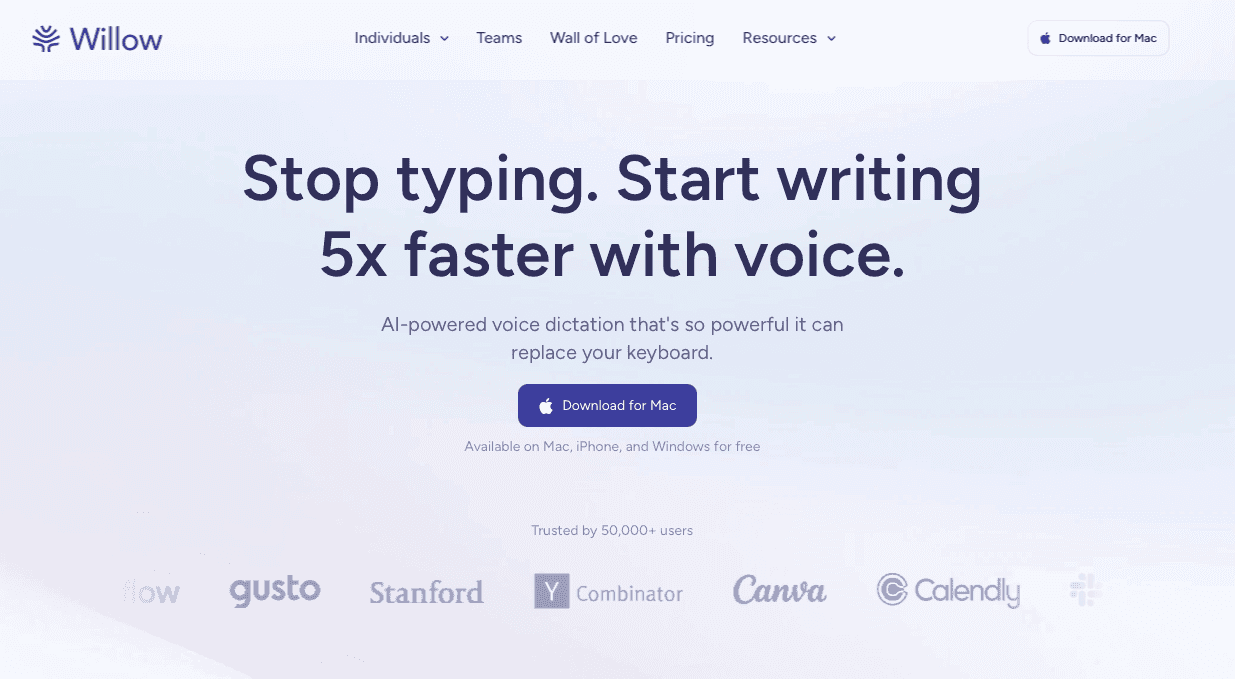
Willow Voice is built for people who've hit Apple Dictation's ceiling. Press the Fn key and it works across most apps like Gmail, Slack, Notion, Google Docs, and Word without needing to switch tools. No app switching, no workarounds.
Three things separate it from Apple Dictation, Wispr Flow, and other dictation tools:
Personalization: Willow Voice learns your vocabulary, names, and writing style over time, cutting manual corrections down to near zero. The more you use it, the more accurate it gets for you.
Speed: At 200ms latency, text appears as fast as you speak. Most alternatives run at 700ms or higher, which is enough lag to break your focus.
Team-ready security: SOC 2 and HIPAA compliance, plus shared dictionaries and shortcuts across your whole organization, so every teammate works from the same source of truth.
Offline mode and custom hotkeys round out the experience if you need extra flexibility.
There's a free trial with no credit card required. If Apple Dictation has been slowing you down, Willow Voice is the straightforward upgrade.
FAQs
What's the shortcut for voice to text on Mac?
Double-press the Fn key to activate Apple's built-in dictation, or press the microphone key on newer MacBook Pro models. You can customize this shortcut in System Settings > Keyboard > Dictation to use the right Command key or a custom key combination instead.
Why is my Mac dictation not working in Google Docs or Chrome?
Mac dictation can be inconsistent in browser-based text fields like Chrome and Google Docs, sometimes due to permission or compatibility issues. Go to System Settings > Privacy & Security > Microphone and confirm Chrome has access, or switch to Safari where compatibility is more reliable.
Can I use speech to text on Mac without the 30-second timeout?
No, Apple's built-in dictation has a hard 30-second limit with no workaround. Dedicated tools like Willow Voice remove this restriction entirely, running continuously without timeouts while you speak emails, documents, or AI prompts at full speed.
Apple Dictation vs. Willow Voice for MacBook?
Apple Dictation works for quick notes but cuts off after 30 seconds, struggles with technical terms, and doesn't learn your vocabulary. Willow Voice personalizes to your writing style over time, runs at 200ms latency (vs. 700ms+ for others), and includes SOC 2 and HIPAA compliance for team use without timeout limits.
How do I turn on dictation on my MacBook keyboard?
Open System Settings, select Keyboard from the sidebar, scroll to Dictation, and toggle it on. Choose your language and microphone, then confirm when prompted. No restart required and dictation activates immediately.
Final Thoughts on Dictation for Mac
Understanding how to use speech to text on MacBook gets you started, but sticking with it depends on how well the tool keeps up with your workflow. Apple’s dictation covers the basics, though the constant stopping, corrections, and limitations can slow things down over time. Willow Voice removes those barriers by learning how you write, keeping pace with your speech, and working across the apps you already use. If you want dictation that feels consistent from start to finish, you can try Willow today.
Figuring out how to use speech to text on MacBook is easy on paper, but getting consistent results is where most people run into friction. Apple’s built-in dictation works for short bursts, yet longer sessions expose limits like timeouts, missed terminology, and spotty compatibility across apps. If you rely on voice input for more than quick replies, those gaps become hard to ignore. This guide breaks down setup, shortcuts, voice commands, and fixes, while also pointing to a more capable alternative for voice typing that handles longer, more demanding workflows without the usual interruptions.
TLDR:
Press Fn twice to activate Mac dictation, but it times out after 30 seconds with no fix.
You speak at 150 WPM vs. typing at 40 WPM, a 3x speed gap that adds up across daily emails.
Apple dictation lacks context awareness and won't learn your vocabulary over time.
Browser apps like Chrome and Google Docs often cause dictation conflicts or failures.
Some advanced voice typing tools offer real-time transcription, vocabulary learning, and continuous dictation without forced cutoffs.
How to Turn On Speech to Text on Your MacBook
Getting started takes less than a minute. Here's how to turn on Apple's built-in dictation:
Click the Apple menu and open System Settings.
Select Keyboard from the sidebar.
Scroll down to Dictation and toggle it on.
Choose your preferred language and microphone input.
Click the button when prompted about data privacy.
Once it's on, activate dictation by pressing the microphone key on your keyboard, or by double-pressing the Fn key, depending on your Mac model.
On older macOS versions (Ventura or earlier), this lives under System Preferences > Keyboard > Dictation instead of System Settings.
Apple will ask whether you want to share audio with Siri to improve accuracy. You can decline this without losing core functionality. Either way, dictation will work once the toggle is live. No restart needed.
Understanding Mac Dictation Keyboard Shortcuts
By default, double-pressing the Fn key activates dictation. A small microphone icon appears near your cursor or at the bottom of your screen to confirm it's listening. When you're done, press Fn again or click the microphone icon to stop.
Want a different shortcut? You can customize this in System Settings > Keyboard > Dictation. Options include pressing Fn twice, the right Command key, or a custom key combination of your choice.
A few things worth knowing:
On newer MacBook Pro models, the microphone key sits in the top row of the keyboard, making it easy to find at a glance.
If the microphone icon never appears after triggering the shortcut, dictation likely failed to activate and may need a settings check.
Clicking anywhere outside the active text field will stop dictation automatically, so be mindful of where your cursor lands.
There’s no simple default voice command to stop dictation, though you can activate Voice Control in macOS settings to add voice-based controls like stopping dictation.
The shortcut itself is straightforward. The frustrating part tends to come when dictation stops responding mid-session, which we'll cover shortly.
Key Voice Commands for Punctuation and Formatting
Knowing the shortcut is one thing. Knowing what to say once you're recording is another. Apple Dictation responds to spoken commands for punctuation and structure, so you don't need to stop and type them manually.
Command | What It Does |
|---|---|
"period" | Inserts a . |
"comma" | Inserts a , |
"question mark" | Inserts a ? |
"exclamation point" | Inserts a ! |
"new line" | Moves to a new line |
"new paragraph" | Starts a new paragraph |
"all caps" | Makes the next word uppercase |
"caps on / caps off" | Makes a range of words uppercase |
"open quote / close quote" | Wraps text in quotation marks |
"dash" | Inserts a hyphen |
Speak these commands as part of your natural flow. Say "call me back comma if you can period" and the punctuation lands exactly where you want it. It takes a few sessions to feel natural, but once it clicks, your output reads clean without touching the keyboard.
Why Mac Dictation Not Working and How to Fix It
Mac dictation works fine until it doesn't. A few recurring issues show up constantly across Reddit threads and Apple support forums.
Here are the most common culprits and how to fix them:
It stops after 30 seconds: Apple's built-in dictation has a timeout limit. If you pause too long or your session runs long, it cuts off automatically. There is no setting to extend this.
Microphone permissions are blocked: Go to System Settings > Privacy & Security > Microphone and confirm the app you're using has access. Chrome and Word are frequent offenders here.
It fails in Chrome or Google Docs: Mac dictation can be inconsistent in some browser-based text fields, particularly in Chrome or Google Docs. If dictation opens but nothing transcribes in Chrome or Google Docs, try using Safari instead. Google Docs has its own voice typing tool under Tools > Voice Typing that often works better in that context.
It won't work in Microsoft Word: Word has its own dictation button built into the ribbon. Mac's native dictation and Word's internal dictation can conflict. Use one or the other, not both at the same time.
External microphone not recognized: If you're using an external mic and dictation isn't picking it up, check System Settings > Sound > Input and confirm the correct device is selected before activating dictation.
Speech to Text Productivity Benefits: The Speed Advantage
The math is simple. Most people type around 40 words per minute. Conversational speech runs at about 150 words per minute. That's nearly a 3x gap, and it compounds fast across a full workday of emails, Slack threads, and documents.
A Stanford University study found that speech recognition is 3x faster than typing on smartphones. For professionals handling high volumes of written communication, that's hours recovered every week.
"You speak at 150 WPM. You type at 40. Everything in between is time you're losing."
The productivity case gets stronger the more you write. Founders clearing inboxes, sales teams logging CRM notes, doctors charting patient visits: these are heavy typing workloads. Voice input shortens the gap between thinking something and getting it down, which means fewer dropped thoughts and faster turnaround on anything text-heavy.
Limitations of Apple's Built-In Dictation
Apple's built-in dictation gets the job done for quick notes. For anything more demanding, the cracks show fast.
The 30-second timeout is the most common complaint, and there's no workaround. Beyond that:
Context awareness is minimal. Technical terms, product names, and proper nouns get mangled regularly.
Auto-punctuation is hit or miss, especially in longer sentences.
Older setups may rely more on internet-based processing, though newer macOS versions support on-device dictation for many Macs.
Personalization is limited. While Apple Dictation can pick up some names and context from your device (like contacts), it doesn’t deeply learn your vocabulary or writing style over time.
For casual use, these limits are manageable. For anyone speaking at volume, whether emails, docs, or AI prompts, they add up to a lot of manual cleanup.
Where Apple Dictation Falls Short vs. Dedicated Tools
Apps like Wispr Flow and Willow Voice are built to solve the problems listed above. Willow Voice learns your writing style over time, so accuracy improves the more you use it. It also runs at 200ms latency, compared to 700ms or more from other tools, so there's no lag breaking your train of thought. For teams, enterprise-grade SOC 2 and HIPAA compliance means dictation doesn't create security blind spots. Apple’s built-in dictation focuses more on basic functionality and privacy, but lacks advanced features like deep personalization, team workflows, and extended controls.
Moving Beyond Basic Dictation with Willow Voice
Willow Voice is built for people who've hit Apple Dictation's ceiling. Press the Fn key and it works across most apps like Gmail, Slack, Notion, Google Docs, and Word without needing to switch tools. No app switching, no workarounds.
Three things separate it from Apple Dictation, Wispr Flow, and other dictation tools:
Personalization: Willow Voice learns your vocabulary, names, and writing style over time, cutting manual corrections down to near zero. The more you use it, the more accurate it gets for you.
Speed: At 200ms latency, text appears as fast as you speak. Most alternatives run at 700ms or higher, which is enough lag to break your focus.
Team-ready security: SOC 2 and HIPAA compliance, plus shared dictionaries and shortcuts across your whole organization, so every teammate works from the same source of truth.
Offline mode and custom hotkeys round out the experience if you need extra flexibility.
There's a free trial with no credit card required. If Apple Dictation has been slowing you down, Willow Voice is the straightforward upgrade.
FAQs
What's the shortcut for voice to text on Mac?
Double-press the Fn key to activate Apple's built-in dictation, or press the microphone key on newer MacBook Pro models. You can customize this shortcut in System Settings > Keyboard > Dictation to use the right Command key or a custom key combination instead.
Why is my Mac dictation not working in Google Docs or Chrome?
Mac dictation can be inconsistent in browser-based text fields like Chrome and Google Docs, sometimes due to permission or compatibility issues. Go to System Settings > Privacy & Security > Microphone and confirm Chrome has access, or switch to Safari where compatibility is more reliable.
Can I use speech to text on Mac without the 30-second timeout?
No, Apple's built-in dictation has a hard 30-second limit with no workaround. Dedicated tools like Willow Voice remove this restriction entirely, running continuously without timeouts while you speak emails, documents, or AI prompts at full speed.
Apple Dictation vs. Willow Voice for MacBook?
Apple Dictation works for quick notes but cuts off after 30 seconds, struggles with technical terms, and doesn't learn your vocabulary. Willow Voice personalizes to your writing style over time, runs at 200ms latency (vs. 700ms+ for others), and includes SOC 2 and HIPAA compliance for team use without timeout limits.
How do I turn on dictation on my MacBook keyboard?
Open System Settings, select Keyboard from the sidebar, scroll to Dictation, and toggle it on. Choose your language and microphone, then confirm when prompted. No restart required and dictation activates immediately.
Final Thoughts on Dictation for Mac
Understanding how to use speech to text on MacBook gets you started, but sticking with it depends on how well the tool keeps up with your workflow. Apple’s dictation covers the basics, though the constant stopping, corrections, and limitations can slow things down over time. Willow Voice removes those barriers by learning how you write, keeping pace with your speech, and working across the apps you already use. If you want dictation that feels consistent from start to finish, you can try Willow today.

Try Willow for free
Instant, accurate voice dictation. No card required.
Try Willow for free
Instant, accurate voice dictation. No card required.
Other stories you’ll love
Other stories you’ll love


Your keyboard is optional now
" transform="translate(5 5)" width="9.791000051498413px"/></svg>)

The voice-first interface for modern work.
© Willow Care, Inc. 2026. All rights reserved
Your keyboard is optional now
The voice-first interface for modern work.
© Willow Care, Inc. 2026. All rights reserved
Your keyboard is optional now
The voice-first interface for modern work.
© Willow Care, Inc. 2026. All rights reserved